
Create groups
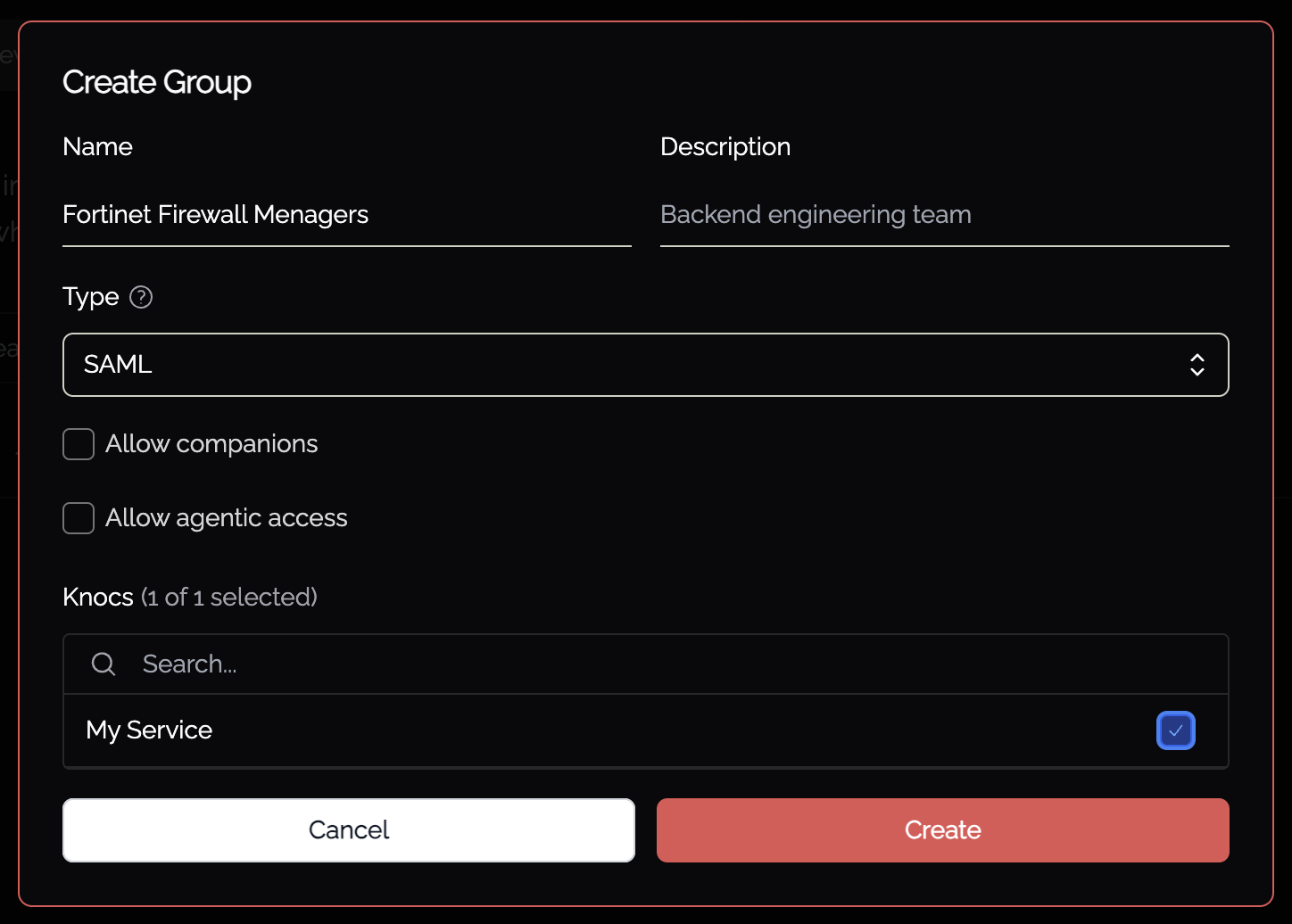
Groups in Knocknoc map users to Knocs, and a user can belong to multiple groups. To create a group:
- In the Knocknoc admin interface, open Identities, select the Groups tab, and click Create Group.
- Enter a Name. For SAML and Dynamic groups this must match the group value your identity provider sends, exactly. Entra sends group Object ID GUIDs, which go in the Name field.
- Optionally add a Description.
- Choose the Type. New groups default to SAML.
- Optionally tick Allow companions and/or Allow agentic access to let members of this group use those features. They also need to be enabled site-wide and on the Knoc.
- Select the Knocs this group can reach. Use the search box to filter.
- For Local and Dynamic groups you can also add local users here. SAML group membership is set from your identity provider at login.
- Click Create.
Group types
- SAML: match the group names or values received during a user's SAML authentication. They cannot include local users, and are the default for new groups.
- Dynamic: match group information from the SAML/SSO login flow, and also allow linking local users to the same group.
- Local: contain only local users and do no matching against SAML group information.
On a user, each group membership shows how it was assigned: via SAML, via a dynamic rule, or manually.
Note: If authentication is provided via SAML, group membership is set and passed through from the identity provider. The Group Name in Knocknoc must match the Group Name provided by the IdP.