
Create users
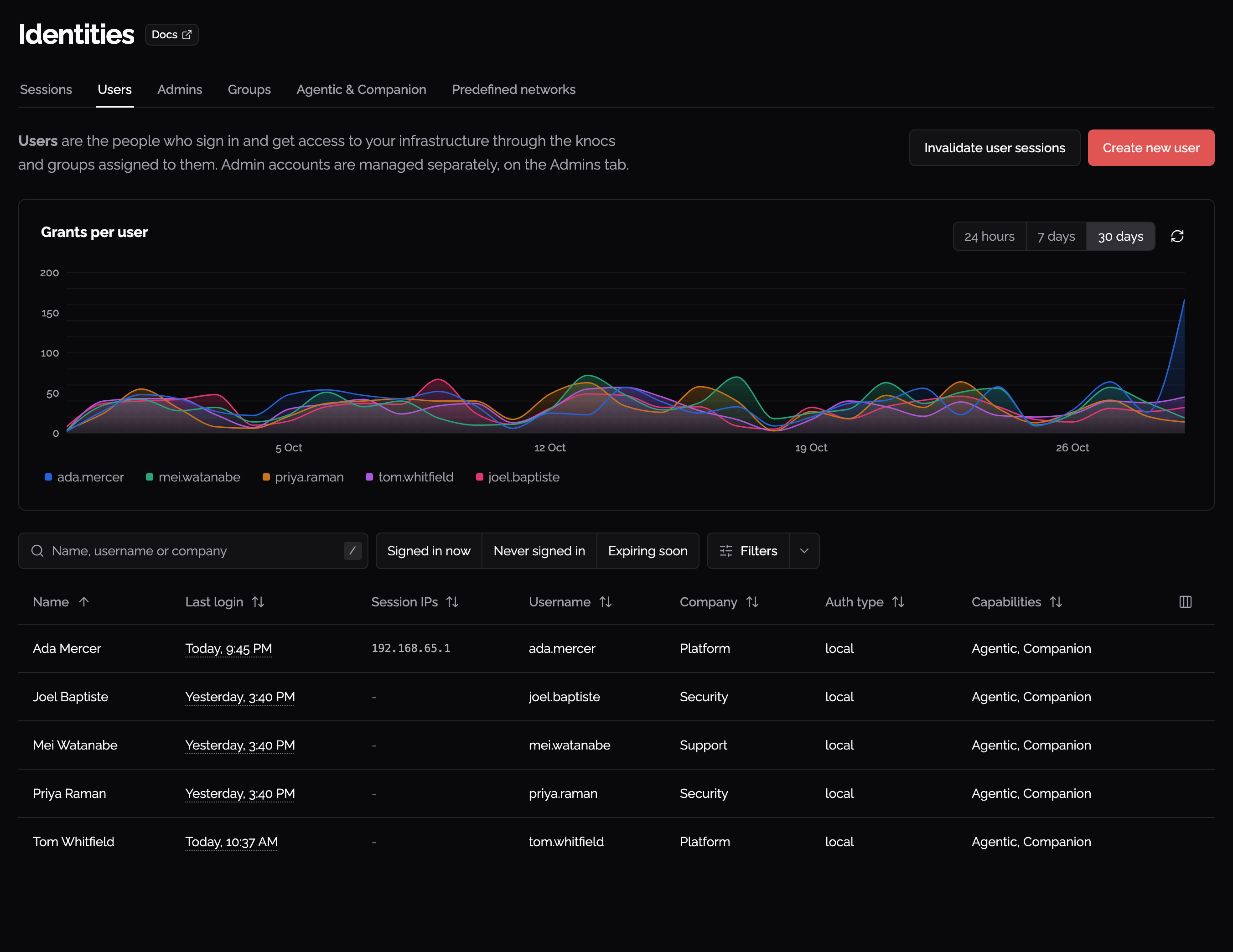
Users sign in and get access to your infrastructure through the Knocs and groups assigned to them. This page covers the types of user you can create, when to use each, and how to create them.
Admin accounts are managed separately, on the Admins tab. This page is about regular users.
Choosing an auth type
Every user has an auth type that decides how they sign in. It is set when you create the user and cannot be changed afterwards, so pick the right one up front.
Local username & password
The user's password is stored in Knocknoc. Choose this when you are not using a central identity provider, or for one-off accounts (contractors, break-glass access, small teams).
It is the only type where Knocknoc manages the password directly, so it is also the only type that supports a password reset from the admin portal, an account expiry date, and 2FA that you turn on and off yourself.
A password you set for someone, when you create them or when you reset one later, has to be replaced by them at their next sign-in. Nothing is granted until they do. They are not asked for the current password at that point, since they typed it moments before to get in.
SAML
The user signs in through your identity provider (Okta, Entra ID, Google, etc.) using single sign-on. Choose this when you already run an identity provider and want it to be the source of truth: onboarding, offboarding, passwords, and MFA all stay with the provider.
You do not need to create SAML users here. They are created automatically the first time a user signs in. Their name and session length come from the identity provider, more info is available here.
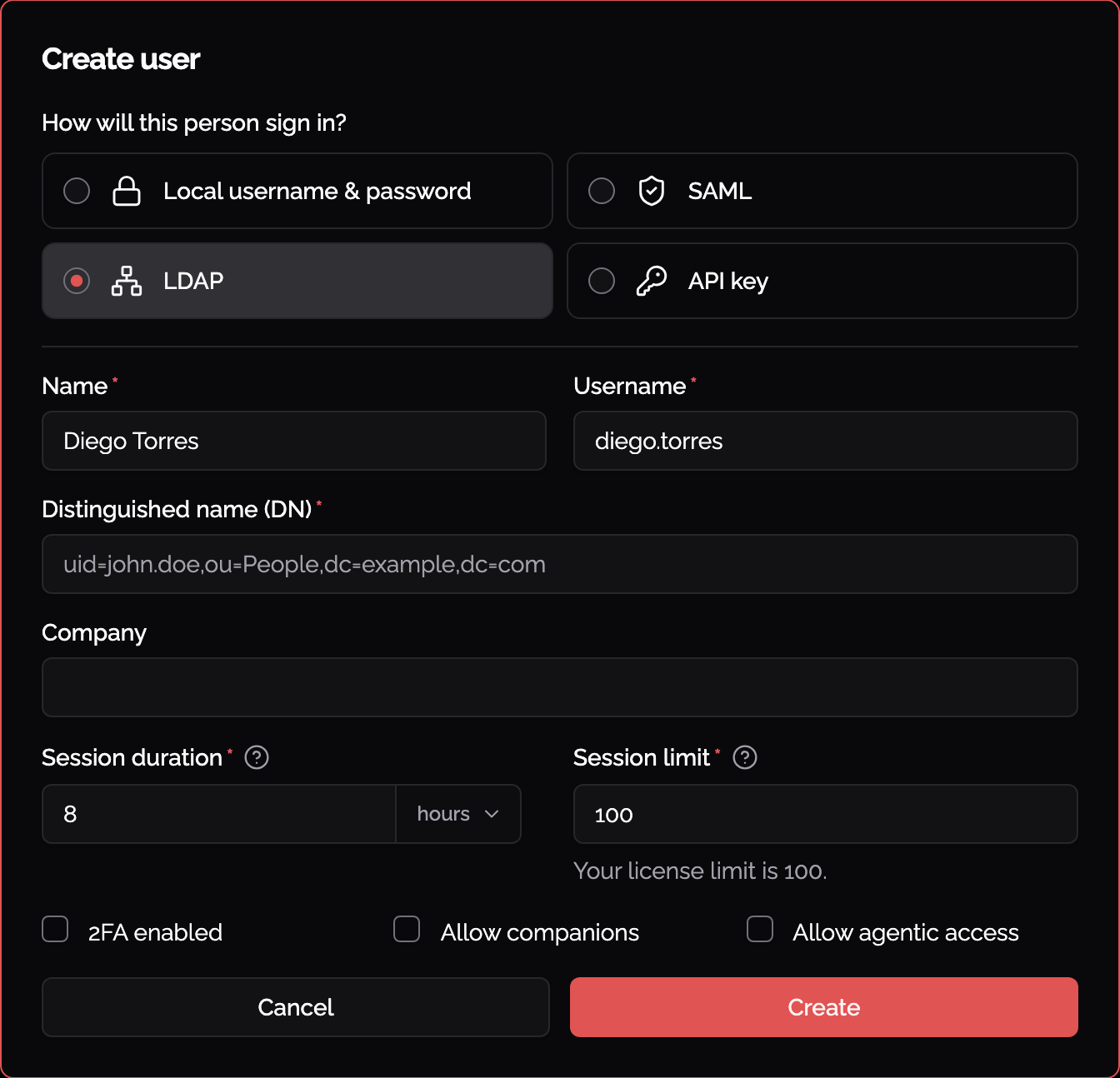
LDAP
The user is authenticated against your existing directory (for example Active Directory or OpenLDAP). Choose this when you want to reuse directory credentials but are not using SAML.
You provide each user's Distinguished Name (DN), for example uid=john.doe,ou=People,dc=example,dc=com. The directory holds the password. Knocknoc can still manage 2FA for these users.
API key
For automated access rather than a person signing in: scripts, CI pipelines, and integrations. The account authenticates with a scoped API key instead of a password, and has no interactive login or 2FA. Choose this only for machine access.
Create a user
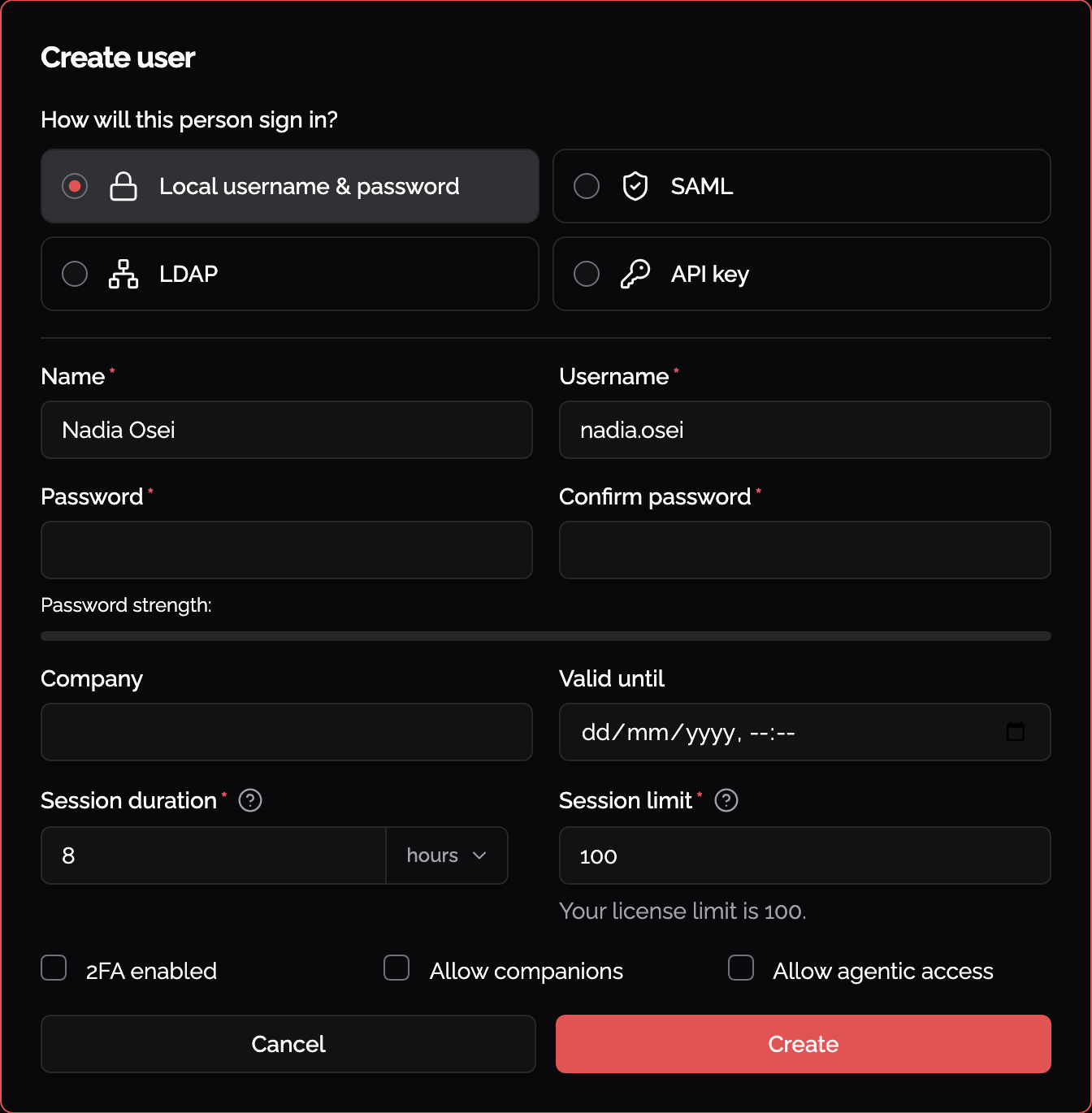
To create a local user, follow these steps:
- In the admin portal, open Identities from the sidebar.
- Select the Users tab.
- Click Create new user.
- Fill in the required fields:
- Name
- Username (suggested automatically from the name, e.g. "John Doe" becomes "john.doe")
- Auth type: leave as Local username & password, or pick another type (see above)
- Password and Confirm password (8 to 64 characters, local users only)
- Click Create.
The user appears in the table straight away. Click the row to view or edit their details.
Assigning access
Creating a user does not give them access to anything on its own. Access comes from the Knocs and groups assigned to them:
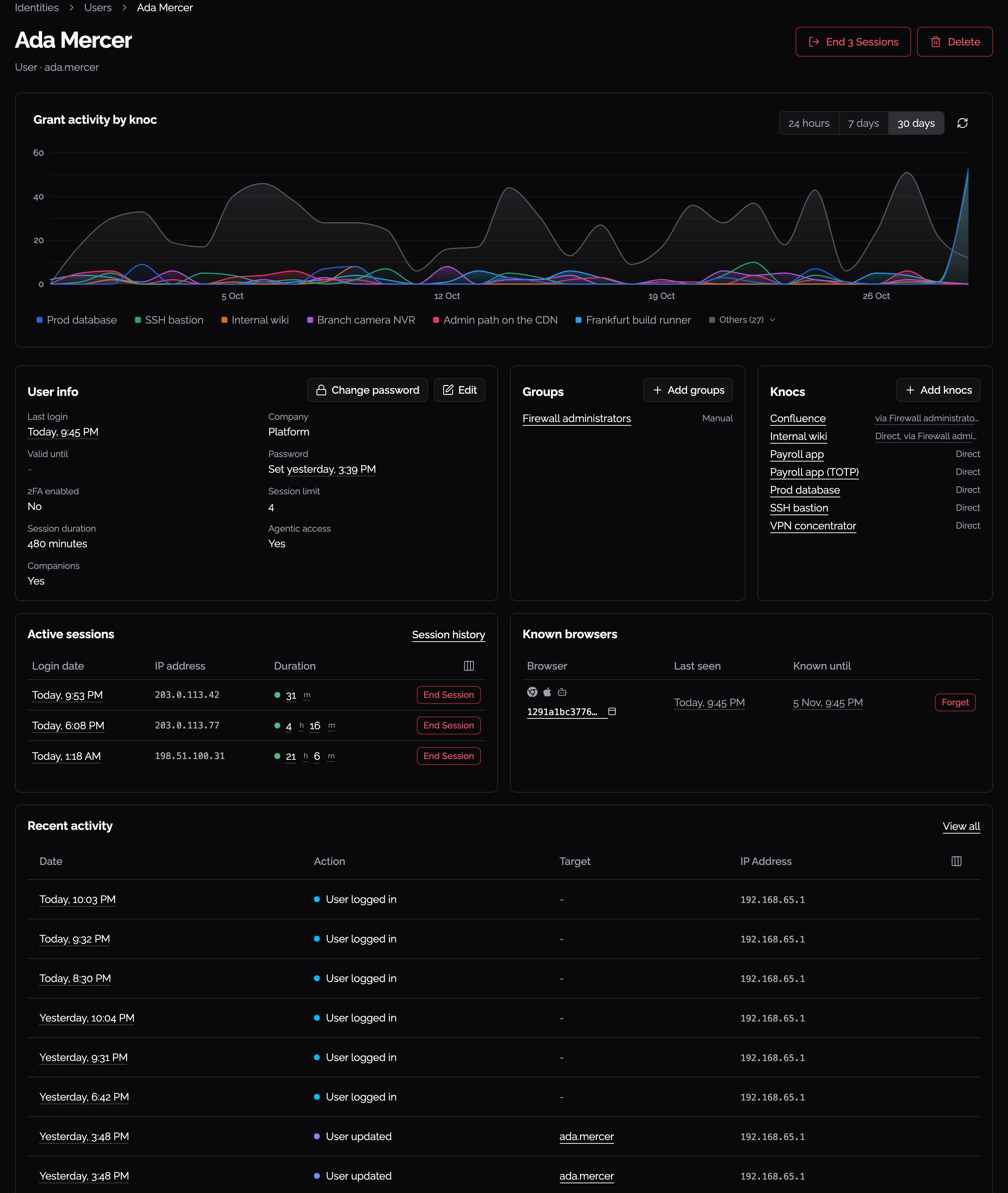
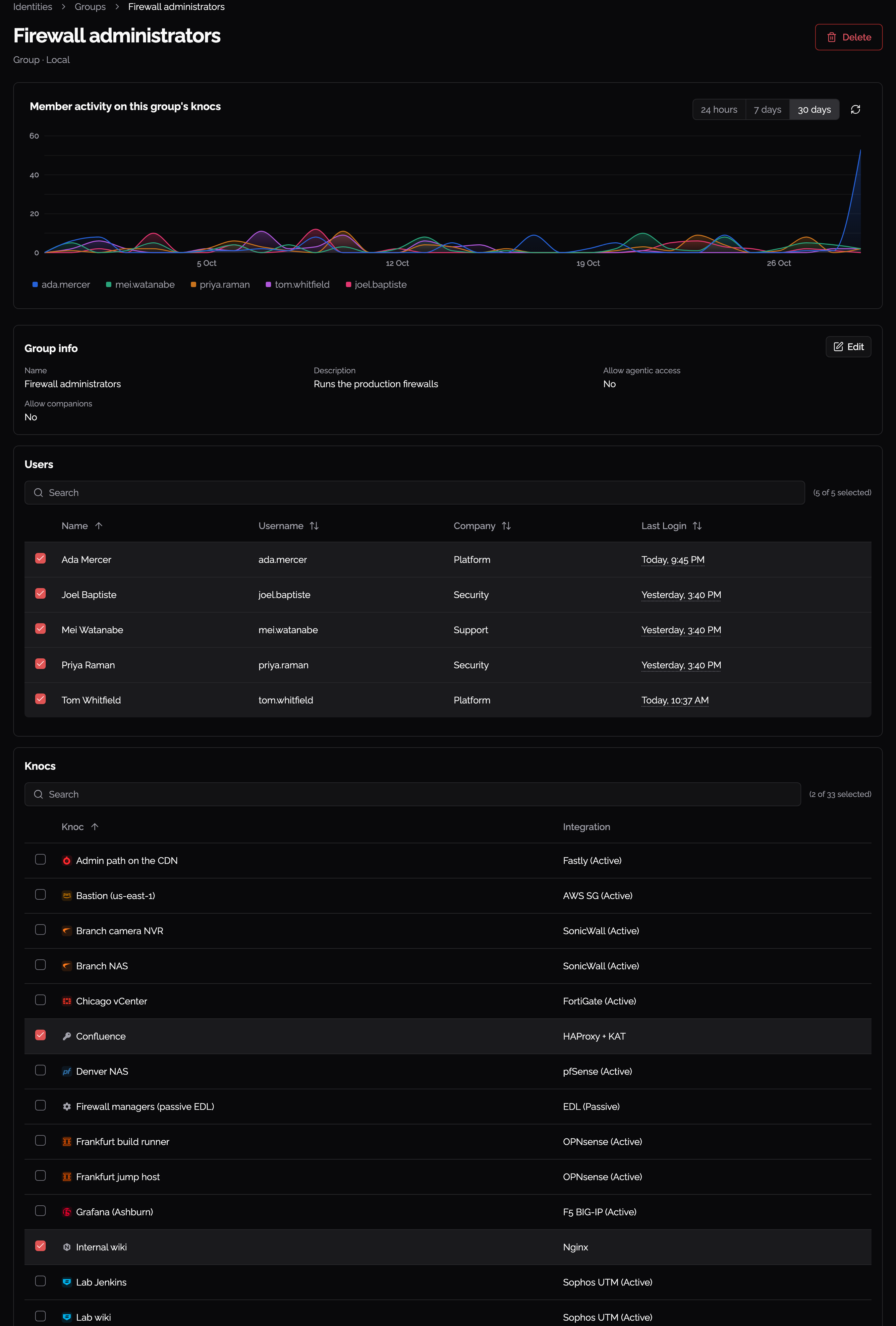
- Knocs and groups are shown on the user’s page, each marked Direct or with the group it comes through. Add knocs and Add groups there assign more, and the knoc wizard’s user and group steps do the same from the other side.
- Group membership can be manual, from a SAML assertion, or from a dynamic rule.
- You can assign a user to a group from the "groups" tab on the identities page
What a user’s page shows
Click a user’s row in the Users table to open their page. It opens on Grant activity by knoc, their grants per knoc over the last 24 hours, 7 days or 30 days.
Active sessions
Each row is a session the user has open: when they signed in, the address they signed in from, and how long it has been running. End Session signs that one out and revokes the access it granted. The column chooser adds the user agent, so you can tell a browser login from a knocknoc-client one, and Session history opens the full list of their sessions, ended ones included.
Known browsers
The browsers Knocknoc has seen this user sign in from, and when each stops being known. Forget makes the next sign-in from it count as a new browser.
Recent activity
Their own entries from the audit log: sign-ins, grants, and the changes an admin made to their account. View all opens the audit log filtered to them.
Whether the user may use agentic access and companions is in User info, as Yes or No. The accesses themselves are on the Agentic & Companion tab under Identities. See Agentic Access and Companions.