
Sophos (UTM)
The Sophos UTM device provides firewall and UTM capabilities. Note that this series of devices is being EOL'd by Sophos in favor of the SFOS devices (June 2026), which can also be integrated with Knocknoc following this guide.
UTM Configuration
Firstly create an API key
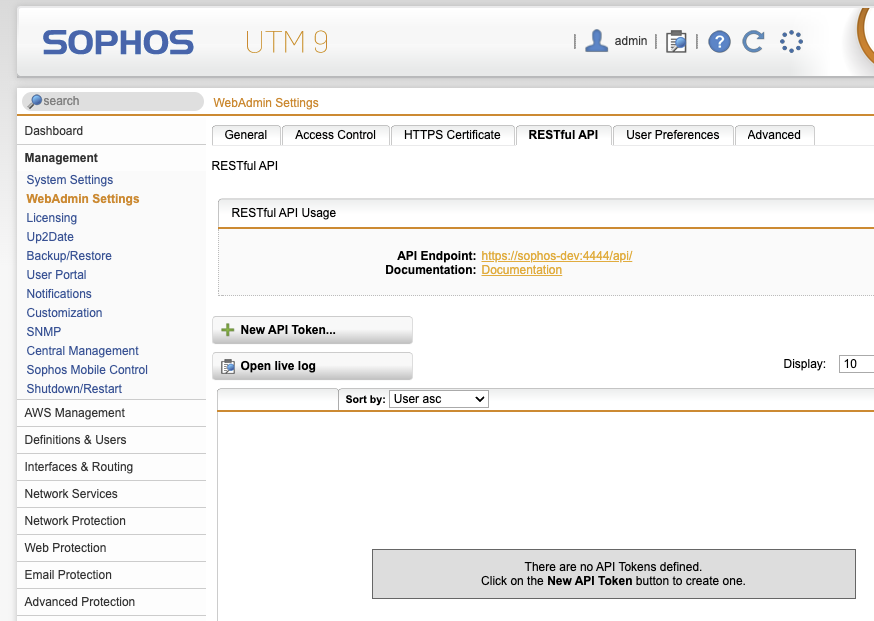
- Go to Management -> Web-Admin Settings -> Restful API -> New API Token
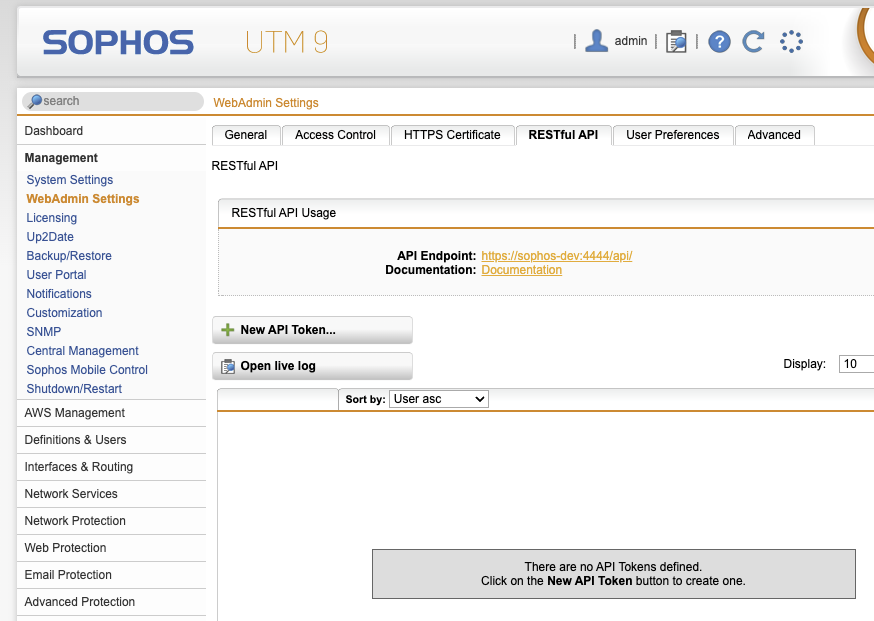
- Click the little folder button and choose the user (can be the 'api' user, does not need Admin) dragging this to the User field
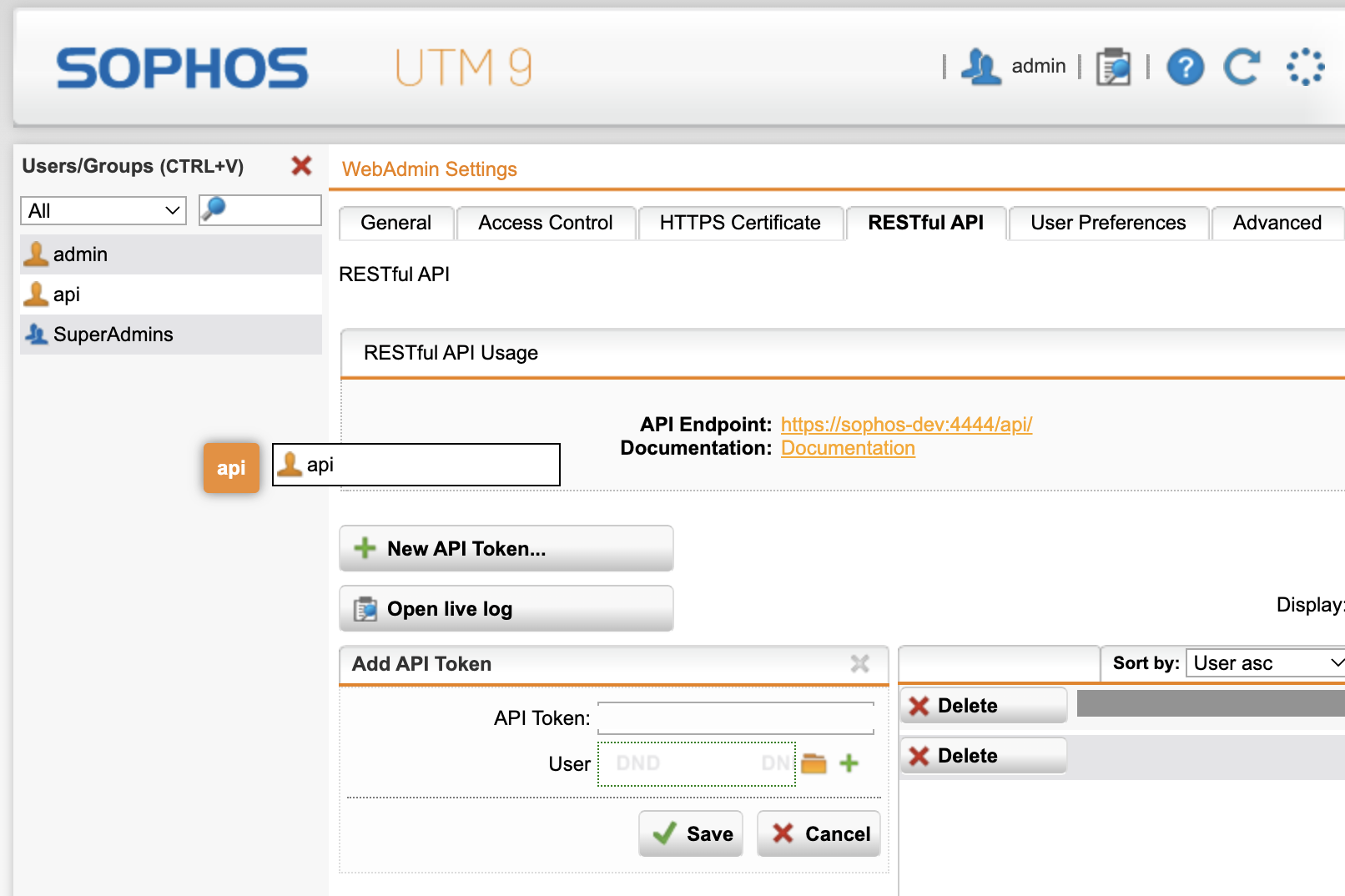
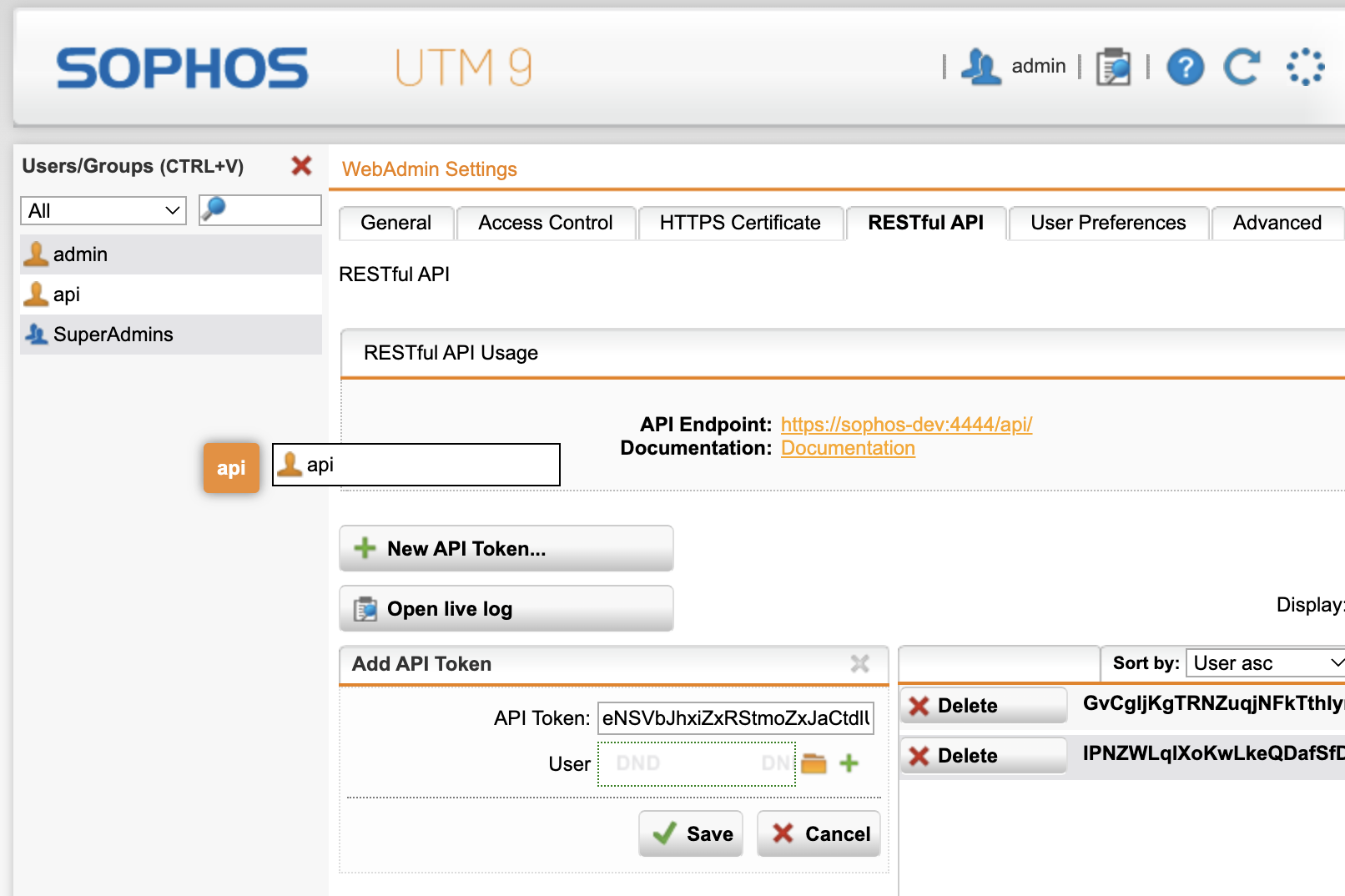
- Save and copy the resulting API token
Create a network group object, this is what Knocknoc will populate with IP address information, for use within a firewall rule.
- Browse to Definition & Users -> Network Definitions
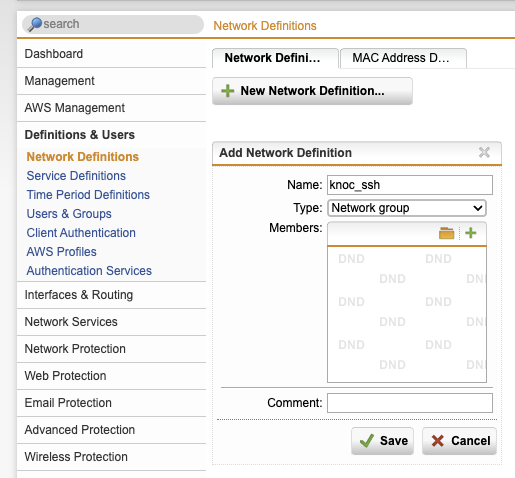
- In the filter select groups -> new network definition -> enter the name and type as "Network group" and Save
- Log in to a server with the Knocknoc Agent installed.
- Use the Knocker utility
/opt/knocknoc-agent/knocker/knocker enable sophos - Enter ip:port (e.g., 203.0.113.4:4444)
- Provide the API key (from earlier) and hit enter
- It will list all network groups and their internal name. Note if you get a 'jq' error you may need to install the 'jq' JSON parser (apt-get install jq).
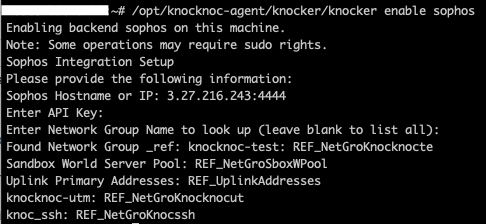
- Copy the internal name / reference, you will need this in the Knocknoc configuration.
- In our example, "knoc_ssh" provides "REF_NetGroKnocssh", copy this for the below step.
Knoc Configuration
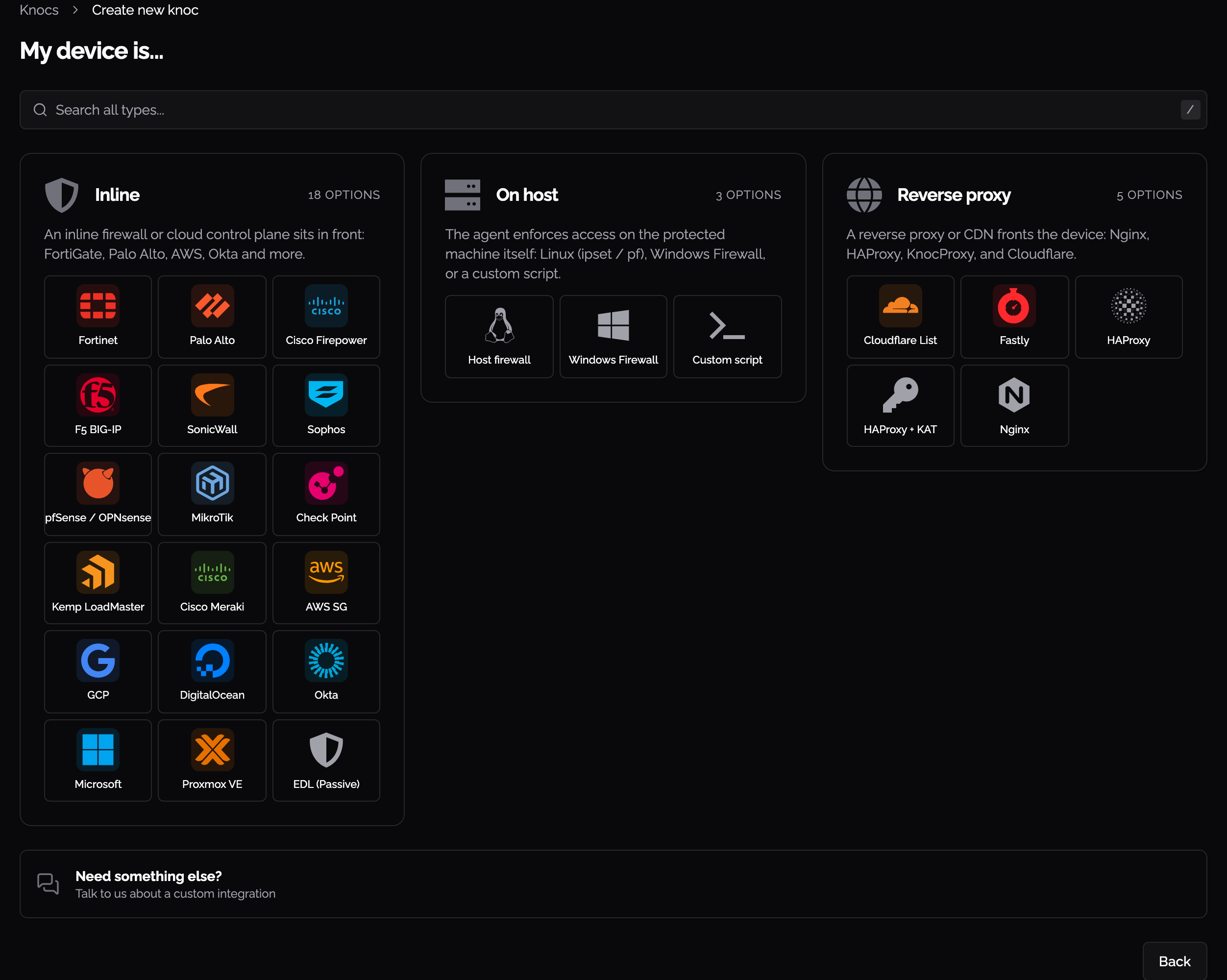
In the Knocknoc admin portal, go to Knocs, choose Create new knoc, then Sophos under Inline.
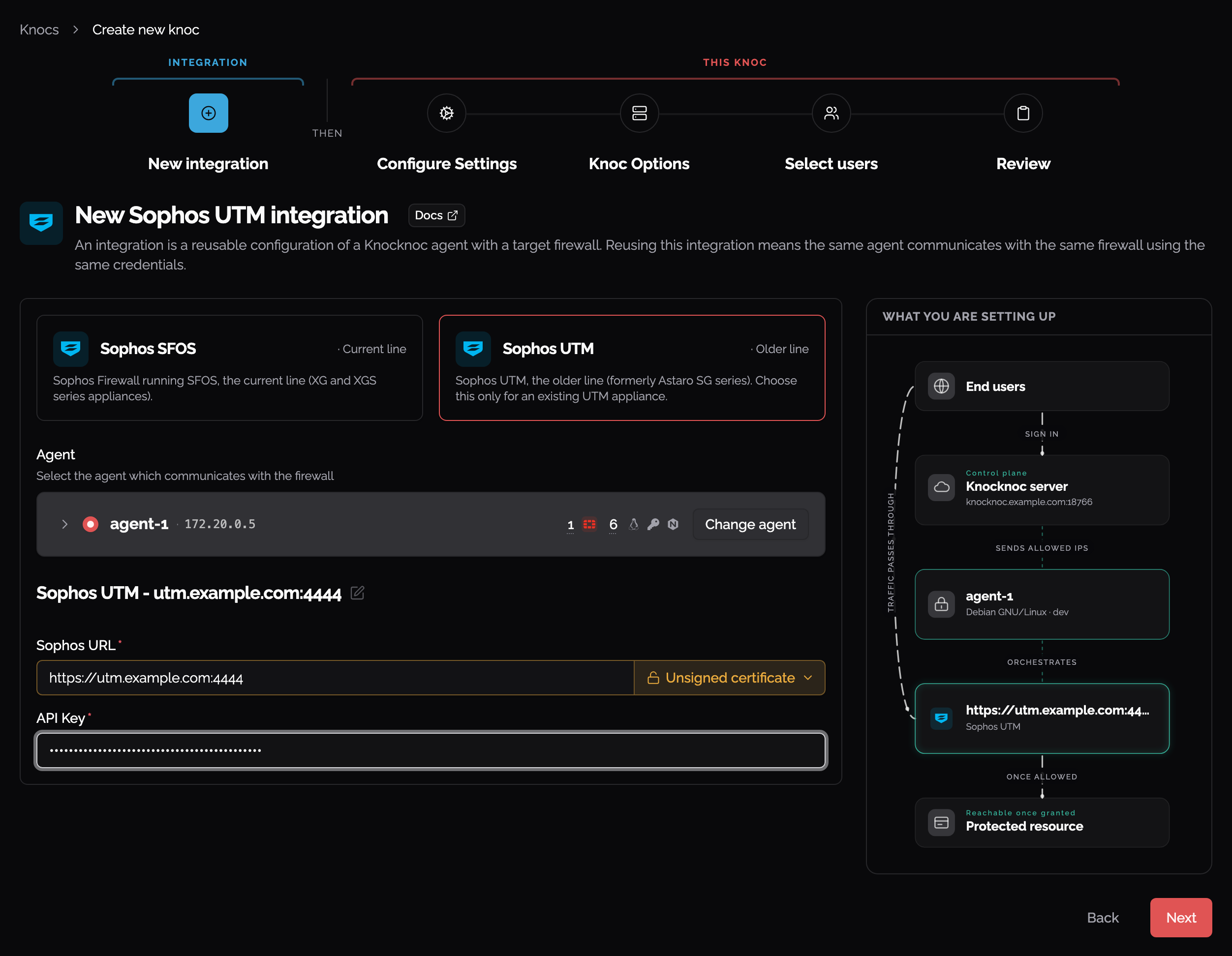
Pick Sophos UTM, choose the agent that reaches the firewall, then enter the UTM's URL and API key:
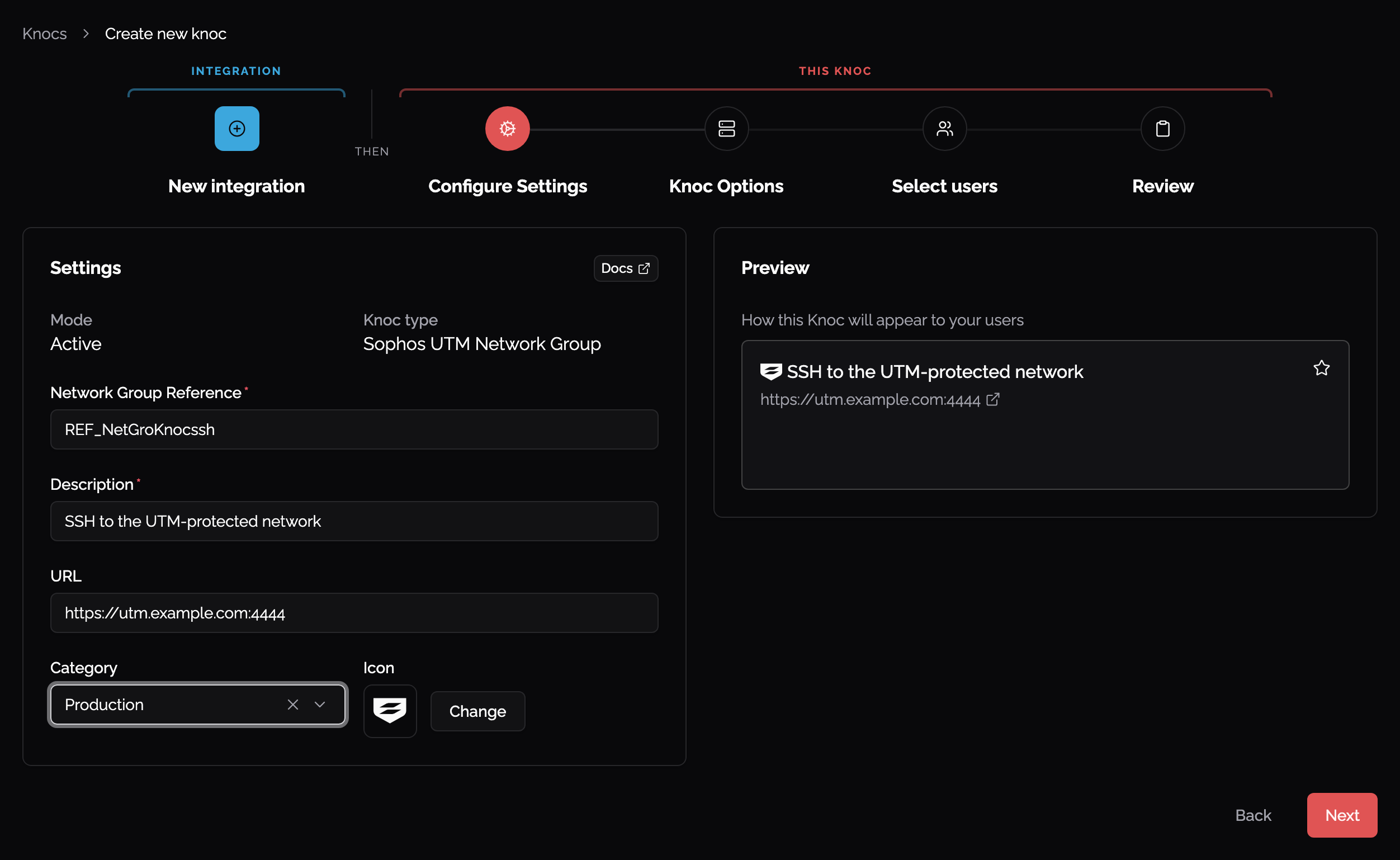
Then name the network group this knoc writes to:
Enter the URL of the Sophos device (e.g., https://203.0.113.4:4444/)
Set the certificate check on the URL field to Unsigned certificate if the device's certificate is not CA signed or in the trusted certs. While this is discouraged, if you have deployed the Knocknoc Agent in a network location alongside the device this reduces the risk of MITM.
Provide the API key.
Provide the 'network group reference', also known as the Internal name. This is obtained per network group from the Knocker utility in the previous step.
Assign this to a test user or a group, and proceed to testing.
Testing it out
Log in to the Sophos UTM device, browse to Definitions & Users -> Network Definitions -> Network Groups.
Log in to Knocknoc as the user that has been assigned this Knoc.
Select the relevant group on the Sophos UTM device, you'll see the users IP address has been added to the network definition, along with their username.
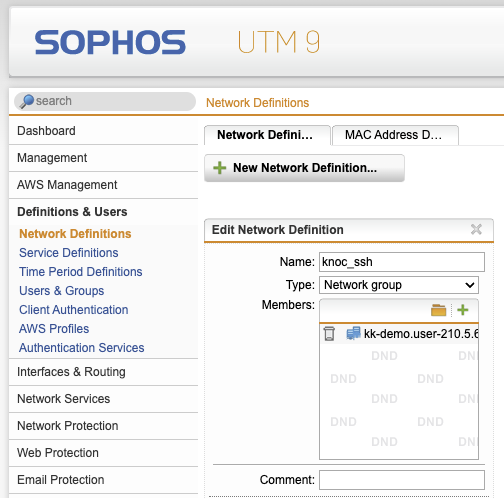
You're good to use that group within a policy.