
Sophos (SFOS/XGS)
The Sophos SFOS/XGS based devices provide advanced firewall and UTM capabilities. This replaces the previous UTM devices, which can be integrated here.
Knocknoc manages IP addresses within a host-group, it does not edit/change firewall policies, and operates with a least-privilege API user from a trusted IP address list.
The basic configuration flow is:
- Enable the API + allowlist trusted IP addresses
- Create an API user profile, to enable least-privilege API access
- Create an API user, linked to the least-privilege API profile
- Create an IP address host group, for Knocknoc to add/remove IP addresses.
- Test it out!
SFOS (XGS) Configuration
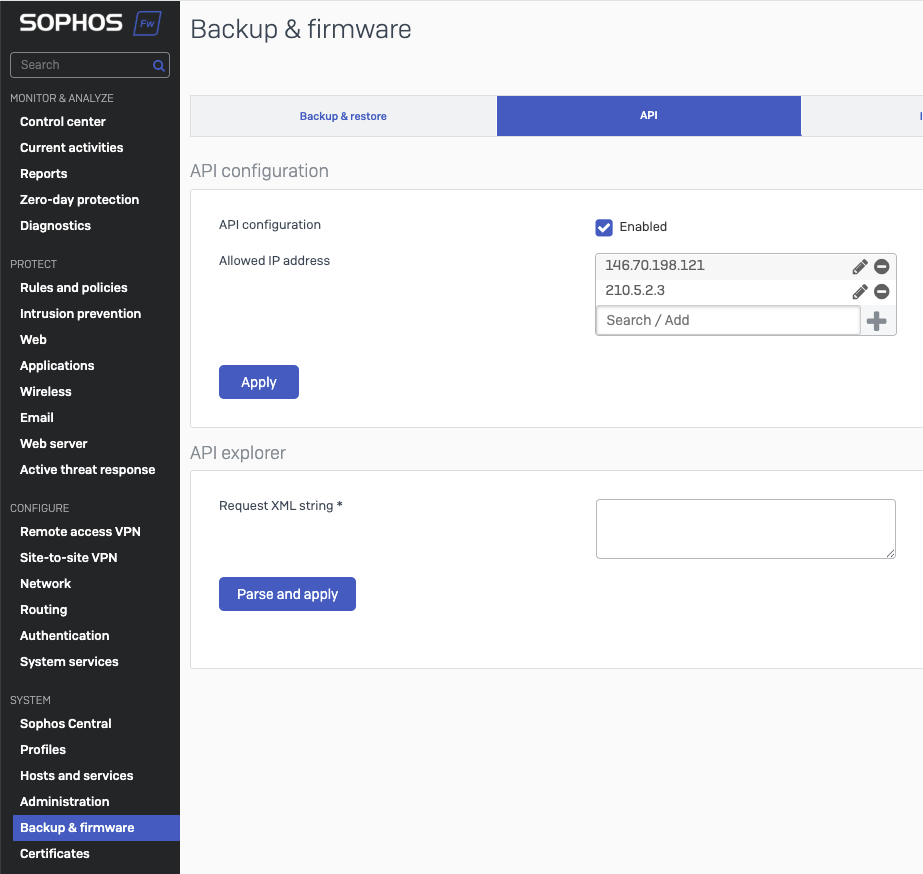
Enable the API and set permitted source IP address(s)
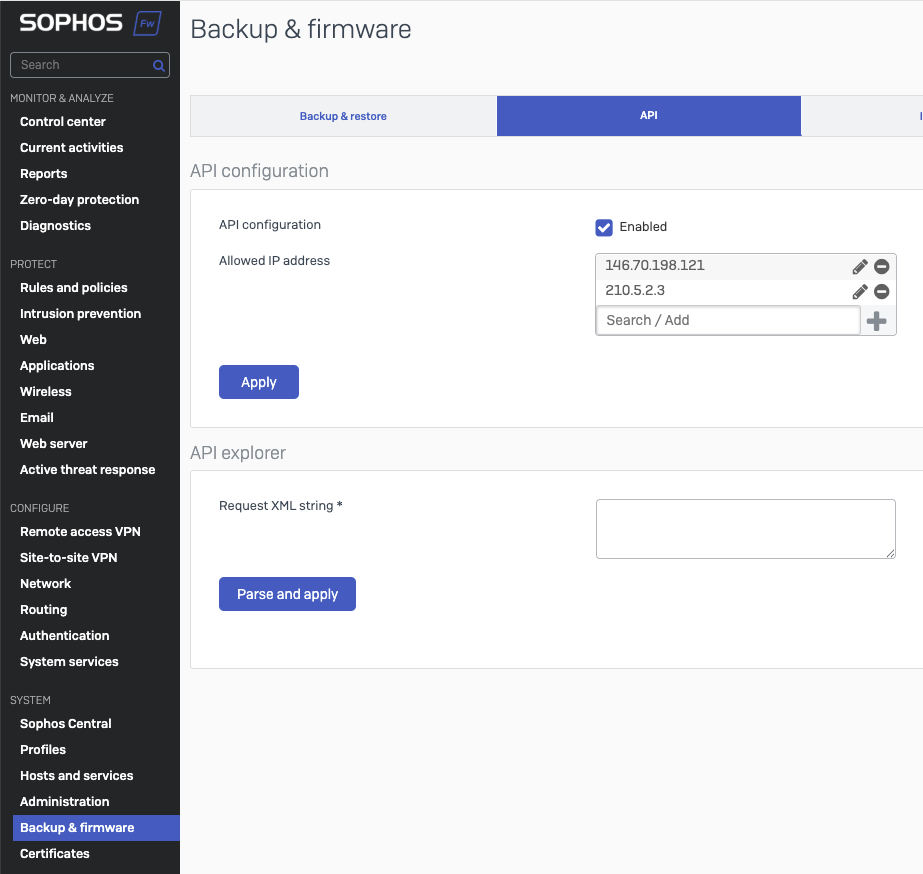
- Go to System -> Backup & Firmware -> API -> API Configuration
- Enable the API
- Add the Knocknoc Agents IP address to the allowed IP addresses (to use the API)
- Click Apply
Create a restricted API user profile
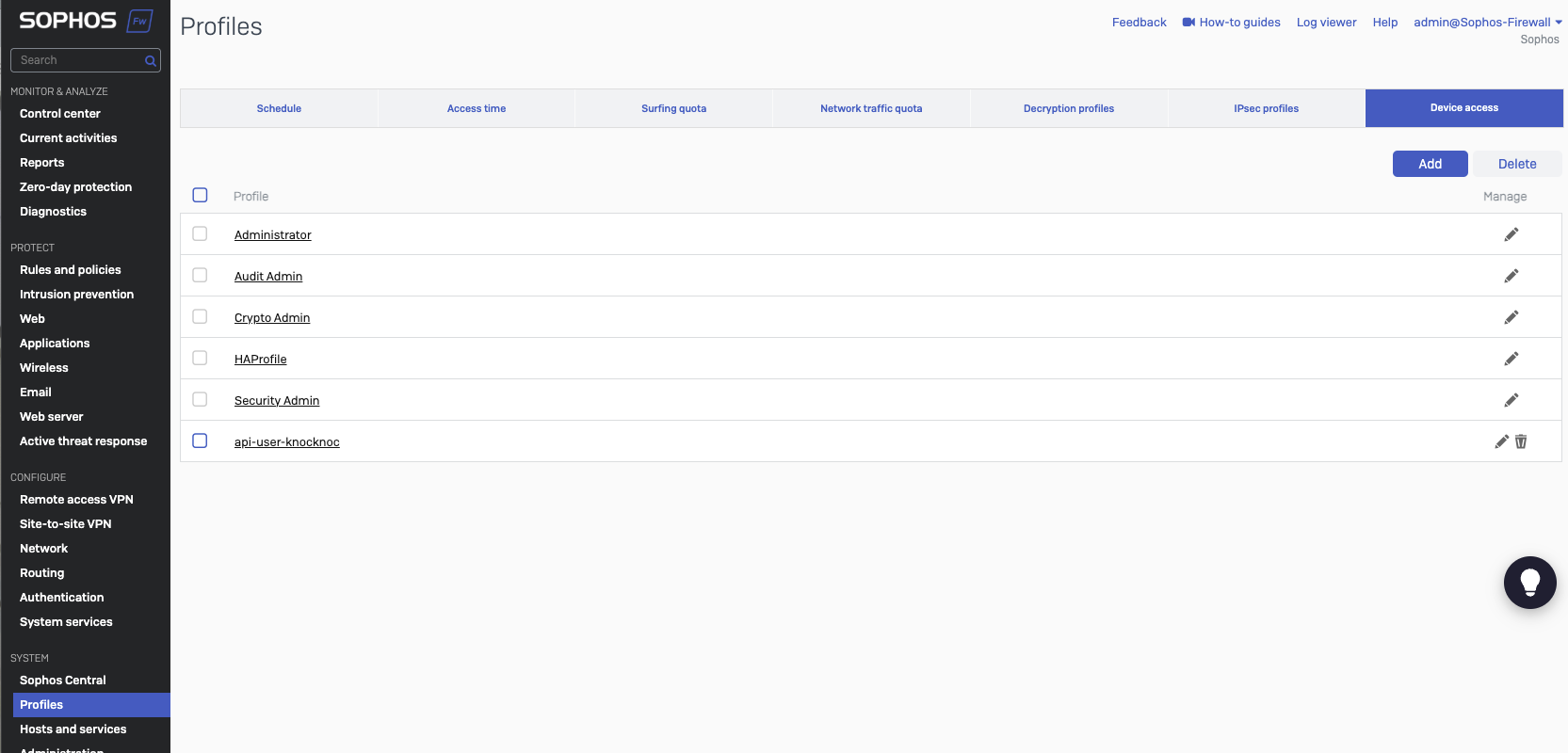
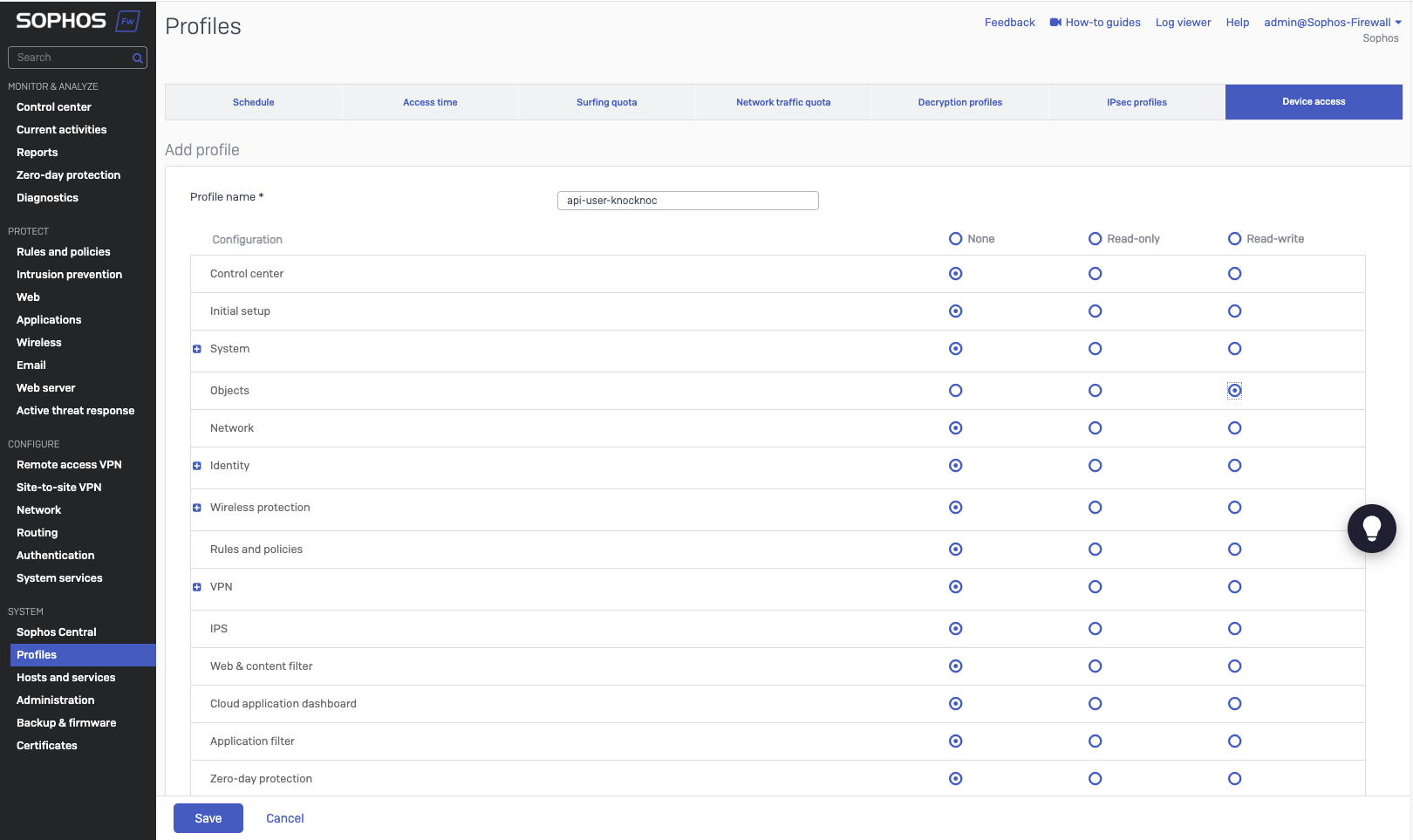
- Go to System -> Profiles -> Device access
- Click Add

- Create a suitable name, e.g., api-user-knocknoc
- Set all permissions to "none"
- Set System -> Objects to "Read-write"
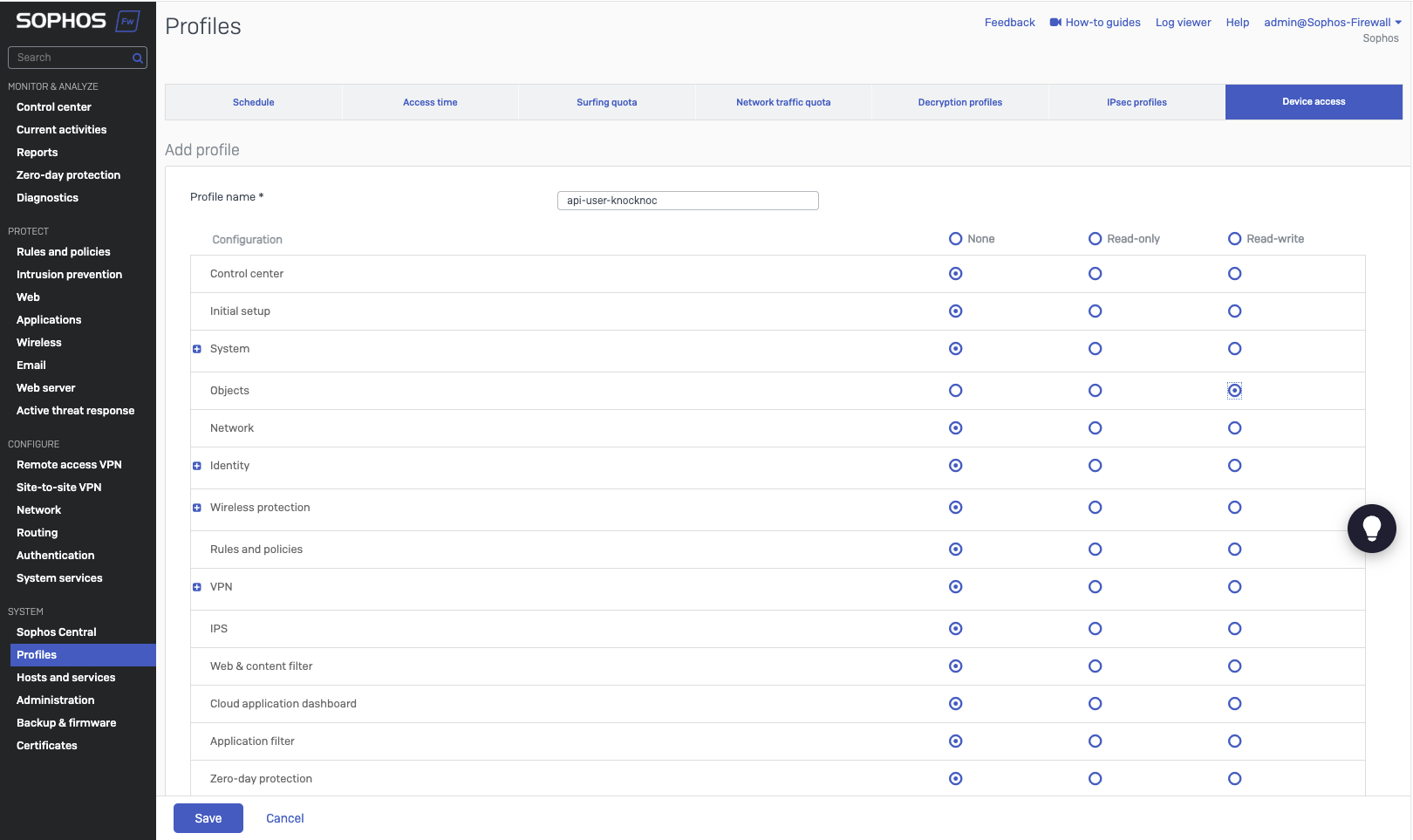
- Save
Create a user, linking it to the user profile
- Go to Configure -> Authentication -> Users
- Click Add
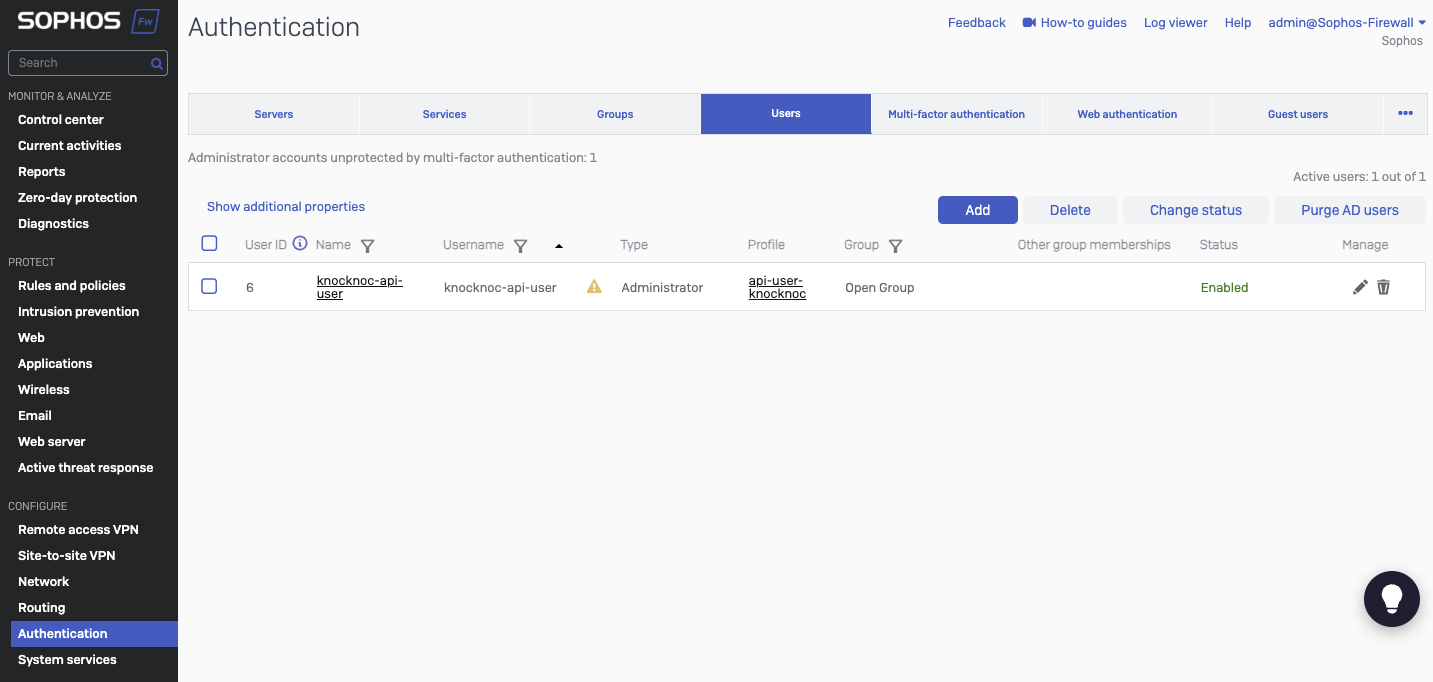
- Set a username and name, e.g., knocknoc-api-user
- Provide a meaningful description
- Set User-type as Administrator
- Select the "api-user-knocknoc" profile we created earlier
- Provide an email address
- Group should be "Open Group"
- Leave other defaults
- Set "sign in restriction" to either "Selected nodes" and provide the same Agent IP addresses, or depending on the firewall configuration any-node may be appropriate if access is open for other users outside the API use.
- Save
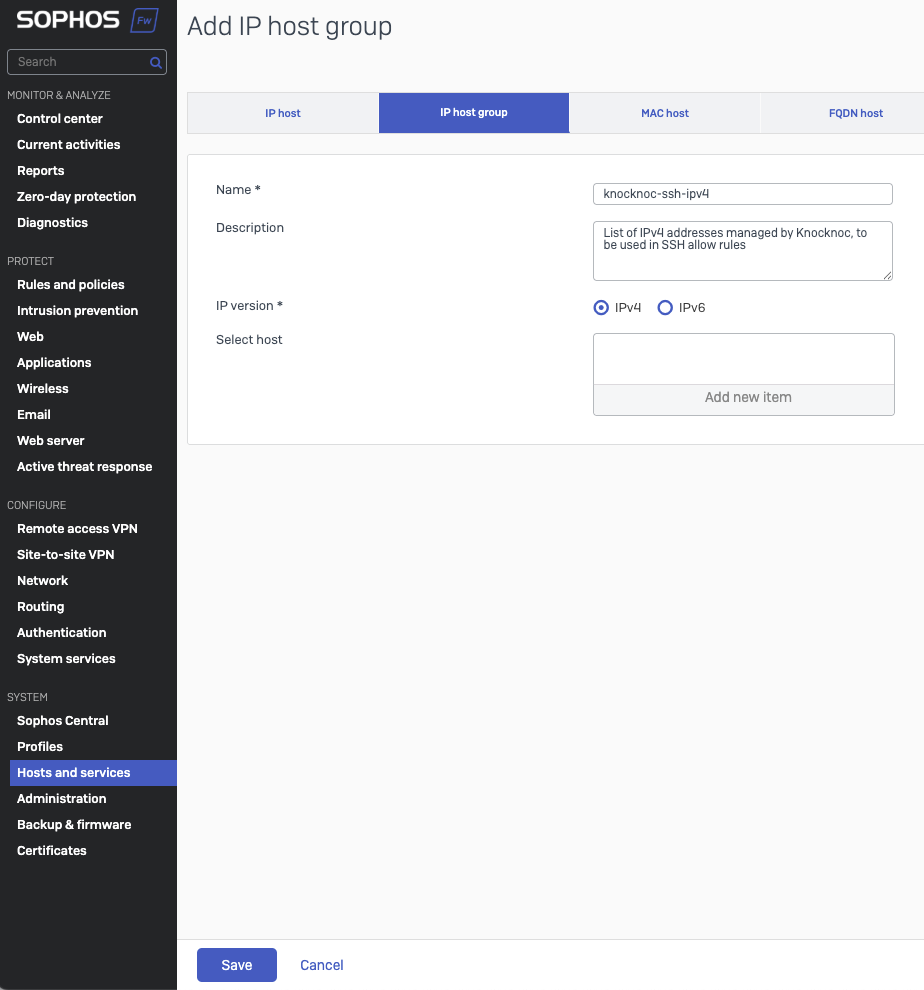
Create an IP Host Group for Knocknoc to add/remove IP addresses
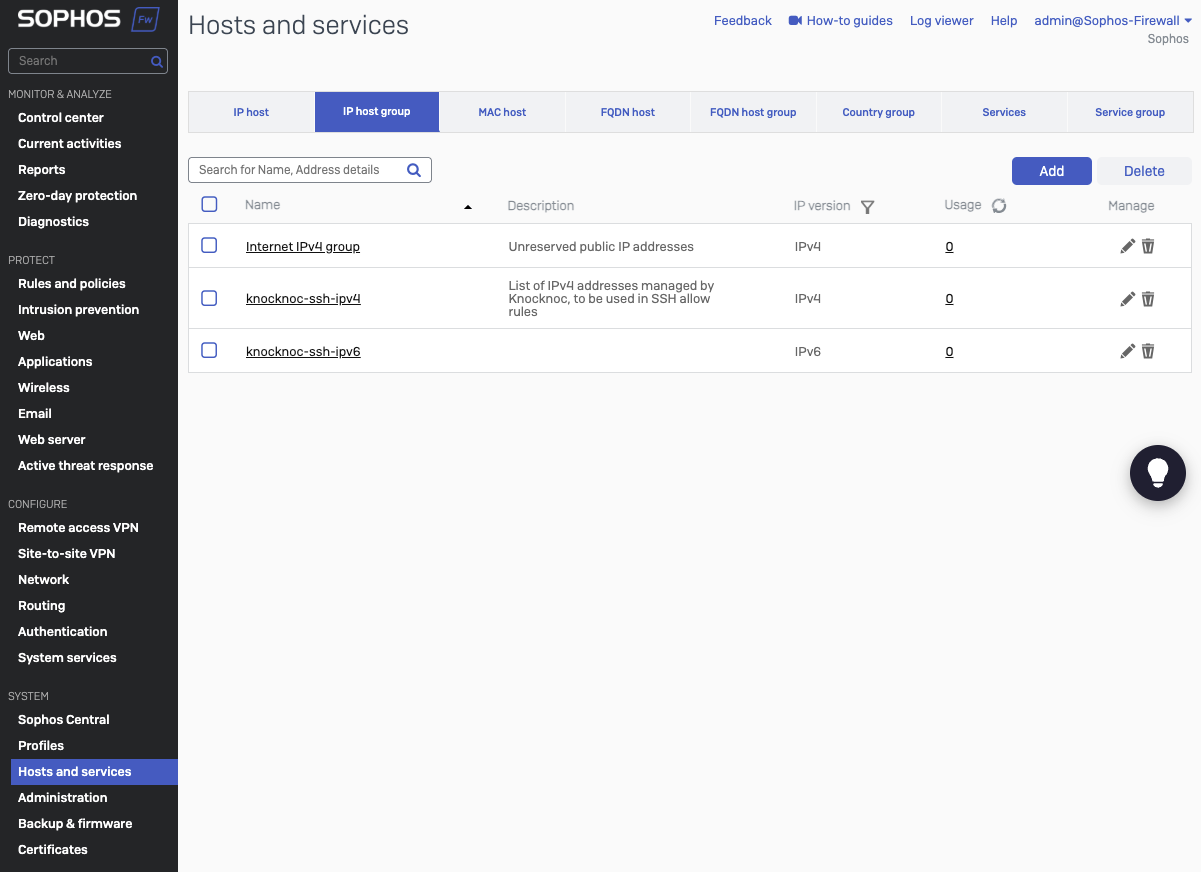
- Go to System -> Hosts & Services -> IP Host Group
- Click Add
- Provide a name, this will be used later in the Knocknoc Server configuration
- Type in a meaningful description
- Select IPv4 or IPv6. Note you need to create an IP group for each IPv4/IPv6 protocol, if needed.
- Leave the 'select host' empty
Knoc Configuration
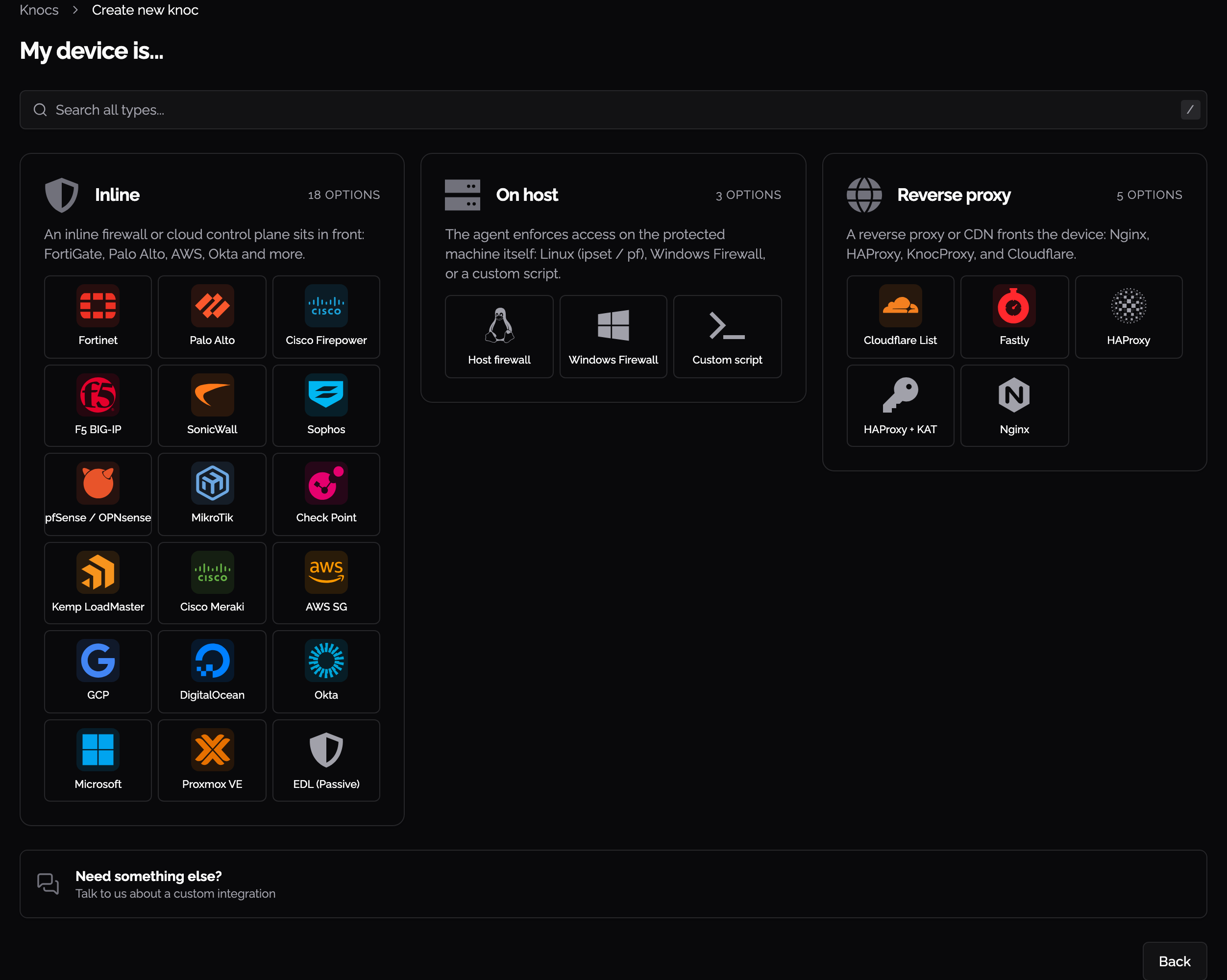
In the Knocknoc admin portal, go to Knocs, choose Create new knoc, then Sophos under Inline.
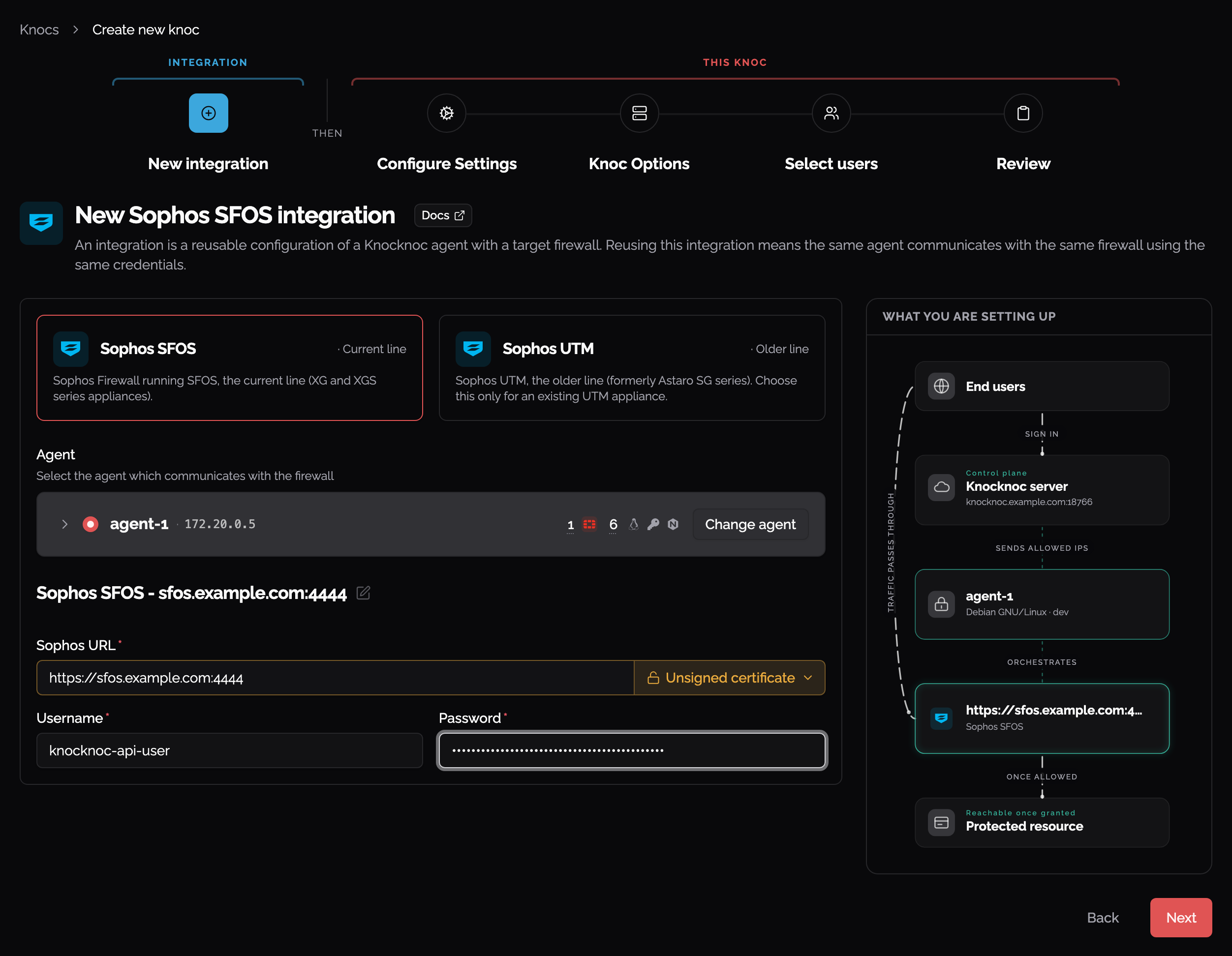
Pick Sophos SFOS, choose the agent that reaches the firewall, then enter the firewall's URL and the API user's credentials:
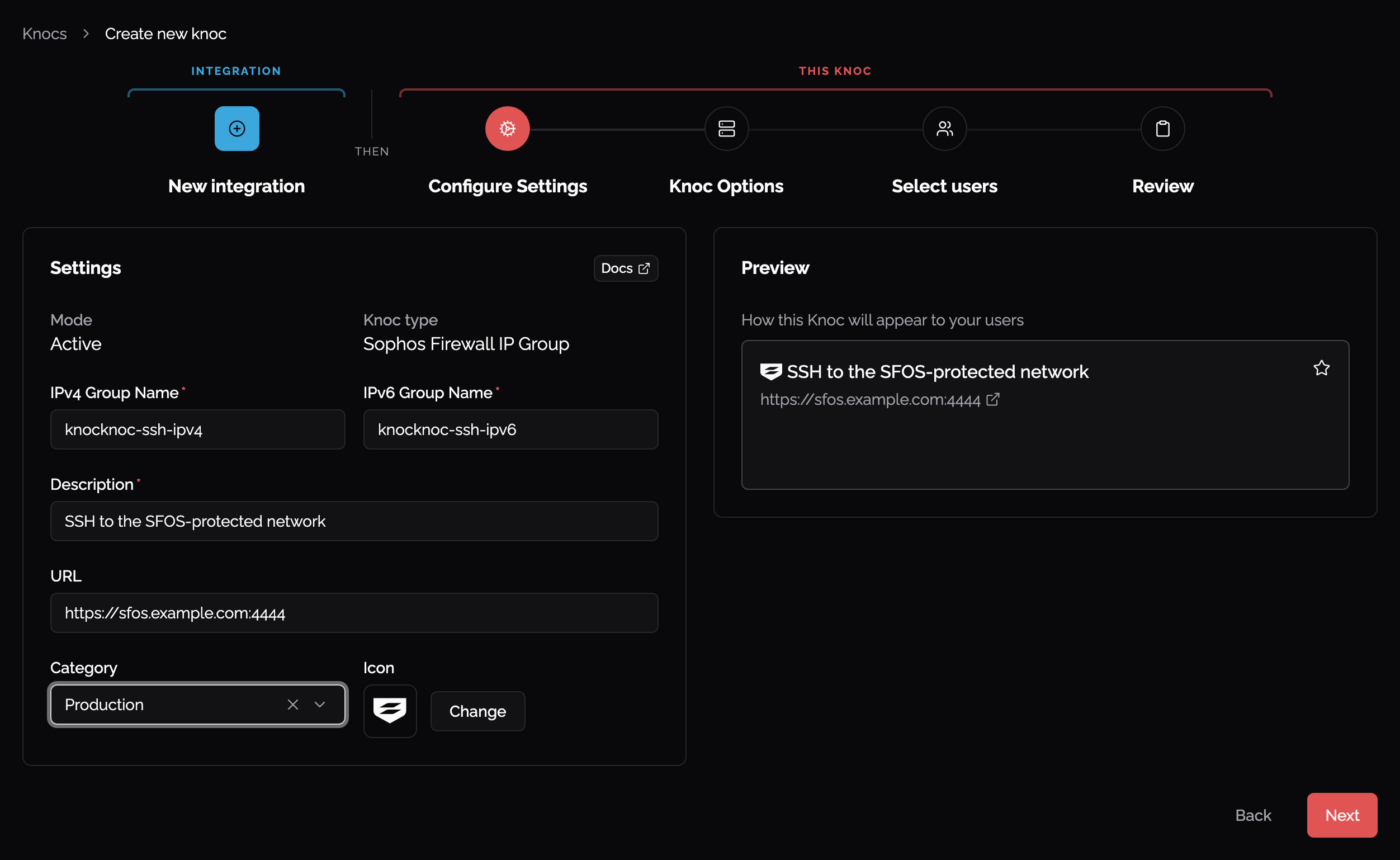
Then name the IPv4 and IPv6 host groups this knoc writes to:
Enter the URL of the Sophos device (e.g., https://203.0.113.4:4444/)
Set the certificate check on the URL field to Unsigned certificate if the device's certificate is not CA signed or in the trusted certs. While this is discouraged, if you have deployed the Knocknoc Agent in a network location alongside the device this reduces the risk of MITM.
Provide the username and password for the API user we created earlier.
Provide the IPv4 Group Name and IPv6 Group Names, defined earlier.
Assign this to a test user or a group, and proceed to testing.
Testing it out
Log in to the Sophos device, browse to System -> Hosts and services -> IP host group.
Log in to Knocknoc as the user that has been assigned this Knoc.
Select the relevant group on the Sophos device, you'll see the users IP address has been added to the network definition, along with their username.
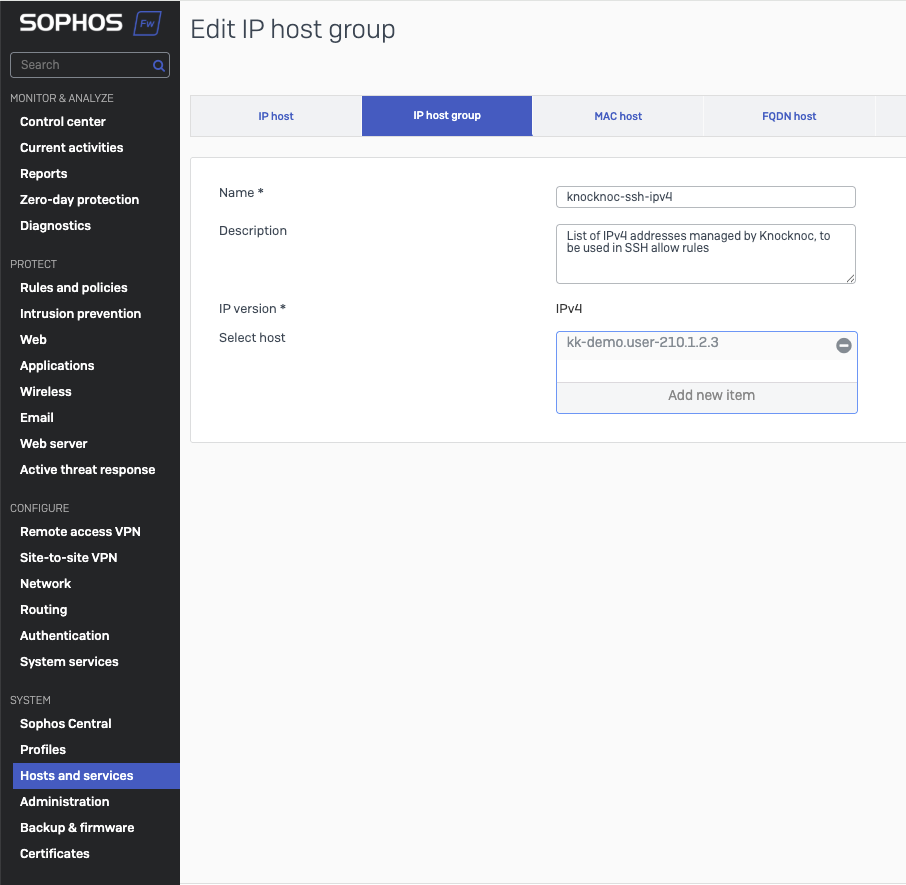
You're good to use that group within a policy.