
Cisco (SFMC/Firepower)
The Cisco Secure Firewall Management Console (formerly known as Firepower) integration allows Knocknoc to dynamically add and remove users' source IP from a named address group. This address group can then be used in whatever Firewall rule you like, opening up many possibilities for securing access to systems behind Cisco firewalls or to services on the Cisco firewalls themselves, such as remote-management or the VPN ports/services. Knocknoc can also provide external dynamic lists (EDLs), which allows for a Passive orchestration approach.
Active or Passive orchestration
Active - Knocknoc's Cisco orchestration capability uses the Cisco API to actively manage the device, inserting and removing IP addresses as part of the Knocknoc Grant process. This is an active, near-real-time approach that provides the best user experience. Permissions are limited to address-groups edit only. Broad API access/permissions are not required. Knocknoc manages the IP lists and address groups, but not the policy, users/permissions nor other firewall settings, reducing exposure to inadvertent change or configuration errors.
Passive - Knocknoc's Allowlist feature provides a passive integration with firewalls that support External Dynamic Lists or EDLs. The firewall pulls a list of the IPs of authenticated users from the Knocknoc server. On Cisco, the Firewall Management Center pulls it with the Generic Text connector in its Dynamic Attributes Connector, on an interval you choose (30 seconds by default, 1 second at the shortest).
Active (via Cisco API)
Requirements
- The REST API enabled
- A username/password for a user with sufficient permissions. Note this can be reduced to Object edit only, no admin required.
- Agent version 1.6.0+ (April 2025)
Cisco configuration
Log in to the Cisco UI as an Admin user.
Firstly we will create a restricted user-role, for our API user:

Create a user and link it to the newly-created role under custom-user-roles.

Ensure the REST API is enabled, by selecting Configuration, then Rest API Preferences, Enable REST API.

Knoc configuration
On Knocs, choose Create new knoc, then pick Cisco Firepower.
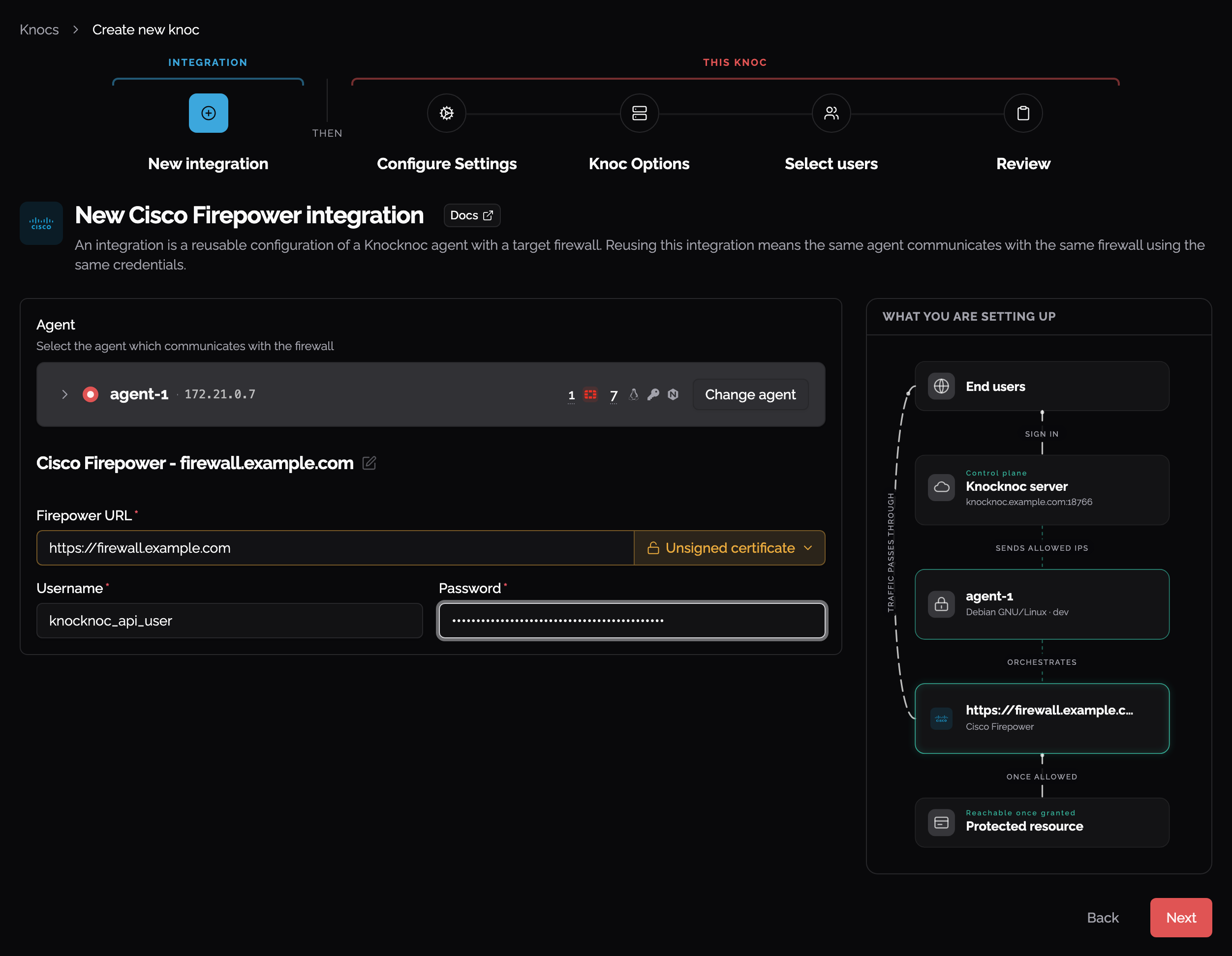
The integration holds the connection to the management console and can be reused by other Cisco knocs. Choose the agent that reaches it, then give it the Firepower URL and the API user's username and password. Set the certificate check to Unsigned certificate only if the console's certificate is not signed by a trusted CA.
The knoc holds what gets written: the UUID of the network group object.
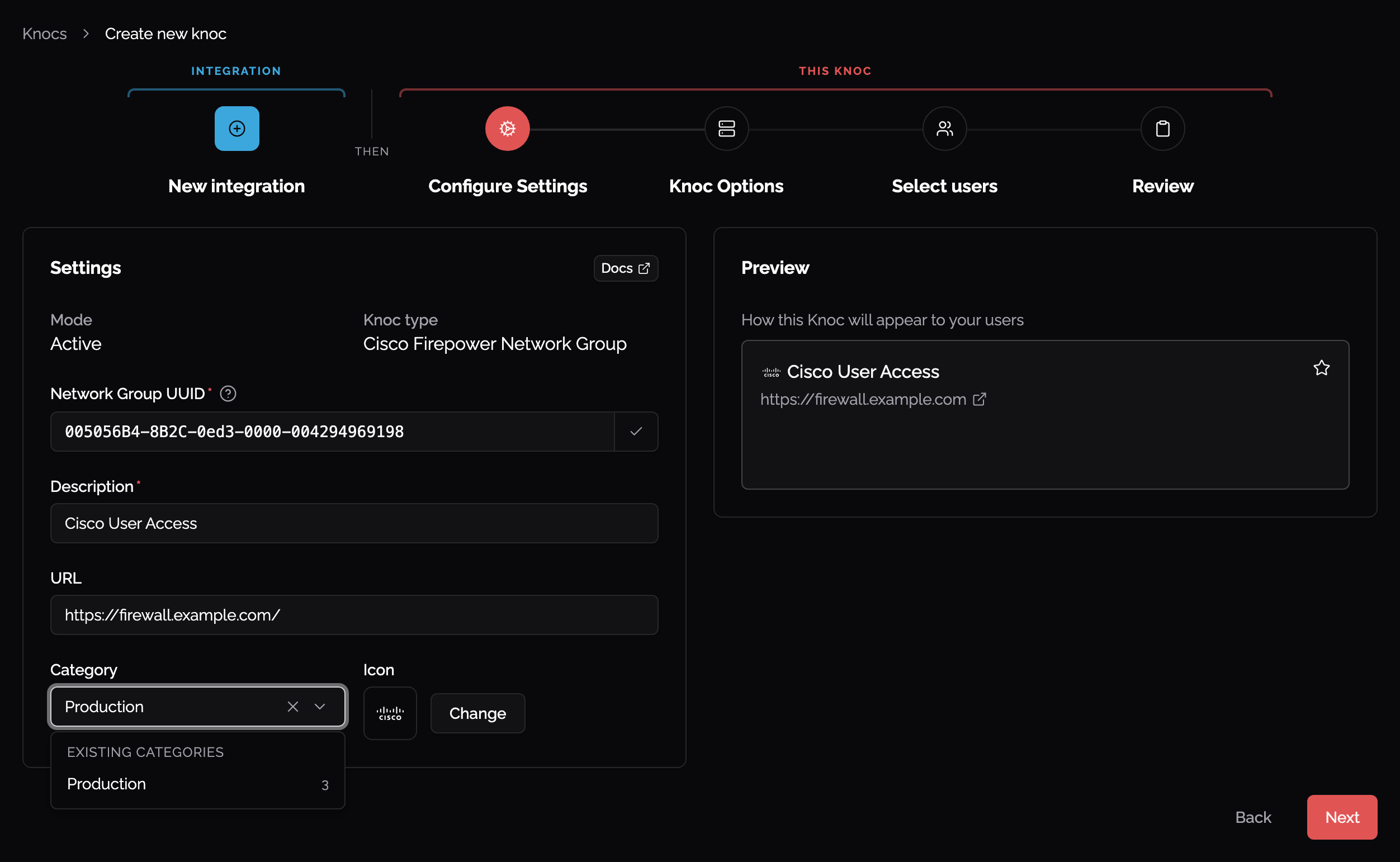
The Network Object Group UUID is required which matches to the entity within the Cisco device, allowing you to use this within various policies. You may need to obtain this from the browser after creation (see below).
You need to create an Object Group which Knocknoc dynamically adds/removes from, however Cisco requires this list to be non-empty, meaning at least one other network range/object must be entered. Therefore it's recommended that a 'localhost' object be created and then added as the base entry to the non-empty group, as below.
Objects -> Add Object -> localhost/host:


Now create the Group object that Knocknoc will be administering
 In this example we're creating a group of addresses that will be granted SSH access, or otherwise used in an SSH related policy, hence the naming:

Adding the "localhost" Object means only that address and not other, broader ranges are accepted by default, given the Cisco requirement for this list to be non-empty.
The Network Group UUID can be captured out of the browser here or otherwise via the API interactions.
Testing it out
Log in as a user that is linked to the Knoc. Their IP address will now be linked in the network group.

Passive (AllowList/EDL)
Requirements
- HTTPS access from the Cisco FMC to the Knocknoc server publishing the allowlist
- Cisco FMC with the Dynamic Attributes Connector
Knoc configuration
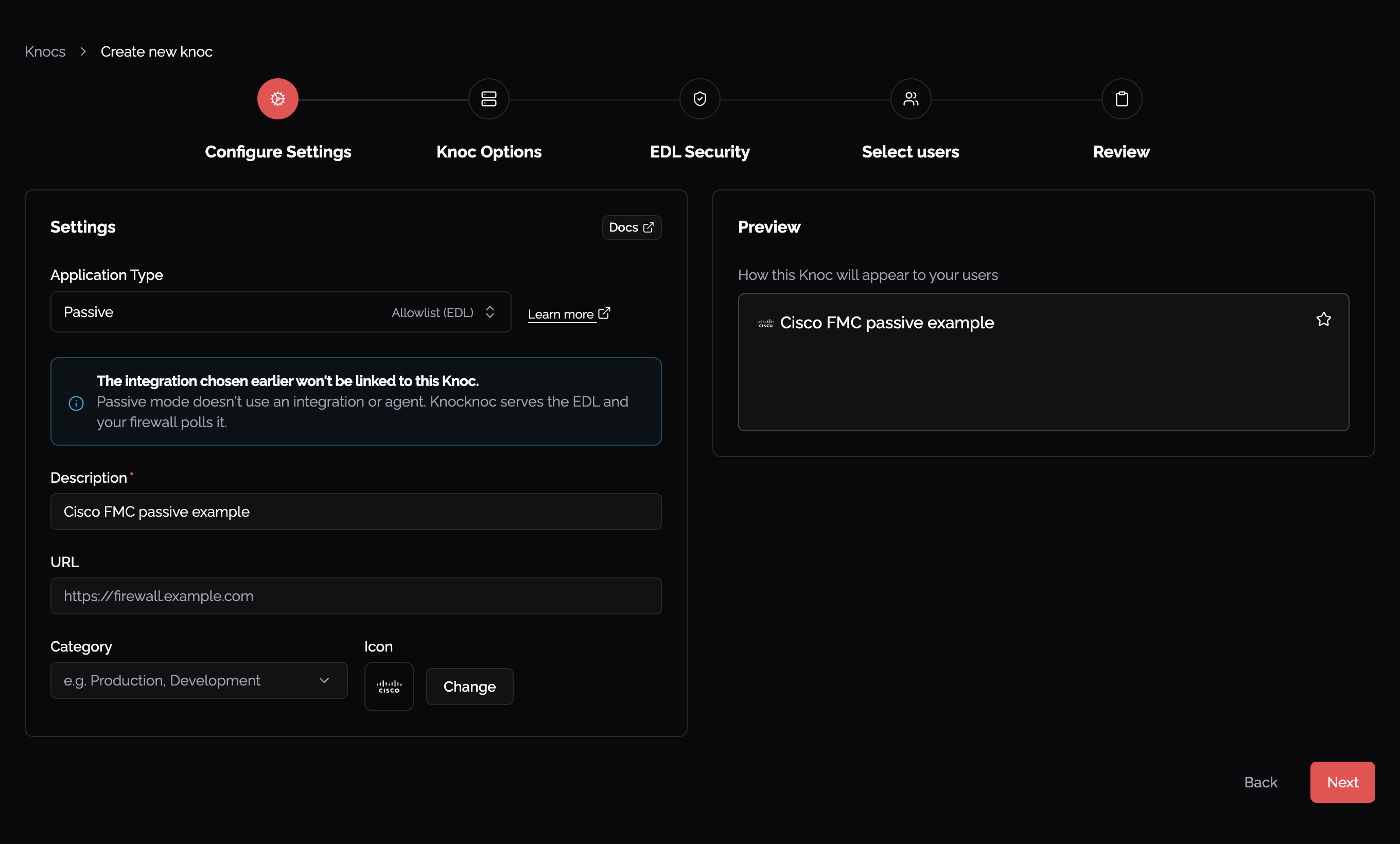
On Knocs, choose Create new knoc and pick Cisco Firepower. The wizard asks for an integration first. Fill it in, then on Configure Settings set Application Type to Passive. Passive needs no agent, because the FMC pulls the list from the Knocknoc server, so the integration isn't linked to this Knoc.
Define any IP allowlisting restrictions on the EDL secret. Naturally we recommend removing the "entire internet" rules.
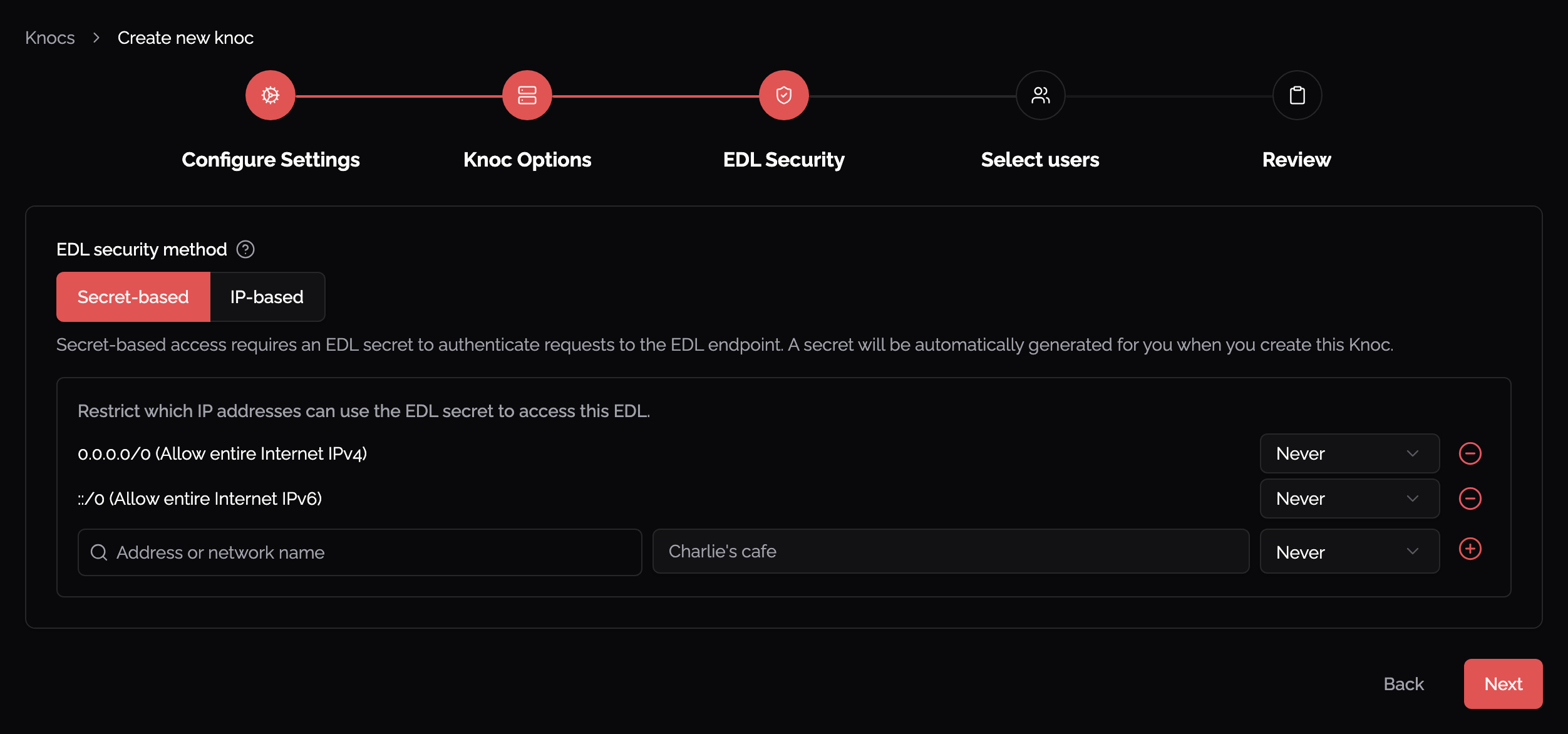
Be mindful of the IP address restrictions, by default it will allow the entire IPv4/IPv6 internet.
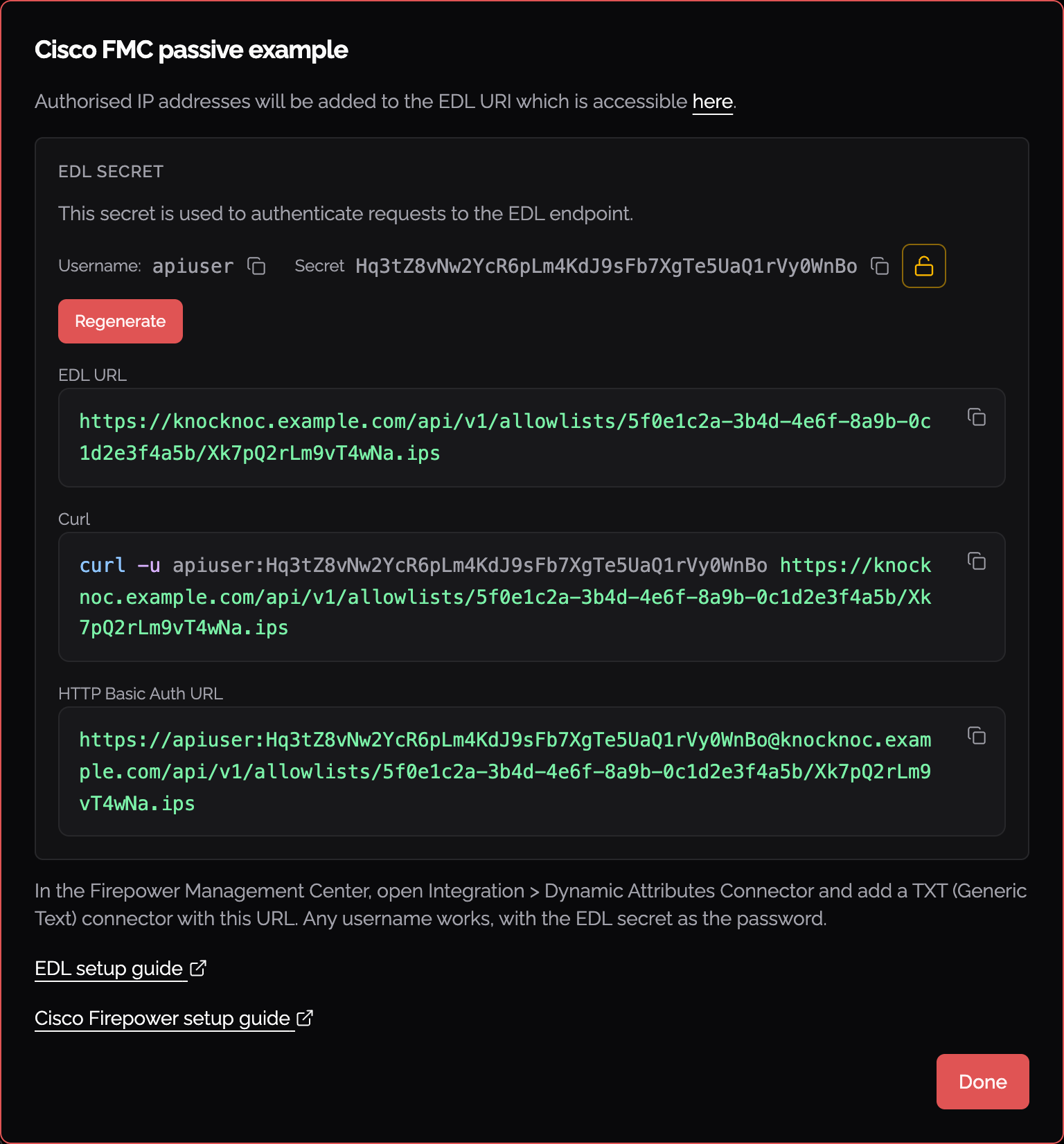
Once you're done, the Knoc's details show its EDL URL, which ends in .ips, its EDL secret and a short reminder of the FMC steps. Copy the URL and the secret. You can find them again by clicking the Knoc on the Knocs page, where it's listed as Cisco Firepower (Passive).
Cisco config
Log in to the Cisco FMC web UI and go to Integration > Dynamic Attributes Connector. If it shows as Disabled, turn on the switch and wait a few minutes while it finishes enabling.
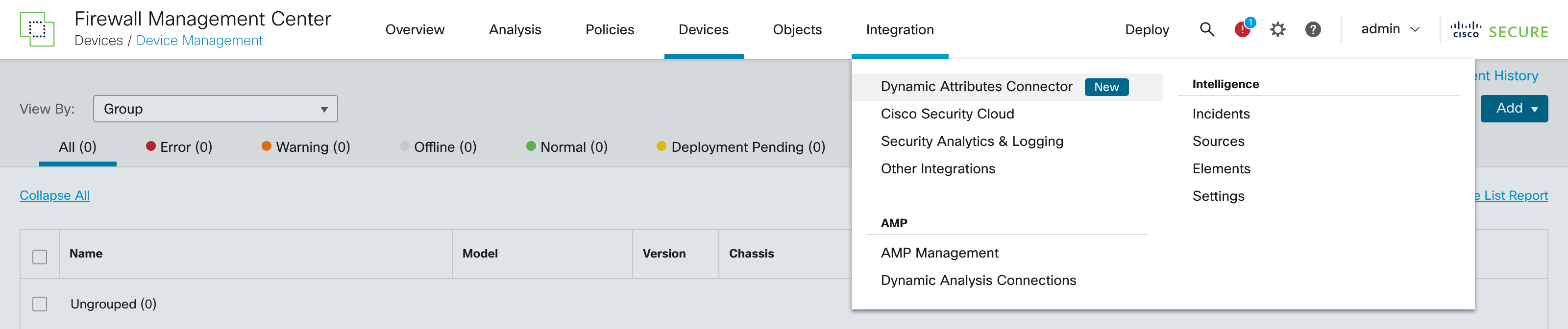
On the Connectors tab, click + and choose Generic Text. On a fresh install you can also click the TXT tile on the Dashboard.
Fill in the connector:
- Name: anything, for example
Knocknoc. - Pull Interval (sec): how often the FMC fetches the list. The default of 30 is fine.
- URLs: your Knoc's EDL URL, the one ending in
.ips. - Username: anything. Knocknoc only checks the password.
- Password: the EDL secret.
- Certificate: click Get certificate > Fetch to load the Knocknoc server's certificate.
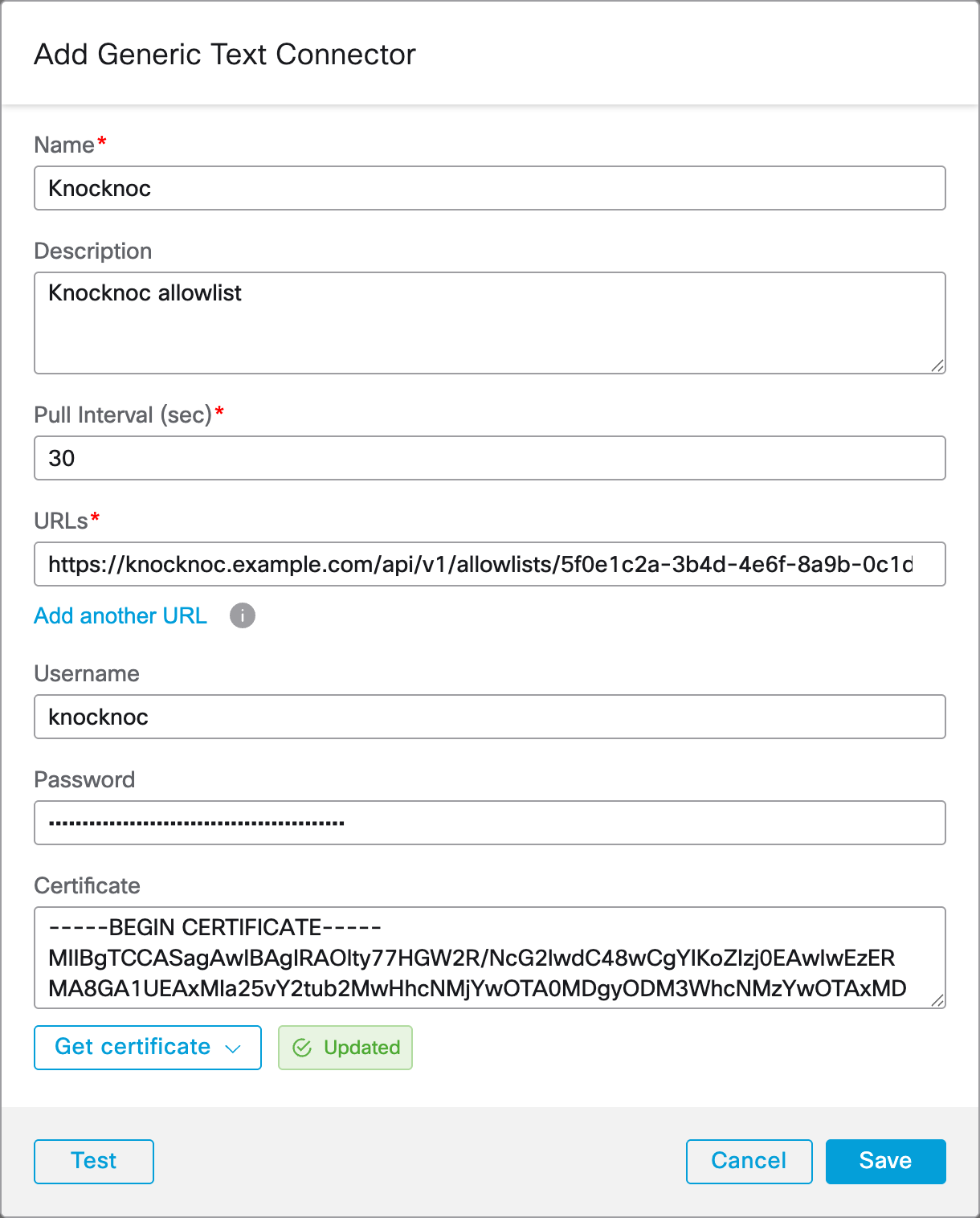
Click Test. When it shows Test connection succeeded, click Save.
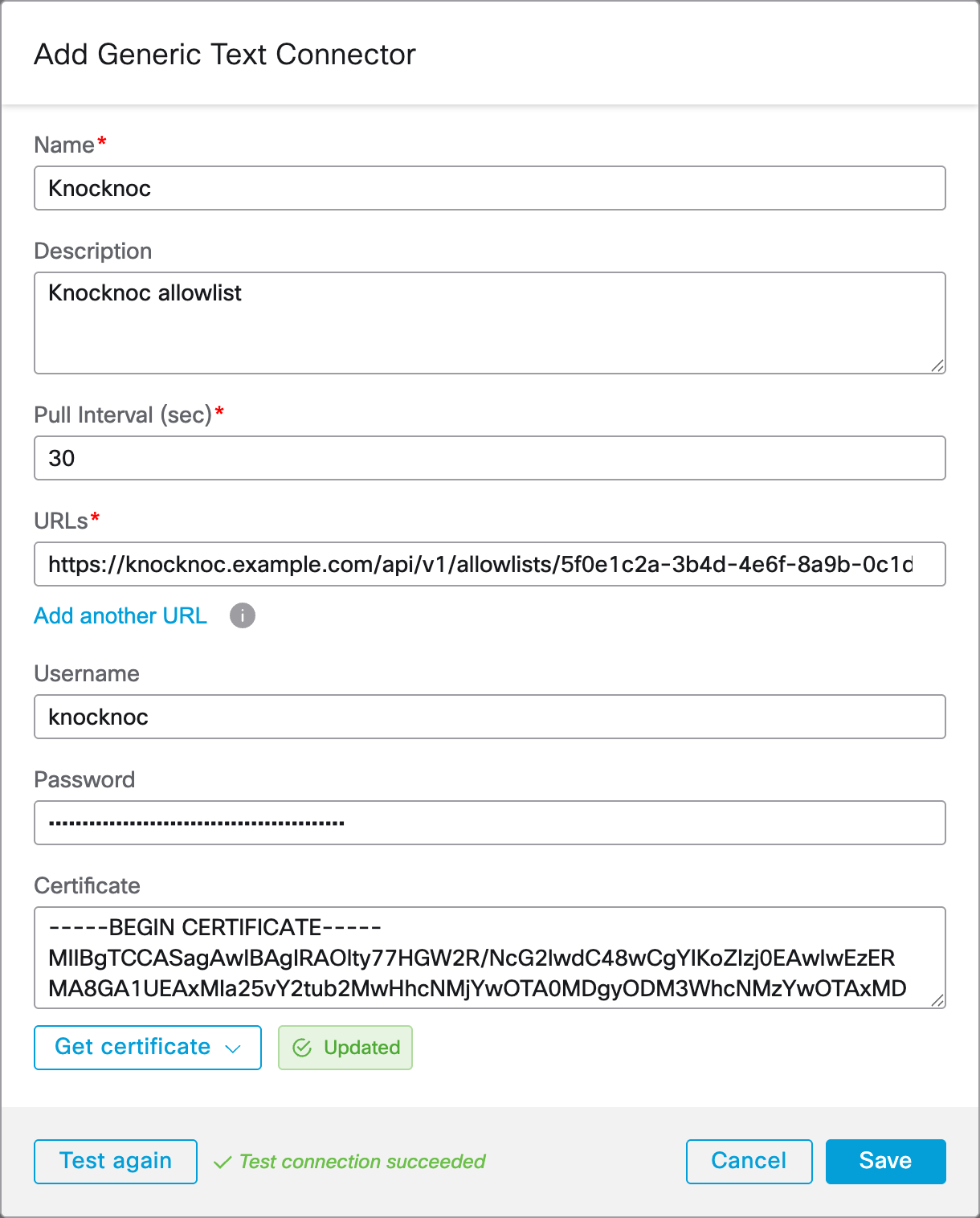
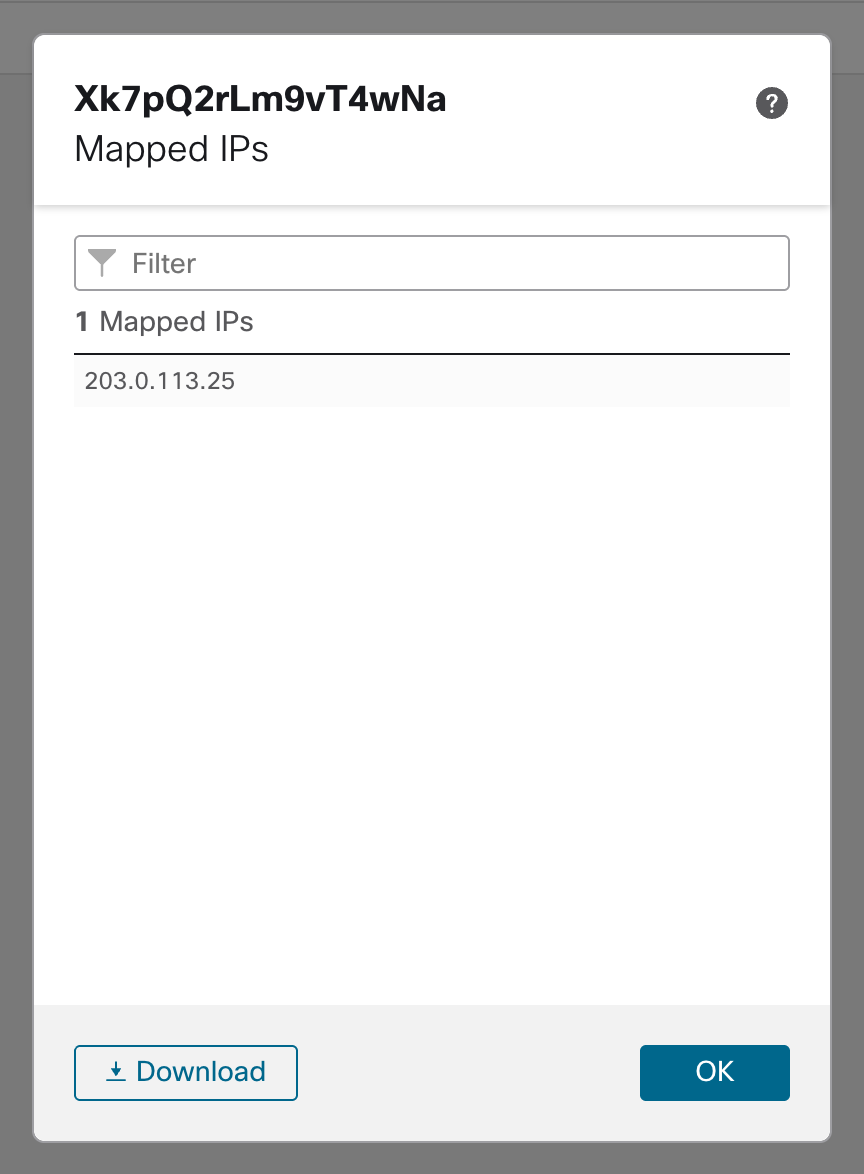
The FMC creates a dynamic object named after the last part of the URL. Under Objects > Object Management > External Attributes > Dynamic Object you can view the IP addresses Knocknoc currently has in it. Cisco documents a limit of 10,000 addresses per list.
Firewall Policy
Use the dynamic object as the source in the access control rule of your choice. Changes to a dynamic object reach the firewall without a policy deploy.
Final step
To complete the process, assign the Knoc to the relevant users or groups, and they are ready to log in and receive their access.
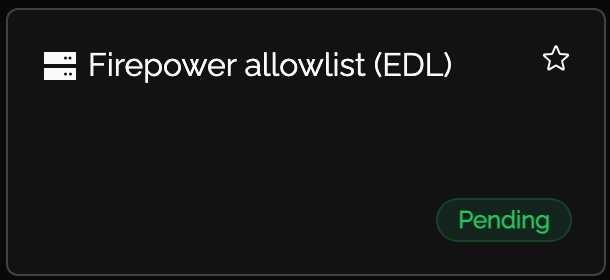
When your user logs in they will see Pending. Once the Cisco polls the EDL it updates to Granted.
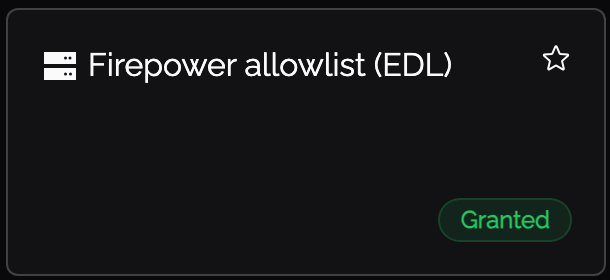
You now have dynamic IP addresses being read in by the Cisco without active orchestration.