
DigitalOcean Firewalls
Knocknoc can orchestrate DigitalOcean Cloud Firewalls to provide dynamic IP network allowlisting for your Droplets, Load Balancers, and Kubernetes Clusters. Knocknoc manages individual firewall rules, adding and removing source (or destination) IP addresses as users authenticate, providing just-in-time network access.
Agent version 26.01+ is required for this functionality.
DigitalOcean configuration
Create or identify a Firewall
- Log in to DigitalOcean
- Navigate to "Networking" -> "Firewalls"
- Either identify an existing Firewall you would like Knocknoc to manage, or click "Create Firewall"
- If creating a new Firewall, provide a meaningful name (e.g. "knocknoc-managed") and assign it to your target resources (Droplets, Load Balancers, or Kubernetes Clusters)
- You do not need to manually add rules for the services Knocknoc will manage - Knocknoc will create and remove rules dynamically
- If you have existing static rules, these will not be affected by Knocknoc - Knocknoc only manages rules tagged with its own internal identifier
Firewall ID
Personal Access Token
You need to create a Personal Access Token with permissions to manage Firewalls and Tags.
- Click on "API" in the left-hand navigation (or navigate to "Settings" -> "API")
- Under "Personal access tokens", click "Generate New Token"
- Provide a meaningful name (e.g. "Knocknoc Firewall Management")
- Select "Custom Scopes" and ensure the following permissions are granted:
- Firewall: Read and Update
- Tag: Create and Read
- Droplet: Read
- Click "Generate Token"
- Copy the token immediately for your Knocknoc configuration. It will only be shown once.
Knoc configuration
DigitalOcean "Active" orchestration
- Log in to Knocknoc as an Admin (/admin).
- On Knocs, choose New, then pick DigitalOcean.
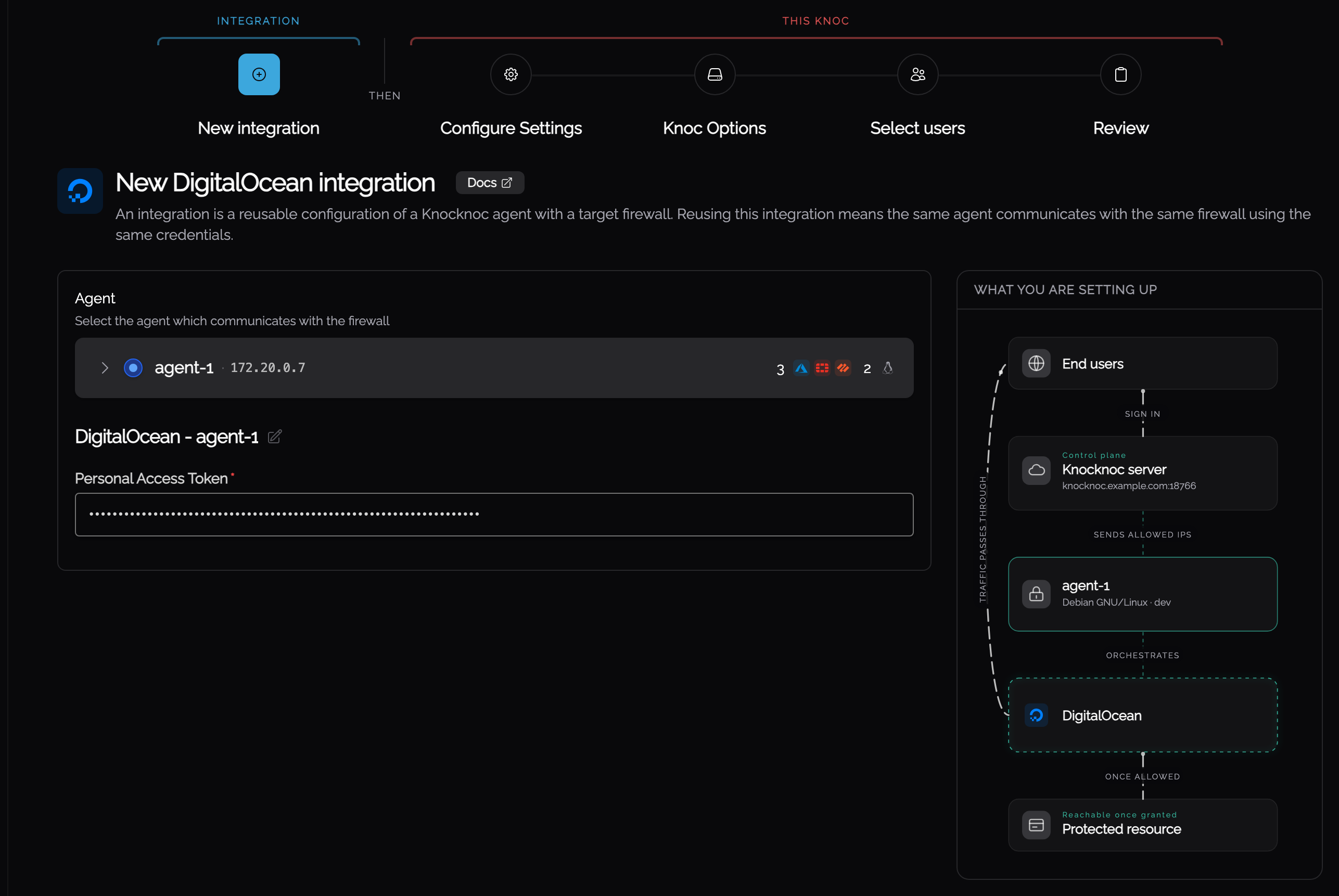
- Give the integration the Personal Access Token you created above. It can be reused by other DigitalOcean knocs.
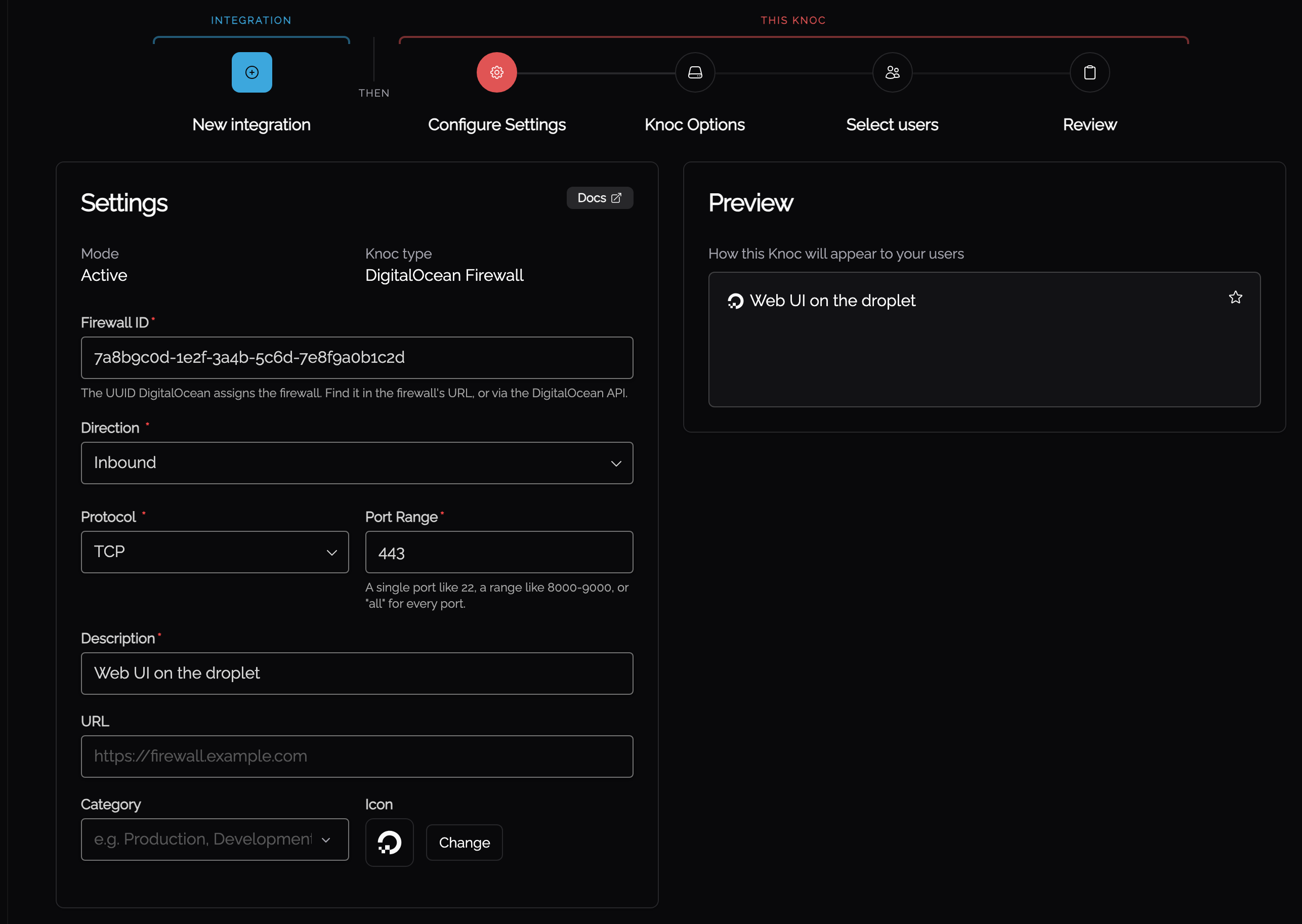
- On Configure Settings, provide the Firewall ID, copied from the DigitalOcean dashboard.
- Select the Direction: Inbound to allowlist source IPs, or Outbound to allowlist destination IPs. In most cases you want Inbound.
- Select the Protocol: TCP, UDP, or ICMP.
- Provide the Port Range: a single port (e.g.
443), a range (e.g.8000-9000), orall. - You're now ready to test end to end.
Validating
- Log in to DigitalOcean and view the target Firewall's rules.
- Log in to Knocknoc as a linked user, note the Granted status.
- Refresh the DigitalOcean Firewall rules. A new rule matching your configured protocol and port range will appear, with the user's IP address as an allowed source (or destination).
- If additional users authenticate, their IP addresses will be added to the same rule.
- Logging out will remove the user's IP address from the rule. When the last IP address is removed, the rule itself is cleaned up automatically.
Limits and considerations
Firewall rule limits
DigitalOcean enforces the following limits on Cloud Firewalls:
- 50 rules maximum per Firewall (inbound + outbound combined). If the Firewall is full, Knocknoc will return an error and will not be able to add new rules.
- 1,000 addresses maximum per rule source or destination. If a single rule reaches this limit, additional IP addresses cannot be added.
Plan your Firewall usage accordingly - if you have many static rules, consider using a dedicated Firewall for Knocknoc-managed access.
How Knocknoc identifies its rules
Knocknoc uses a "knocknoc" tag in the rule's sources (for inbound) or destinations (for outbound) to identify rules it manages. Any rules without this tag are left untouched. This means your existing manually-created rules are safe and will not be modified by Knocknoc.
Protocol and port per Knoc
Each Knocknoc ACL configuration maps to a single protocol and port range combination. If you need to manage access for multiple services (e.g. TCP/443 and TCP/22), create a separate Knoc for each.