
Manual Access
Default deny is the best way to live. However sometimes you need to manually grant access for a new IP you don't control, or otherwise lock yourself out. Knocknoc lets Administrators safely create a short-lived manual access when needed. This is a good way to test, or gain emergency access.
Below is how to grant 20 minutes of manual access to a specific IP.
Granting Manual Access from Within a Knoc
When editing an individual Knoc, you can create short-lived manual access directly on it:
- Log in to your Admin console:
https://<your-server>/admin - Open the Knoc you want to access.
- Go to the Manual access section.
- Enter the specific IP address that should be allowed. This can be an internal or external IP, depending on where the user or system is connecting from.
- Choose a duration and apply the grant.
That IP now has 20 minutes of access through that Knoc.
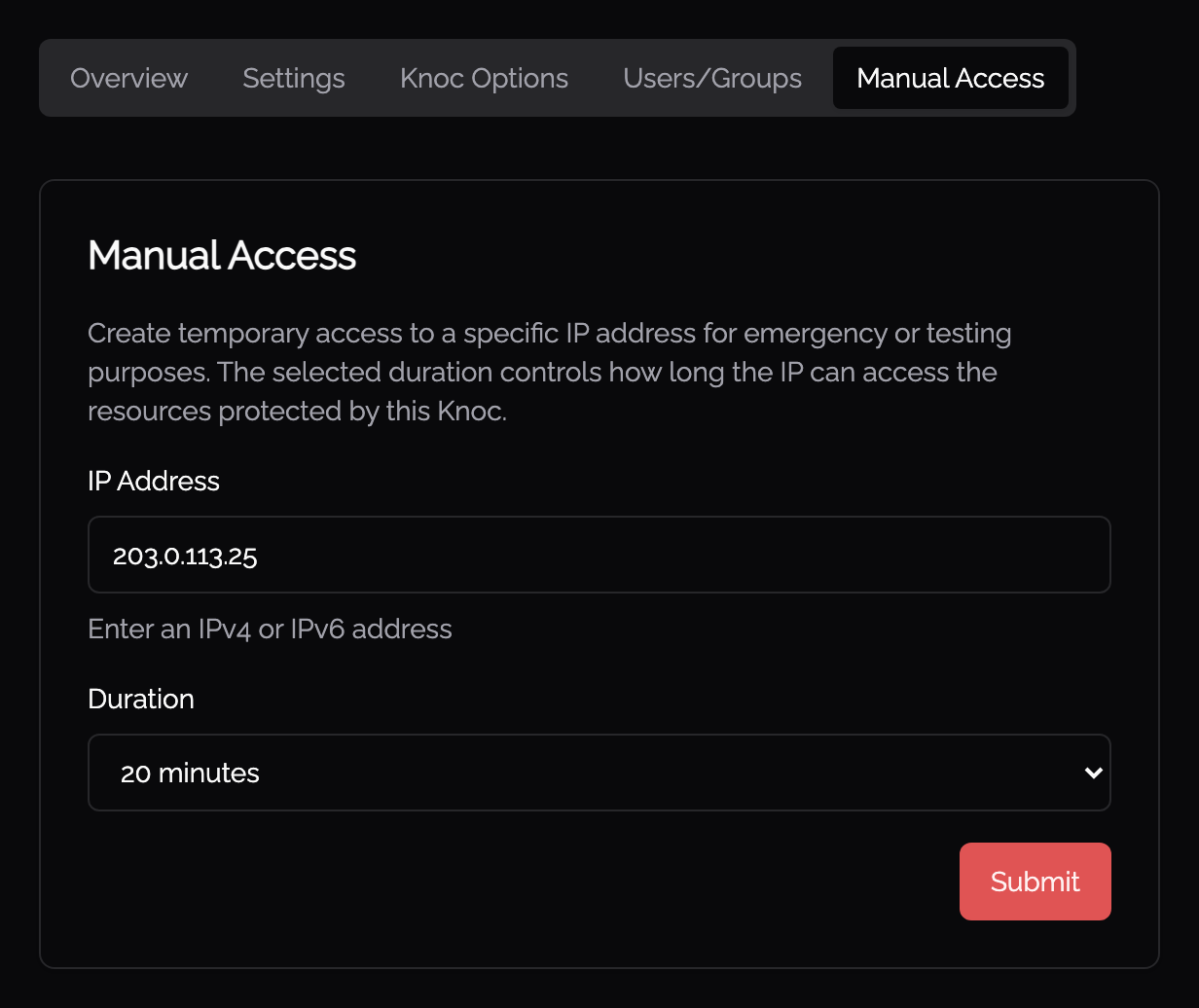
This is useful when you’re already adjusting other settings on the Knoc and want to temporarily allow an IP at the same time.
Granting Manual Access from the Knocs List
You can also add manual access directly from the Knocs overview:
- Open the list of all Knocs.
- Find the Knoc you want to update.
- Click its menu (vertical ellipsis).
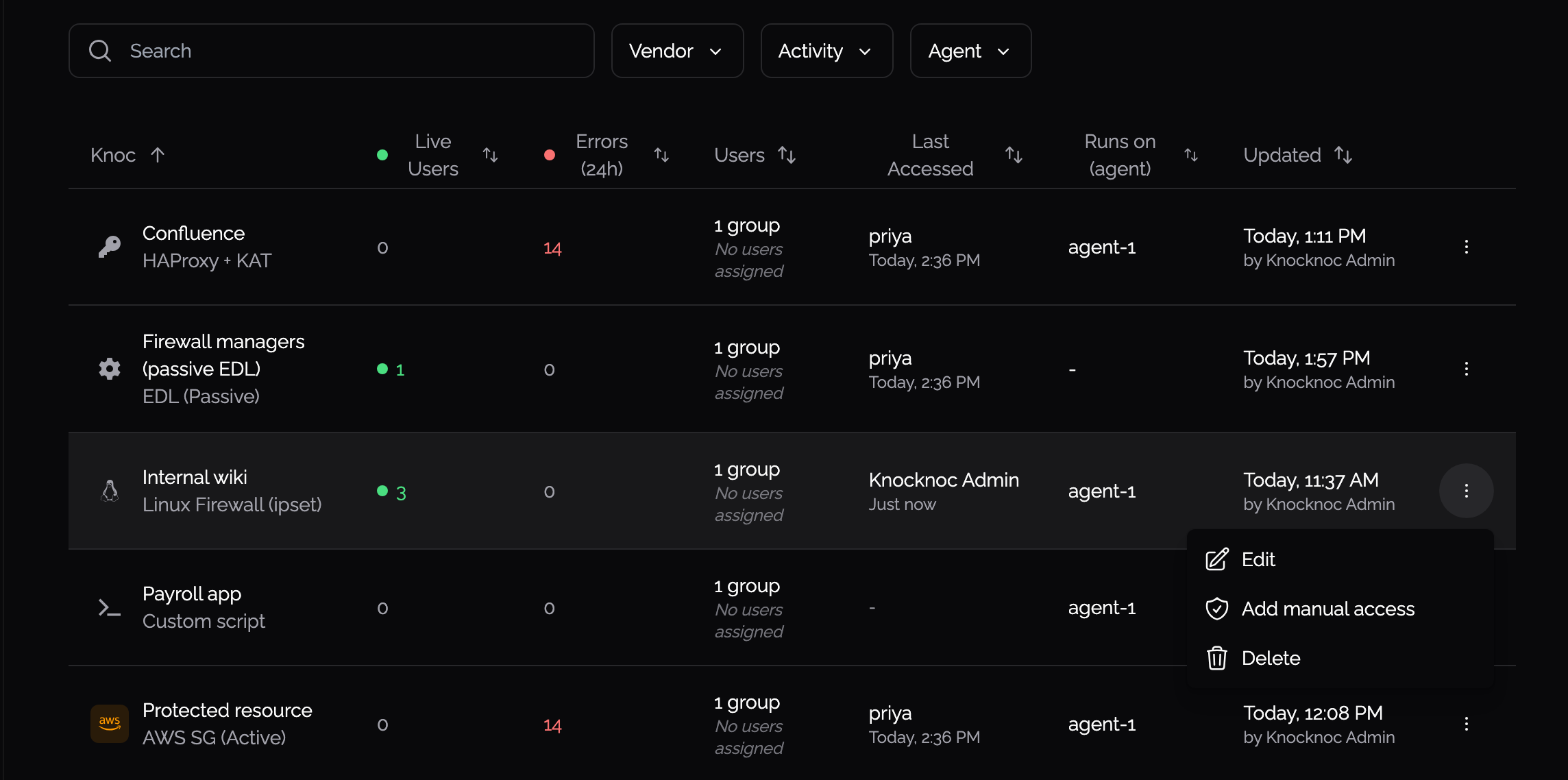
- Choose the option to manage Manual access.
- Add the IP address you want to allow.
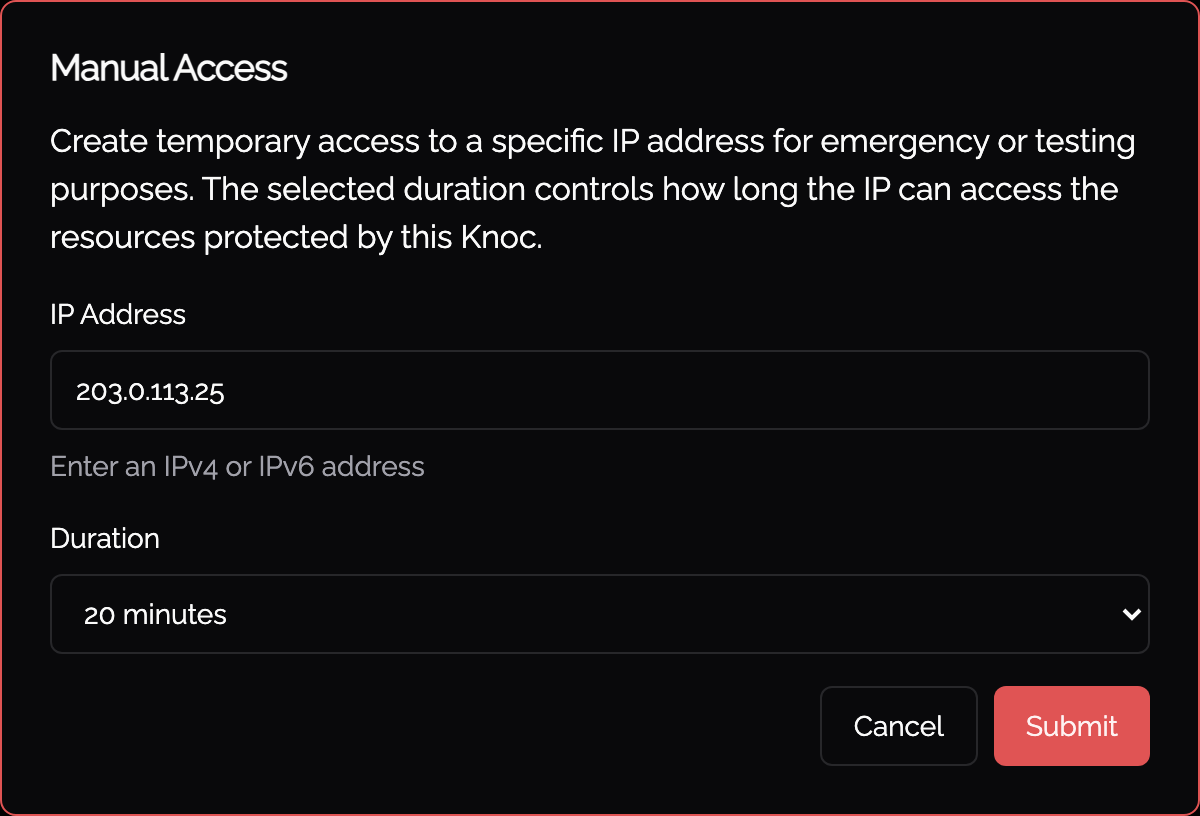
- Save/apply the change.
This grants that IP a 20-minute access window.
Use these options whenever you need short-term, controlled access, without changing your default deny baseline.