
Google Cloud Platform (GCP)
Knocknoc integrates with Google Cloud Platform to dynamically control network access via VPC Firewall Rules or Cloud Armor Security Policies. When a user authenticates, the agent adds their IP to the configured GCP resource. On logout or grant expiry, the IP is removed.
Two modes are available depending on what you're protecting:
- VPC Firewall: manages source or destination IP ranges on a VPC firewall rule. Use this for VMs and other VPC resources.
- Cloud Armor: manages source IP ranges on a Cloud Armor security policy rule. Use this for services behind a Google Cloud Load Balancer.
Which Mode Should I Use?
VMs or VPC resources: Use VPC Firewall. Knocknoc manages source or destination IP ranges on an existing firewall rule.
Services behind a Cloud Load Balancer: Use Cloud Armor. Knocknoc manages source IP ranges on a rule within an existing Cloud Armor security policy.
Comparison
| VPC Firewall | Cloud Armor | |
|---|---|---|
| What it controls | VPC firewall rule source/destination ranges | Cloud Armor security policy rule source ranges |
| Protects | VMs, GKE nodes, other VPC resources | Services behind Cloud Load Balancer |
| Supports direction | Ingress and Egress | Ingress only (source IPs) |
| GCP API | Compute Engine Firewalls API | Compute Engine Security Policies API |
| Requires agent | Yes | Yes |
Authentication
The Knocknoc agent authenticates to the GCP Compute Engine API using one of two methods.
Option A: Service Account Key (JSON)
Use this when the agent runs outside GCP (e.g., on-premises, in another cloud provider, or on a local machine).
- Create a service account in your GCP project (see Create a Service Account)
- Generate a JSON key for the service account
- Paste the full JSON key into the Service Account Key field in the Knocknoc wizard
Option B: Application Default Credentials (ADC)
Use this when the agent runs on GCP (e.g., on a Compute Engine VM or GKE pod). No key needs to be pasted into Knocknoc; the agent picks up credentials from the compute environment automatically.
- Create a service account in your GCP project
- Grant it the required IAM roles (see IAM Permissions)
- Attach the service account to the VM or GKE workload running the Knocknoc agent
- Leave the Service Account Key field empty in the Knocknoc wizard
ADC with Workload Identity Federation is the recommended approach when running on GCP since it avoids long-lived key material.
IAM Permissions
Grant the service account the minimum permissions for your chosen mode. You can use a predefined role or create a custom one.
VPC Firewall Mode
The service account needs permission to read and update VPC firewall rules.
Predefined role (simplest):
roles/compute.securityAdmin(Compute Security Admin)
Custom role (least privilege):
Create a custom role with these permissions:
compute.firewalls.getcompute.firewalls.update
To create a custom role:
- In the GCP Console, go to IAM & Admin > Roles
- Click Create Role
- Name it (e.g.,
Knocknoc VPC Firewall) - Add the permissions listed above
- Click Create
Cloud Armor Mode
The service account needs permission to read and update Cloud Armor security policy rules.
Predefined role (simplest):
roles/compute.securityAdmin(Compute Security Admin)
Custom role (least privilege):
Create a custom role with these permissions:
compute.securityPolicies.getcompute.securityPolicies.update
To create a custom role:
Follow the same steps as above with the Cloud Armor permissions instead.
Assigning the Role
- In the GCP Console, go to IAM & Admin > IAM
- Click Grant Access
- Enter the service account email in New principals (e.g.,
[email protected]) - Select your predefined or custom role in Role
- Click Save
Setup: VPC Firewall Mode
In VPC Firewall mode, Knocknoc manages source or destination IP ranges on an existing VPC firewall rule. When a user is granted access, their IP is added to the rule's range list. On revocation, the IP is removed.
Step 1: Create a Service Account
- In the GCP Console, go to IAM & Admin > Service Accounts
- Click Create Service Account
- Name it (e.g.,
knocknoc-agent) - Click Create and Continue
- Grant it the required role (see IAM Permissions: VPC Firewall Mode)
- Click Done
If using a Service Account Key (Option A):
- Click on the newly created service account
- Go to the Keys tab
- Click Add Key > Create new key > JSON
- Save the downloaded JSON file securely. You'll paste its contents into Knocknoc
Step 2: Create the VPC Firewall Rule
Create a firewall rule that Knocknoc will manage. This rule should start with a placeholder source range; Knocknoc will replace it with authenticated user IPs.
- In the GCP Console, go to VPC Network > Firewall
- Click Create Firewall Rule
- Configure the rule:
- Name: something descriptive (e.g.,
knocknoc-allow-ssh). Note this name, you'll enter it in the Knocknoc wizard. - Direction of traffic: Ingress or Egress
- Action on match: Allow (or Deny, depending on your policy design)
- Source IP ranges (for Ingress) or Destination IP ranges (for Egress): enter
198.51.100.0/32as a placeholder. This is an RFC 5737 documentation address that is never routed on the internet. Knocknoc uses it as a safe placeholder when no authenticated users are present because GCP does not allow empty source/destination ranges. - Protocols and ports: whatever you need (e.g., TCP port 22 for SSH)
- Target: set your targets (e.g., target tags, target service accounts)
- Name: something descriptive (e.g.,
- Click Create
Step 3: Deploy Knocknoc Agent
Deploy the Knocknoc orchestration agent with network access to the GCP Compute Engine API (compute.googleapis.com).
If using ADC (Option B), make sure the agent runs on a GCP resource with the service account attached.
Step 4: Create the Knoc in Knocknoc
On Knocs, choose New, then pick GCP.
Step 5: Configure the integration
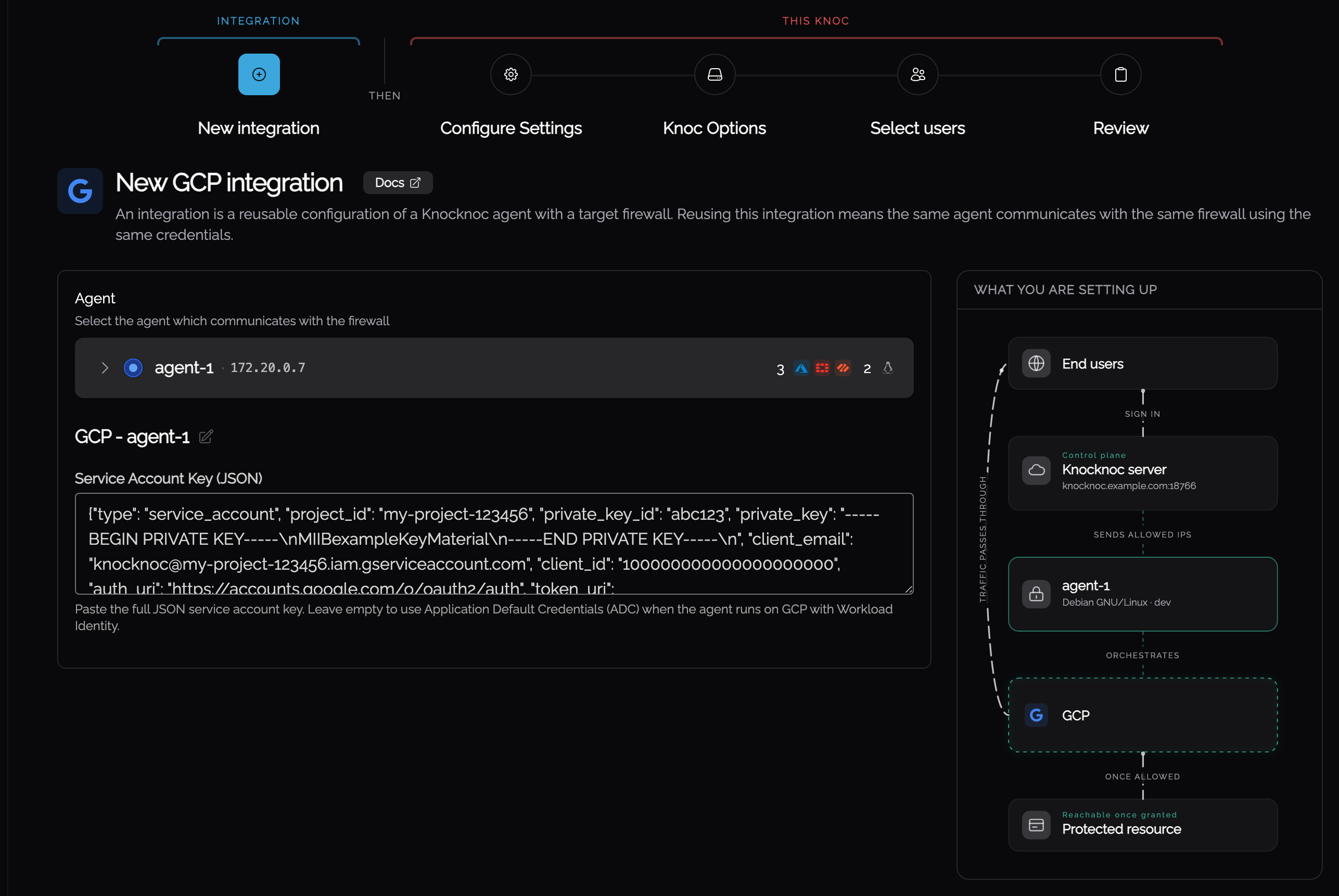
The integration holds the credentials and can be reused by other GCP knocs.
| Field | Description |
|---|---|
| Service Account Key (JSON) | Paste the full contents of the JSON key file from Step 1. Leave empty if using ADC (Option B). |
Step 6: Configure the Knoc
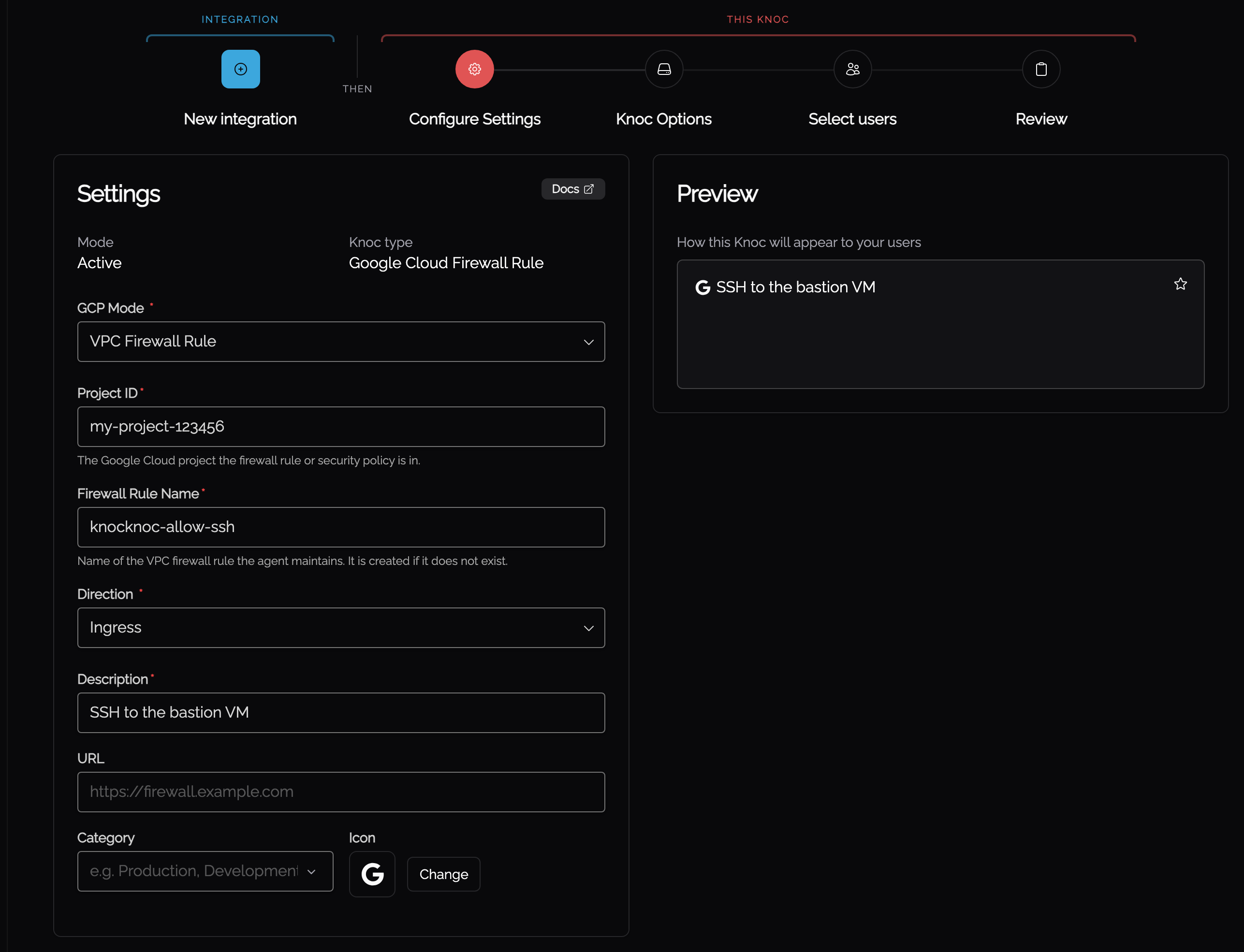
On Configure Settings, give the knoc what it writes to.
| Field | Description |
|---|---|
| GCP Mode | Select VPC Firewall Rule |
| Project ID | Your GCP project ID (e.g., my-project-123456). Find this in the GCP Console dashboard or project selector. |
| Firewall Rule Name | The name of the firewall rule from Step 2 (e.g., knocknoc-allow-ssh). Must match exactly. |
| Direction | Ingress or Egress. Must match the direction on the firewall rule. Ingress manages source IP ranges; Egress manages destination IP ranges. |
Step 7: Assign Users and Test
- Assign users and/or groups to the Knoc
- Log in as a test user
- In the GCP Console, go to VPC Network > Firewall and click on your rule
- Verify the user's IP appears in the source (or destination) IP ranges
- Verify network access works as expected
- On logout or grant expiry, the IP should be removed from the rule
Setup: Cloud Armor Mode
In Cloud Armor mode, Knocknoc manages source IP ranges on a rule within an existing Cloud Armor security policy, controlling access to services behind a Google Cloud Load Balancer.
Step 1: Create a Service Account
Follow the same process as VPC Firewall: Step 1, granting the Cloud Armor IAM permissions instead (see IAM Permissions: Cloud Armor Mode).
Step 2: Create Cloud Armor Security Policy and Rule
Create a Cloud Armor security policy with a rule that Knocknoc will manage.
Create the security policy (if you don't have one):
- In the GCP Console, go to Network Security > Cloud Armor
- Click Create Policy
- Name it (e.g.,
knocknoc-policy) - Set the Default rule action to Deny (recommended: deny all traffic by default, allow authenticated users via Knocknoc)
- Attach it to your backend service(s)
- Click Create
Add a rule for Knocknoc to manage:
- Open the security policy
- Click Add Rule
- Configure the rule:
- Mode: Basic mode
- Match: enter
198.51.100.0/32as the source IP range placeholder (same RFC 5737 documentation address as above) - Action: Allow (or Deny, depending on your policy design)
- Priority: pick a priority number (e.g.,
1000). Note this number, you'll enter it in the Knocknoc wizard. Lower numbers = higher priority.
- Click Save
Note the security policy name and rule priority. You'll need both in the Knocknoc wizard.
Step 3: Deploy Knocknoc Agent
Deploy the Knocknoc orchestration agent with network access to the GCP Compute Engine API (compute.googleapis.com).
If using ADC (Option B), make sure the agent runs on a GCP resource with the service account attached.
Step 4: Create the Knoc in Knocknoc
On Knocs, choose New, then pick GCP.
Step 5: Configure the integration
The integration holds the credentials and can be reused by other GCP knocs.
| Field | Description |
|---|---|
| Service Account Key (JSON) | Paste the full contents of the JSON key file from Step 1. Leave empty if using ADC. |
Step 6: Configure the Knoc
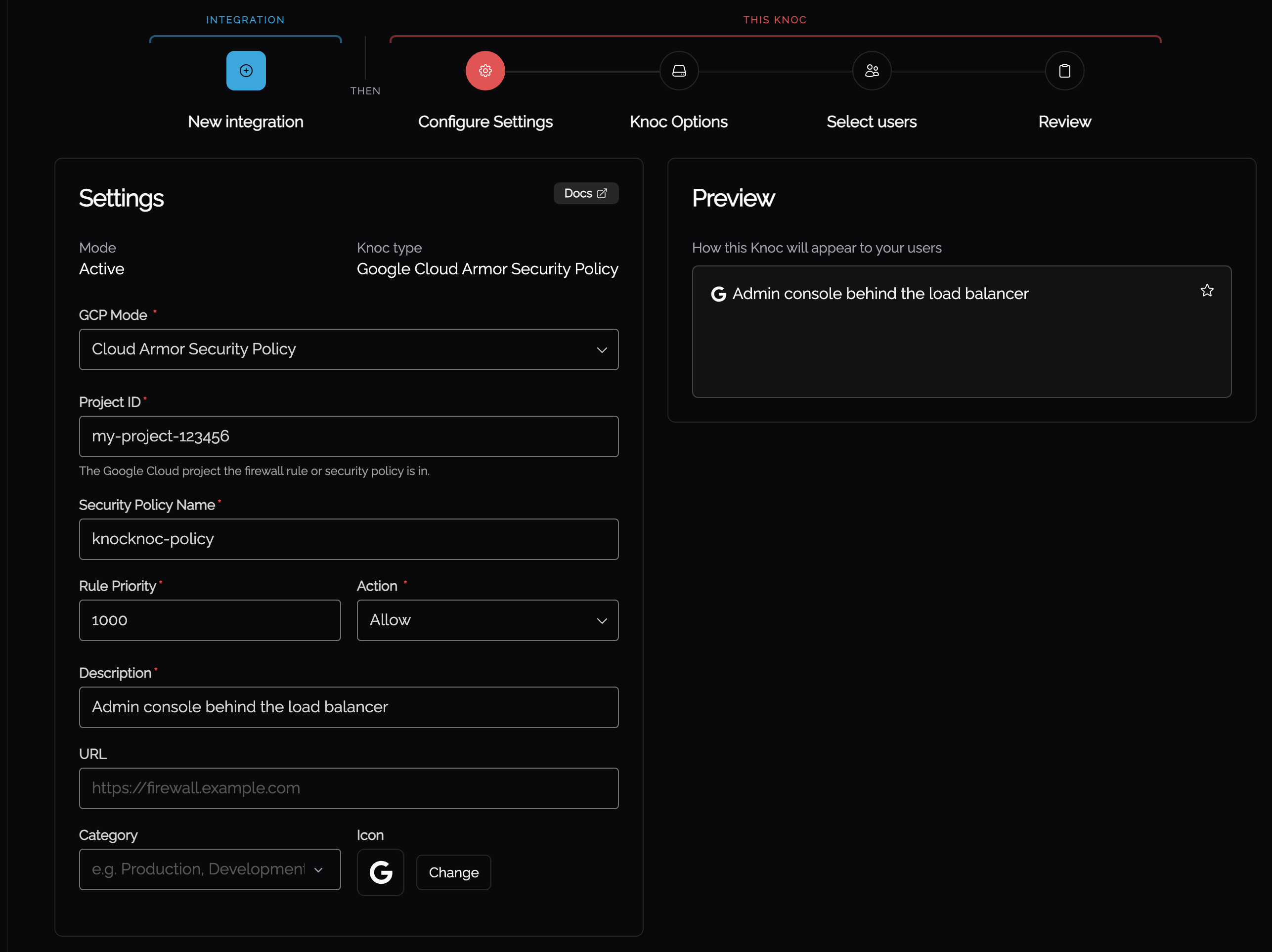
On Configure Settings, give the knoc what it writes to.
| Field | Description |
|---|---|
| GCP Mode | Select Cloud Armor Security Policy |
| Project ID | Your GCP project ID (e.g., my-project-123456) |
| Security Policy Name | The name of the Cloud Armor security policy (e.g., knocknoc-policy). Must match exactly. |
| Rule Priority | The priority number of the rule within the security policy (e.g., 1000). Must match the rule from Step 2. |
| Action | Allow or Deny. Must match the action on the Cloud Armor rule. |
Step 7: Assign Users and Test
- Assign users and/or groups to the Knoc
- Log in as a test user
- In the GCP Console, go to Network Security > Cloud Armor and open your security policy
- Click on the rule at the priority you configured
- Verify the user's IP appears in the source IP ranges
- Verify access to the protected service works
- On logout or grant expiry, the IP should be removed from the rule
Troubleshooting
Agent Logs
Start by checking the orchestration agent logs. Common problems:
- Authentication failed: the service account key may be invalid, expired, or the service account may have been deleted. If using ADC, check that the compute resource has the correct service account attached.
- Permission denied: the service account is missing IAM permissions. See IAM Permissions.
- Resource not found: the firewall rule name, security policy name, or project ID doesn't match what exists in GCP. Names are case-sensitive.
- Network connectivity: the agent can't reach
compute.googleapis.com. Check that outbound HTTPS (port 443) is not blocked.
Conflict Errors (Concurrent Modifications)
The agent automatically retries operations that fail due to GCP fingerprint conflicts (HTTP 409/412). These happen when another process modifies the same resource at the same time. If retries are exhausted, check for other systems or users modifying the same firewall rule or security policy.
Placeholder IP Range
When all user IPs are removed from a rule (e.g., all grants have expired), Knocknoc sets the source/destination range to 198.51.100.0/32. This is an RFC 5737 documentation address that is never routed on the internet. It's a safe placeholder because GCP doesn't allow firewall rules or Cloud Armor rules to have empty IP range lists.
If you see 198.51.100.0/32 in your rule's IP ranges, it just means no users currently have active grants. This is normal.
VPC Firewall Rule Direction Mismatch
If grants appear to succeed in Knocknoc but network access isn't actually working, check that the Direction in the Knocknoc ACL configuration matches the direction on the GCP firewall rule:
- Ingress rules: Knocknoc manages the source IP ranges
- Egress rules: Knocknoc manages the destination IP ranges
If these don't match, Knocknoc will modify the wrong IP range field on the rule.
Cloud Armor Rule Priority Mismatch
If the wrong Cloud Armor rule is being updated, check that the Rule Priority in the Knocknoc ACL configuration matches the priority of the specific rule you want Knocknoc to manage. Cloud Armor policies can have multiple rules at different priorities.
Error Codes
The Knocknoc agent reports structured error codes when GCP operations fail. You can find more details on resolving these issues here.
GCP Documentation References
- VPC firewall rules overview: creating and managing VPC firewall rules
- Google Cloud Armor overview: security policies and rules
- Creating a service account: service account creation in GCP
- Service account keys: creating and managing service account keys
- Application Default Credentials: ADC and Workload Identity
- IAM roles for Compute Engine: predefined and custom roles for Compute Engine resources