
pfSense
Knocknoc integrates with pfSense to dynamically control network access.
The Knocknoc agent maintains a host alias on pfSense via the pfRest API. As users authenticate and grants expire, the alias's address list is updated and pending firewall changes are applied.
If you would prefer a poll-based integration (e.g., pfBlockerNG pulling a Knocknoc-hosted feed on its own schedule), use the EDL (Passive) Knoc type instead. It has no agent-side configuration.
Authentication
The Knocknoc agent authenticates to pfRest with an API key. pfRest also supports basic auth and JWTs; Knocknoc uses the API key option because it's the simplest to rotate and does not require storing the pfSense user's password.
Setup
Knocknoc maintains a single host alias on pfSense and rewrites its address list as users come and go. Existing firewall rules reference the alias by name.
Step 1: Install the pfRest Package
pfRest is a third-party package, so it isn't in pfSense's built-in Package Manager. Searching Available Packages won't find it. You install it from the pfRest GitHub release, following the pfRest install guide.
- On the pfRest releases page, find the
.pkgbuild for your pfSense version (e.g.pfSense-2.8.1-pkg-RESTAPI.pkg). The build must match your pfSense version. If your version isn't in the newest release, use the most recent release that still includes it (pfSense CE 2.7.2, for instance, is covered up to pfRest v2.4.3). - Open a shell on pfSense via Diagnostics > Command Prompt (or SSH, or the console Shell option) and install it:
pkg-static -C /dev/null add https://github.com/pfrest/pfSense-pkg-RESTAPI/releases/download/<release>/pfSense-<your-version>-pkg-RESTAPI.pkg - Once installed, navigate to System > API to confirm it is running. If the API menu item is there, you have it installed.
- Enable Key authentication. Go to System > REST API > Settings, and under Authentication Methods make sure Key is selected (it sits alongside Local database and JWT, and the field is multi-select). Knocknoc authenticates with an API key, and pfRest only honors the key when Key is an enabled method. If it is not, every call fails with HTTP 401. Save.
Step 2: Create the Service Account and API Key
pfRest issues an API key to whoever is logged in at the time, with no field to assign it to another user. Create the key while logged in as the service account below, not as admin. A key made as admin acts as admin with full privileges. The full procedure is under "Create the API key" further down this step.
Create your service account:
- In pfSense, go to System > User Manager > Users
- Click Add to create a service account (e.g.,
knocknoc-agent) - Set a strong password
- Under Effective Privileges, assign the pfRest API privileges below:
- REST API - /api/v2/system/version GET
- REST API - /api/v2/firewall/alias GET
- REST API - /api/v2/firewall/aliases GET
- REST API - /api/v2/firewall/alias PATCH
- REST API - /api/v2/firewall/apply POST
- REST API - /api/v2/firewall/alias POST (only needed if you want Knocknoc to create the alias on first grant)
- Save the user
- Generate an API key for this user under System > REST API > Keys
Create the API key. pfRest issues each key to whoever is logged in when it's created (there is no field to pick a different user), so you must create it while logged in as the service account, not as admin:
- The service account needs to reach the key page, so on top of the API privileges above, temporarily give it WebCfg - System: Login / Logout / Dashboard, WebCfg - System: RESTAPI Keys, and WebCfg - System: RESTAPI Key. You can remove these again once the key exists.
- Log out, then log back in as the service account (e.g.
knocknoc-agent). - Go to System > REST API > Keys and click Add. The defaults (SHA256, 16 bytes) are fine. Set a Description, then Save.
- Copy the generated key value. pfRest only displays it once, and it is issued to the account you are logged in as.
If you would rather not grant the service account GUI access, create the key while logged in as admin instead. The key then acts as admin (full privileges) rather than the least-privilege service account.
You will paste this value into the pfRest API Key field in the Knocknoc wizard.
Step 3: Create the Firewall Alias and Rule
The agent will write to a single host alias. You can pre-create it, or let Knocknoc create it on the first grant.
- In pfSense, go to Firewall > Aliases > IP
- Click Add
- Configure the alias:
- Name: a name without spaces (e.g.,
knocknoc_users). Note this; you will enter it in the Knocknoc wizard. - Type: Host(s)
- Description: e.g.,
Knocknoc-managed authenticated users
- Name: a name without spaces (e.g.,
- Leave the address list empty for now. Knocknoc will populate it when users authenticate.
- Click Save, then Apply Changes
Now create or modify a firewall rule that references this alias:
- Go to Firewall > Rules
- Click Add
- Configure the rule:
- Action: Pass
- Source: Address or alias, then enter the alias name from above (e.g.,
knocknoc_users) - Destination, Protocol, Ports: whatever fits your policy
- Click Save, then Apply Changes
Step 4: Deploy the Knocknoc Agent
Deploy the Knocknoc orchestration agent with network access to the pfSense web GUI on the pfRest port (default: same as the management UI).
The agent host must be able to reach the exact pfSense URL you enter in the wizard. If that URL points at a reverse proxy (for example HAProxy in front of pfSense) or sits behind a firewall, allow the agent host through. A proxy or firewall that blocks the request usually returns a 401 or 403, which reads like a rejected API key or a missing privilege even when the key is correct. It's easy to miss when the agent runs on the same host as the reverse proxy but isn't on the proxy's allow list.
Step 5: Create the Knoc in Knocknoc
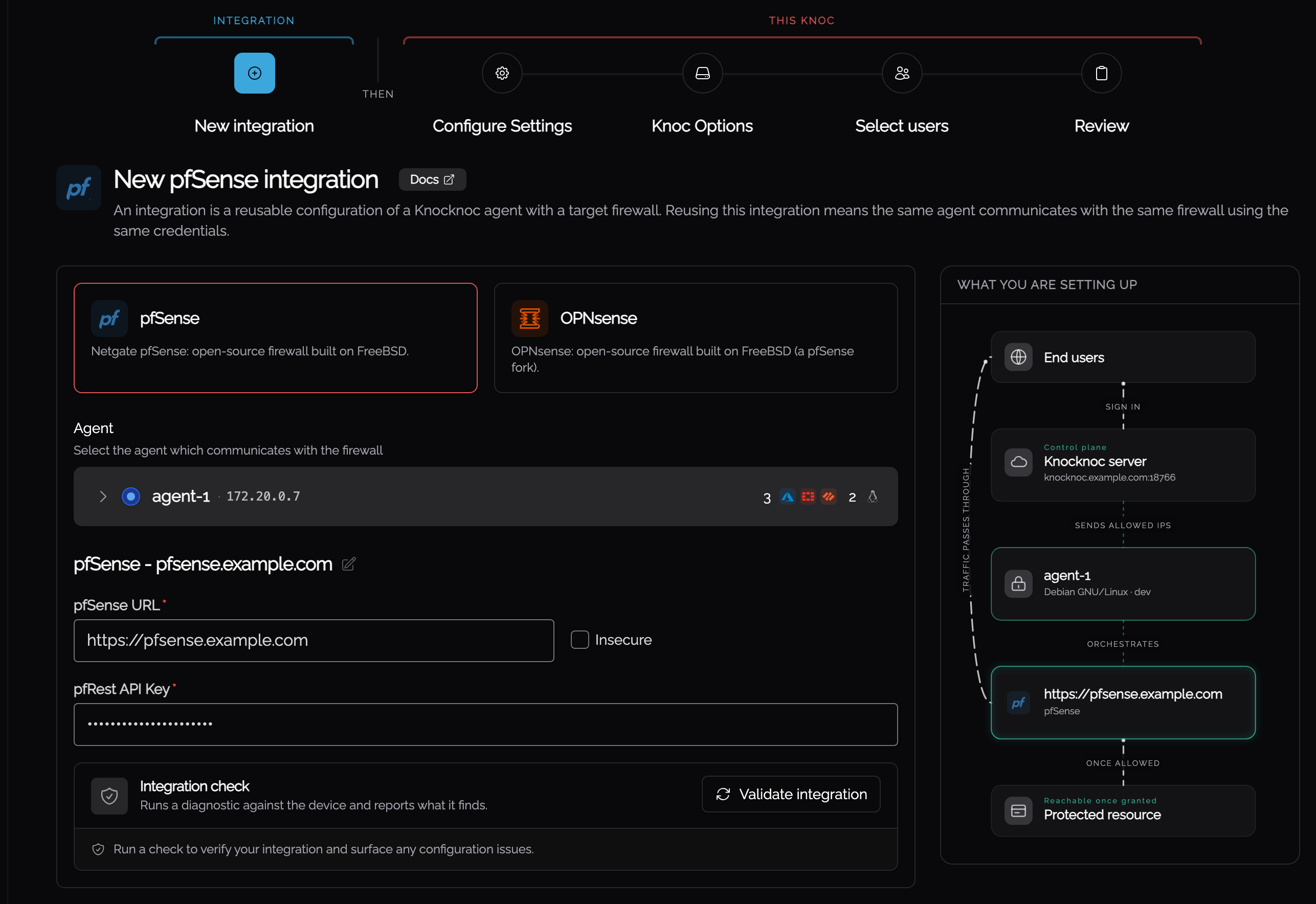
On Knocs, choose New, then pick pfSense / OPNsense. The first step offers both, so choose the pfSense card.
Step 6: Configure the integration
The integration holds the credentials and can be reused by other pfSense knocs.
| Field | Description |
|---|---|
| pfSense URL | Base URL of the pfSense web GUI (e.g., https://pfsense.example.com). Must include the scheme. A trailing slash is fine. |
| pfRest API Key | The API key generated in Step 2. Knocknoc encrypts this at rest. |
| Insecure | Tick this to skip TLS certificate verification. Only safe for self-signed certificates on a trusted network. |
Step 7: Configure the Knoc
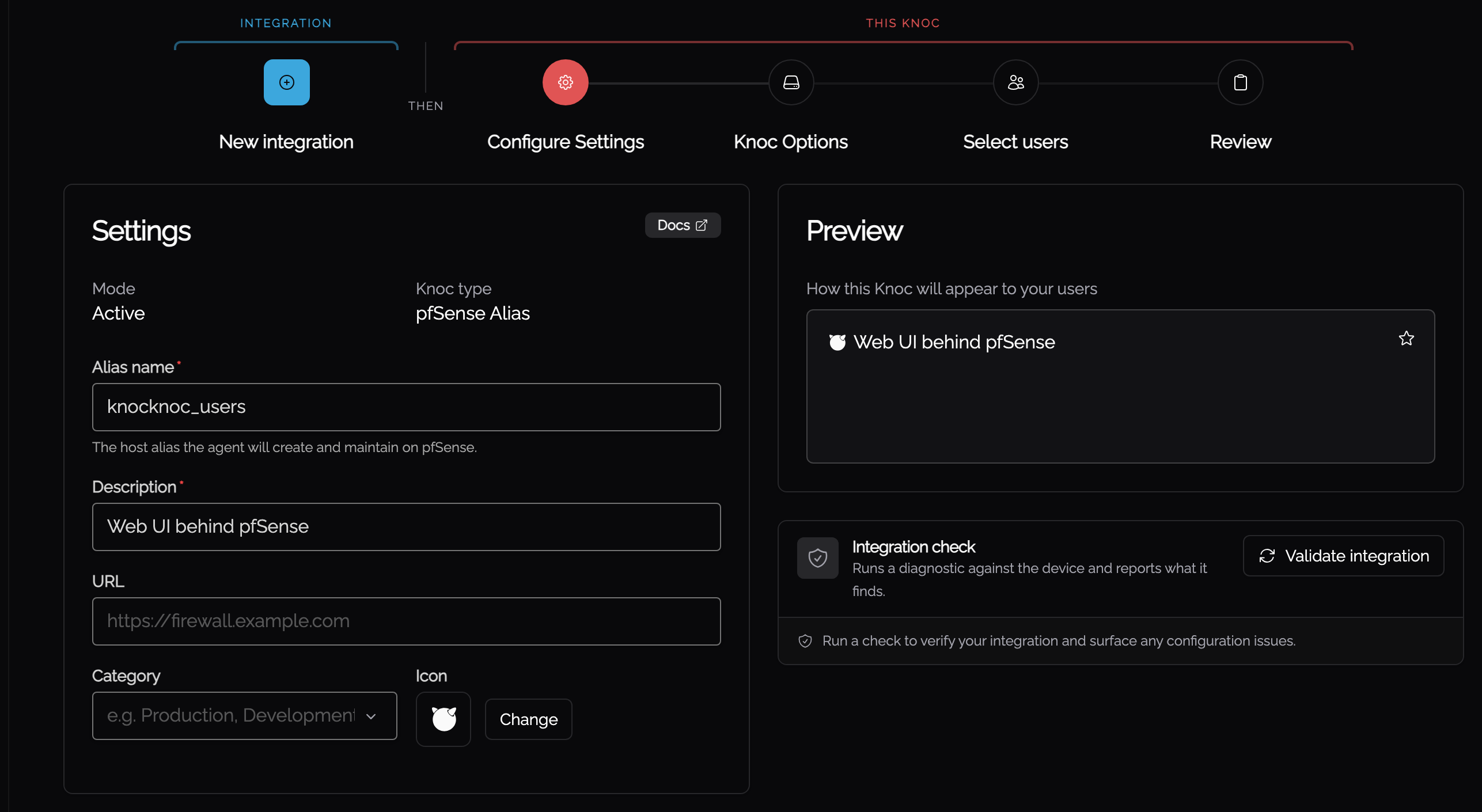
On Configure Settings, give the knoc the alias it writes to.
| Field | Description |
|---|---|
| Alias name | The host alias name from Step 3 (e.g., knocknoc_users). Must match exactly. Knocknoc will create the alias if it does not yet exist. |
Step 8: Assign Users and Test
- Assign users and/or groups to the Knoc
- Log in as a test user
- In pfSense, go to Firewall > Aliases > IP and click on the alias
- Verify the user's IP appears in the address list
- Verify network access through the firewall rule works
- On logout or grant expiry, the IP should be removed from the alias
Troubleshooting
Agent Logs
Start by checking the orchestration agent logs. Common problems:
- Authentication failed: the API key is invalid, has been revoked, or was generated for a different user. Regenerate the key and update the Knocknoc backend configuration.
- Permission denied: the API user lacks one of the privileges listed in Step 2 (Create the Service Account and API Key). Check the user's effective privileges in System > User Manager.
- 401 or 403 through a reverse proxy or firewall: if the pfSense URL goes through a reverse proxy (e.g. HAProxy) or a firewall, a 401 or 403 can come from the proxy blocking the agent host rather than from pfSense rejecting the key. Confirm the agent host is on the allow list for that URL, and try reaching the pfSense URL directly from the agent host to isolate it.
- API endpoint not installed: the pfRest package is not installed, or it is installed but disabled. Confirm the package is present in System > Package Manager > Installed Packages
- TLS certificate error: pfSense is using a self-signed or internal-CA certificate. Either install a trusted certificate on pfSense or tick Insecure in the Knocknoc backend configuration.
Alias Updates Not Visible
If the alias's address list never changes:
- Confirm the Alias name in the Knocknoc ACL exactly matches the alias on pfSense. Names are case-sensitive.
- Verify the API user has Firewall: Aliases: Edit privilege.
- Check the agent logs for
applyerrors. If apply fails after an alias edit, pfSense holds the changes as pending and they don't take effect.
Error Codes
The Knocknoc agent reports structured error codes when pfSense operations fail. You can find more details on resolving these issues here.
pfSense Documentation References
- pfSense Firewall Aliases: aliases overview and management
- pfSense User Manager: user accounts and privileges