
MikroTik
Knocknoc integrates with MikroTik RouterOS to dynamically control network access.
The Knocknoc agent maintains a firewall address-list on the MikroTik device. As users authenticate and grants expire, the agent adds and removes entries in the list. Existing firewall rules reference the address-list by name; access is granted in seconds.
If you would prefer a poll-based integration where the router fetches a Knocknoc-hosted feed on its own schedule, use the EDL (Passive) Knoc type instead. RouterOS can also fetch address-lists from a URL on a timer.
Requirements
- RouterOS v7.0 or newer (REST API was added in v7)
- The
www-sslservice enabled in IP > Services so the agent can reachhttps://<router>/rest/ - A user account with permission to read and modify address lists (not rules)
Authentication
The Knocknoc agent authenticates to RouterOS with a username and password via HTTP basic auth. Use a dedicated service account so the credentials can be rotated and audited independently of administrator accounts.
Create a service user
- Log into RouterOS via Winbox or WebFig as an administrator
- Open System > Users > Groups
- Click New:
- Name:
knocknoc - Policies: enable
api,rest-api,read,write, andpolicy. Disable everything else (noftp,local,telnet, etc.). Therest-apipolicy is required on RouterOS v7.1+ to use the REST endpoints.
- Name:
- Click OK to save the group
- Switch to System > Users > Users
- Click New:
- Name: e.g.,
knocknoc-agent - Group:
knocknoc - Password: a strong random value; you will paste it into Knocknoc
- Allowed Address: restrict to the IP of the host running the Knocknoc agent if possible
- Name: e.g.,
- Click OK to save the user
Setup
Step 1: Enable the REST API
- In RouterOS, go to IP > Services
- Confirm www-ssl is enabled. Note the port (default
443) - Restrict the Available From list to the agent host's IP if you have not already
Step 2: Create the Address-List and Firewall Rule
The agent will write to a single firewall address-list. You can pre-create entries or let Knocknoc add them on the first grant. The list itself exists implicitly the moment its first entry is added.
Decide a name (e.g., knocknoc-users). Then create a firewall rule that references it:
-
In RouterOS, go to IP > Firewall > Filter Rules
-
Click New
-
Configure the rule:
- Chain:
forward(for transit traffic) orinput(for traffic to the router itself) - Src. Address List:
knocknoc-users(the same name you will enter in Knocknoc) - Dst. Address / Dst. Port / Protocol: whatever fits your policy
- Action: Action >
accept
- Chain:
-
Click OK
-
Make sure the rule sits above any default
droprule for the same chain
For IPv6, repeat under IPv6 > Firewall > Filter Rules using IPv6 > Firewall > Address Lists.
Step 3: Configure the integration
On Knocs, choose New, then pick MikroTik. The integration holds the credentials and can be reused by other MikroTik knocs. Fill in:
| Field | Value |
|---|---|
| RouterOS URL | https://<router-host> (include the port if non-default) |
| Insecure | Tick only if the router uses a self-signed certificate |
| Username | The service account name (knocknoc-agent) |
| Password | The password set above |
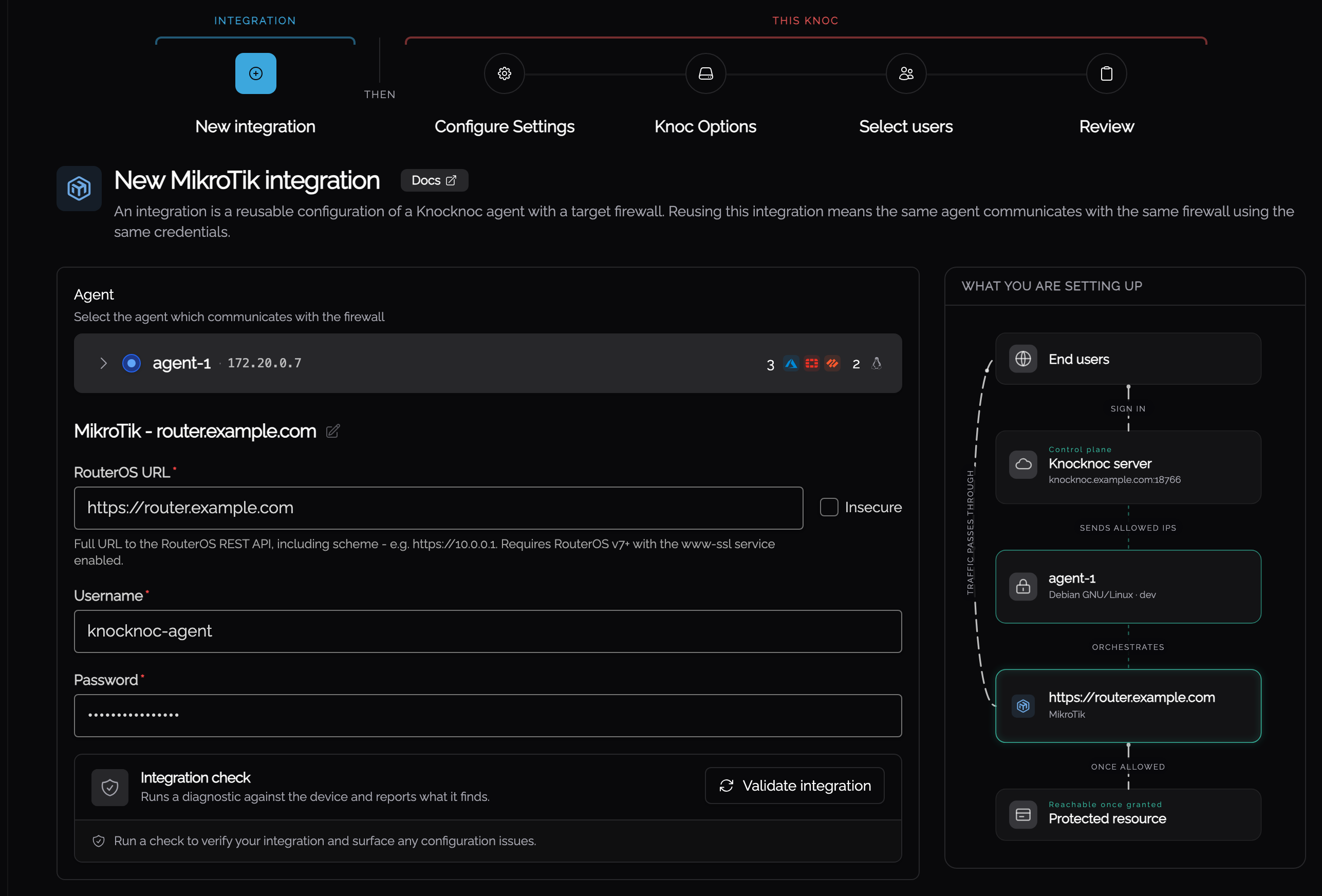
Step 4: Configure the Knoc
On Configure Settings, give the knoc the address-list it writes to.
| Field | Value |
|---|---|
| Address-list name | knocknoc-users (must match the firewall rule) |
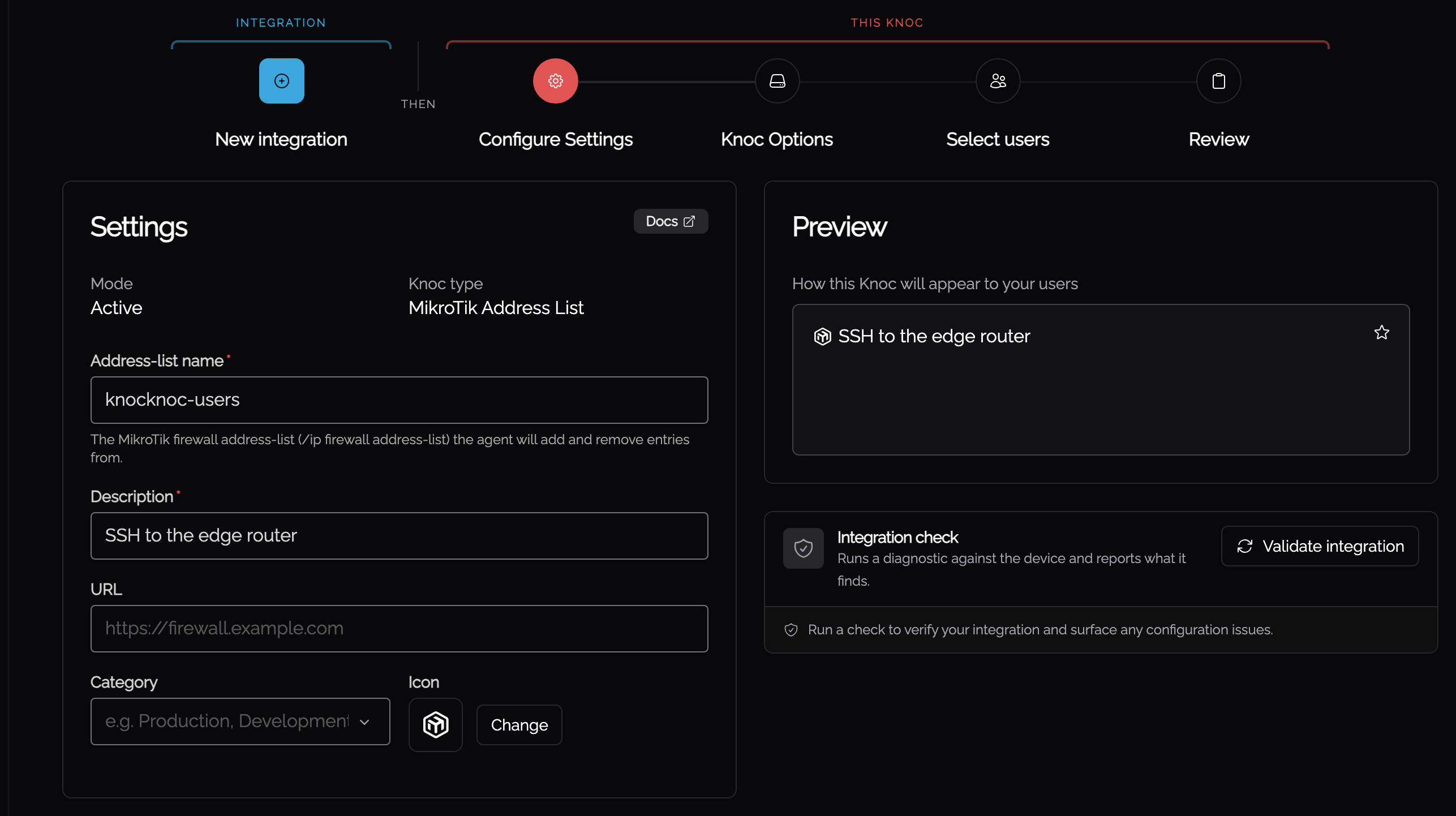
Click Validate integration on the integration step to confirm the agent can reach the device, then finish the wizard and save.
Troubleshooting
The Knocknoc agent reports structured error codes when MikroTik operations fail. You can find more details on resolving these issues here.