SAML
SAML is an in-depth topic, however it represents the best option for securing users, and providing centralized user management. There are many SAML providers, and no single convention on configuration and implementation. Knocknoc is tried and tested with a few of them, and the configuration customizable enough to be adapted to work with any standard SAML2 implementation.
SAML is the preferred authentication provider with Knocknoc, if you are unfamiliar with SAML here is an overview on the general principles and terms.
SAML and Knocknoc
Knocknoc can support two IdPs (or integrations), one for the User logins and one for the Admin interface login. This lets MSPs or security teams manage users and ACLs, without being granted ACLs to the services being protected.
In single IdP environments Knocknoc supports users and admins from a single authentication source. Admin access can be authorized using groups or other keys within the IdP response.
Implementing SAML in Knocknoc
When configuring SAML in Knocknoc:
- Identify the IdP and SP: Knocknoc is the SP, and your provider is the IdP (e.g. OKTA, EntraID, Jumpcloud).
- Configure Assertions: Customize the assertions to include the necessary user information, this can include sending group information and/or static assertions.
- Select Bindings and Profiles: Choose appropriate bindings and profiles based on your use case.
- Test the SAML Flow: Ensure that the authentication flow works as expected and is secure, SAML responses can be tested using tools like SAML trace.
- Monitor and Update: Regularly monitor the SAML setup and update as necessary, considering any new security patches or compliance requirements.
SAML URLs
If you want to skip ahead and know SAML, the below information should help you get going quickly:
- Metadata URL: https://demo.knoc.cloud/api/saml/metadata (use /api/admin/saml/metadata for Admin SAML)
- ACS URL to https://demo.knoc.cloud/api/saml/acs (use /api/admin/saml/acs for Admin SAML)
- Login URL as https://demo.knoc.cloud/api/login/saml (or /api/admin/login/saml for Admin SAML)
Note for Admin SAML integration the URLs include an 'admin' as above.
User versus Admin SAML
Knocknoc keeps user and admin identities separate, and each can be backed by a different identity provider. The two sign-in flows provision accounts differently:
Admin provisioning
Once admin SAML metadata is configured, Settings -> Authentication -> Admin
provisioning controls which SAML users are automaticallyallowed in as admins. Select at least one
option:
groups, Group membership is re-checked on every login. A user who loses the group membership(or, mustonce
matchgroup mode is turned off, who is not also a predefined admin) is refused at the next
login. Their admin account is left untouched: Knocknoc does not disable or delete it,
the user simply cannot sign in until they regain access. The refused user sees a clear
message on the admin login page ("Access refused: your account is not a member of the
required SAML group. Contact an existingadministrator."). Group/KnocThe definitionmessage foris deliberately generic
and does not indicate whether the account exists.
Testing your SAML configuration
Knocknoc can run a live SAML round-trip against your identity provider without creating
a user or a session, so you can confirm the integration and see exactly what the IdP
sends before relying on it. All tests are launched by a signed-in admin from Settings
-> Authentication, and run against your saved configuration, so save any onwardchanges
access to be obtained.first.
For
Note thatboth the User and Admin SAML domainsboxes. It signs you in
through the relevant identity provider and returns to a result dialog showing the
NameID and every attribute the IdP returned. The user test additionally lists the
Knocknoc groups that user would be assigned on login.
Each test redirects you through the IdP and back to a result dialog; the raw attributes
are separate,collapsed allowingand expandable. Because no session is created, the tests are safe to run
at any time and never log you toin useas the tested identity.
SAML session duration
A user's session length can be driven by the SAML assertion. For a new user, Knocknoc
uses an explicit per-user override if one IdPis forset, Usersotherwise andthe anotherduration entirelysupplied differentin onethe
forassertion, Admins.otherwise a default of 420 minutes (7 hours). For an existing user, if the
identity provider omits the duration attribute Knocknoc keeps that user's
already-configured duration rather than resetting it.
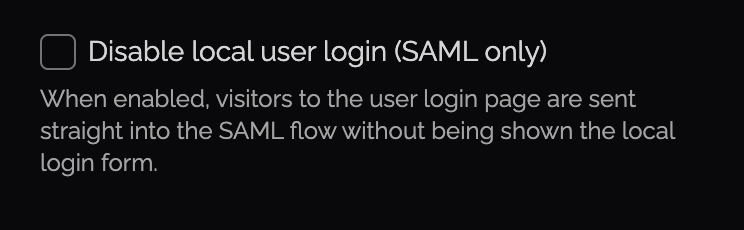
SAML-only mode, disabling local users
You can disable local-users, forcing SAML only, within the Admin -> Settings page. Disable anytime if local-users are required.
When enabled, this automatically forwards users to your IDP to streamline access and avoid confusion during major rollouts. This can be combined with the "Instant referrer redirect (no countdown)" option which redirects users straight to the service they were trying to access. Goes hand-in-glove with the SAML-only login feature mentioned above, resulting in a fast but secure redirect experience, granting just in time network access without friction.