
Custom Script
The "Custom Script" Knoc type is simply a script the agent can execute directly on the Agent machine. Linux and macOS agents run shell scripts; from Knocknoc 26.06, Windows agents can also run scripts, executing them as PowerShell (.ps1) scripts.
Note: For security reasons this is disabled by default when installing a new Agent, on every platform. See config below.
Enable/Disable Custom Scripts
To enable custom scripts on a Linux or macOS agent, edit the /opt/knocknoc-agent/etc/knocknoc-agent.conf file:
#/opt/knocknoc-agent/etc/knocknoc-agent.conf

# to enable custom scripts, set the below to true
CustomScripts = true

# to disable (default when installing), set to false
#CustomScripts = false
On a Windows agent the same CustomScripts = true setting is used, in the configuration file at C:\Program Files (x86)\Knocknoc-Agent\knocknoc-agent.conf. Custom scripts are opt-in on Windows for the same safety reasons as on Unix. Restart the Knocknoc Agent service after editing the configuration so the change takes effect.
Scripts, Arguments and Env Variables
The Agent passes through a number of arguments:
- Action:
add(to grant access),del(to revoke access) orflush(to empty/reset the whole ACL); - ACL (or "set name"): the name of the ACL for validation, or for example an AWS security group ID;
- IP address: the IP address detected by the server for the user's session. This is not provided for a
flushaction.
If your backend does not require an ACL name or equivalent, allocate and discard the value.
The agent monitors the script for its exit status. A zero (0) exit code is considered successful; a non-zero exit code counts as an error and this is reflected on the end user's Knocknoc dashboard.
Scripts work best if they are idempotent, that is to say they can be called multiple times with the same arguments and the end result is the same. For example, even if the script is called more than once to grant a single IP, avoid raising an error; just ensure the grant has been applied to your system correctly. Similarly for a del/revocation, the script should be able to be called multiple times to ensure a given IP is not present in the specified ACL.
Environment Variables
Environment variables allow you to pass values to your script at runtime. These values can be used to pass credentials, customize behavior, or store other necessary data.
- Each environment variable consists of a name and a value.
- If a variable is marked as "Sensitive," its value will be encrypted on the server and hidden from view.
- Ensure that sensitive data, such as API keys or passwords, are marked appropriately to keep them secure.
Sensitive values are encrypted using a key provided by the Agent. This key remains on the Agent and is not exposed to the Server. Therefore the Server cannot decrypt values marked as Sensitive once they have been saved. The encrypted variables are obtained by the Agent as part of a login/grant, they are then decrypted and passed to the script on-host for execution.
Once you have marked an environment variable as Sensitive, you cannot reveal this value again as the Server cannot decrypt them. It is important to back up your Agent system.
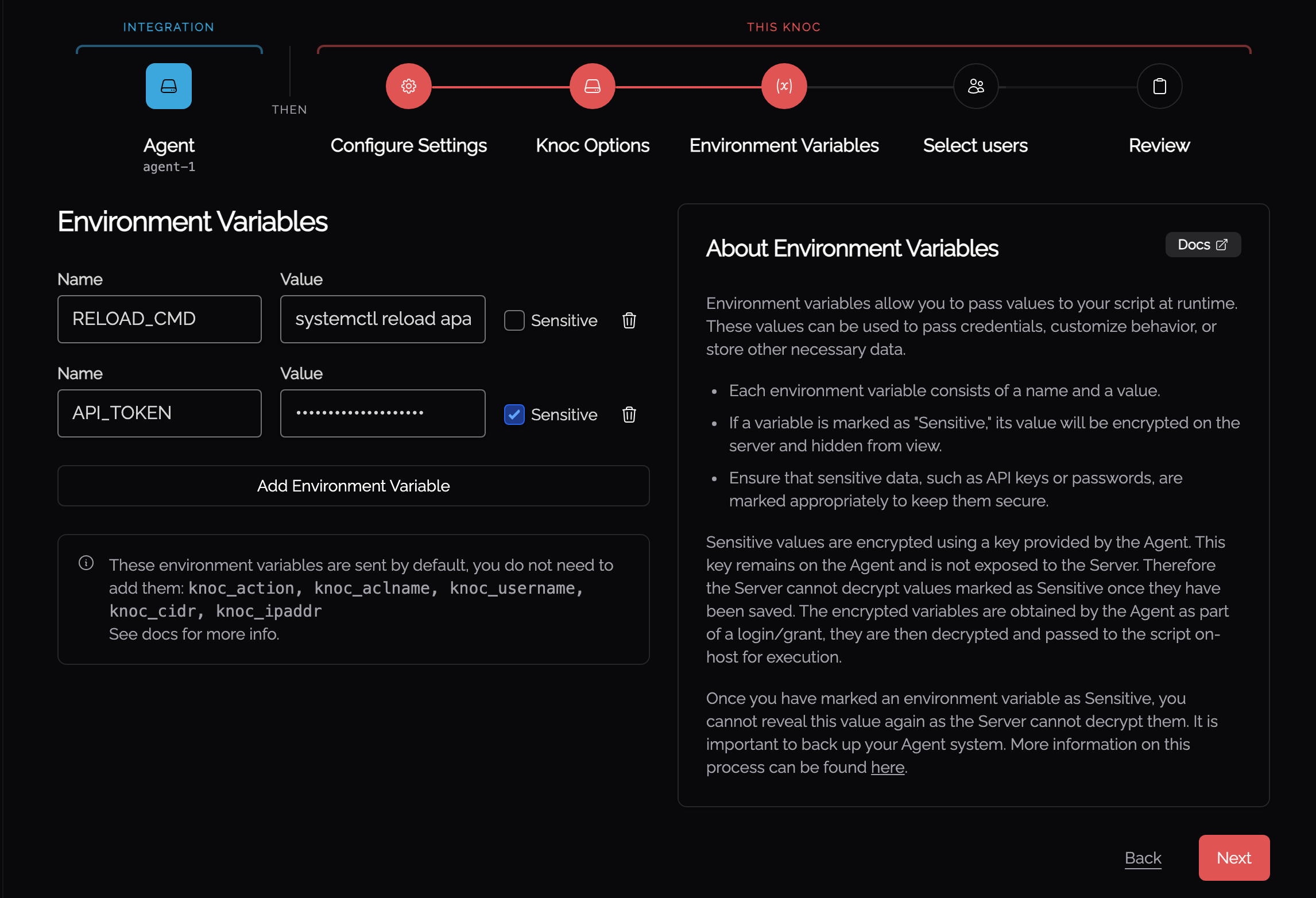
These environment variables are sent by default, you do not need to add them: knoc_action, knoc_aclname, knoc_username, knoc_cidr, knoc_ipaddr.
Windows agents (PowerShell)
On Windows, the custom script backend runs your script with PowerShell. A few platform-specific rules apply:
- Only PowerShell scripts are accepted: the configured command must end in
.ps1. Other file types (.exe,.bat,.cmd) are rejected. - The agent runs the script with PowerShell 7 (
pwsh.exe) if it is installed, otherwise the built-in Windows PowerShell (powershell.exe). It is invoked aspwsh.exe -NoProfile -ExecutionPolicy Bypass -File <your-script.ps1> <action> <aclname> <ip>, so it runs regardless of the machine's PowerShell execution policy and without loading any profile. - Scripts located under the Windows system directories (
System32andSysWOW64) are not allowed; place your script in your own directory instead. - Working directory: when the script path is absolute, the script runs in its own folder; when it is relative, it runs in the agent's install directory (
C:\Program Files (x86)\Knocknoc-Agent). Prefer absolute paths. - The arguments and the default environment variables (
knoc_action,knoc_aclname,knoc_username,knoc_cidr,knoc_ipaddr) are passed exactly as on Unix.
Note: The Knocknoc Agent service runs as LocalSystem. Your PowerShell script executes with those privileges, so review it carefully and restrict who can edit the .ps1 file. For managing the local Windows Firewall you can also use the built-in Windows Firewall backend, which needs no scripting.
Examples
Network interfaces or HostAPd
You can script any back end, and we mean anything.
If you want to enable a Linux based WAP using HostAPd, you can simply "start" and then "stop" on a "add" and "del" instruction. If you need to link an airgap/network interface to authentication, you can "ifconfig" or "ip up", or even enable a serial interface based on a grant linked to centralized user login.
Example: knock-firewall.ps1 (Windows)
This illustrative PowerShell script keeps the remote addresses of an existing Windows Firewall rule in sync with the IPs Knocknoc grants. Create the firewall rule first, then point the script at it via the ACL name. Like the Linux example, it validates its inputs and is idempotent: granting or revoking the same IP twice produces the same result without raising an error.
#Requires -Version 5.1
# knock-firewall.ps1 - add/remove a granted IP to an existing Windows Firewall
# rule's RemoteAddress list. The rule name is taken from the ACL ("set name").
#
# Arguments (also available as the knoc_* environment variables):
#   $args[0]  action: add | del | flush
#   $args[1]  ACL name -> the DisplayName of the firewall rule to manage
#   $args[2]  IP address (not supplied for flush)

$ErrorActionPreference = 'Stop'

$action  = $args[0]
$ruleName = $args[1]
$ip      = $args[2]

if ($ruleName -notmatch '^[A-Za-z0-9 _-]+$') { Write-Error 'Invalid rule name'; exit 1 }

function Get-Addresses($rule) {
    $f = $rule | Get-NetFirewallAddressFilter
    $current = @($f.RemoteAddress) | Where-Object { $_ -and $_ -ne 'Any' }
    return ,$current
}

$rule = Get-NetFirewallRule -DisplayName $ruleName -ErrorAction SilentlyContinue
if (-not $rule) { Write-Error "Firewall rule '$ruleName' not found"; exit 1 }

switch ($action) {
    'add' {
        if ($ip -notmatch '^[0-9a-fA-F:.]+$') { Write-Error 'Invalid IP address'; exit 1 }
        $addrs = Get-Addresses $rule
        if ($addrs -notcontains $ip) { $addrs += $ip }       # idempotent
        Set-NetFirewallRule -DisplayName $ruleName -RemoteAddress $addrs
    }
    'del' {
        if ($ip -notmatch '^[0-9a-fA-F:.]+$') { Write-Error 'Invalid IP address'; exit 1 }
        $addrs = @(Get-Addresses $rule | Where-Object { $_ -ne $ip })
        if (-not $addrs) { $addrs = @('Any') }                # rule keeps at least one entry
        Set-NetFirewallRule -DisplayName $ruleName -RemoteAddress $addrs
    }
    'flush' {
        Set-NetFirewallRule -DisplayName $ruleName -RemoteAddress 'Any'
    }
    default { Write-Error "Invalid operation: $action"; exit 1 }
}
There are many ways to use the custom script backend. This structure empowers you to use Knocknoc as a unified platform for managing IP-based access to practically any scriptable system.