
Redirecting Users
Knocknoc supports a couple of ways to redirect users to and from Knocknoc, which can be useful for when you want users to get where they're trying to go ASAP.
Redirecting to a Referrer URL
This is the most basic way to redirect users to a custom URL from the Knocknoc Dashboard. To achieve this, simply add the referrer query parameter to the link used to access Knocknoc, for example: https://my.example.knocknoc.com?referrer=https://my.website.com
Note: The referrer link will only be redirected to if the user has a Knoc with a URL matching the same base as the referrer.
This can be useful as a static redirect, or it can also be dynamic, depending on your firewall configuration.
Always redirect to SAML login (per Knoc)
This is a per-Knoc option in the Knoc Options section. When a visitor reaches this Knoc's URL before logging in (for example via a referrer redirect), Knocknoc sends them straight to the SAML login instead of showing the local login page. It only applies when SAML is configured. Unlike Disable local user login, which is site-wide, this targets only the Knocs you enable it on, so you can force SSO for specific protected apps while leaving local login available elsewhere.
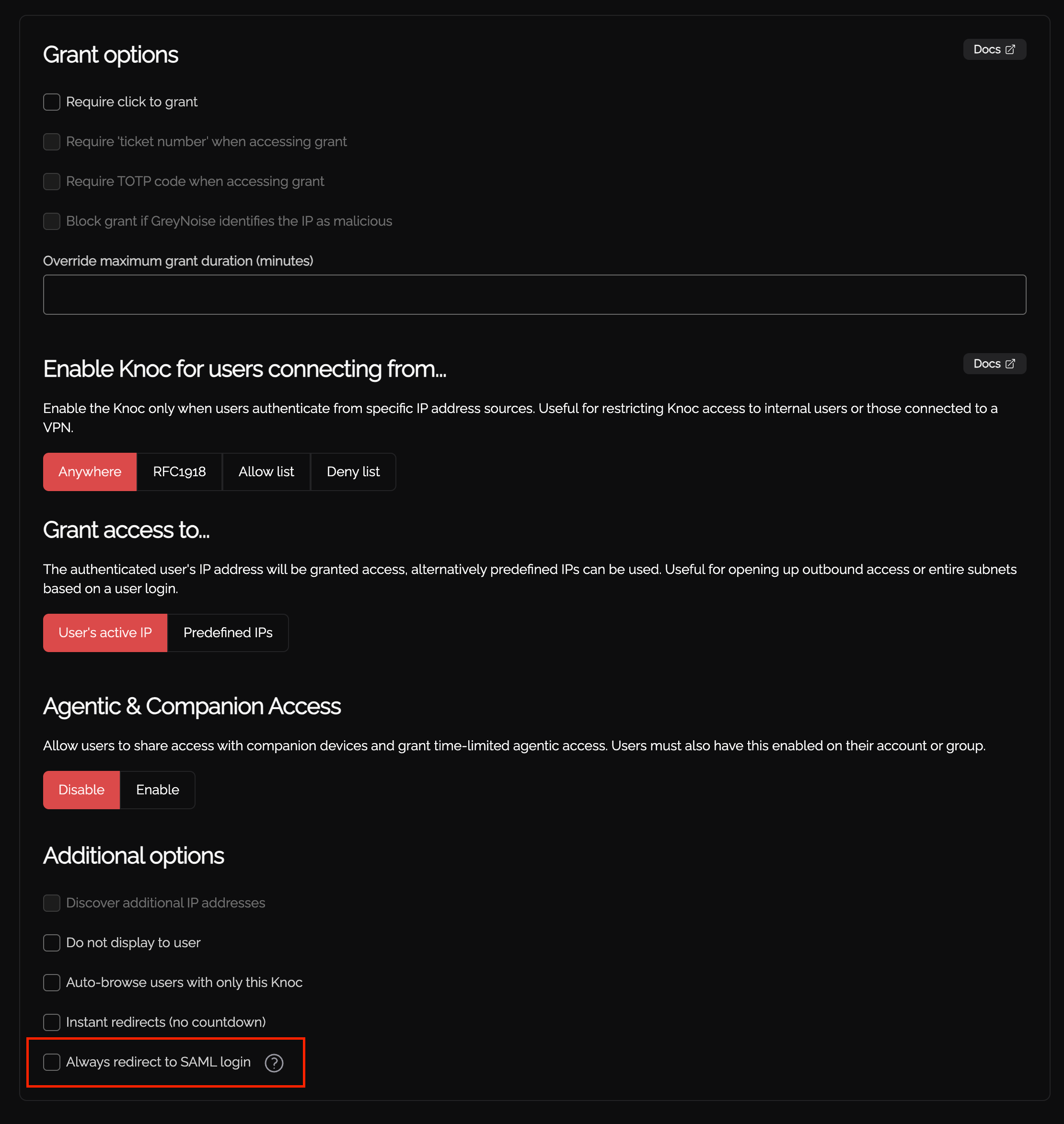
Security consideration: Enabling this makes the Knoc's SSO enforcement probeable before authentication: an unauthenticated visitor can confirm whether a given URL matches a redirect-to-SAML Knoc, because a matching URL triggers the SAML redirect. This applies to every such Knoc, including ones set to Do not display to user. If you need to avoid this per-URL signal, use the site-wide Disable local user login option instead, which redirects every login to SAML regardless of URL.
Opening a knoc’s URL after login
Open this Knoc’s URL after login, under Where they go, forwards the user to the knoc once they have signed in, when it is the only knoc available to them.
This can streamline the users' login experience, and depending on the protocol (e.g., https or sftp, SAP, etc) their workstation can automatically launch the required software if this sits outside the web browser.
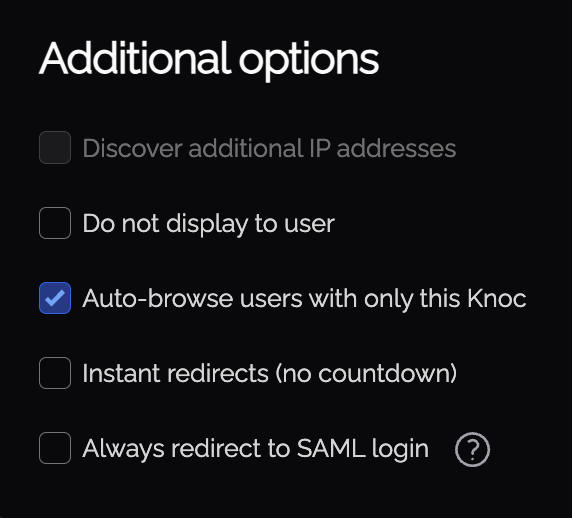
Also note that if this is the user's only available Knoc, the card will not be visible prior to the auto-browse redirect.
Disable local user login
This option disables local user logins, meaning that users will only be able to log in with SAML. A benefit of this is that because only SAML logins are now enabled, when a user navigates to (or is redirected to) the Knocknoc log in page they will be automatically redirected into the SAML process.
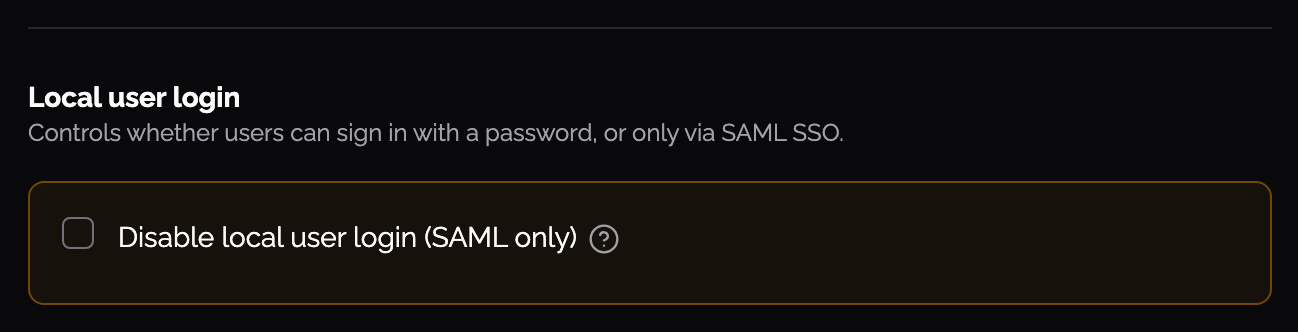
When combining this option with the above mentioned Javascript on your redirect page, it is possible to have an instant redirection from a resource protected by Knocknoc through to a logged in Knocknoc instance, so the user can quickly get access without overhead.
Skipping the dashboard
Skip the Knocknoc dashboard, under How they’re sent when you create or edit a knoc, sends the user straight on instead of landing them on the dashboard with a four-second countdown they can cancel. It applies to both routes onward: the knoc’s own URL after login, and a referrer URL.
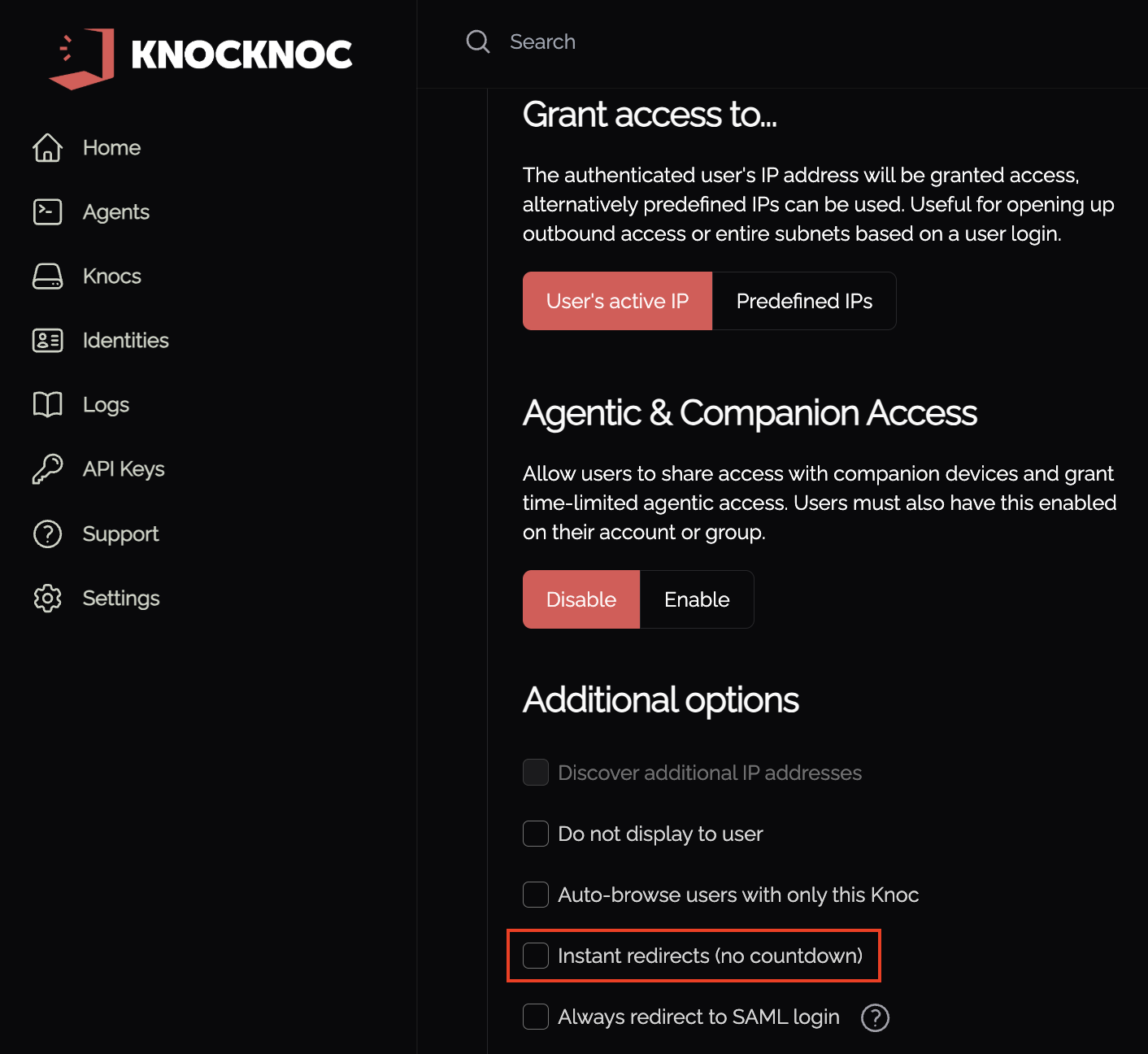
If this option is combined with the "Disable local user login" option, it is possible to have Knocknoc grant access to a protected resource for a user without them even seeing Knocknoc in the first place. To this, these steps are required:
- Protect the resource using Knocknoc, and include the above mentioned javascript in the access denied page
- Ensure local user logins are disabled, so the user is instantly directed through to their IDP SAML login
- Ensure instant redirects are enabled, and that there is a Knoc with a URL matching the base of the referrer URL included at step 1
If the firewall Knocknoc is integrating with is quick, access to the protected resource will be near instant, otherwise it may take up to a few seconds.
Javascript redirect
Useful for reverse proxies or websites, this Javascript can be used on your redirect page, then once the user is authenticated with Knocknoc they will be sent back to the page they were trying to access including the path.
<script>
        const baseUrl = 'knocknoc.mycompany.com';
        setTimeout(() => {
                const currentUrl = document.URL;
                if (!currentUrl || !baseUrl) return;
                try {
                        // Add https:// if the URL doesn't already have a scheme
                        let normalizedBase = baseUrl.trim();
                        if (!/^https?:\/\//i.test(normalizedBase)) {
                                normalizedBase = 'https://' + normalizedBase;
                        }
                        const redirectUrl = normalizedBase + '?referrer=' + encodeURIComponent(currentUrl);
                        const url = new URL(redirectUrl);
                        window.location.href = url.toString();
                } catch (err) {
                        console.error('Invalid redirect URL:', err);
                }
        }, 3000);
</script>