
Palo Alto
Knocknoc integrates with Palo Alto firewalls and the Panorama management system to dynamically grant and revoke network access based on authenticated user sessions. Knocknoc updates existing in-policy lists rather than changing policies overall, making dynamic access change-safe, least-privilege and securely implemented.
There are three integration modes:
- Active - Near-instant access control for Palo Alto/Panorama, no commit required (recommended)
- Passive+ - Firewalls poll a securely-hosted External Dynamic List (EDL), with an active refresh signal sent to Panorama/Palo Alto to reduce access latency from ~5 minutes to ~2 seconds
- Passive - Firewalls poll an EDL every 5 minutes. No agent required, good for data-diode environments.
Which Mode Should I Use?
If you have a Panorama - use Active.
If you do not have a Panorama, use Active or Passive+.
Alternative if you want a data-diode style approach, using Passive is best, however the refresh/polling period for users access could be up to 60 seconds from login, unlike the Passive+ or Active modes where this is near real time.
Mode comparison
| Mode | Best when | Speed | Agent required | Firewall object used | Commit needed for grant / revoke |
|---|---|---|---|---|---|
| Active | You want the fastest, cleanest user experience | Near-instant | Yes | Dynamic Address Group | No |
| Passive+ | You want EDL-based control with fast refresh | ~0–2 seconds | Yes | External Dynamic List | No |
| Passive | You want the simplest setup, no agent, or a data-diode-friendly model | ~5 minutes | No | External Dynamic List | No |
Active Mode
Active mode provides real-time access control by communicating directly with the Palo Alto firewall or Panorama, via the Server Orchestration Agent. No user/client installation is required. When a user authenticates and is granted access, their IP is added immediately; when the grant expires or is revoked, the IP is removed. No commit is required.
Already using Passive+? See Moving from Passive+ to Active below to switch over.
Prerequisites on the Palo/Pano
Before configuring Knocknoc, you need to set up the following on your Palo Alto firewall or Panorama.
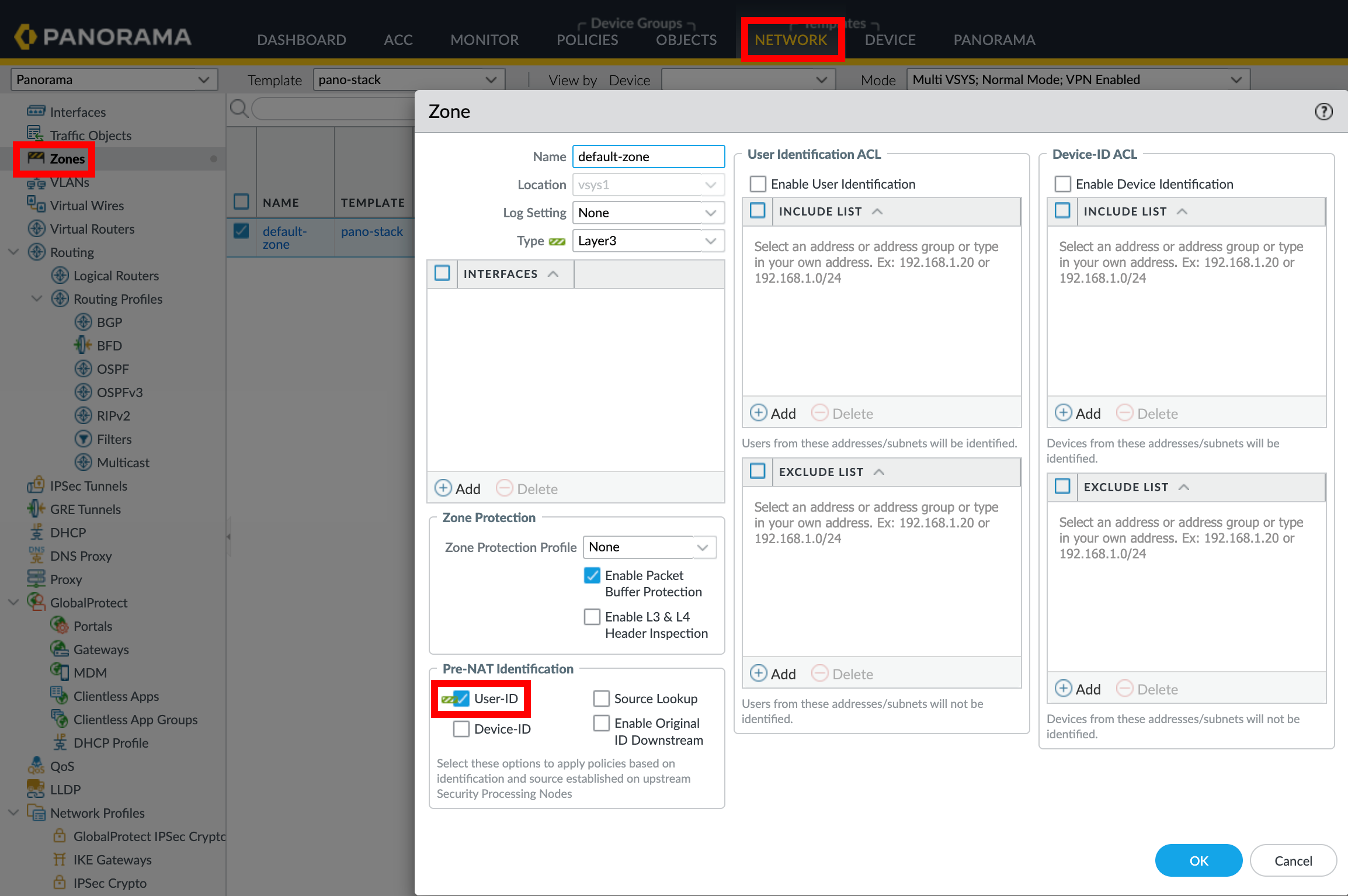
1. Enable User-ID on Zones
2. Create an Address Group
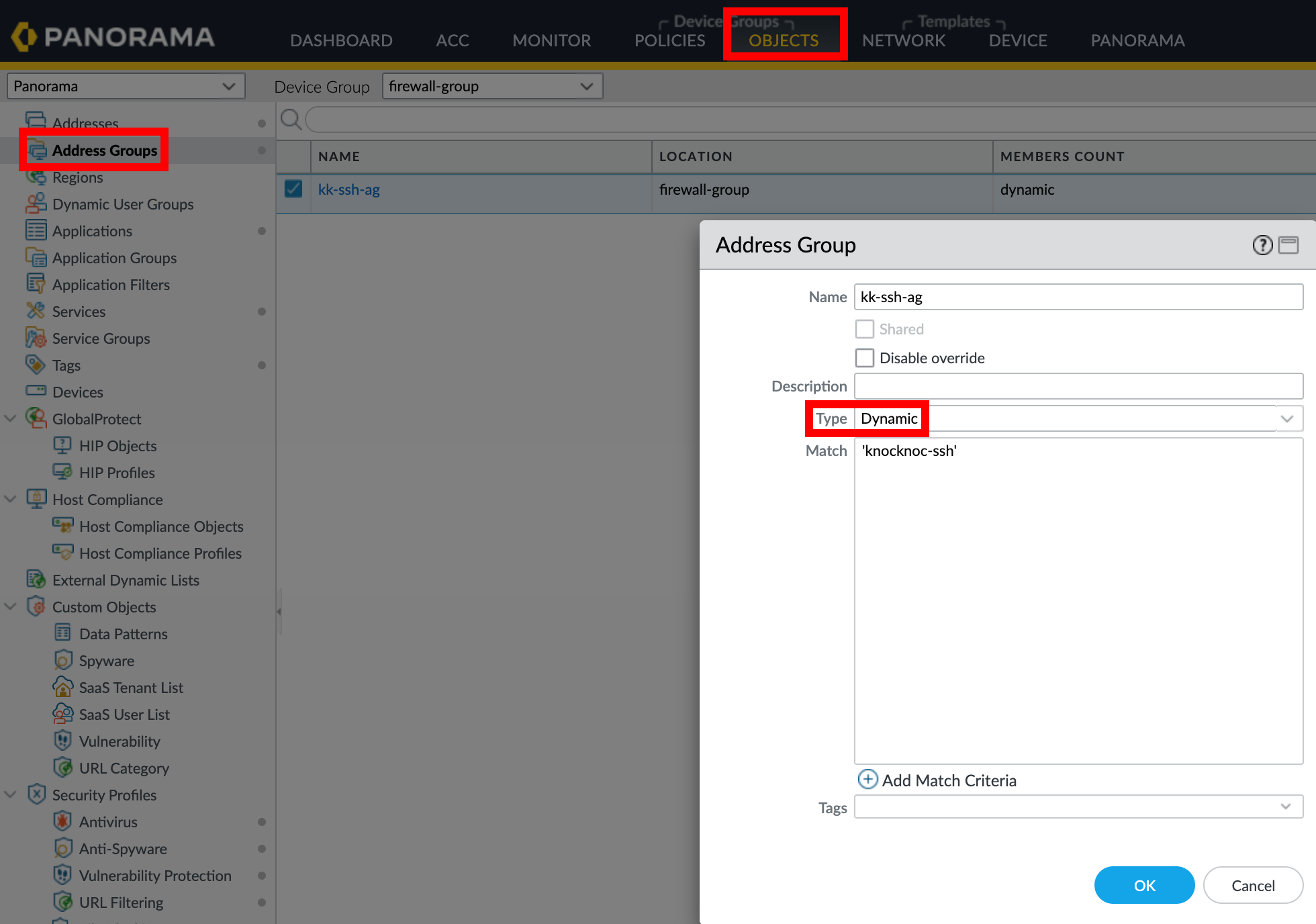
When using Panorama, create the address group in the appropriate Device Group and push to managed firewalls.
3. Create a Security Policy Rule
4. Create an API profile and API user
The API User role for the API key must have User-ID Agent in the 'XML API' section only.
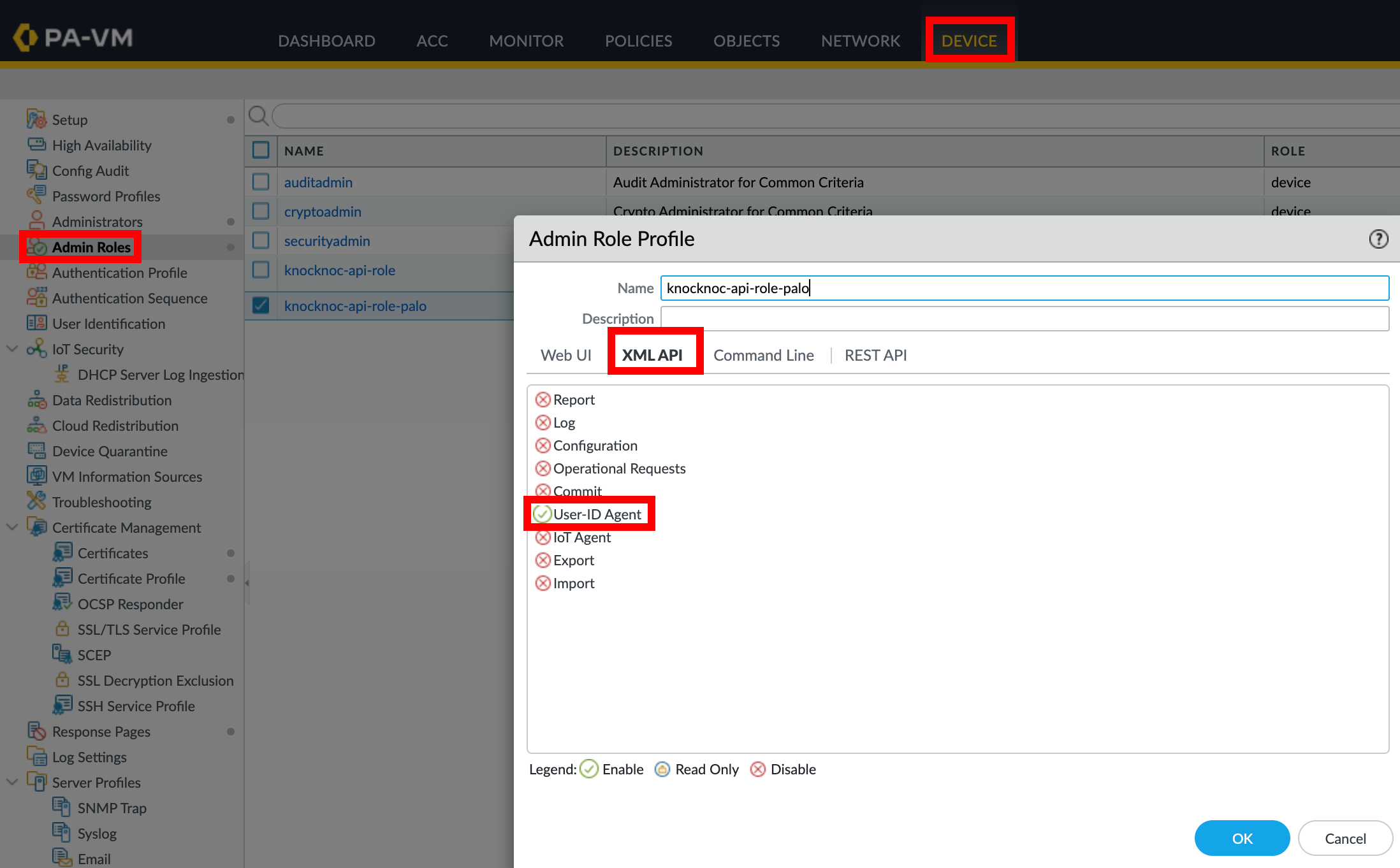
No other permissions are required for Active.
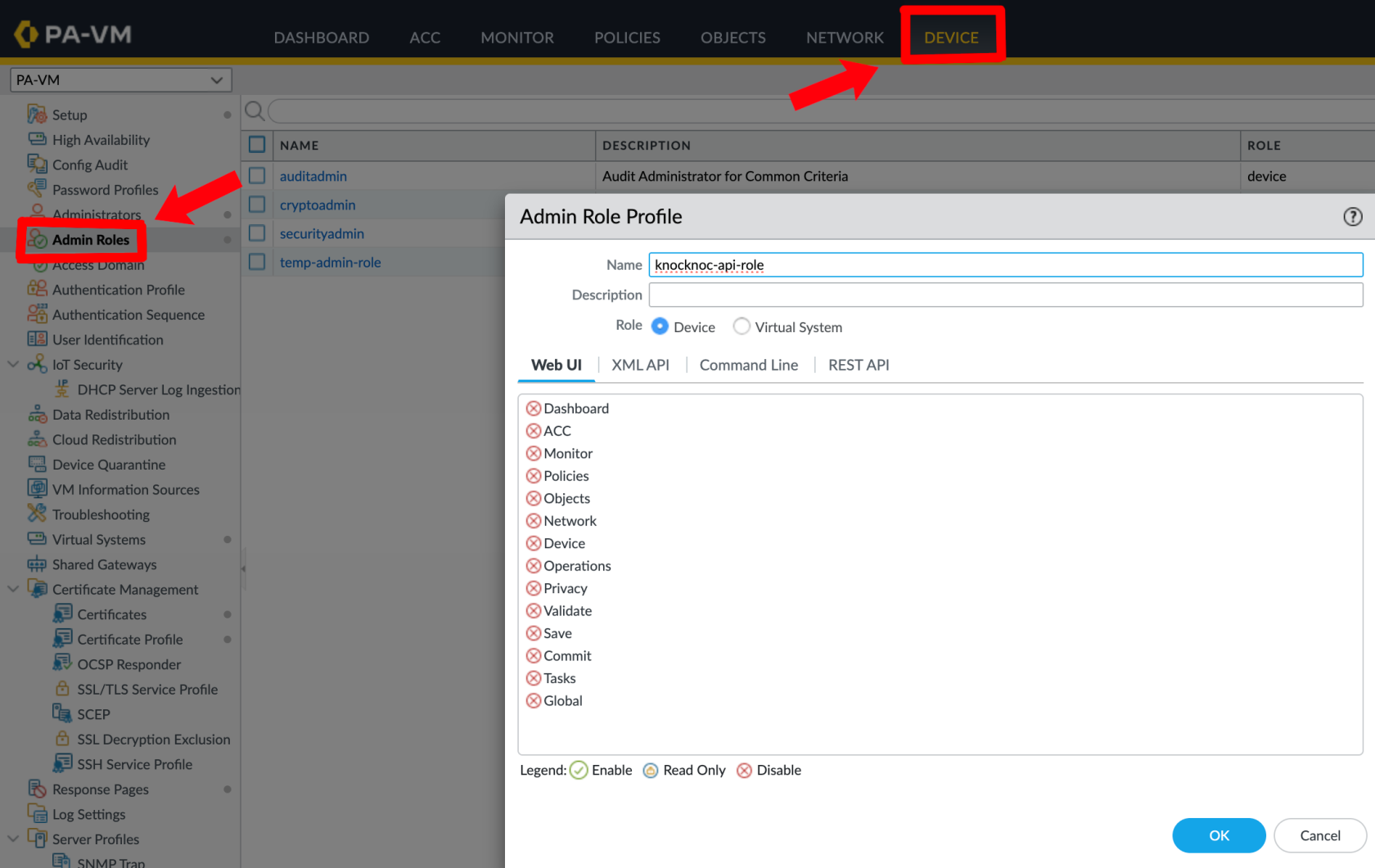
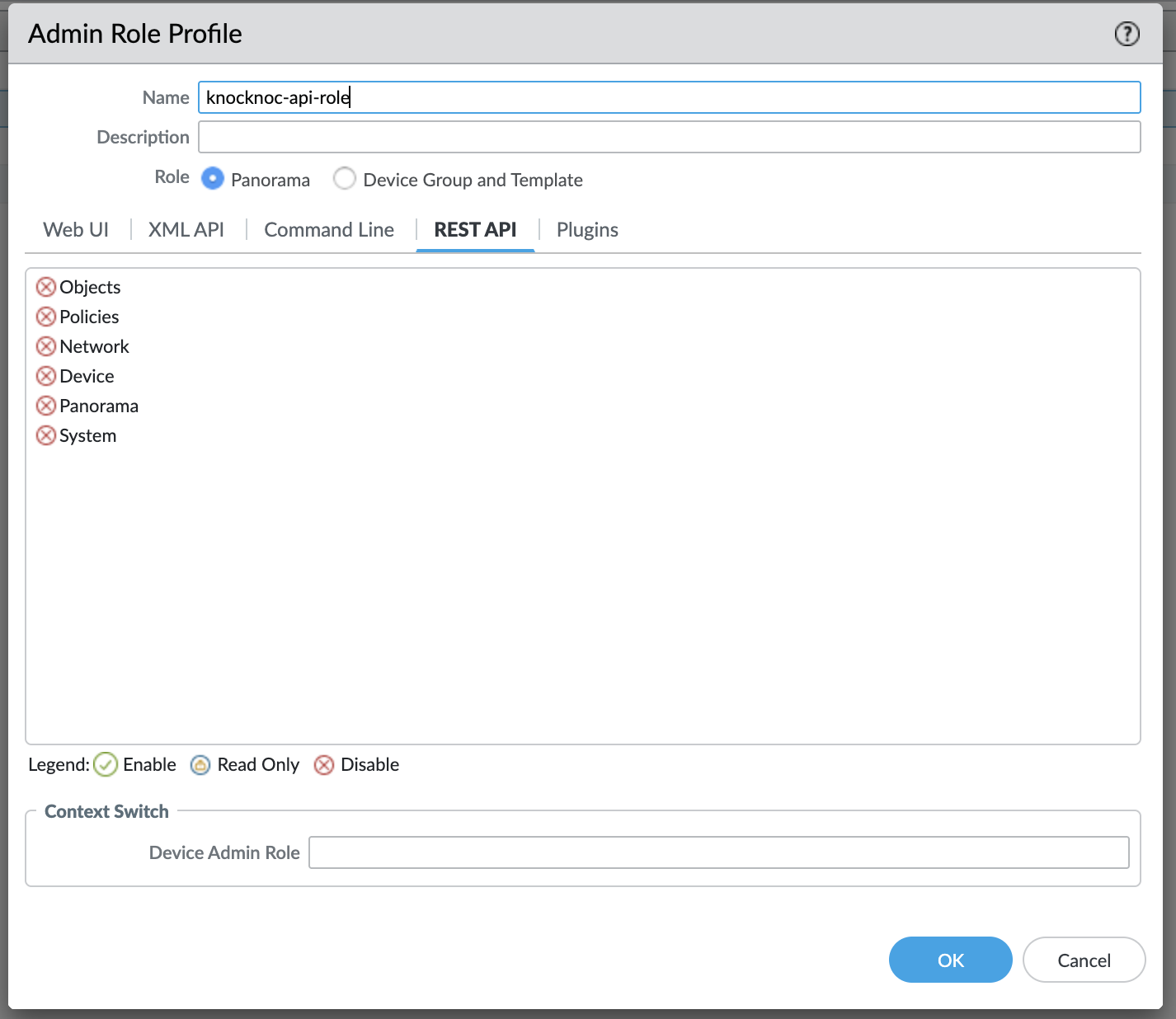
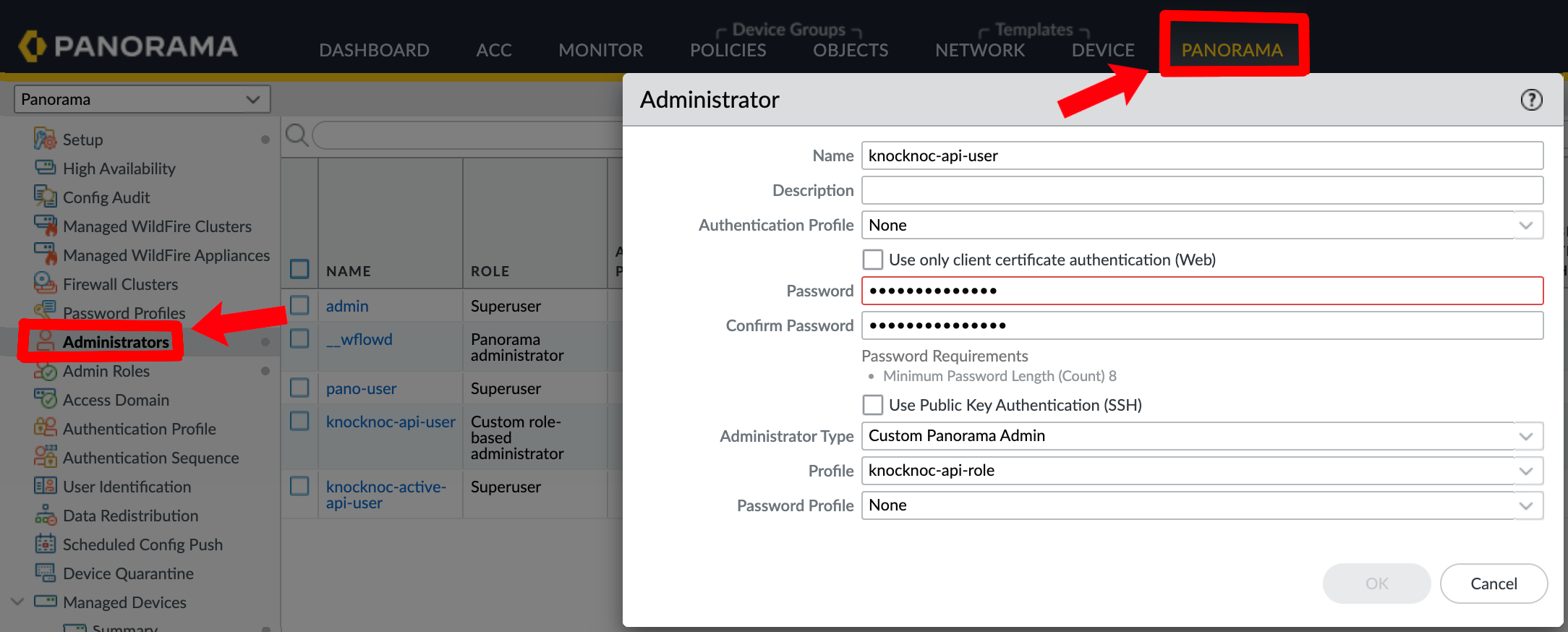
Create a user for the API key:
Panorama:
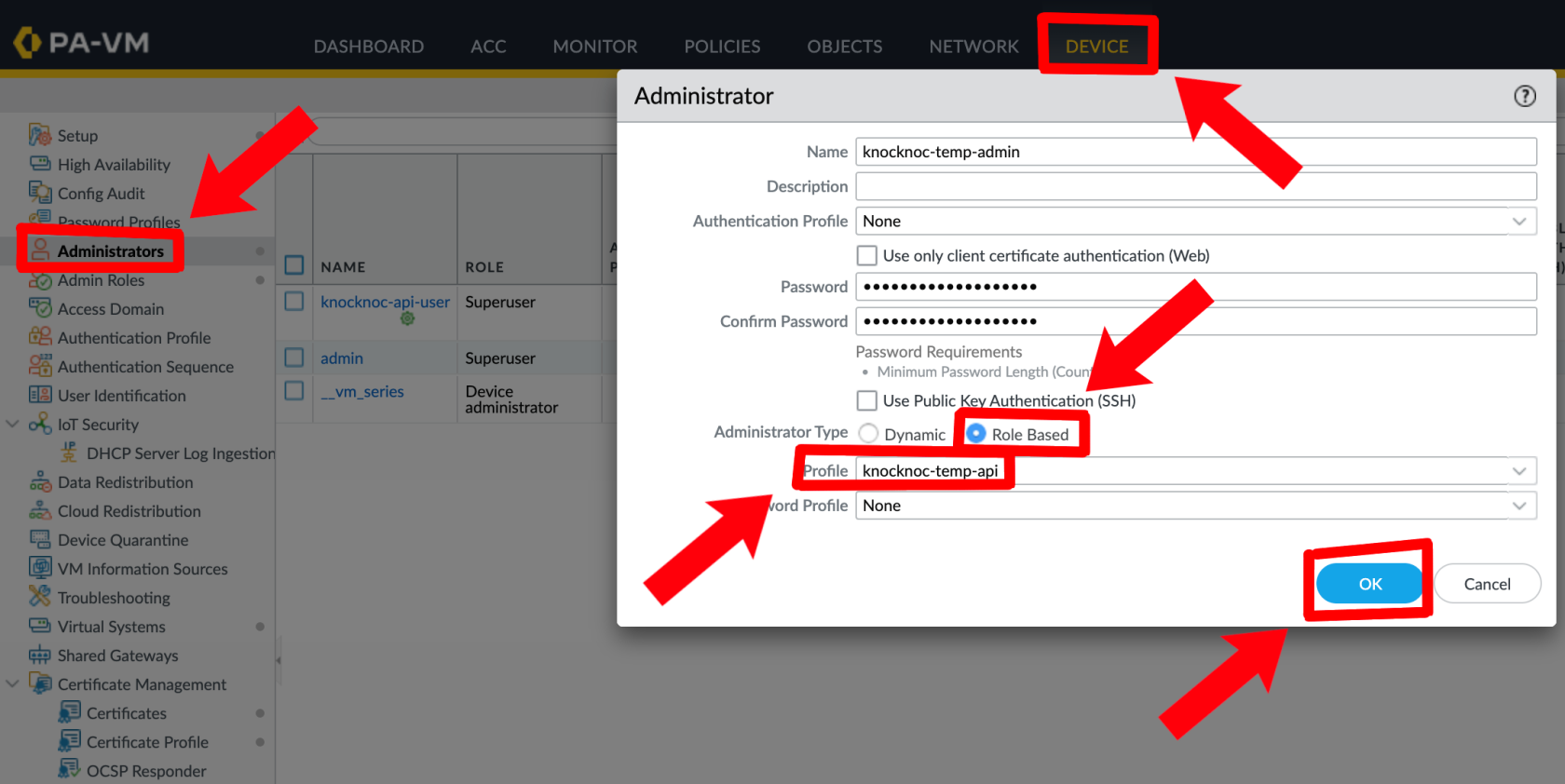
Palo Alto direct (no Panorama):
5. Generate an API Key
The quickest way is the Generate key button beside the API Key field on the integration form. Enter the firewall or Panorama URL, choose the agent, then click Generate key and enter the username and password of the API user from step 4. The agent signs in to the device and fills in the key. Knocknoc does not keep the username or password.
To generate the key on the agent host instead, run:
/opt/knocknoc-agent/knocker/knocker enable panosThis returns a base64-encoded API key.
You can also use curl against the PAN-OS keygen API, which is Palo Alto's suggested approach:
curl -H "Content-Type: application/x-www-form-urlencoded" -X POST \
  "https://<firewall-or-panorama>/api/?type=keygen" \
  -d 'user=<user>&password=<password>'
It will look something like this:
/opt/knocknoc-agent/knocker/knocker enable panos
Enabling backend panos on this machine.
Note: Some operations may require sudo rights.
PAN-OS Integration Setup
Please provide the following information:
PAN-OS Hostname or IP: 1.2.3.4
Enter Username: knocknoc-active-username
Enter Password:
Generating API key for user 'knocknoc-active-username' on host '1.2.3.4'...
Successfully retrieved API key.
API Key: LUFRPT12b1MwREtLZUxxxxxxxxxxxxxxxxxxxxxxxxxxxxxxxxxxxxxxxxxxxxxxxxxxxxxxxxxxxxxxxxxxxxxxxxxxxxxxxxxxxxxUE9PQ==
Please save this key securely. It will not be saved in the config.
You can use this key to authenticate API requests.
Knocknoc Configuration
- When creating a new Knoc Application, select Active as the Application Type
- Select Palo Alto as the vendor
- Configure the backend settings:
- I am using Panorama - Check if connecting through Panorama
- URL - The management URL of the firewall (e.g.,
https://192.168.1.1) - Insecure (skip TLS verification) - Check if using a self-signed certificate
- API Key - The API key generated above
- VSys - The virtual system (e.g.,
vsys1) if utilized - Device Group - The Panorama device group if utilized (if using Panorama and if utilized, not always required)
- Integration Method - Dynamic Address Group (DAG).
- Tag Name - The tag to register IPs with (must match your address group exactly, e.g.,
knocknoc-ssh) - Serial Numbers - Firewall serial numbers you want to push this to (for Panorama deployments)
- Map User - Optionally map the authenticated user identity to the IP via User-ID
Give each knoc a tag of its own. The agent removes addresses on a knoc's tag that the knoc did not grant, so two knocs sharing a tag would remove each other's users. Knocknoc refuses to save a second knoc on a tag another knoc already registers with on the same firewall.
Before you save, click Validate integration to check the configuration against the device. See Checking the integration below for what it looks at.
Panorama with Serial Numbers
When managing firewalls through Panorama, tag registration commands are sent through Panorama to each specified firewall:
- Check I am using Panorama
- Set the Panorama Hostname to the Panorama management URL
- Configure the VSys for the target firewall
- Add one or more Serial Numbers for the managed firewalls you want to target
- The agent will send tag registration commands through Panorama to each specified firewall
You are done and ready to test!
Verifying & Testing
- Create a Knoc with Active mode (following the steps above)
- Assign the Knoc to a test user (login, or create a manual-grant/break-glass entry as an Admin)
- Log in to Knocknoc as that user. Observe the Knoc card for any warnings. Hover for error codes if errors appear.
- On the firewall managed by the Panorama (serial number) - visit Monitor -> Logs -> IP-Tag. Note the login, IP address and tag.
- Verify the IP appears in the address group membership (on the underlying firewall(s))
- Log the user out revoking the grant, and verify the IP is removed
Checklist
- User-ID enabled on the relevant zone(s)
- Address group created with correct tag match criteria (single quotes around the tag name)
- API key has User-ID Agent permissions
- Tag name in Knocknoc matches the address group match criteria exactly (case-sensitive)
- Security policy references the address group
- Serial numbers configured (if using Panorama)
- Commit and push completed (if using Panorama)
High-availability (not using Panorama)
For direct-to-firewall deployments with a high-availability (HA) pair, you can configure automatic failover.
Configuration
In the Knoc Application settings, expand the HA Failover section:
- Secondary Firewall URL - The management URL of the secondary firewall
- Secondary API Key - API key for the secondary firewall
- Skip TLS verification - Check if the secondary uses a self-signed certificate
How It Works
Before each operation (grant, revoke, or extend), the agent:
- Checks the primary firewall's HA state via the operational API
- If the primary is active - sends the command to the primary
- If the primary is passive or unreachable - automatically falls back to the secondary
- If both firewalls are unreachable or both are passive - reports an error
Note: HA failover is for direct-to-firewall deployments only. When using Panorama with serial numbers, Panorama manages device failover itself - do not configure HA failover in this case.
Passive+ Mode
Passive+ mode combines EDL polling with an active refresh signal. Firewalls retrieve IP address lists from a Knocknoc-hosted EDL, and the orchestration agent triggers EDL refreshes dynamically - reducing the effective latency from ~5 minutes to 0–2 seconds.
Knocknoc Configuration
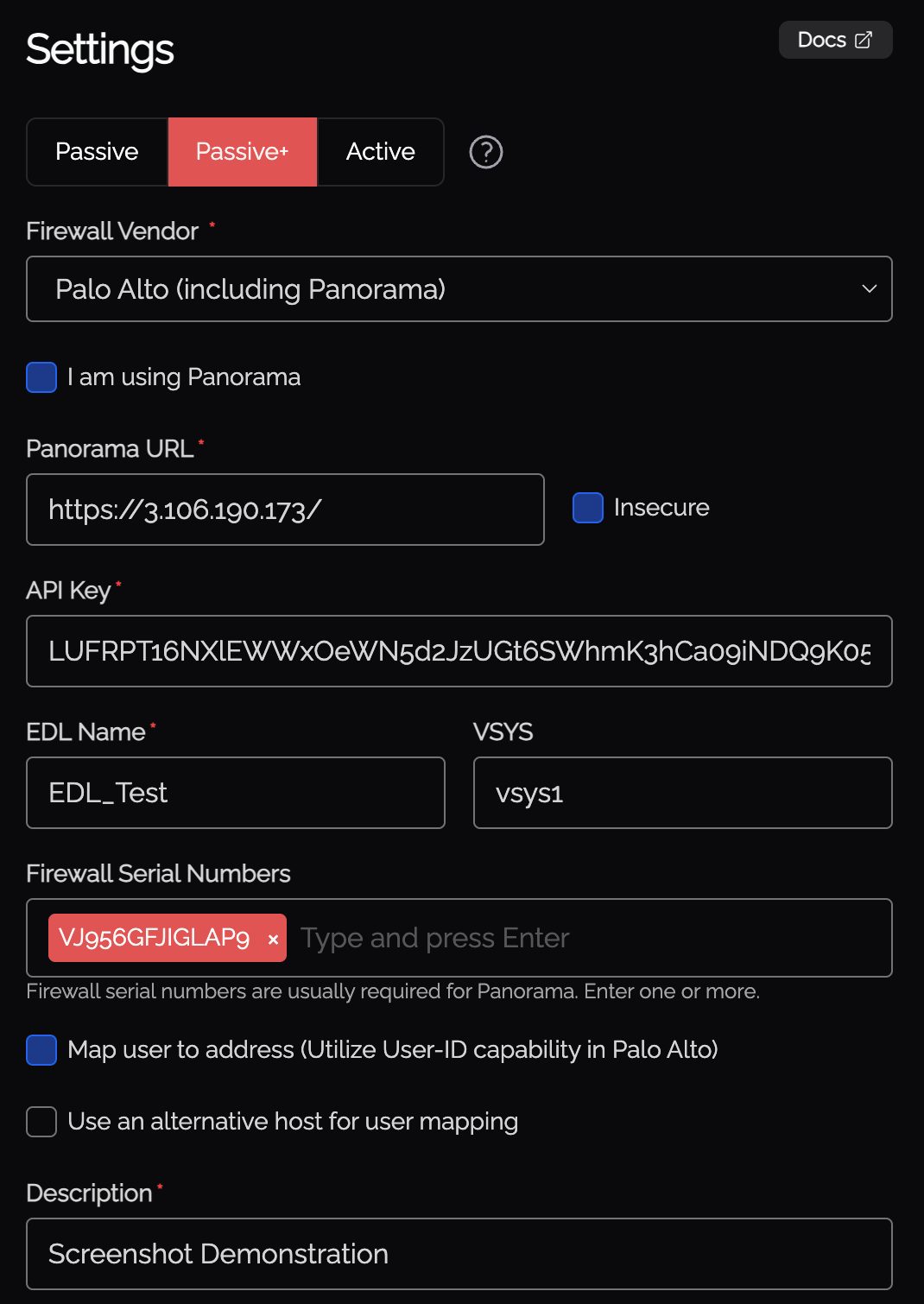
- When creating a new Knoc Application, select Passive+ as the Application Type
- Select Palo Alto as the vendor
- Configure the backend settings:
- I am using Panorama - Check if connecting through Panorama
- Firewall Hostname (or Panorama Hostname) - The management URL
- API Key - API key for the orchestration agent
- EDL Name - The name of the External Dynamic List on the firewall
- VSys - The virtual system (e.g.,
vsys1) - Map User - Optionally map the authenticated user identity via User-ID
- Serial Numbers - Firewall serial numbers (if using Panorama)
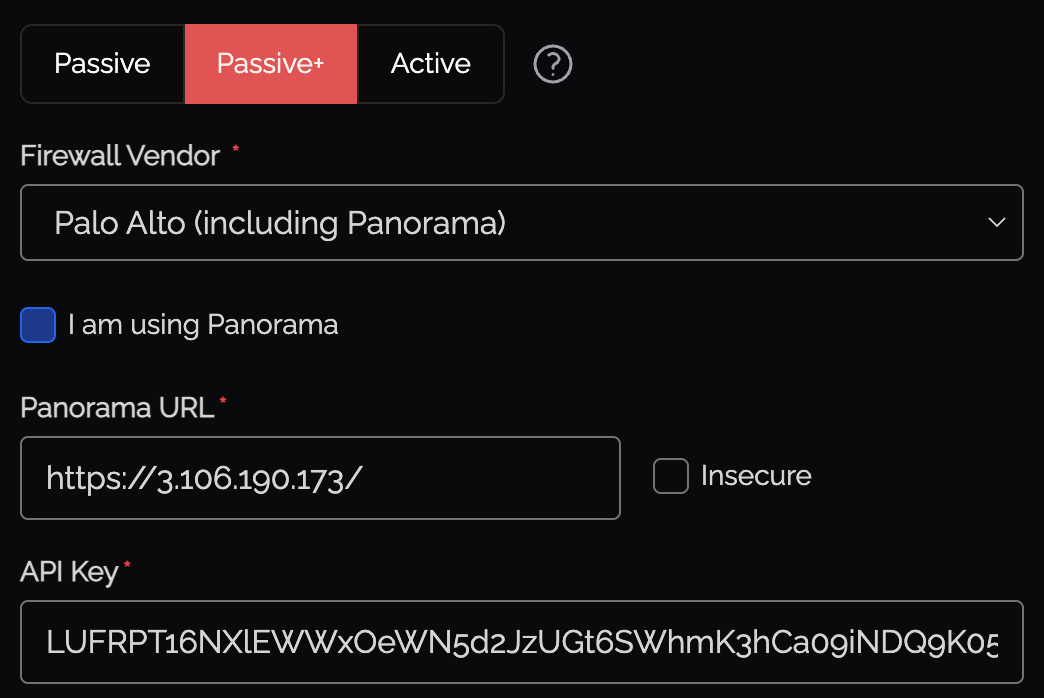
API Key Generation
Run the following command on the orchestration agent to generate the API key:
/opt/knocknoc-agent/knocker/knocker enable panosThis returns a base64-encoded API key.
Required Permissions
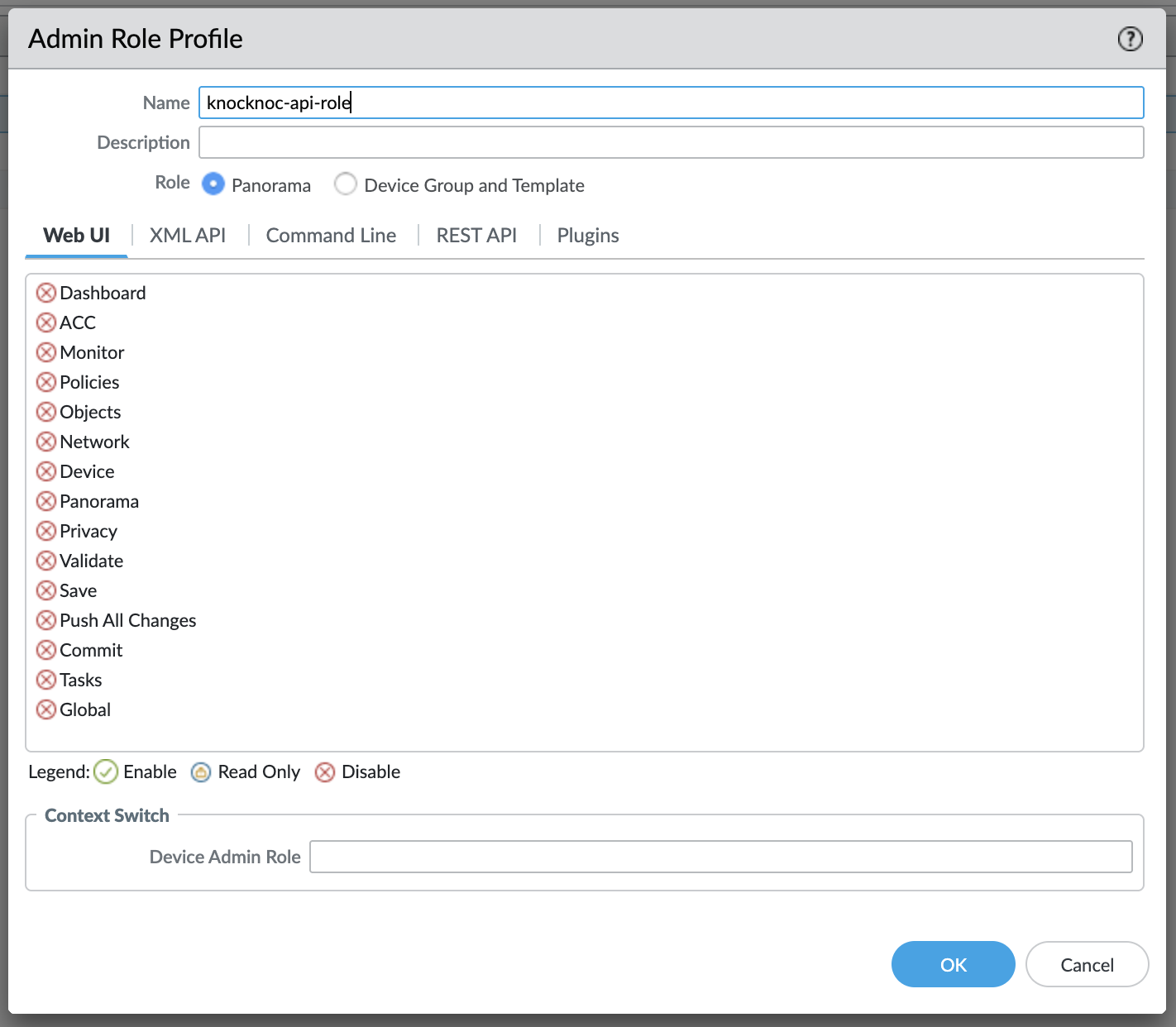
Create a new custom role:
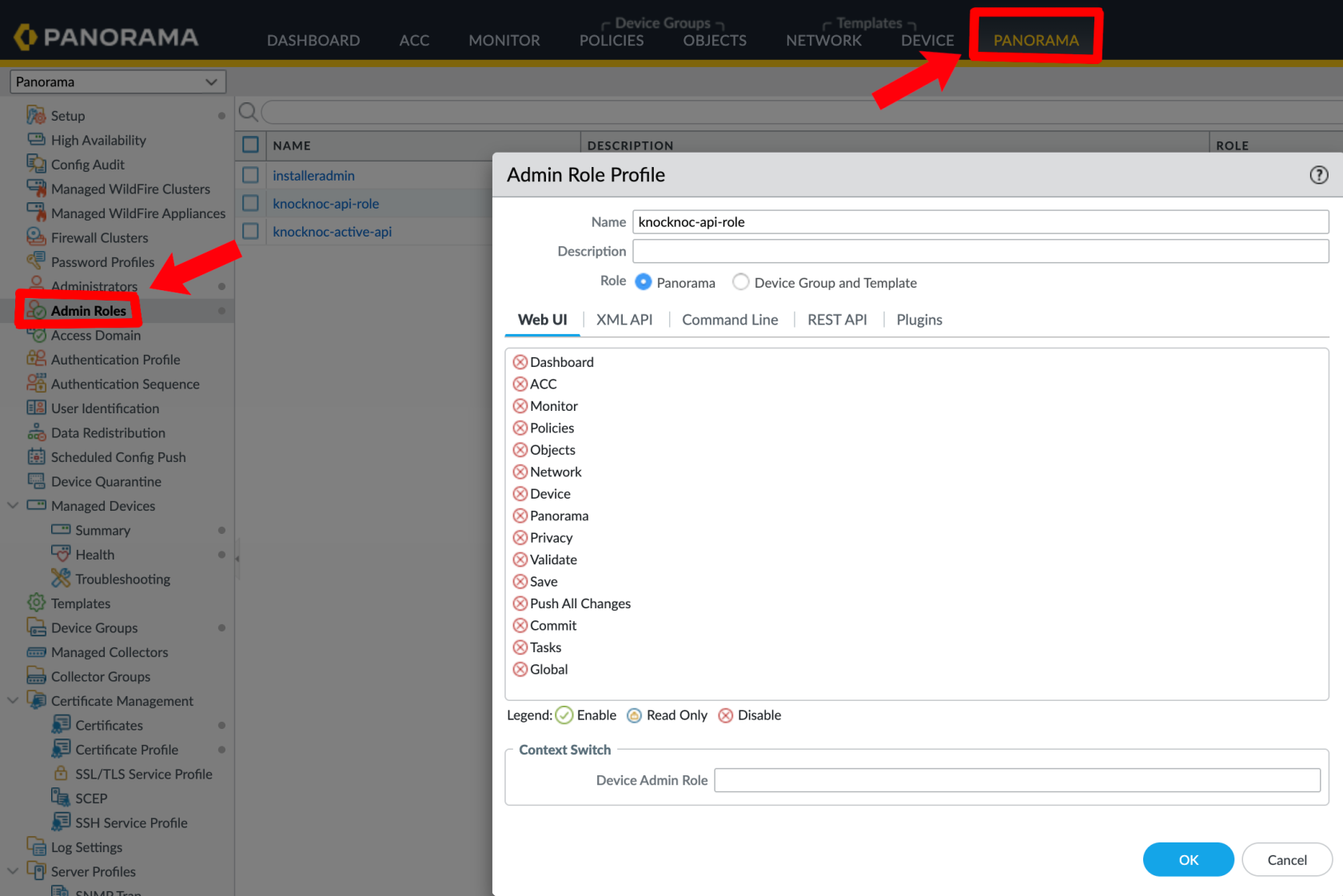
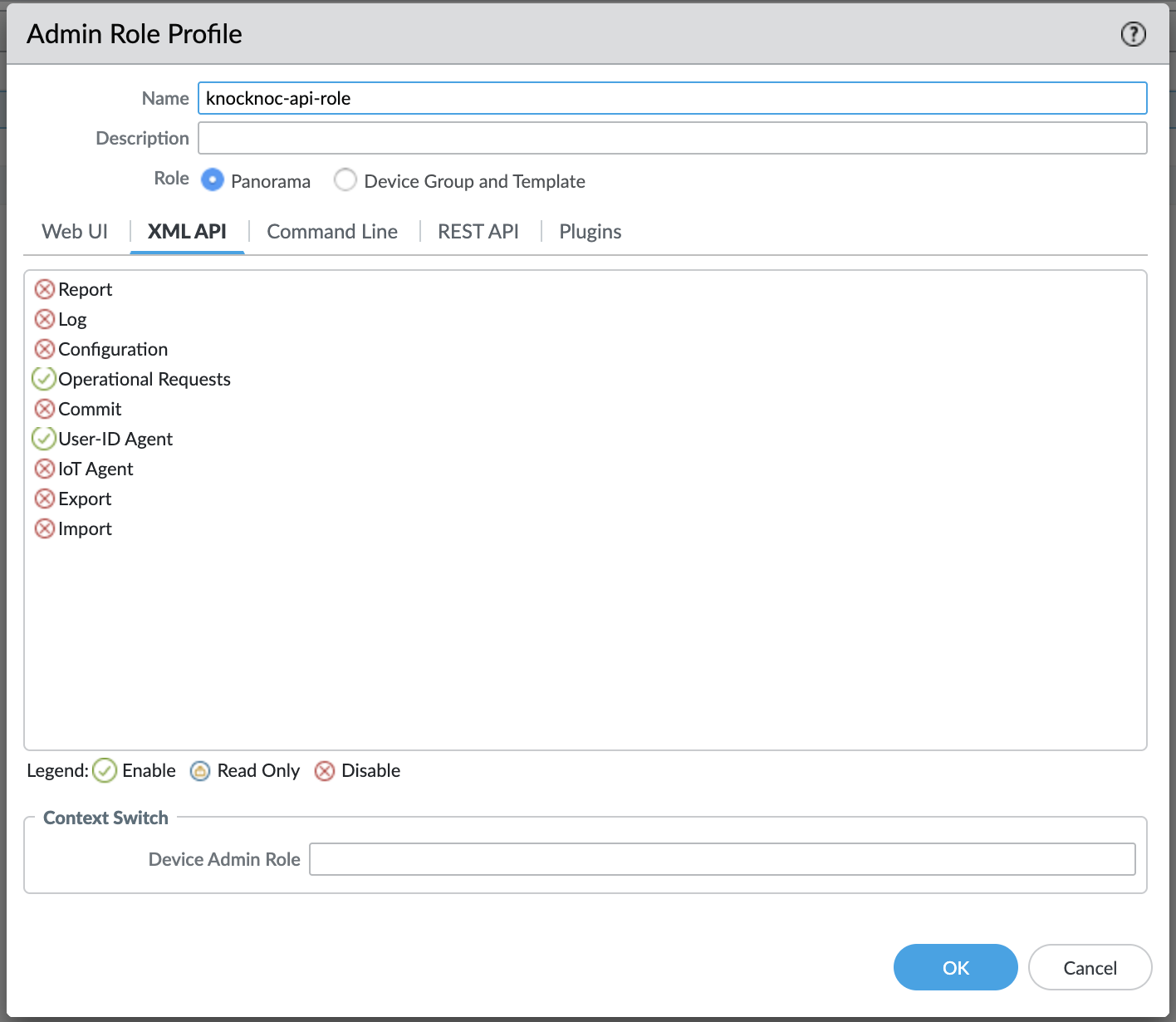
The role for the API key must have a few permissions.
- Operational Requests (for EDL refresh)
- User-ID Agent (optional, only if User-ID mapping is enabled)
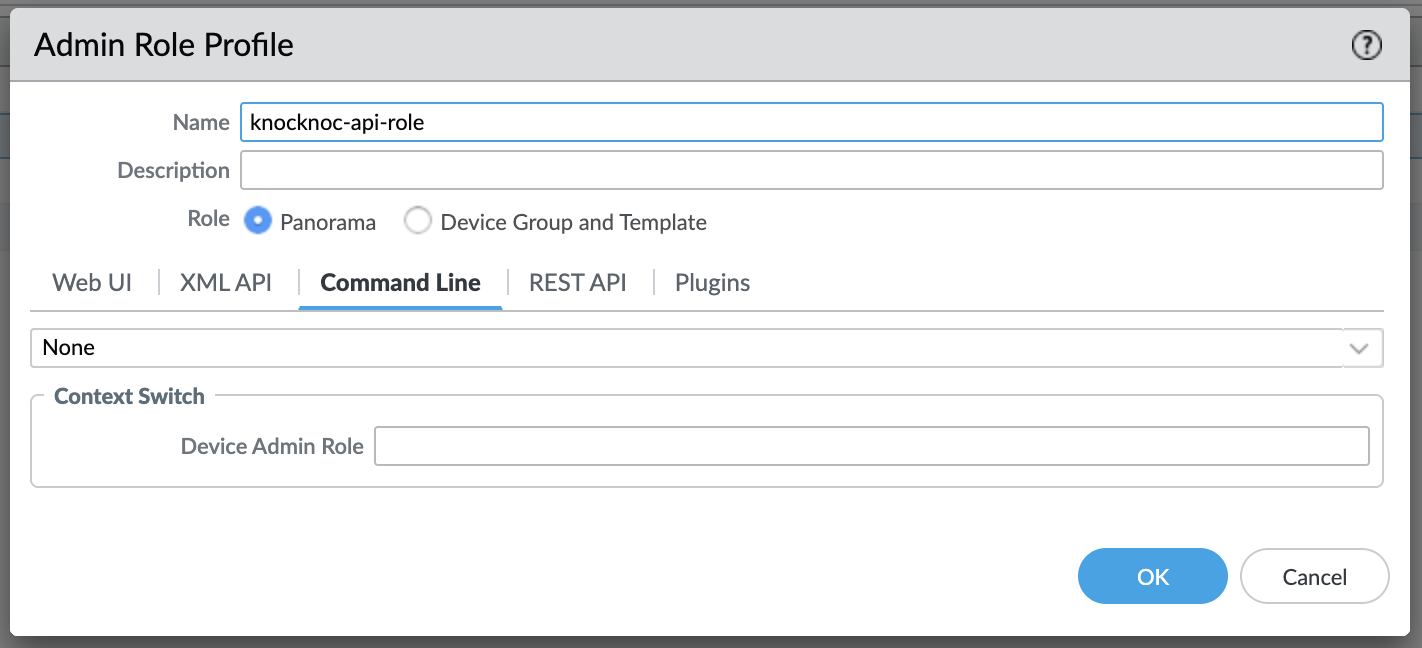
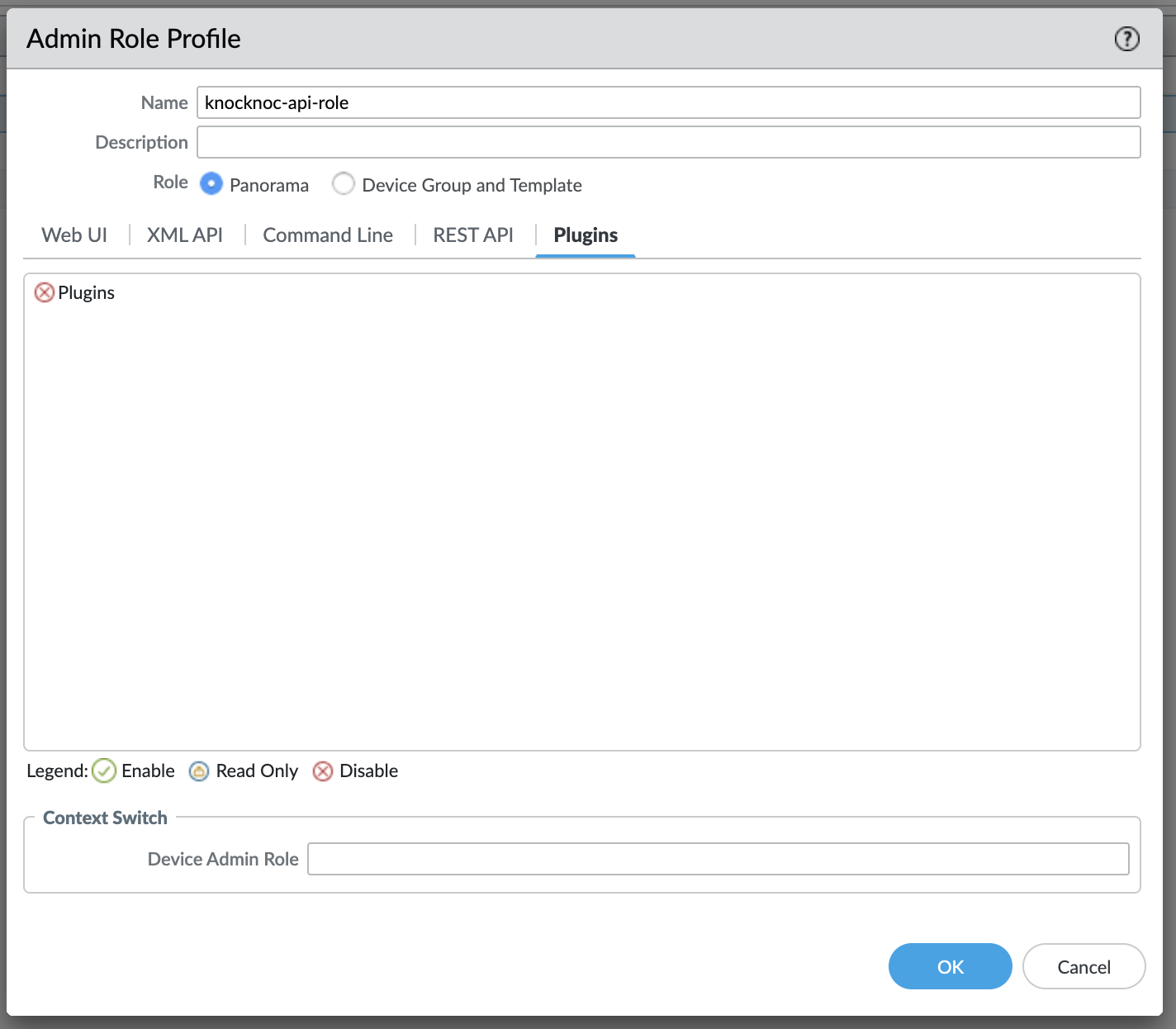
Create an administrator for the API key, linked to this new Role.
Panorama:
Palo Alto:
EDL Secret Configuration
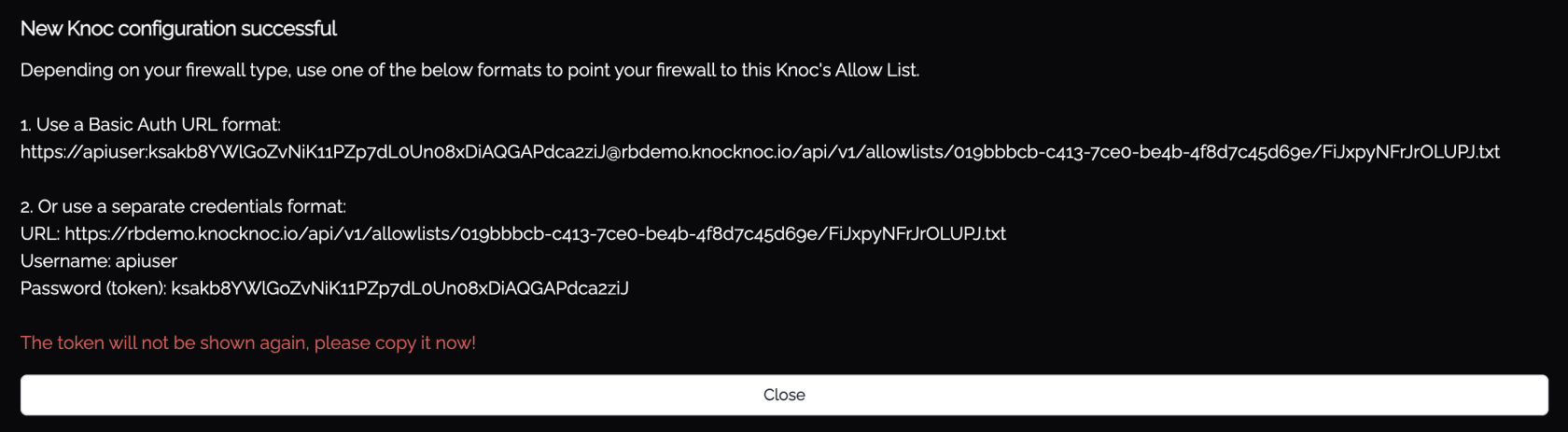
- Create authentication credentials for firewall EDL retrieval in the Knocknoc admin portal
- Configure IP allowlisting to restrict which source addresses can retrieve the EDL
- Do not permit access from the entire internet - restrict to your firewall management IPs
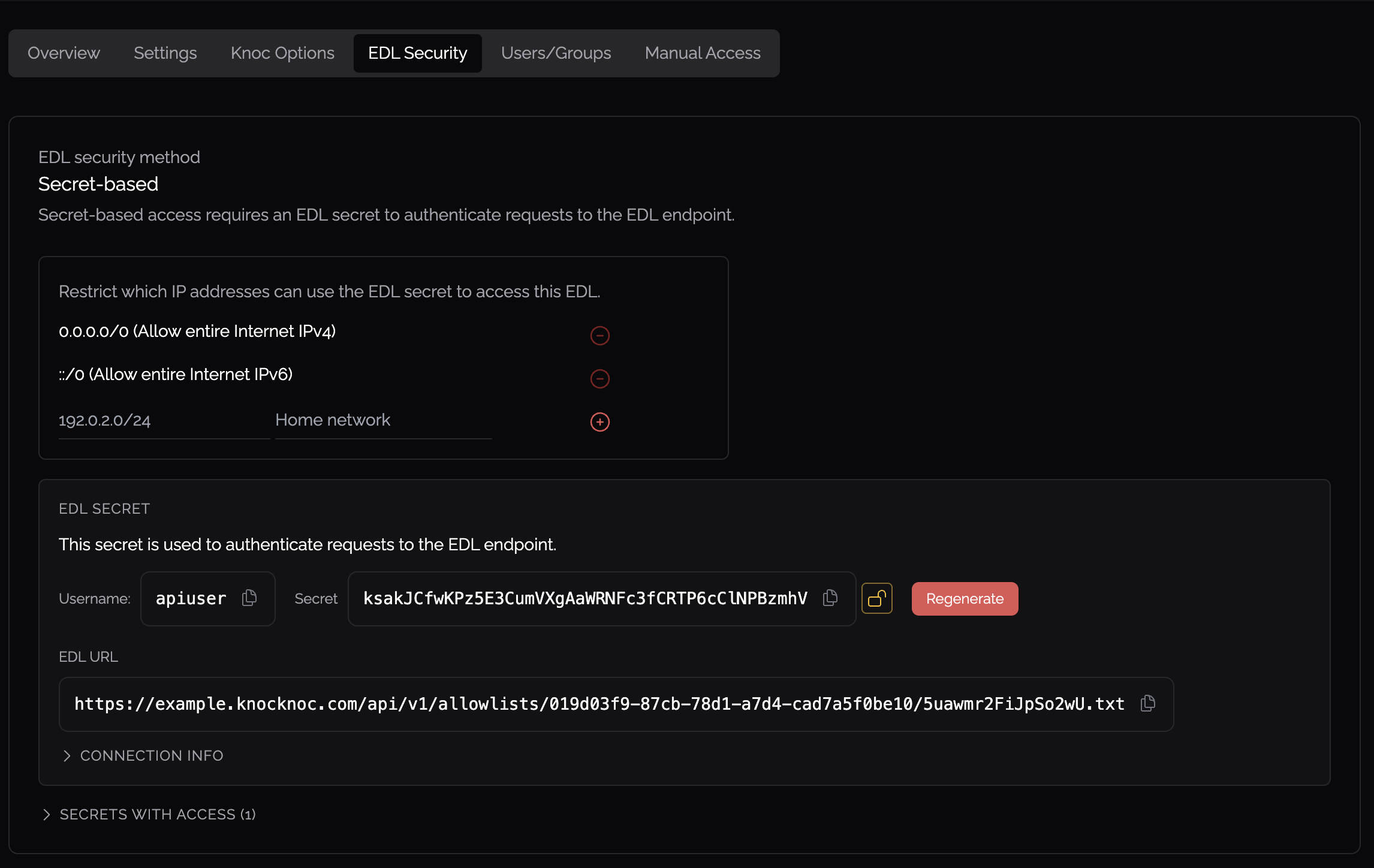
Firewall Configuration - External Dynamic List
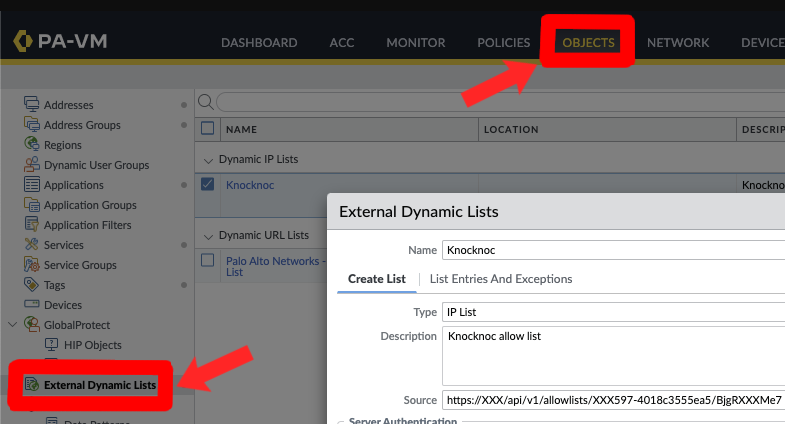
- Click Add to create a new list
- Configure:
- Name - A descriptive name (e.g.,
FirewallManagers,SSH) - Type - IP List
- Source - The Knocknoc EDL URL (use Basic Auth format)
- Name - A descriptive name (e.g.,
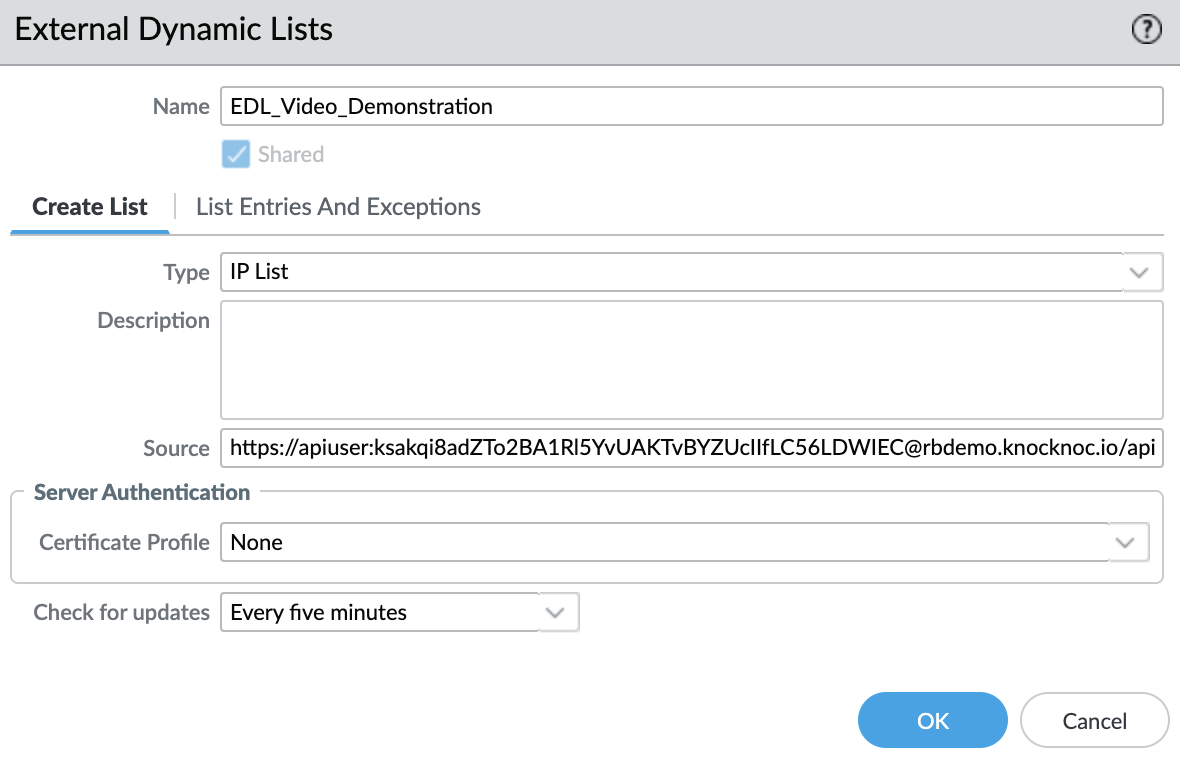
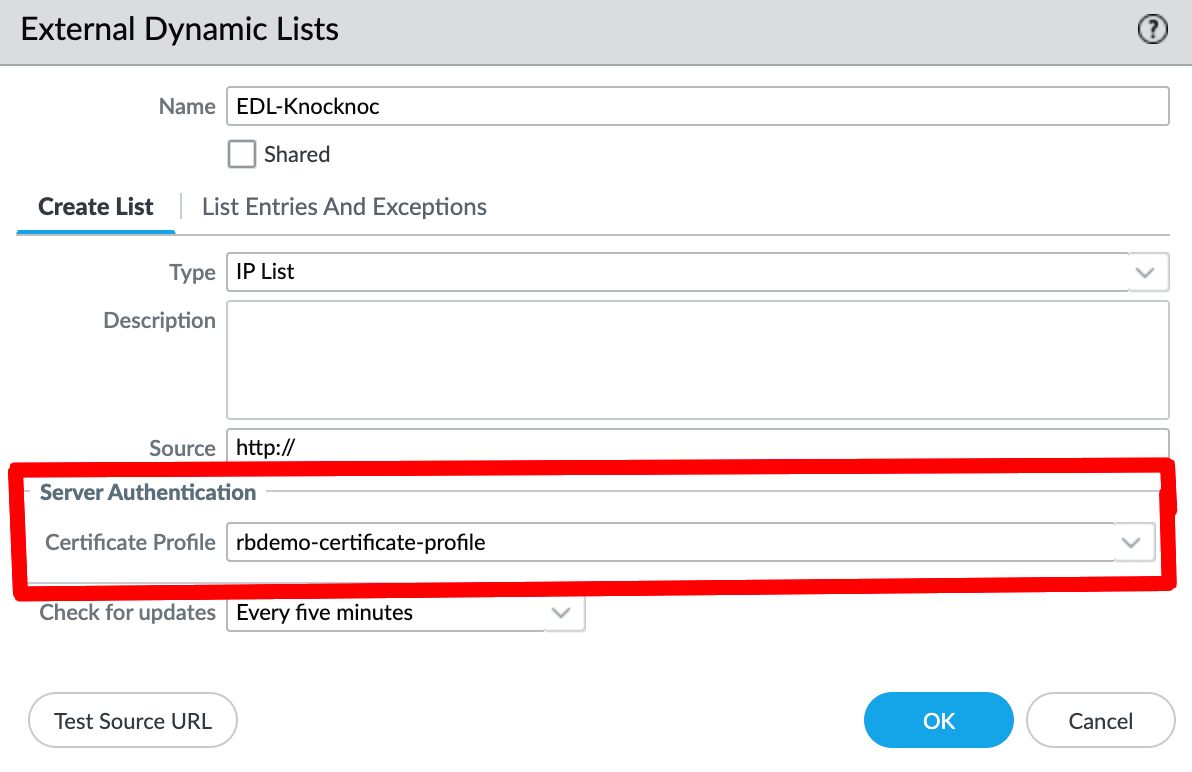
- If strict TLS validation is required, apply a Certificate Profile
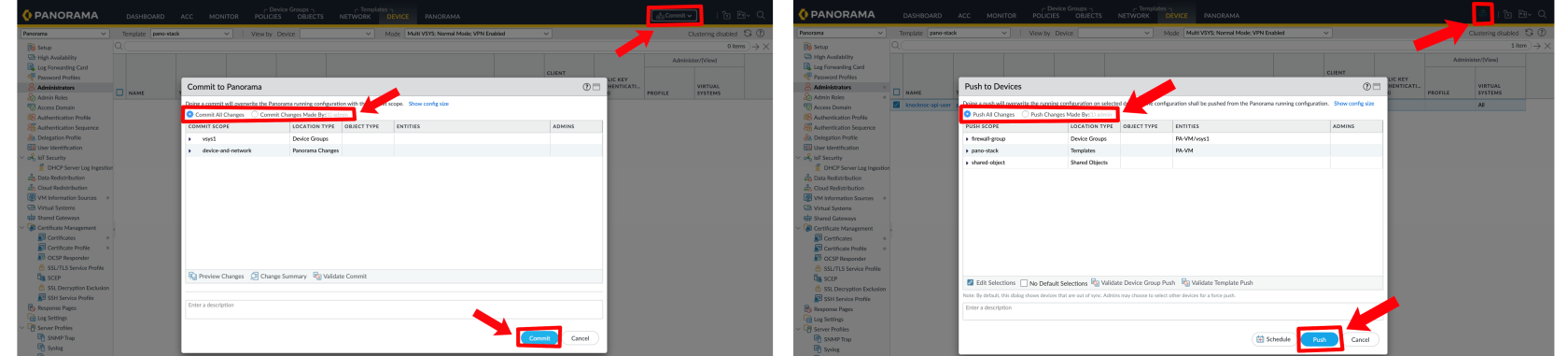
- Click OK, then Commit (and push if using Panorama)
Security Policy
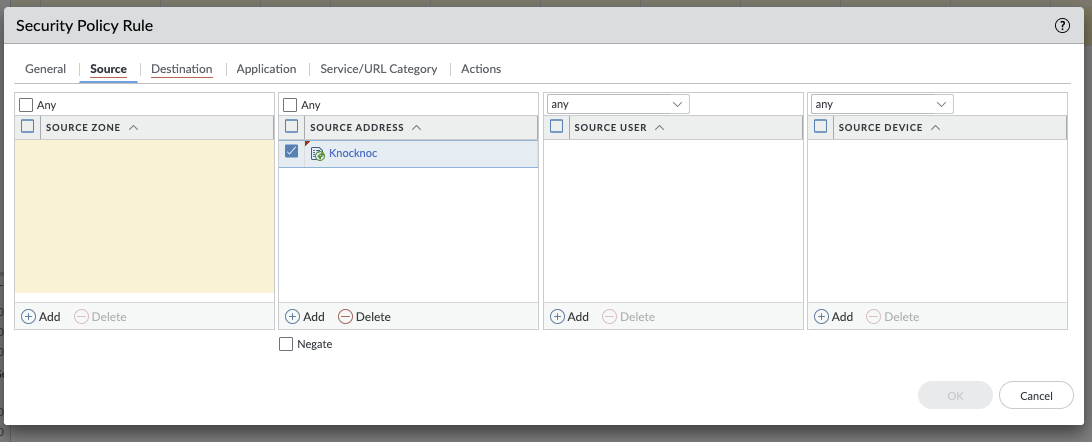
Reference the External Dynamic List in your security policy rules as a source address, enabling access control based on authenticated user sessions.
Testing
Link a user within Knocknoc and log in.
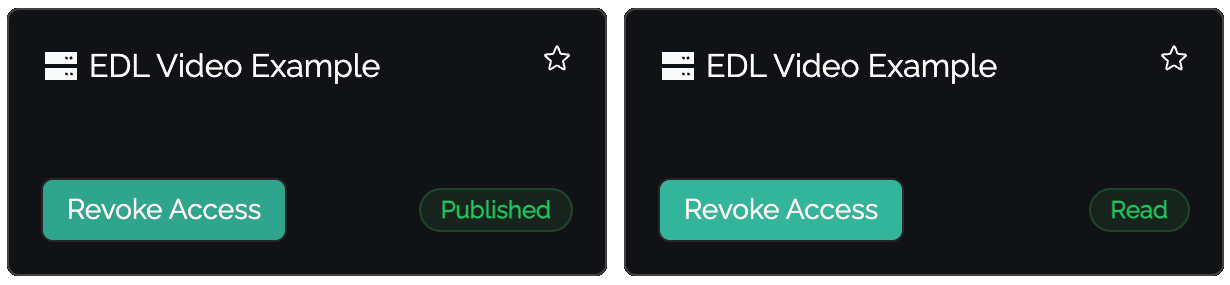
Status Indicators
- Published - IP address has been sent to the EDL, awaiting firewall consumption
- Read - Firewall has retrieved and accepted the entry
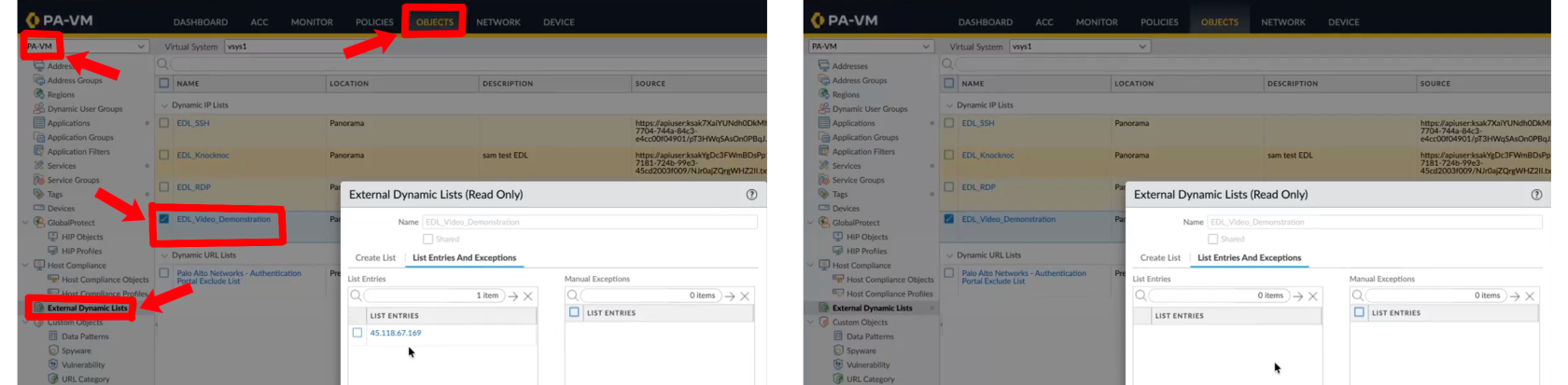
Verify on the Palo Alto device that IP changes are visible:
Passive+ Tuning
If you experience timing issues with EDL refreshes, the agent supports retry configuration:
PanosRetry = 16
PanosWait = 2PanosRetry- Number of retry attempts for EDL refreshPanosWait- Delay in seconds between retries
Passive+ Checklist
- Knoc Application configured with correct EDL name
- API key generated and has Operational Requests permission
- EDL created on firewall with correct source URL and credentials
- Security policy references the EDL
- EDL secret configured with IP allowlisting
- Commit and push completed (if using Panorama)
Moving from Passive+ to Active
This section moves an existing Palo Alto Passive+ deployment to Active mode. It is written for Panorama; if you manage a firewall directly, the same steps apply on the firewall itself.
Why move? Passive+ publishes user IPs to an External Dynamic List (EDL) and asks the firewall to refresh it. Active skips the EDL entirely: the Orchestration Agent registers each user's IP against a tag, and a Dynamic Address Group (DAG) picks it up instantly. There is no list for the firewall to fetch, no EDL secret to manage, and grants and revokes take effect immediately.
What changes
| Passive+ (today) | Active (after) | |
|---|---|---|
| Firewall object in the security rule | External Dynamic List | Dynamic Address Group |
| How an IP gets on the firewall | Firewall fetches the EDL from the Knocknoc server | Agent registers an IP-tag via the XML API |
| API role permission | Operational Requests | User-ID Agent (XML API), plus Operational Requests if you use HA Failover |
| EDL secret and IP allowlist | Required | Not used |
Your Orchestration Agent, its Palo Alto integration in Knocknoc, the API key, and your security rules (destination, application, action) all stay the same.
How the cutover works
You run both modes side by side, then remove the old one:
- Prepare Panorama for Active and add the new DAG to each security rule, next to the existing EDL. Either object now grants access. Nothing changes for users.
- Create a new Active Knoc alongside the Passive+ one, test it, then move users across and disable the Passive+ Knoc.
- Clean up the EDL and the old Knoc once everything is confirmed.
Users keep their access as long as they pick up the new Knoc before you disable the old one (see step 2c). Because the EDL stays in the rule until the last step, you can also switch a Knoc back to Passive+ at any point before then.
A Knoc's mode can't be changed after it is created, which is why you create a new Active Knoc rather than editing the existing one.
Do one Knoc first, end to end, before doing the rest. Pick a low-risk one with a test user you control.
Before you start
For each Passive+ Knoc you are moving, pick a tag name, e.g. knocknoc-ssh. Active mode uses one tag per Knoc.
Also confirm:
- The Orchestration Agent is online and up to date (Agents in the Knocknoc admin portal). Older agents don't support Active mode for Palo Alto.
- You can commit and push in Panorama.
- You know the target firewall serial numbers used by the Passive+ Knoc, and the Device Group that holds its EDL and security rule.
Step 1: Prepare Panorama
These changes add capability but do not affect existing traffic. Make them for the Knoc you're moving, then commit and push once at the end.
1a. Create a Dynamic Address Group for each Knoc
- Go to Objects > Address Groups, and select your Device Group at the top of the page.
- Click Add.
- Name: something clear, e.g.
knocknoc-ssh-dag. - Type: Dynamic.
- Match: your tag name in single quotes, e.g.
'knocknoc-ssh'. - Click OK.
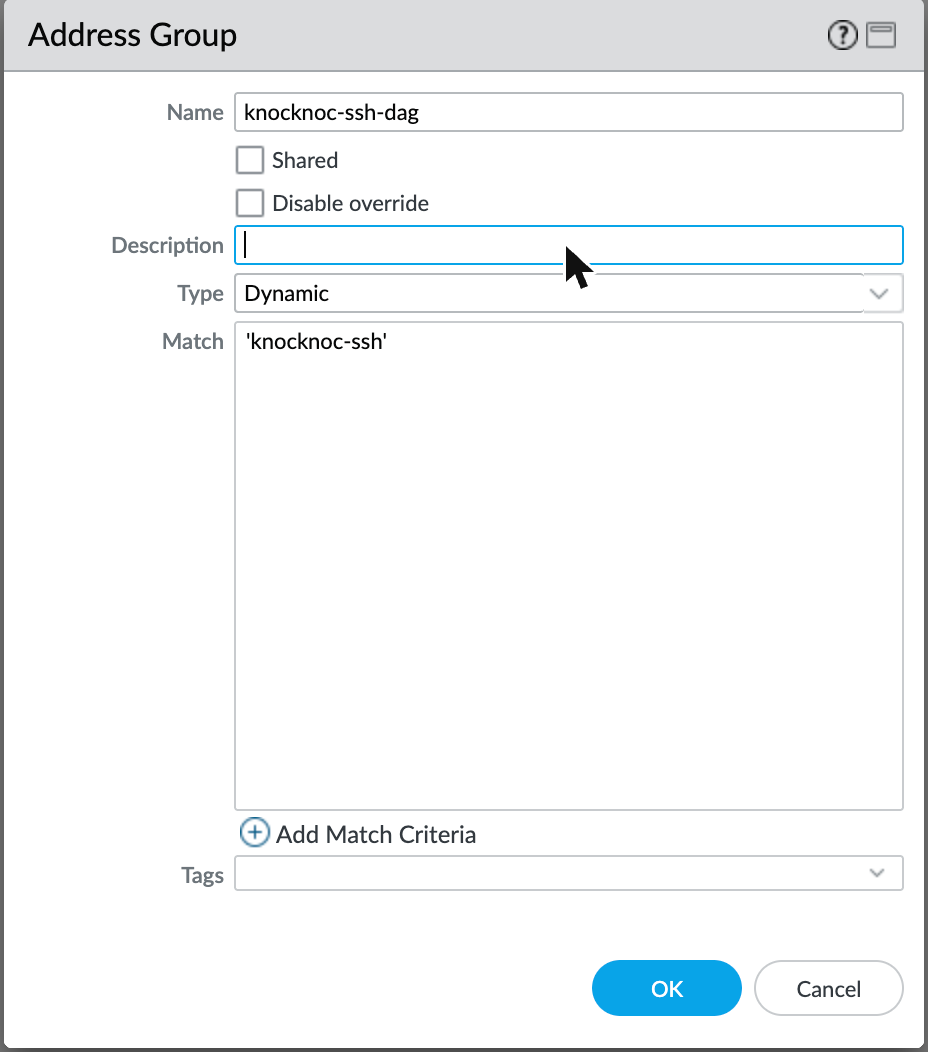
The tag name is case-sensitive and must match exactly what you enter in Knocknoc in Step 2. Keep the single quotes in the Match field, but not in Knocknoc.
1b. Add User-ID Agent permission to the API role
Active mode registers IP-tags through the User-ID API, so the role behind your Knocknoc API key needs one extra permission. The API user and key stay the same.
- Go to Panorama > Admin Roles. (On a firewall without Panorama: Device > Admin Roles.)
- Open the role used by the Knocknoc API user.
- On the XML API tab, enable User-ID Agent.
- Leave Operational Requests enabled for now. Passive+ still needs it.
- Click OK.
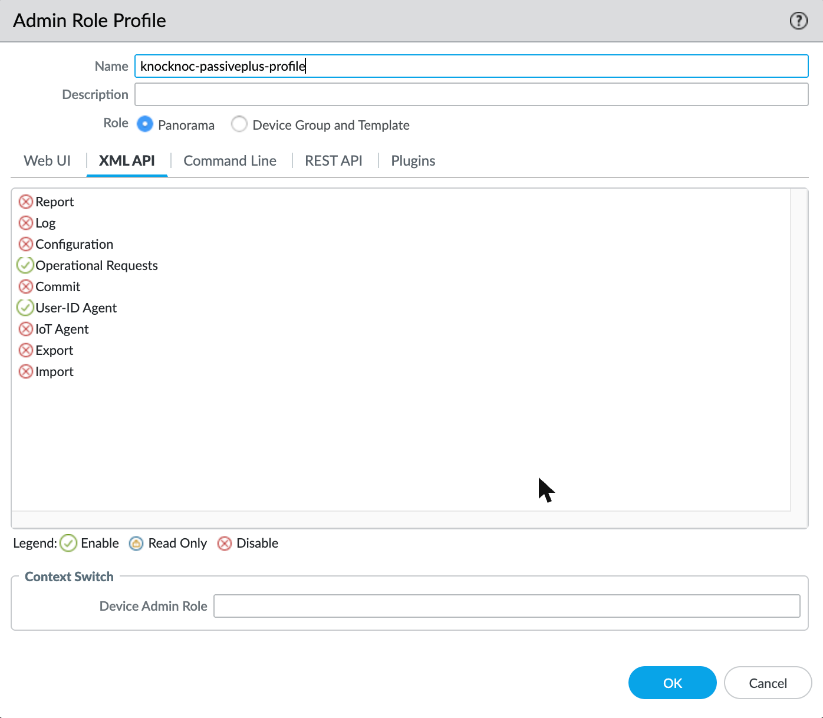
If Map user to address was turned on for your Passive+ Knoc, User-ID Agent is already enabled and there is nothing to change.
1c. Add the DAG to your security rules
- Go to Policies > Security > Pre Rules (or wherever the rule lives), with your Device Group selected.
- Open the rule that uses the Knoc's EDL as a source address.
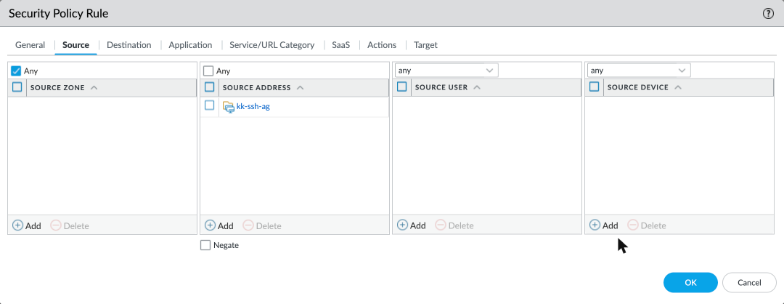
- On the Source tab, under Source Address, click Add and select the new DAG. Leave the EDL in place.
- Click OK.
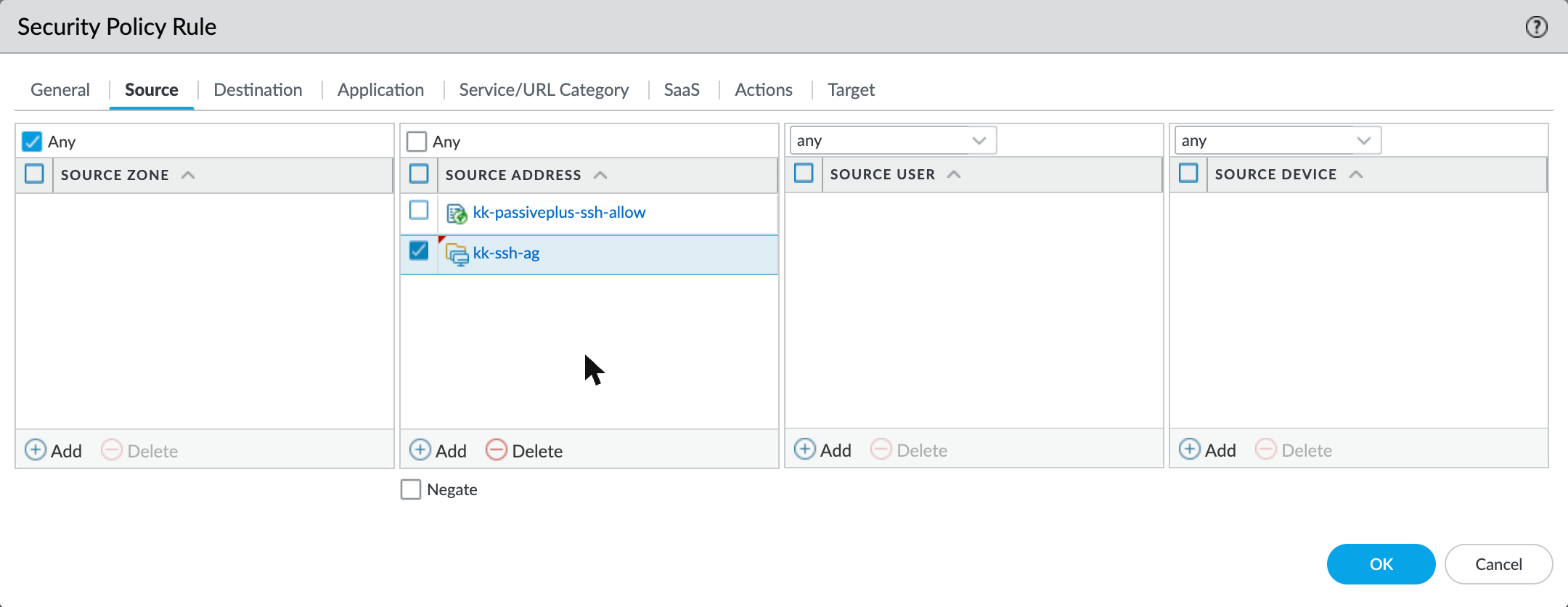
The rule now allows traffic from an IP that is in either the EDL or the DAG.
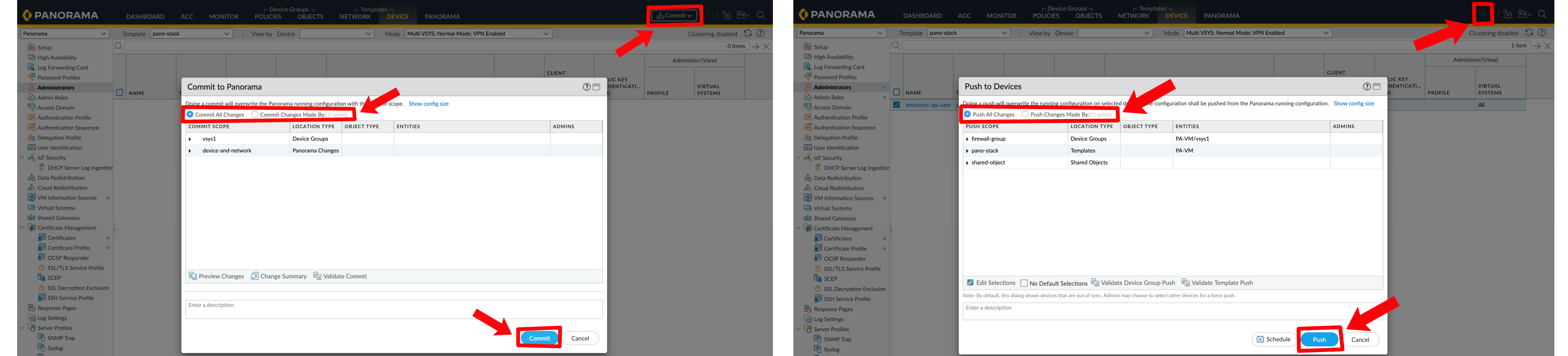
1d. Commit and push
Click Commit > Commit and Push, and push to your Device Group.
Step 2: Create the Active Knoc and move users
2a. Create the Knoc
-
In the Knocknoc admin portal, go to Knocs > Create new knoc > Palo Alto.
-
On the integration step, select the same agent and Palo Alto integration your Passive+ Knoc uses. You do not need a new API key.
-
On Configure Settings, choose Active mode and fill in:
Field Value Tag Name The tag from step 1a, without quotes, e.g. knocknoc-sshVSYS (if utilized) Same as the Passive+ Knoc, e.g. vsys1Device Group (optional) The Device Group holding the DAG, if used Firewall Serial Numbers Same firewalls as the Passive+ Knoc Map user to address Optional, same as before -
On Knoc Options, use the same settings as the Passive+ Knoc, such as Require click to grant and Override maximum grant duration.
-
On Select users, assign only your test user for now.
-
Review and create.
2b. Test it
- Log in to Knocknoc as the test user and open the new Knoc. It should show as granted with no warnings. Hover over any warning to see its error code.
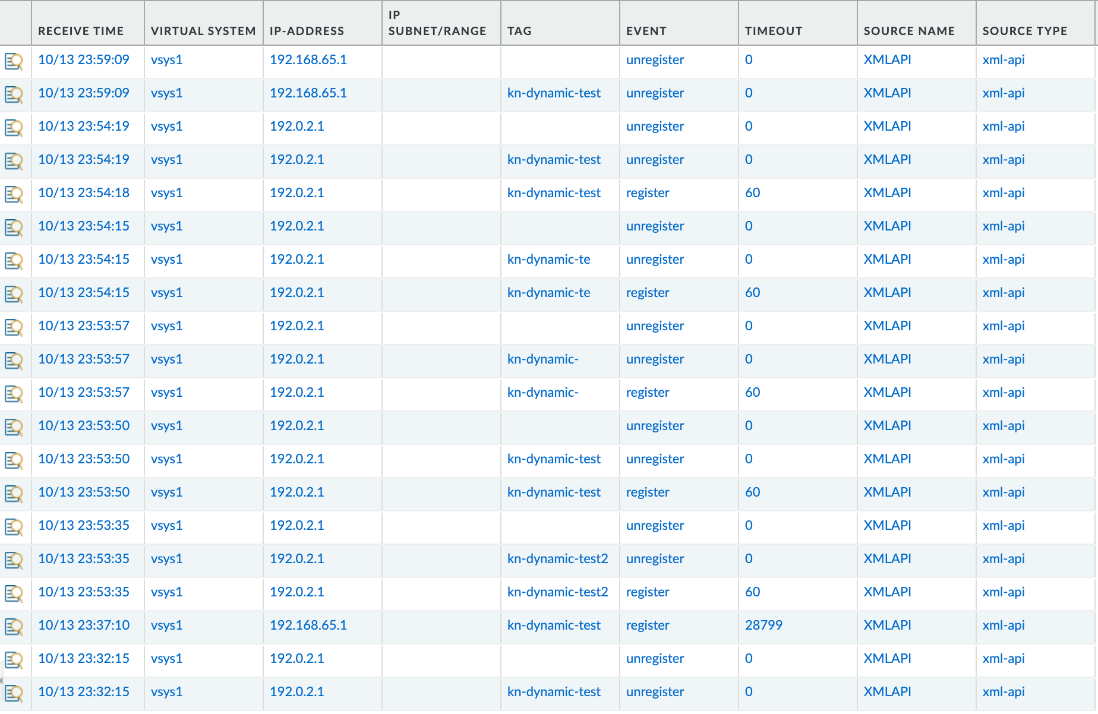
- On the firewall itself (not Panorama), go to Monitor > Logs > IP-Tag. You should see a register event for the user's IP with your tag, from source XMLAPI.
- On the firewall, go to Objects > Address Groups and click more... in the Addresses column for your DAG. The user's IP should be listed.
- Check the user can reach the protected service.
- Log the user out, or revoke the grant. An unregister event should appear within seconds.
2c. Move users across
- On the new Active Knoc, assign the same users and groups as the Passive+ Knoc.
- Give users a moment to pick up the new Knoc. Anyone with Knocknoc open gets access through it within about 30 seconds. If the Knoc uses Require click to grant or has a maximum grant duration, users need to click Grant Access on the new Knoc, or log in again.
- Disable the Passive+ Knoc. Do not delete it yet.
Disabling a Knoc revokes its access straight away, so its users drop out of the EDL at this point. Anyone who hasn't picked up the Active Knoc yet loses access until they open Knocknoc, click Grant Access or log in again. If that matters for your users, do this step at a quiet time.
Repeat steps 1a, 1c, 1d and 2 for each remaining Knoc.
Step 3: Clean up
Clean up once every Knoc is on Active and you're happy with it. Disabling the Passive+ Knocs in step 2c already removed their users from the EDLs, so nobody relies on them any more. After this step you can no longer roll back by re-enabling a Passive+ Knoc.
To clean up:
-
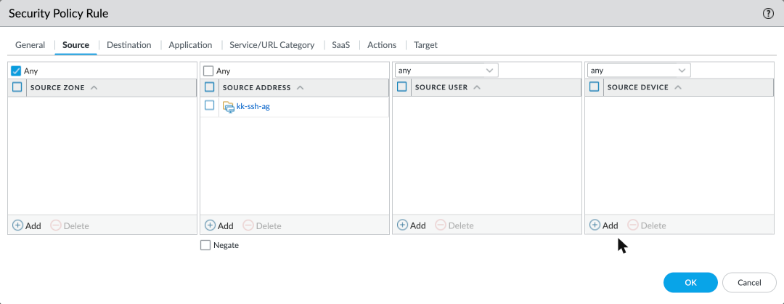
Remove the EDL from each security rule. Open the rule, remove the EDL from Source Address, and leave the DAG.
-
Delete the EDL object under Objects > External Dynamic Lists.
-
Commit and Push.
-
In Knocknoc, delete the disabled Passive+ Knocs.
Optionally, you can also remove Operational Requests from the API role's XML API tab, as Active only needs User-ID Agent. Keep it if your integration uses HA Failover, which needs it to check which firewall is active, or if anything else uses the same role.
Rolling back
Until Step 3, you can roll a Knoc back. Re-enable its Passive+ Knoc first, then disable the Active one. The EDL is still in the security rule, so users get access through it again in the same way as in step 2c.
Troubleshooting the move
| Symptom | Likely cause |
|---|---|
| Knoc shows an error on login | Hover for the error code and look it up in error codes. |
| Nothing in Monitor > Logs > IP-Tag | API role is missing User-ID Agent, or wrong Firewall Serial Numbers or VSYS in the Knoc. |
| IP-tag registered but IP not in the DAG | Tag name mismatch (case, or quotes left in Knocknoc), or the DAG is in a different Device Group. |
| IP in the DAG but traffic still denied | The DAG is not in the rule, or the change was not pushed. |
| Active is greyed out, with "Agent doesn't support this mode" | The Orchestration Agent is too old for Active mode. Update the agent, then create the Knoc again. |
| Users lost access when the Passive+ Knoc was disabled | They hadn't picked up the Active Knoc yet. They can open Knocknoc and click Grant Access, or log in again. |
| Access lost after cleanup | The DAG was removed instead of the EDL, or step 1d was not pushed to every firewall. |
For the full Active mode reference, including HA pairs without Panorama, see Active Mode above.
Passive Mode
Passive mode is the simplest integration - firewalls poll an EDL hosted by Knocknoc at their standard refresh interval (~5 minutes). No orchestration agent, API key, or active refresh signal is required.
Configuration
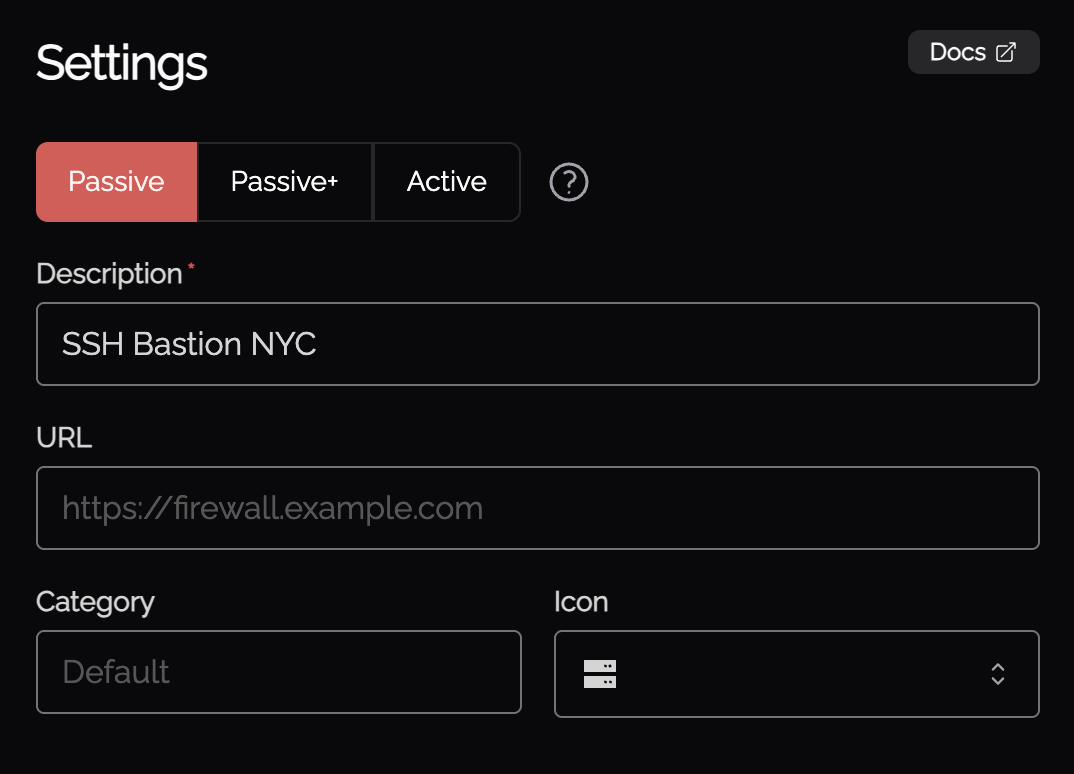
- When creating a new Knoc Application, select Passive as the Application Type
- Select Palo Alto as the vendor
- Configure the EDL name and credentials
Firewall Configuration
Follow the same External Dynamic List setup as Passive+ mode above, but without the orchestration agent or API key configuration.
Passive Checklist
- Knoc Application configured with correct EDL settings
- EDL created on firewall with correct source URL and credentials
- Security policy references the EDL
- Commit and push completed (if using Panorama)
Troubleshooting
Checking the integration
Validate integration runs a set of checks against the device and reports what each one finds. It is on the knoc's Configure Settings step and on the integration page, and it runs against what is in the form, so you can check a change before saving it.
Which checks run depends on how the knoc is configured:
- Device reachable - the agent can connect and the API key authenticates
- Palo Alto firewall or Panorama - the device is the kind the integration says it is
- HA pair - the secondary firewall answers and reports its HA state, for direct-to-firewall HA
- User mapping host - the alternative user mapping host answers, when one is configured
- Firewall and virtual system - the serial numbers and VSys exist
- Device group exists - the Panorama device group exists and holds every serial the knoc names
- Tag and dynamic address group - a Dynamic Address Group matches the knoc's tag
- External dynamic list exists - the EDL a Passive+ knoc names exists
- API key can make changes - the key's role can do what a grant does
- API key can map users - the key can register a User-ID mapping, when Map User is on
Two of those write to the device and clean up after themselves. API key can make changes registers 192.0.2.1 against the knoc's tag for 60 seconds, then removes it. API key can map users maps a test user to the same address for a minute, then logs it out. 192.0.2.1 is TEST-NET-1, which is never routable, so neither one grants anybody access.
A failing check names the agent error code behind it, which links to its troubleshooting page. Some also offer a correction you can apply to the field.
Address Group (Direct)
A knoc created before Dynamic Address Groups became the default writes an address object into a named address group instead of registering a tag. New knocs always use a Dynamic Address Group. The Integration Method field on an existing knoc shows which one it uses.
Address Group (Direct) goes through the PAN-OS REST API, which needs PAN-OS 10.2 or later. On an older release the check fails and names the version the device is running, with a suggestion to switch the knoc to a Dynamic Address Group.
Error Codes
The Knocknoc agent reports structured error codes when PAN-OS operations fail. You can find more details on resolving these issues here.
Common Issues
- Tag not appearing in address group - Ensure the tag name in Knocknoc matches the address group match criteria exactly (case-sensitive). The match criteria uses single quotes:
'tag-name'. - User-ID not enabled - The zone must have User Identification enabled for address group matching to work.
- API permission denied - Check that the admin role has the correct permissions for your chosen integration method.
- Panorama push required - After creating the address group, EDL, or security policy on Panorama, commit and push to devices.
- EDL not refreshing (Passive+) - Check agent logs for refresh errors. Verify the EDL name matches exactly.
- Published but not Read (Passive+/Passive) - The firewall hasn't polled the EDL yet. For Passive+, check the agent is triggering refreshes. For Passive, wait for the next poll interval.
Agent Diagnostics
- Review orchestration agent logs for error details
- Verify API key validity and role permissions
- Confirm firewall/Panorama connectivity from the agent host
- Check EDL configuration and device commits
Certificate Management
For strict HTTPS validation when firewalls retrieve EDLs, configure a CA certificate profile:
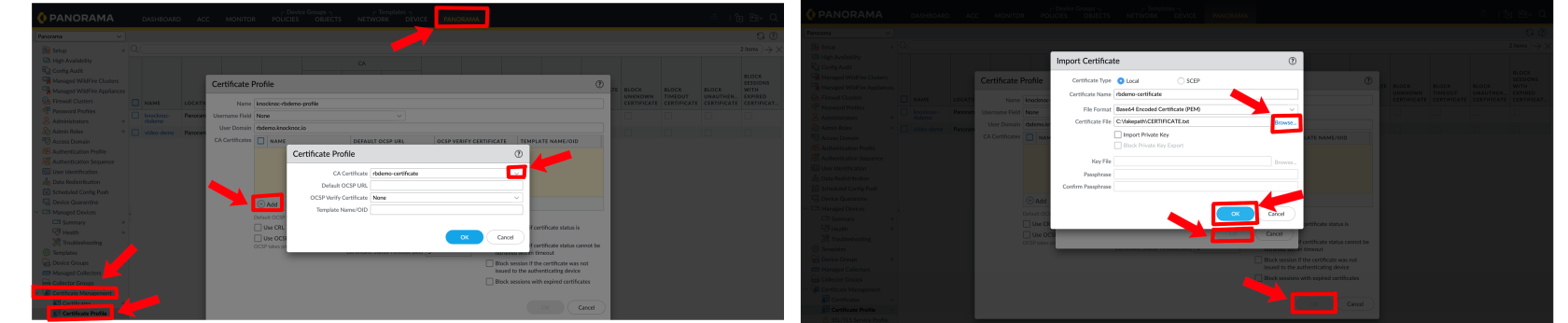
- Standalone Firewall: Navigate to Device > Certificate Management > Certificate Profiles
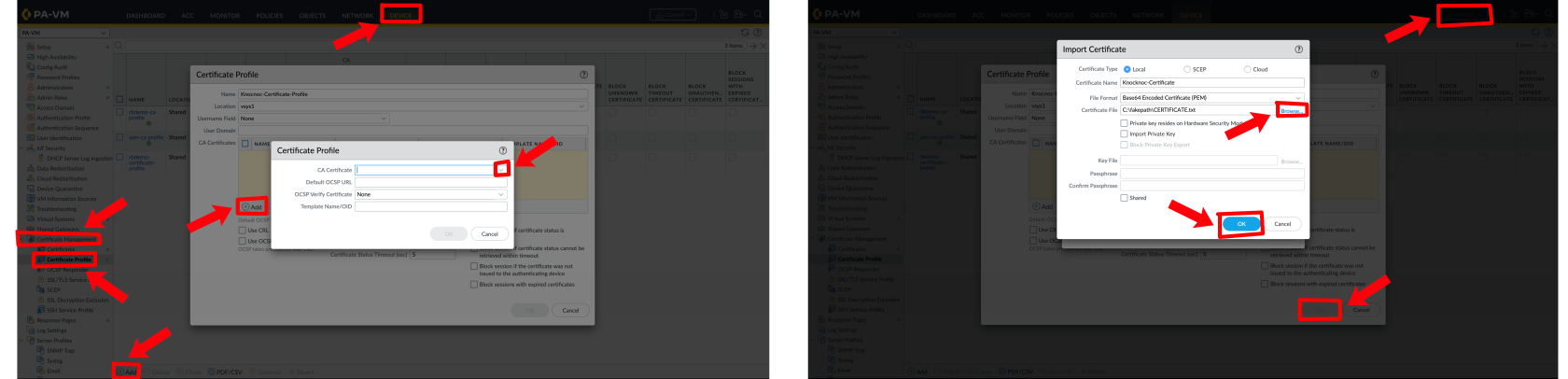
Reference the certificate profile in the EDL source configuration for enhanced security.
Generate an API key
The easiest method is to use the Orchestration Agent:
You can also use curl against the PAN-OS keygen API:
Save the API key securely. Copy the full returned value, including any trailing = or ==.
Still Having Issues?
We can help you out - contact us at [email protected].