
Knocs
A Knoc is the access rule your users see. It says who can request access to a resource and under what conditions. Several Knocs can share one integration.
Manage knocs under Admin > Knocs.
What a Knoc is made of
Every knoc points at one integration, the connection to the system it opens, and one integration can back many knocs (see the Integrations chapter). The knoc then sets who can request access, the users and groups you choose, and the rules that apply, either a trust policy (see the Trust Engine chapter) or legacy per-Knoc source restrictions. It also carries a name, icon and category so users can find it on their portal.
Creating a Knoc
Admin > Knocs > New opens the wizard. You need an agent before you start. See the Agents chapter.
The walkthrough below uses a FortiGate. Every vendor takes the same five steps and only the fields on Configure Settings differ, so each vendor's own page in the Integrations chapter is where those are listed.
Choose the vendor
Vendors are grouped by where access is enforced. Inline is a firewall or cloud control plane sitting in front of the service. On host is the protected machine itself. Reverse proxy is a proxy or CDN fronting it.
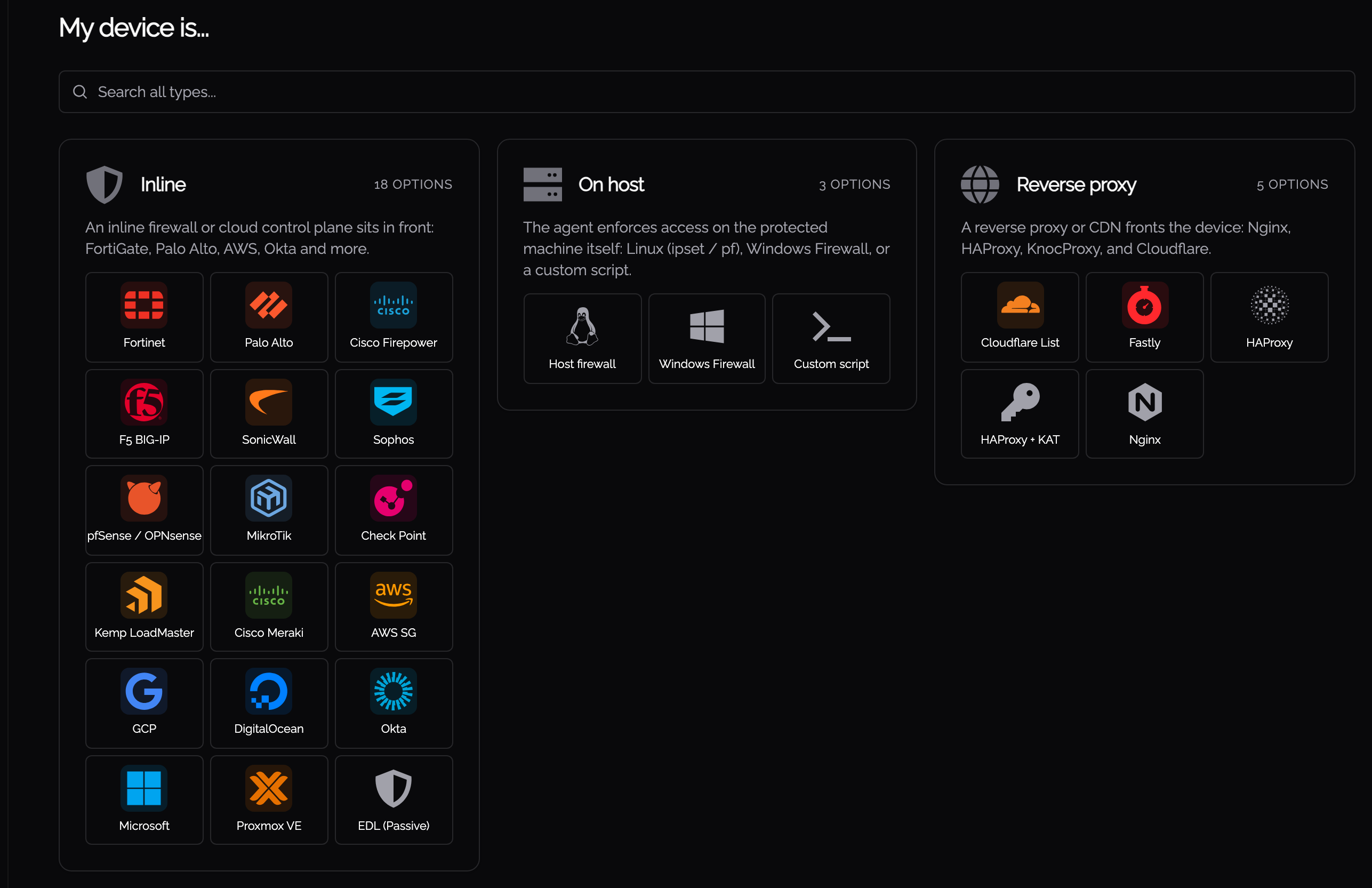
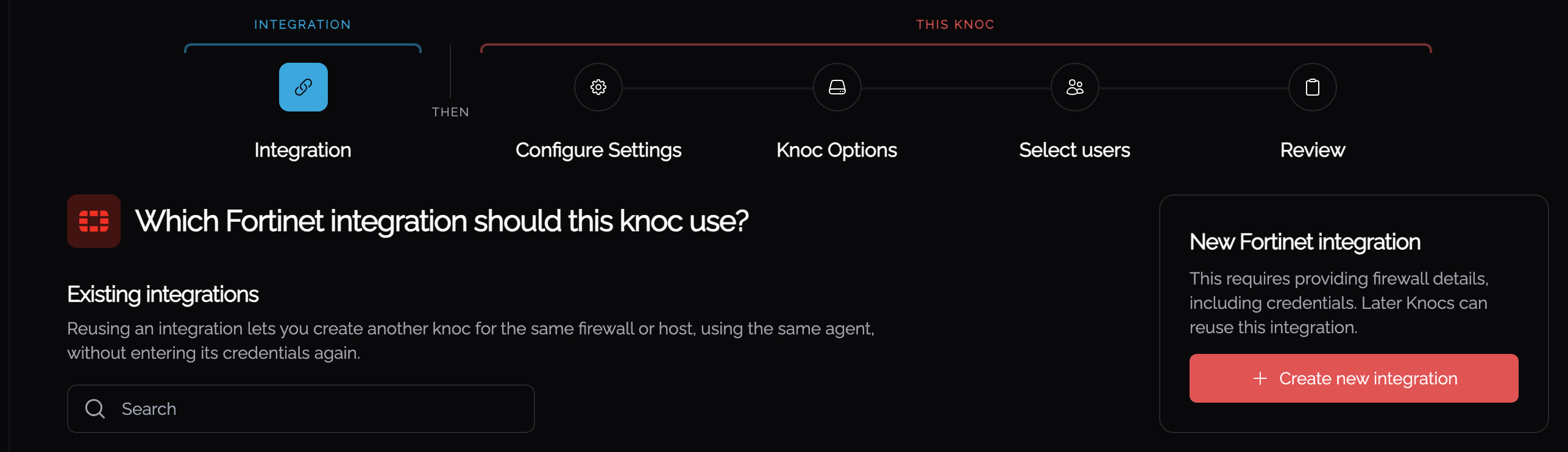
Step 1: the integration
If you already have an integration for this vendor, the wizard offers it here and the knoc reuses it, with no credentials to enter a second time. Create new integration adds another.
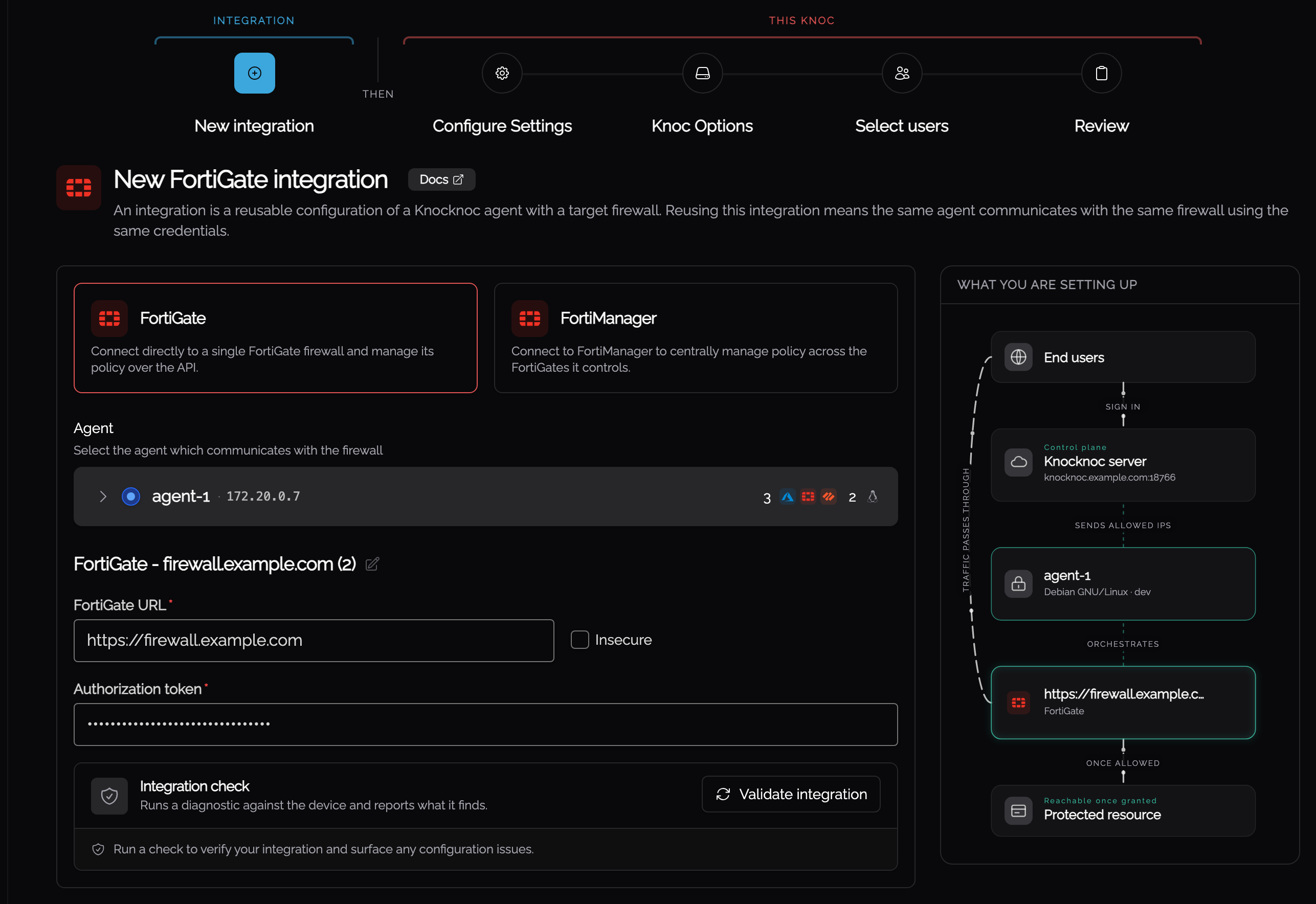
A new integration asks which agent reaches the device and what credentials it uses. Validate integration checks them against the device before you go on, and the panel beside the form shows how the server, agent and protected resource fit together.
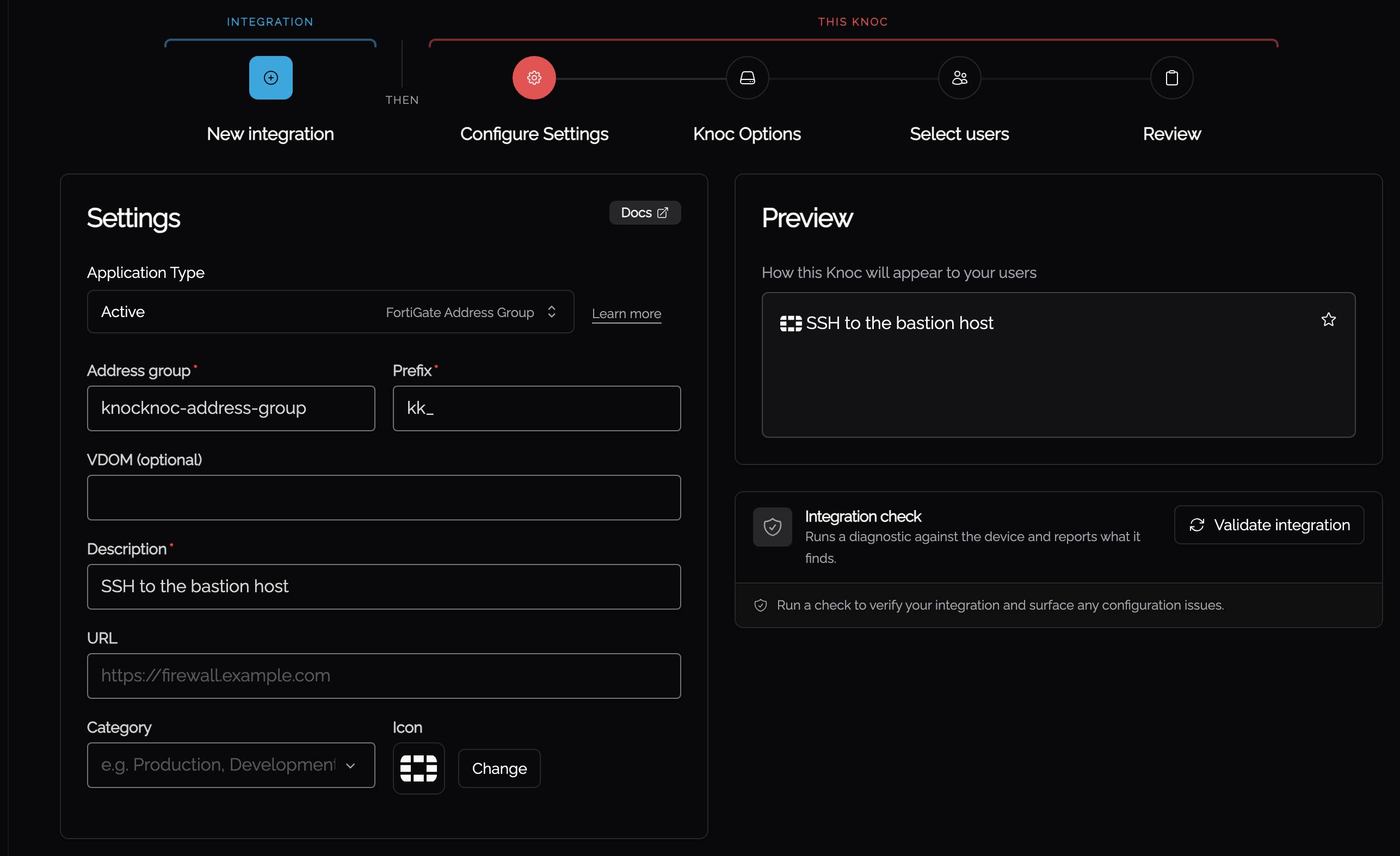
Step 2: Configure Settings
This step is what the knoc writes to on the device, together with the name, icon and category your users see. The preview beside the form is the tile as it will appear on their portal.
Step 3: Knoc Options
Grant options cover whether the user clicks for access, whether a ticket number or TOTP code is required, and a shorter maximum duration than the server default. Trust Engine policy decides what happens when someone connects from somewhere unexpected. A new knoc starts on whichever policy is the default and cannot be created on Legacy. See the Trust Engine chapter.
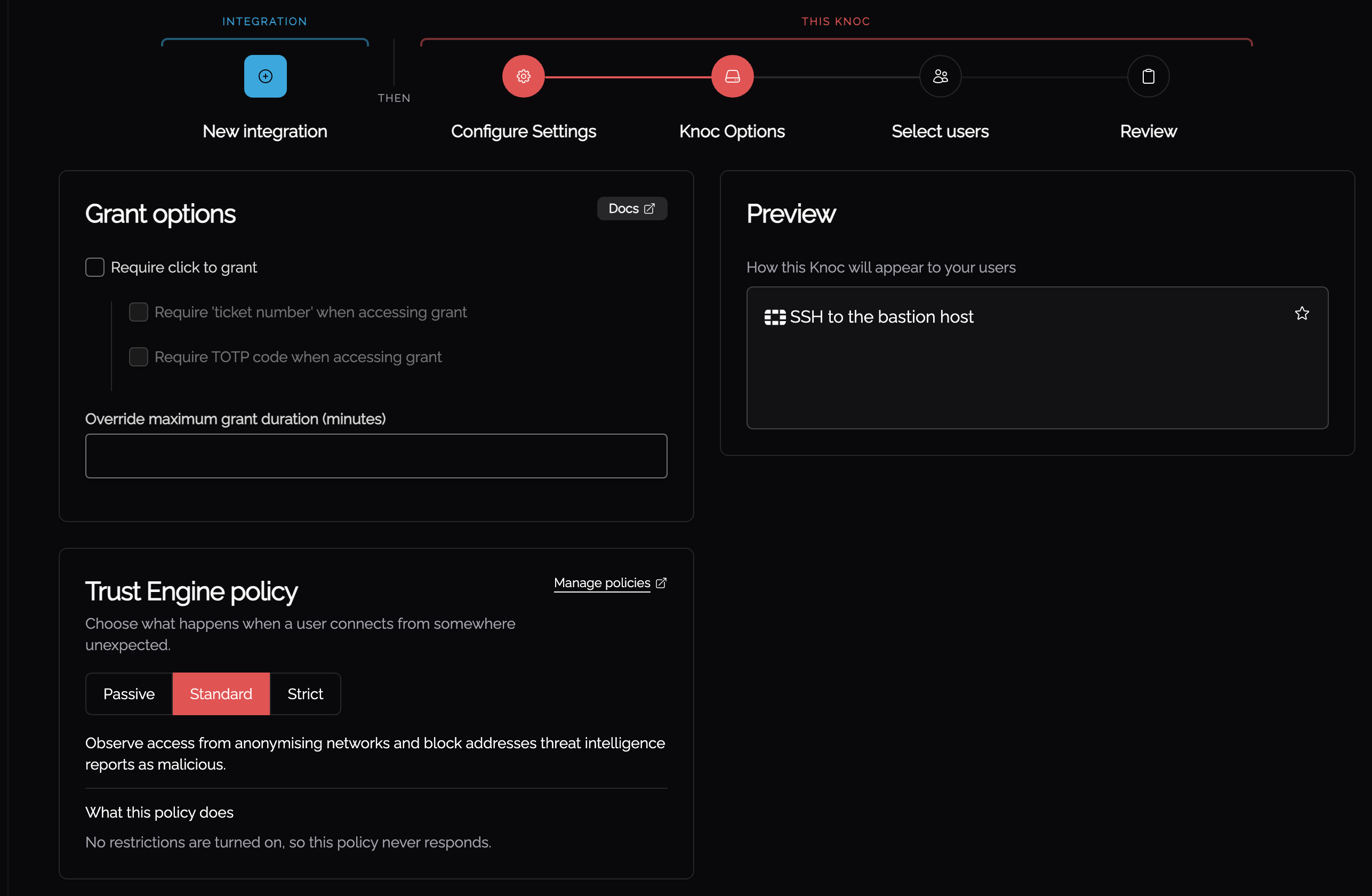
A policy only starts deciding once the sources it reads are connected. Until then its restrictions show as Not evaluated and access is judged on the rest of the policy.
Step 4: Select users
Choose the users and groups who can request this access. A knoc with nobody assigned is created and simply appears on no one's portal.
Step 5: Review
Review lists everything you entered and runs a wider check than Step 1 did. Each result is tagged INTEGRATION or KNOC: the integration checks are the ones Step 1 could already run, and the knoc checks test what this knoc writes to, which did not exist yet at Step 1. A failing check halts the run and offers Back to settings.
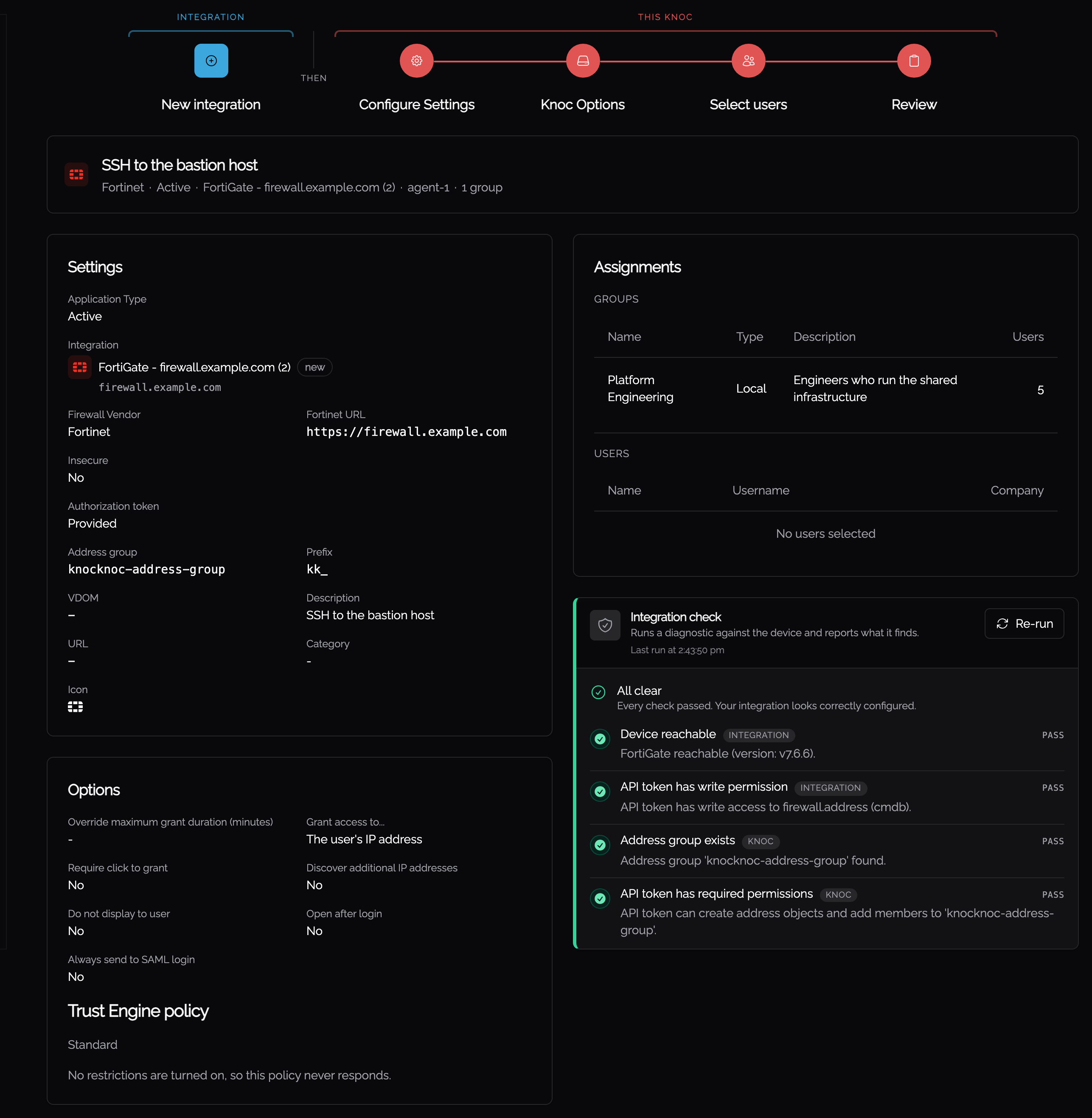
Script backends get one extra step, Environment variables, between Knoc Options and Select users.
Managing Knocs
- List. Admin > Knocs shows every knoc. Search and filter to find one.
- Detail. Open a knoc to edit its integration, users and rules, and to see its grant history.
Access rules
A Knoc's access is decided by the trust policy attached to it. It weighs who is connecting, from where, and over what kind of network. See the Trust Engine chapter. A Knoc carried over from before the Trust Engine can keep its own per-Knoc source restrictions on Legacy; see the Legacy Knocs page.