
Create groups
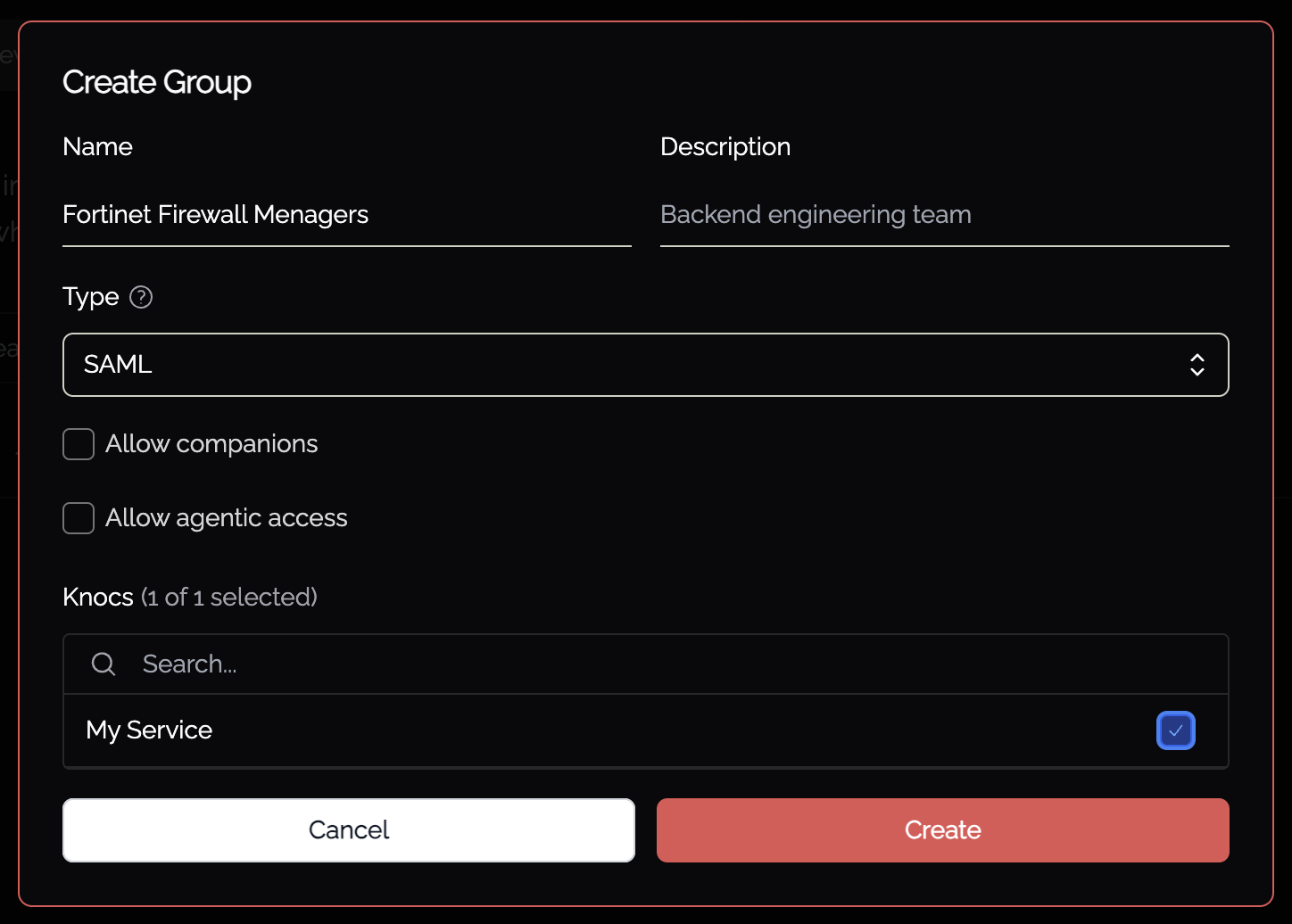
Groups in Knocknoc map users to Knocs, and a user can belong to multiple groups. To create a group:
- In the Knocknoc admin interface, open Identities, select the Groups tab, and click Create Group.
- Enter a Name. For SAML and Dynamic groups this must match the group value your identity provider sends, exactly. Entra sends group Object ID GUIDs, which go in the Name field.
- Optionally add a Description.
- Choose the Type. New groups default to SAML.
- Optionally tick Allow companions and/or Allow agentic access to let members of this group use those features. They also need to be enabled site-wide and on the Knoc.
- Select the Knocs this group can reach. Use the search box to filter.
- For Local and Dynamic groups you can also add local users here. SAML group membership is set from your identity provider at login.
- Click Create.
Group types
- SAML: match the group names or values received during a user's SAML authentication. They cannot include local users, and are the default for new groups.
- Dynamic: match group information from the SAML/SSO login flow, and also allow linking local users to the same group.
- Local: contain only local users and do no matching against SAML group information.
On a user, each group membership shows how it was assigned: via SAML, via a dynamic rule, or manually.
Note: If authentication is provided via SAML, group membership is set and passed through from the identity provider, and is shown read-only in Knocknoc. The Group Name in Knocknoc must match the Group Name provided by the IdP.
Which identity providers a group matches
A SAML or dynamic group is matched by name, so with more than one identity provider configured, two directories could send the same group name. The group's own form therefore carries an Identity providers setting, deciding which of them may match it. Only the checked providers can match the group by name.
The groups list shows which providers each group matches, beneath its type. A group still naming a provider that has been removed is marked Removed provider, and that provider now matches nothing.
Local groups are not matched from any provider, so the setting does not apply to them.