
Palo Alto
Knocknoc integrates with Palo Alto firewalls and the Panorama management system to dynamically grant and revoke network access based on authenticated user sessions. Knocknoc updates existing in-policy lists rather than changing policies overall, making dynamic access change-safe, least-privilege and securely implemented.
There are three integration modes:
- Active - Near-instant access control for Palo Alto/Panorama, no commit required (recommended)
- Passive+ - Firewalls poll a securely-hosted External Dynamic List (EDL), with an active refresh signal sent to Panorama/Palo Alto to reduce access latency from ~5 minutes to ~2 seconds
- Passive - Firewalls poll an EDL every 5 minutes. No agent required, good for data-diode environments.
|
Active (Recommended) |
Passive+ (Simpler environments) |
Passive (Data-diode) |
|
|---|---|---|---|
| Speed | Near-instant |
~2s (large EDL sets slow) |
~5 minutes |
| Mechanism | Active API | EDL refresh signal | EDL polling (no agent) |
| Commit required | No | No | No |
| Auto timeout |
In-firewall |
Agent orchestrated | Polling period |
| Agent required | Yes | Yes | No |
| Panorama support | Yes | Yes | Yes |
Active Mode
Active mode provides real-time access control by communicating directly with the Palo Alto firewall or Panorama, via the Server Orchestration Agent. No user/client installation is required. When a user authenticates and is granted access, their IP is added immediately; when the grant expires or is revoked, the IP is removed. No commit is required.
Prerequisites on the FirewallPalo/Pano
Before configuring Knocknoc, you need to set up the following on your Palo Alto firewall or Panorama.
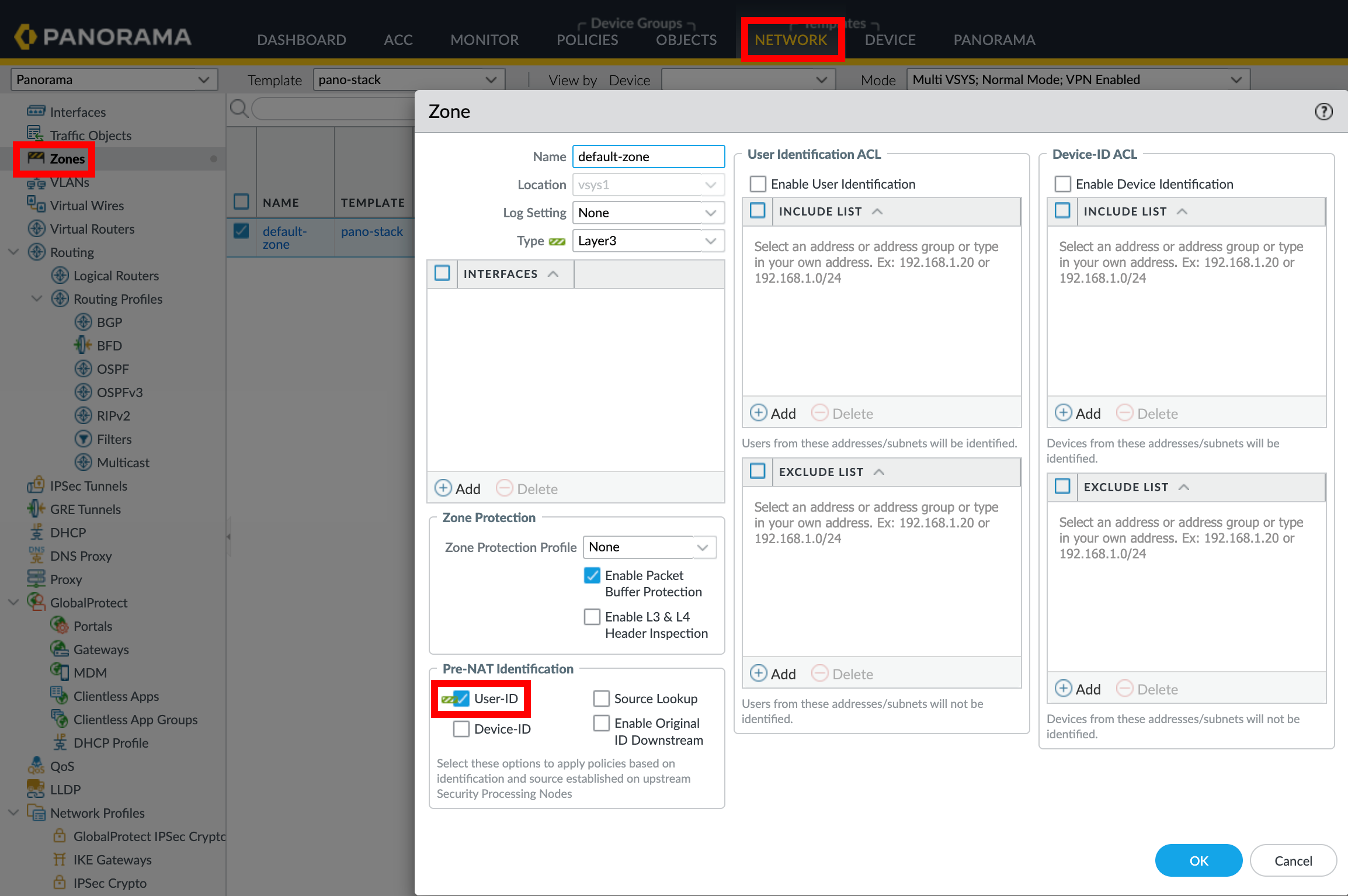
1. Enable User-ID on Zones
2. Create an Address Group
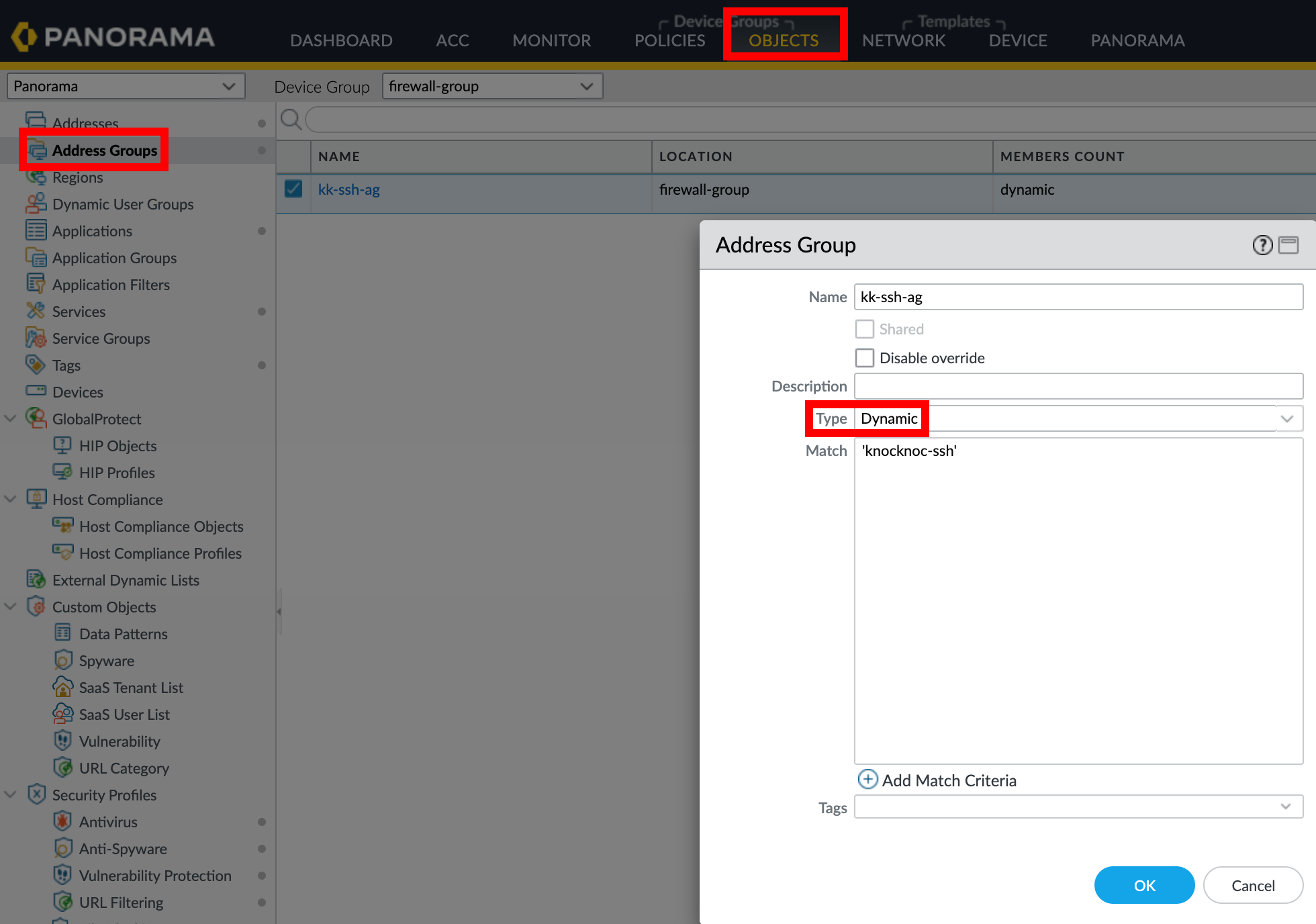
When using Panorama, create the address group in the appropriate Device Group and push to managed firewalls.
3. Create a Security Policy Rule
4. Create an API profile and API user
Required Permissions
The API User role for the API key must have:
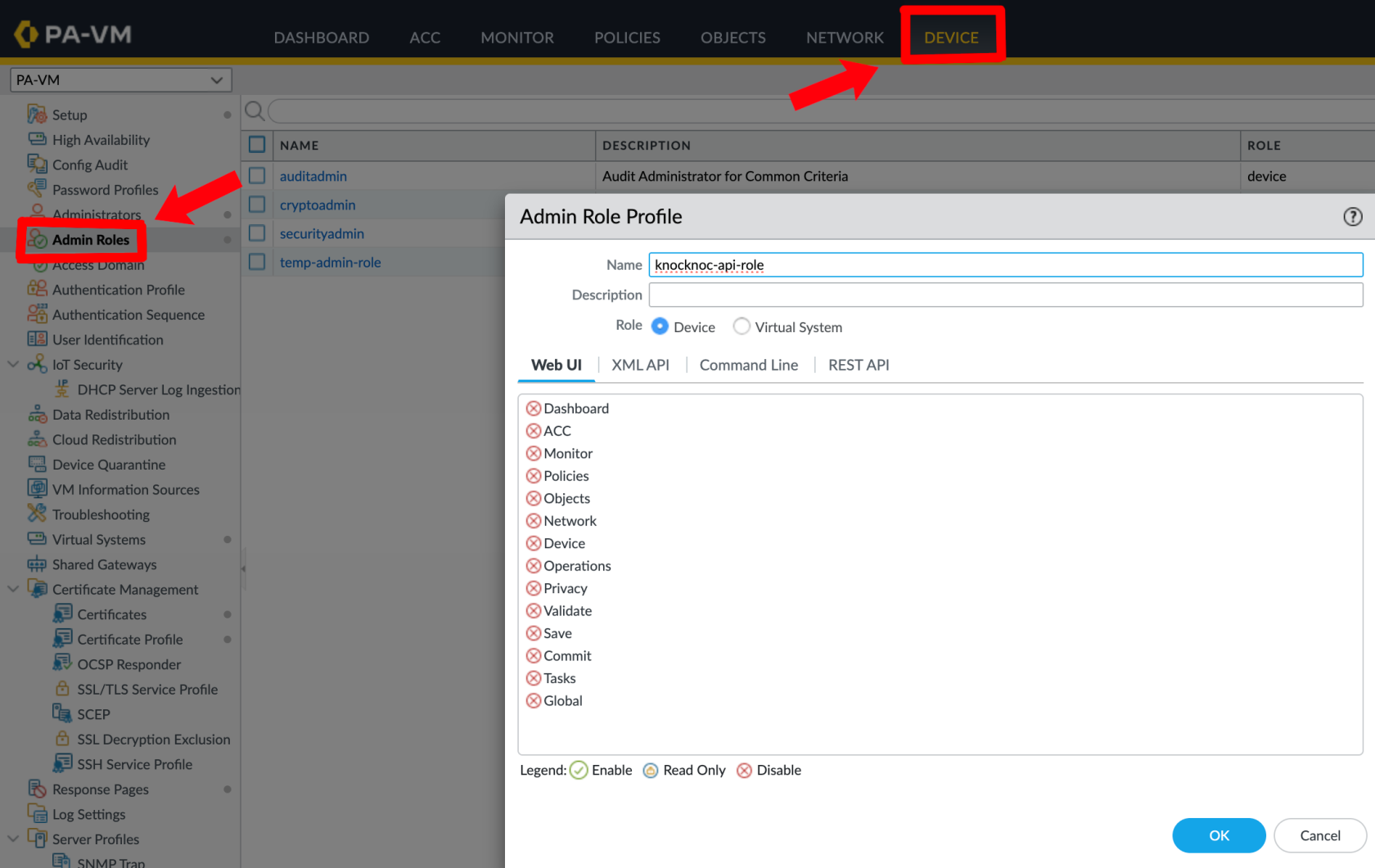
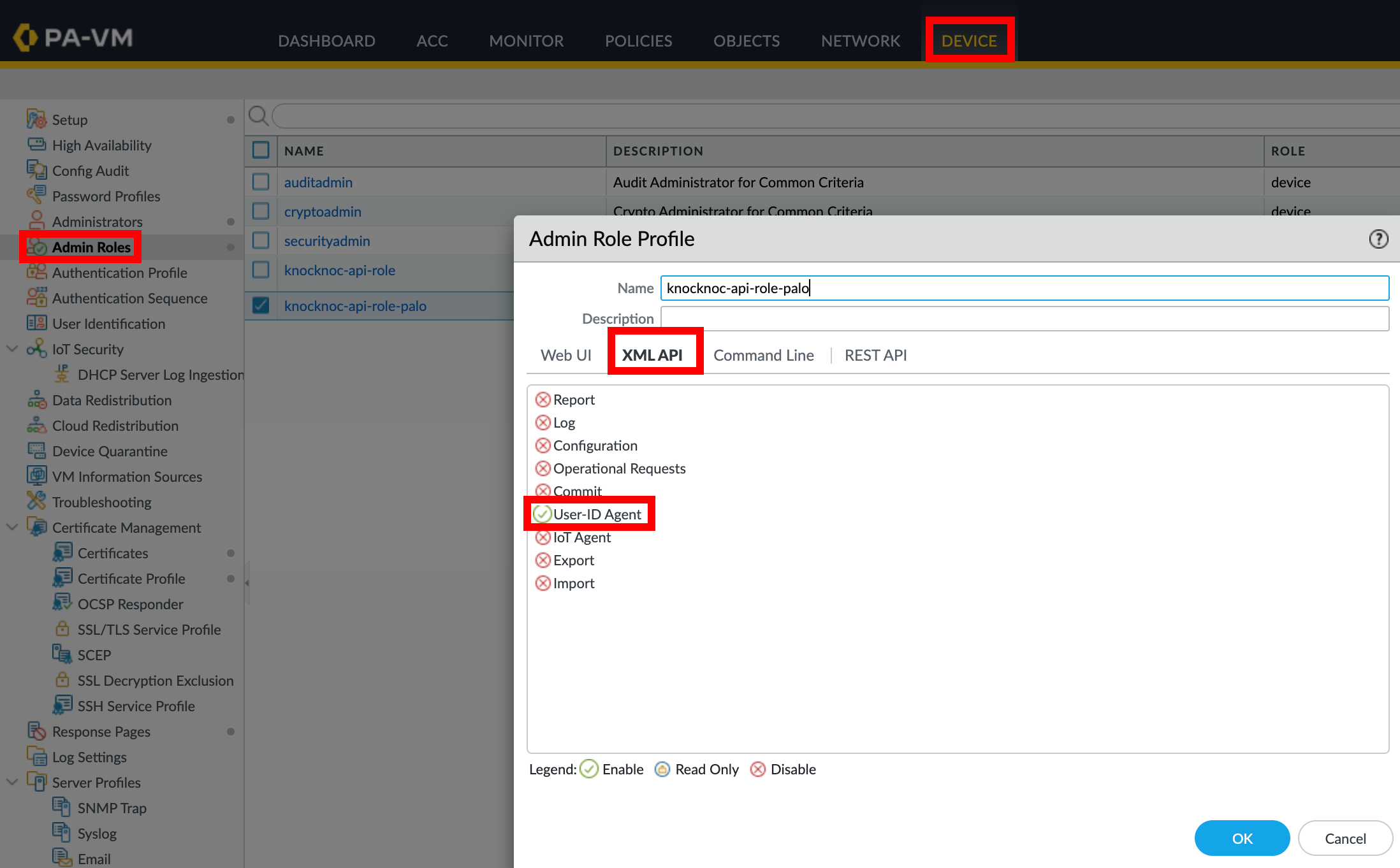
No other permissions are required for Active.
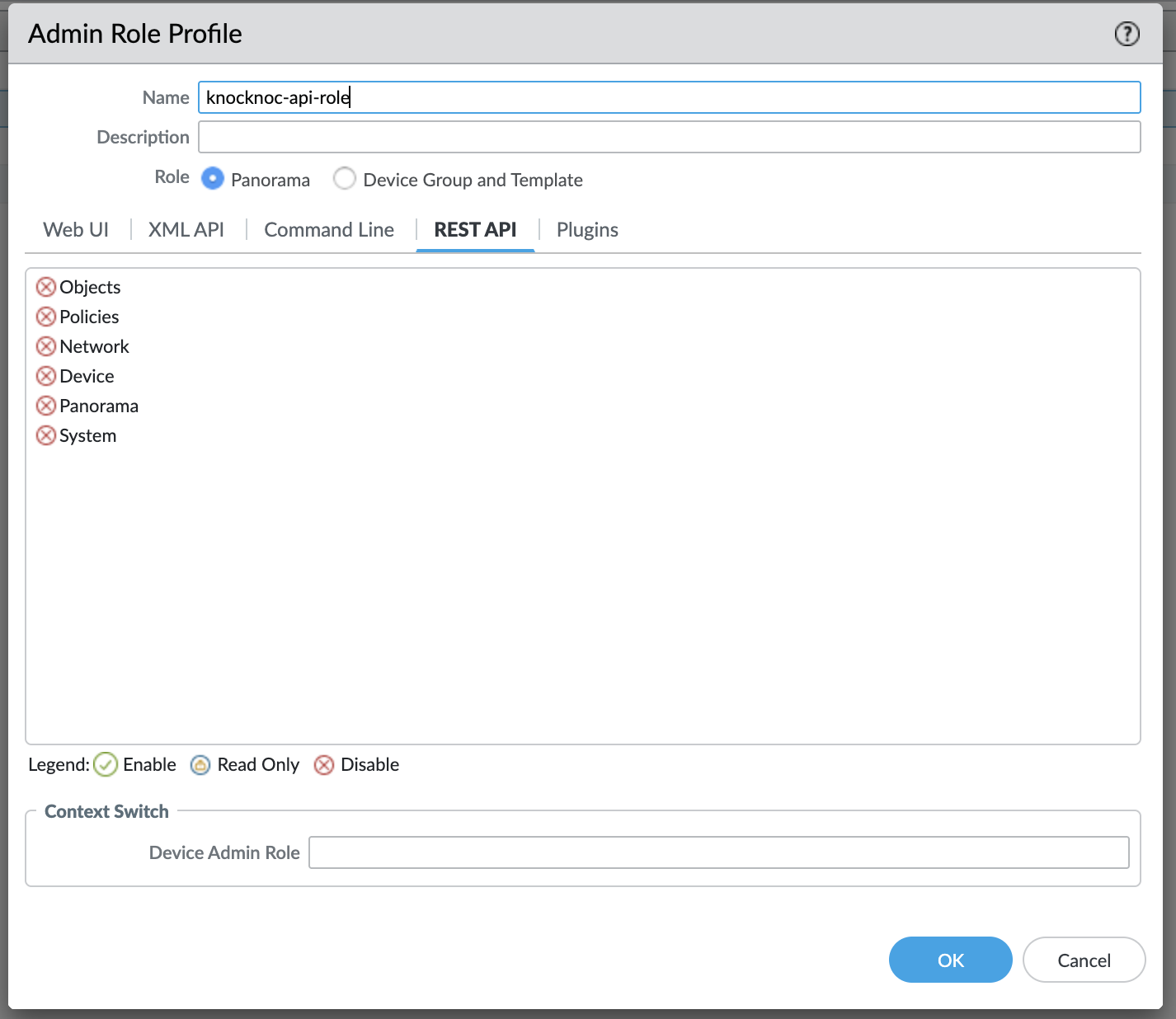
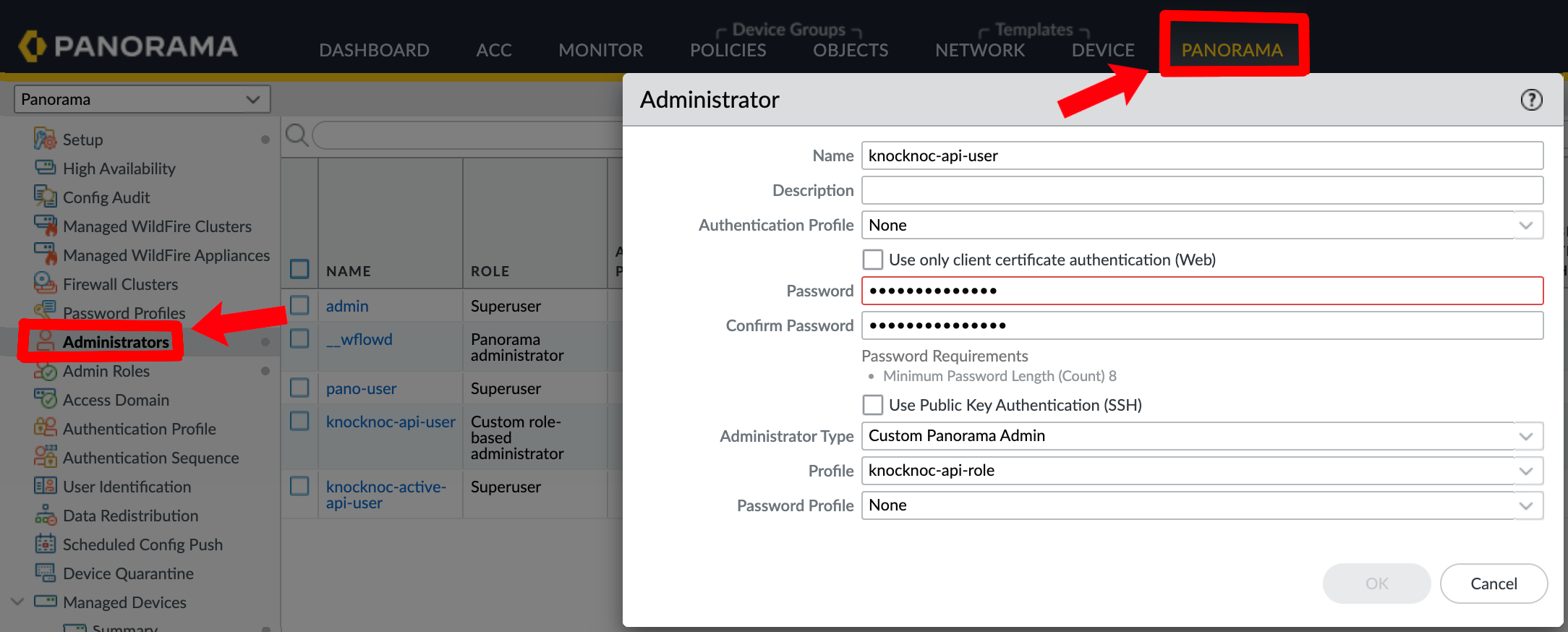
Create a user for the API key:
Panorama:
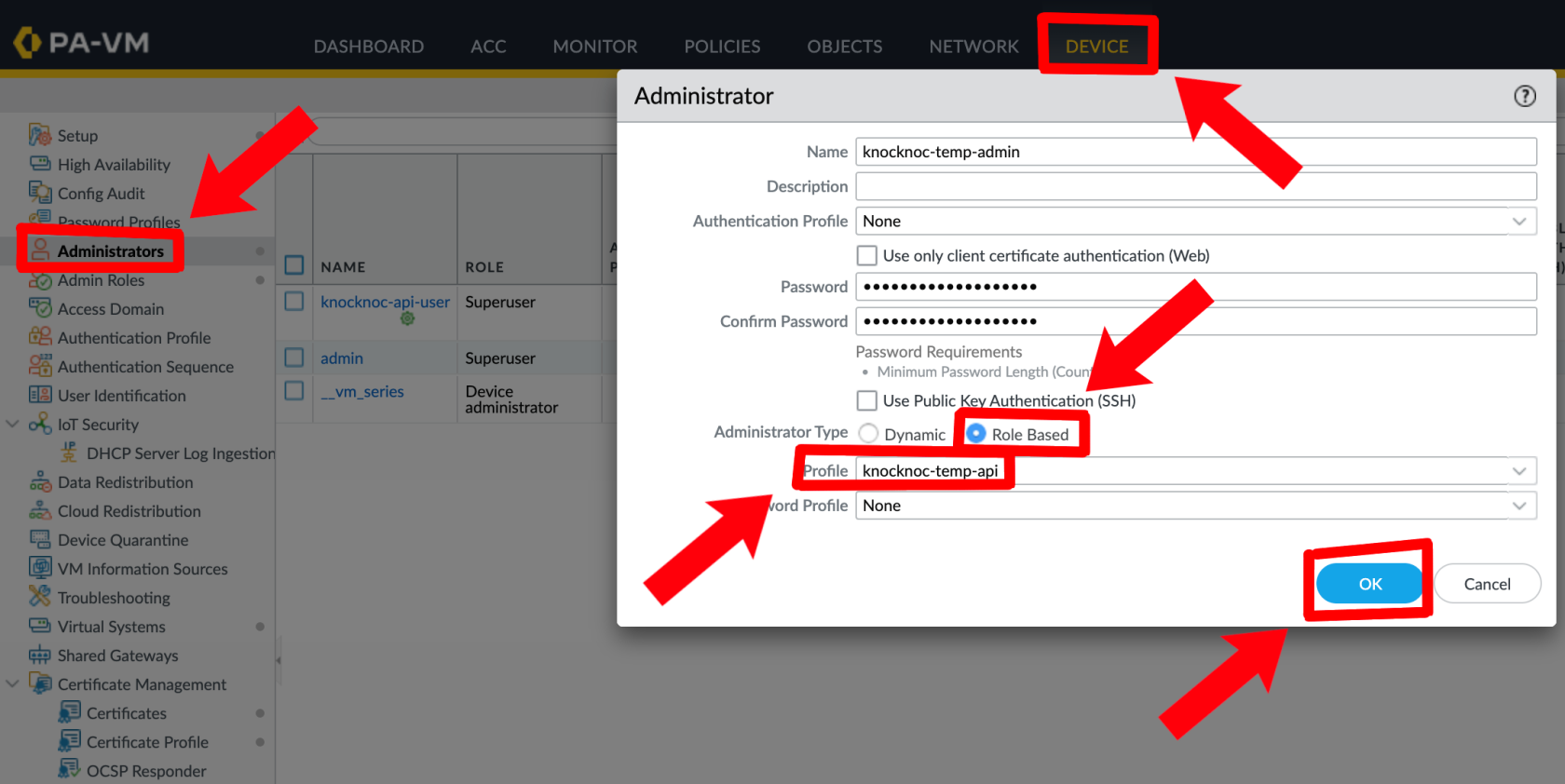
Palo Alto:
5. Generate an API Key (via Orchestration Agent)
Run the following command on an Orchestration Agent to generate an API key:
/opt/knocknoc-agent/knocker/knocker enable panosThis returns a base64-encoded API key.
Knocknoc Configuration
- When creating a new Knoc Application, select Active as the Application Type
- Select Palo Alto as the vendor
- Configure the backend settings:
- I am using Panorama - Check if connecting through Panorama
- Firewall Hostname (or Panorama Hostname) - The management URL (e.g.,
https://192.168.1.1) - Skip TLS verification - Check if using a self-signed certificate
- API Key - The API key generated above
- Tag Name - The tag to register IPs with (must match your address group exactly, e.g.,
knocknoc-ssh) - VSys - The virtual system (e.g.,
vsys1) - Device Group - The Panorama device group (if using Panorama)
- Serial Numbers - Firewall serial numbers for Panorama deployments (see below)
- Map User - Optionally map the authenticated user identity to the IP via User-ID
Panorama with Serial Numbers
When managing firewalls through Panorama, tag registration commands are sent through Panorama to each specified firewall:
- Check I am using Panorama
- Set the Panorama Hostname to the Panorama management URL
- Configure the VSys for the target firewall
- Add one or more Serial Numbers for the managed firewalls you want to target
- The agent will send tag registration commands through Panorama to each specified firewall
Timeout
Active mode supports native timeouts on the PAN-OS firewall, which ensures IPs are removed even if Knocknoc Agent loses connectivity for an extended period of time.
- When a grant is created, the IP is tagged with a timeout (in seconds) matching the grant's expiry
- When a grant is extended, the tag timeout is updated automatically
- When the timeout expires, the IP is removed from the address group
- If the grant is explicitly revoked (eg: user logout, Knocknoc session timeout), access is removed immediately
Multiple users from the same IP: When multiple users connect from the same source IP, the tag timeout is set to the longest expiry across all active grants. The tag is only removed when the last grant for that IP expires or is revoked.
Verifying & Testing
- Create a Knoc Application with Active mode
- Assign it to an agent connected to your Palo Alto firewall
- Grant access to a test user (login, or create a manual-grant/break-glass entry as an Admin)
- Verify the IP appears in the GUI (under Tag)
- Verify the IP appears in the address group membership (on the underlying firewall(s))
- Log the user out revoking the grant, and verify the IP is removed
Active Checklist
- User-ID enabled on the relevant zone(s)
- Address group created with correct tag match criteria (single quotes around the tag name)
- API key has User-ID Agent permissions
- Tag name in Knocknoc matches the address group match criteria exactly (case-sensitive)
- Security policy references the address group
- Serial numbers configured (if using Panorama)
- Commit and push completed (if using Panorama)
High-availability Failover
For direct-to-firewall deployments with a high-availability (HA) pair, you can configure automatic failover.
Configuration
In the Knoc Application settings, expand the HA Failover section:
- Secondary Firewall URL - The management URL of the secondary firewall
- Secondary API Key - API key for the secondary firewall
- Skip TLS verification - Check if the secondary uses a self-signed certificate
How It Works
Before each operation (grant, revoke, or extend), the agent:
- Checks the primary firewall's HA state via the operational API
- If the primary is active - sends the command to the primary
- If the primary is passive or unreachable - automatically falls back to the secondary
- If both firewalls are unreachable or both are passive - reports an error
Note: HA failover is for direct-to-firewall deployments only. When using Panorama with serial numbers, Panorama manages device failover itself - do not configure HA failover in this case.
Passive+ Mode
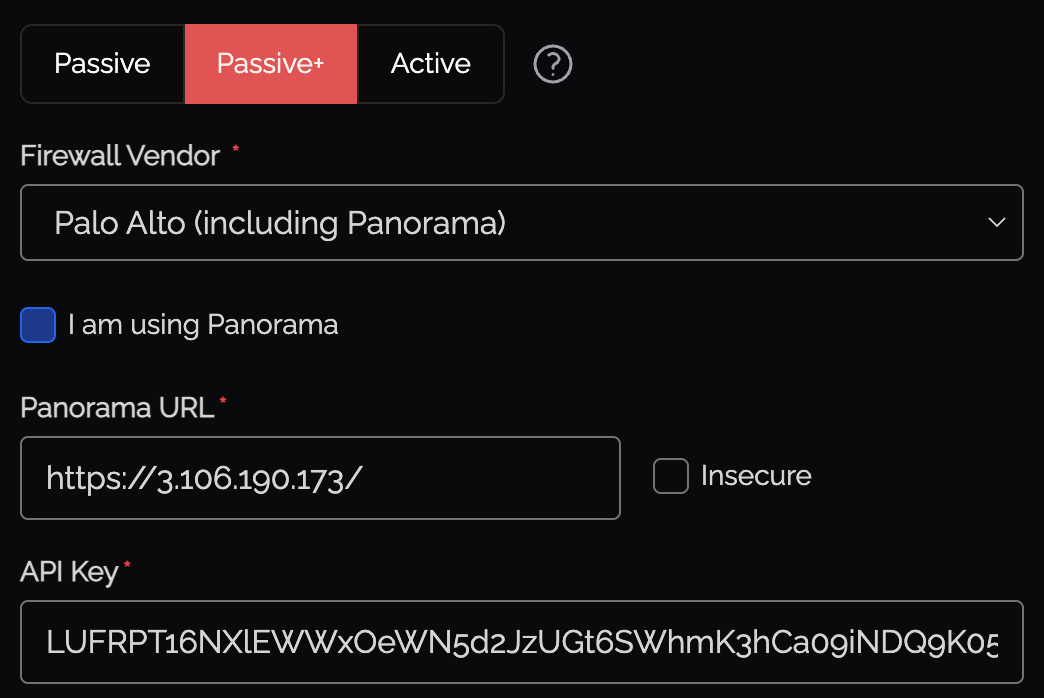
Passive+ mode combines EDL polling with an active refresh signal. Firewalls retrieve IP address lists from a Knocknoc-hosted EDL, and the orchestration agent triggers EDL refreshes dynamically - reducing the effective latency from ~5 minutes to 0–2 seconds.
Knocknoc Configuration
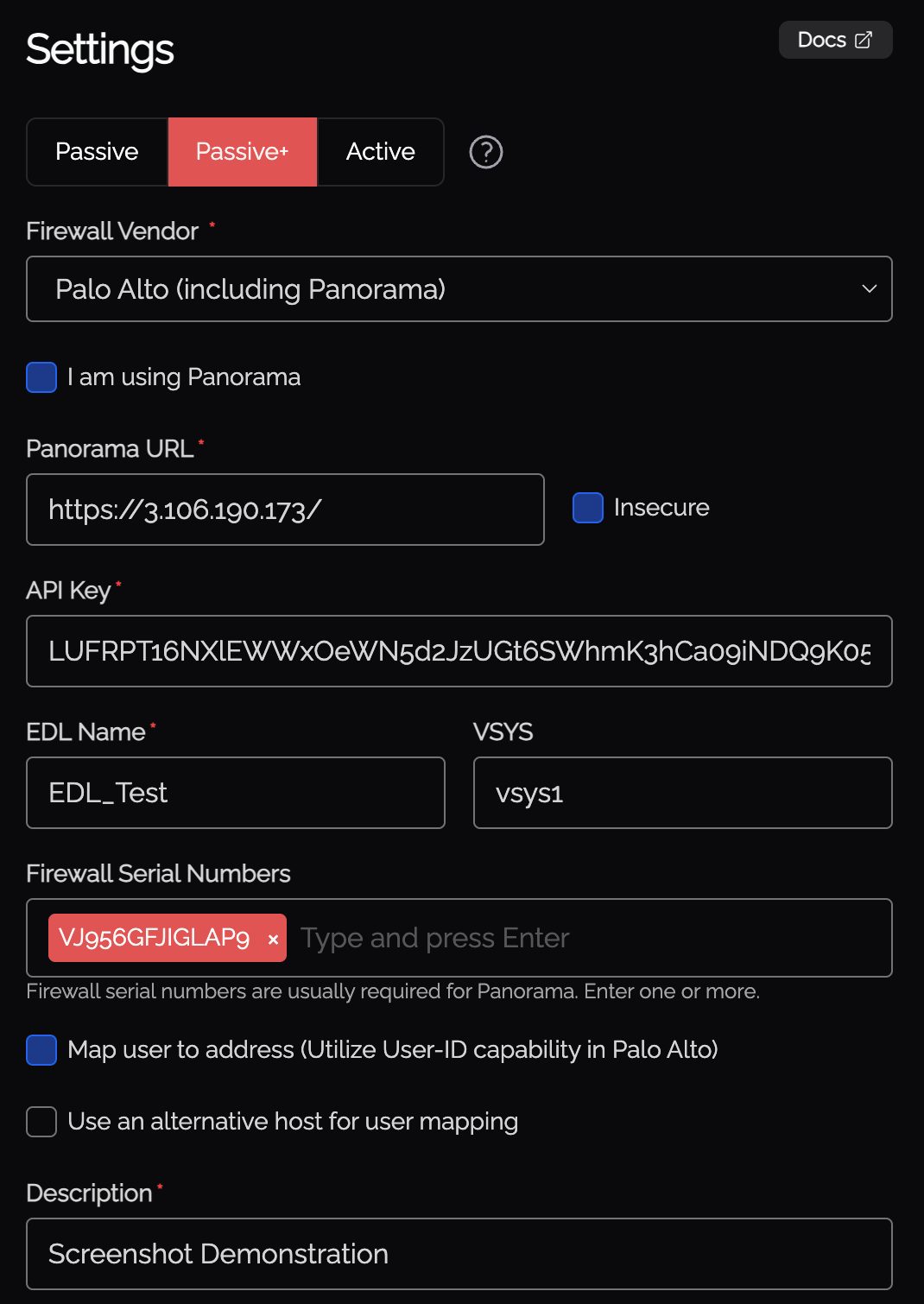
- When creating a new Knoc Application, select Passive+ as the Application Type
- Select Palo Alto as the vendor
- Configure the backend settings:
- I am using Panorama - Check if connecting through Panorama
- Firewall Hostname (or Panorama Hostname) - The management URL
- API Key - API key for the orchestration agent
- EDL Name - The name of the External Dynamic List on the firewall
- VSys - The virtual system (e.g.,
vsys1) - Map User - Optionally map the authenticated user identity via User-ID
- Serial Numbers - Firewall serial numbers (if using Panorama)
API Key Generation
Run the following command on the orchestration agent to generate the API key:
/opt/knocknoc-agent/knocker/knocker enable panosThis returns a base64-encoded API key.
Required Permissions
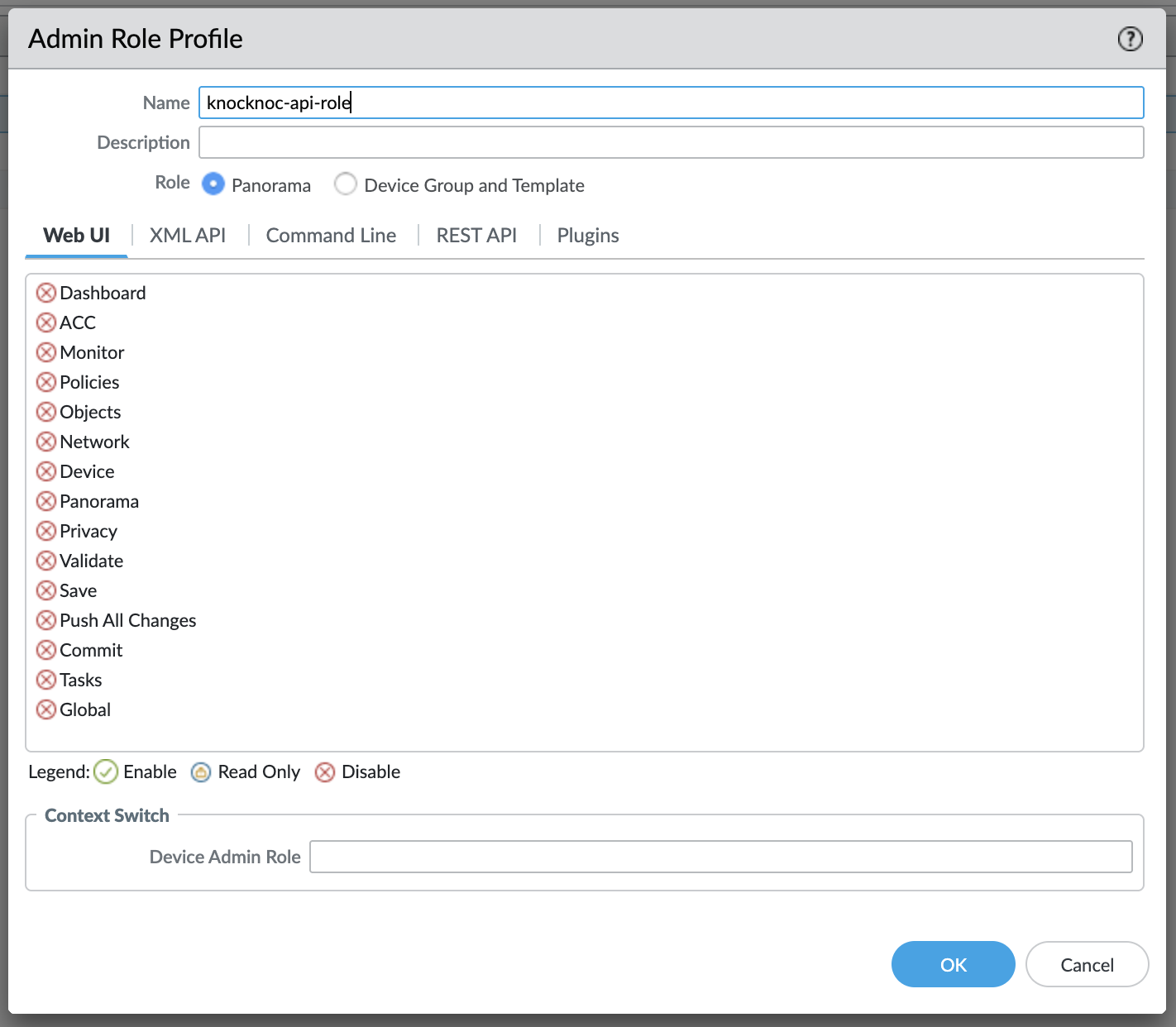
Create a new custom role:
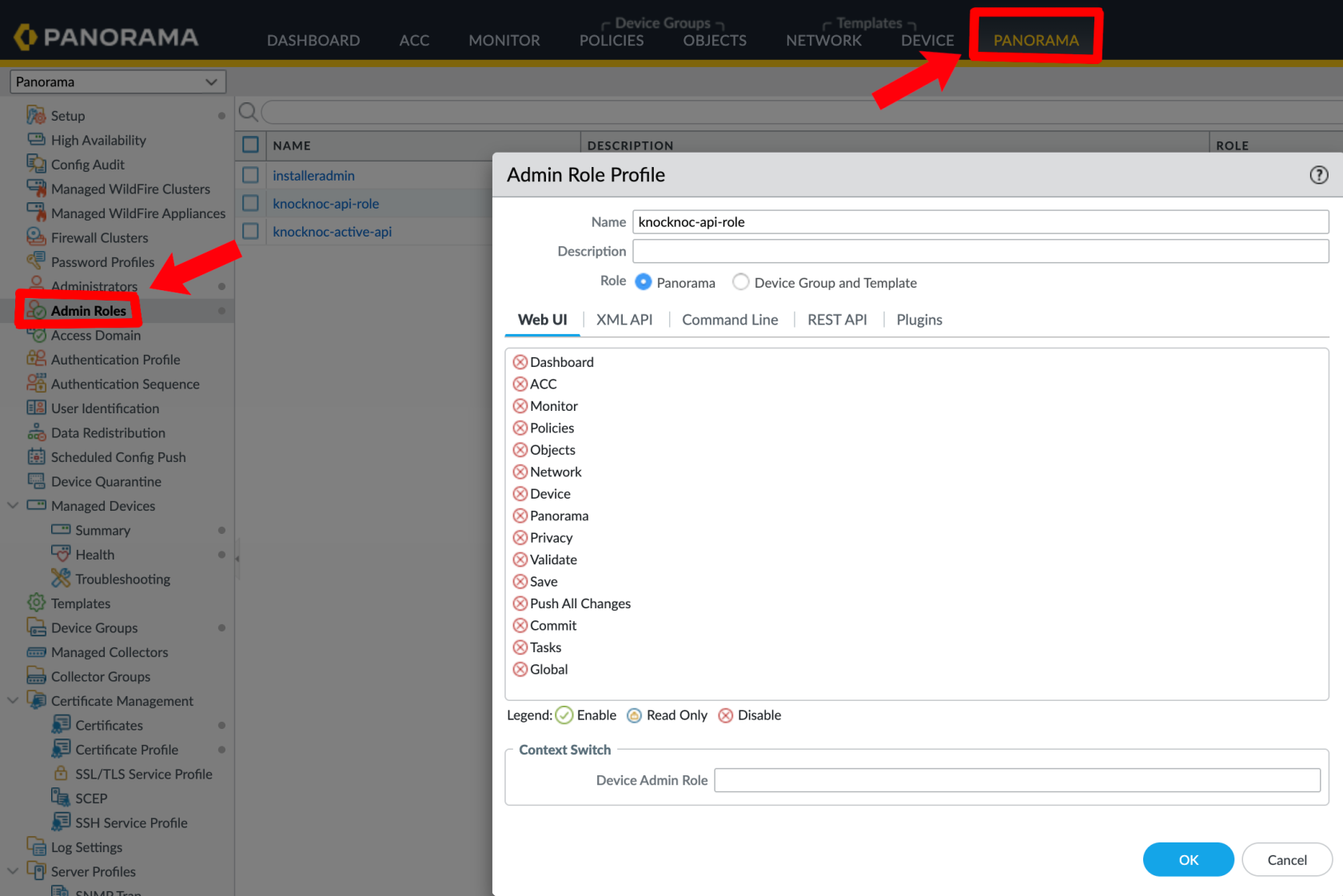
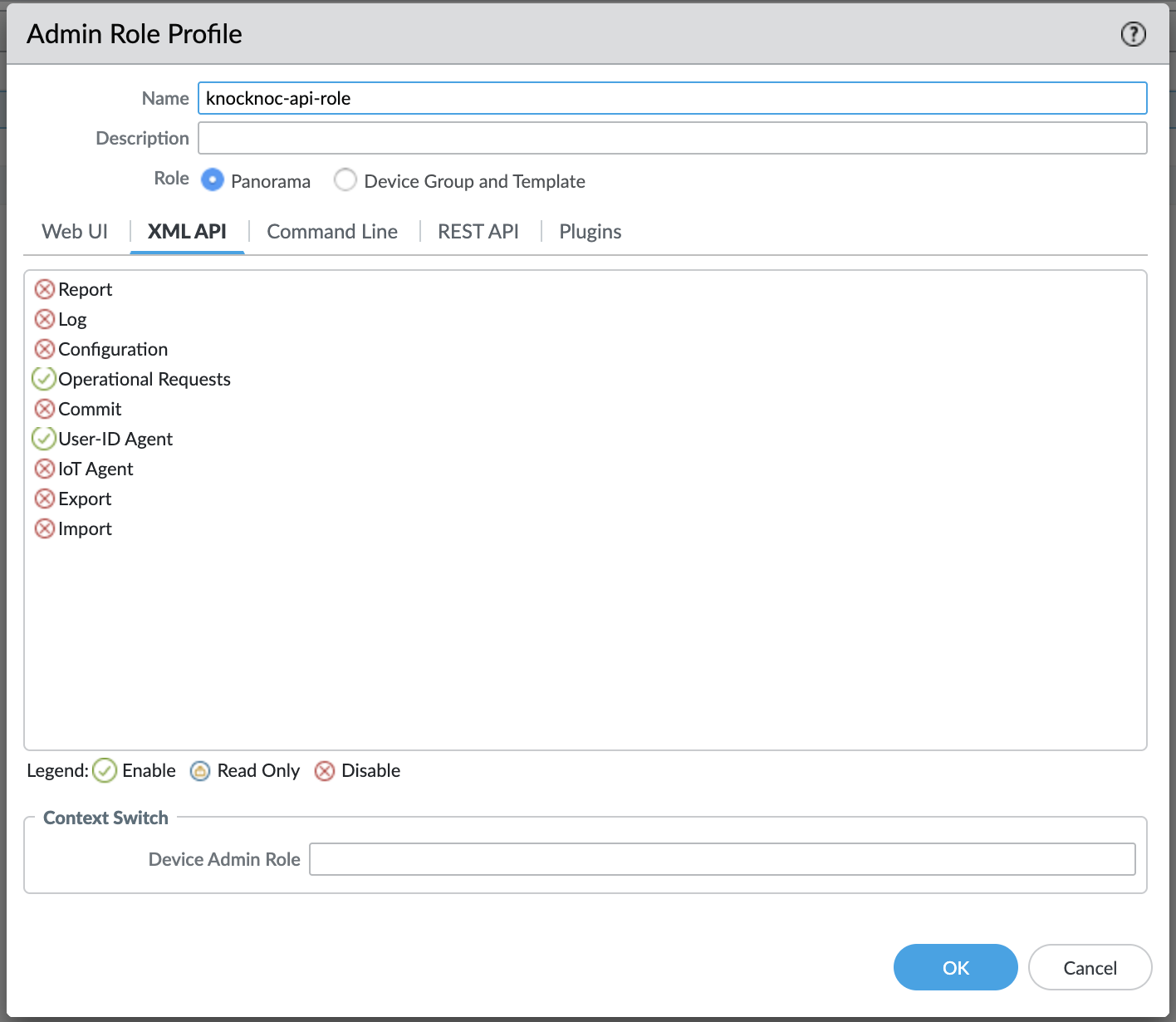
The admin role for the API key must have:have a few permissions.
- Operational Requests (for EDL refresh)
- User-ID Agent (optional, only if User-ID mapping is enabled)
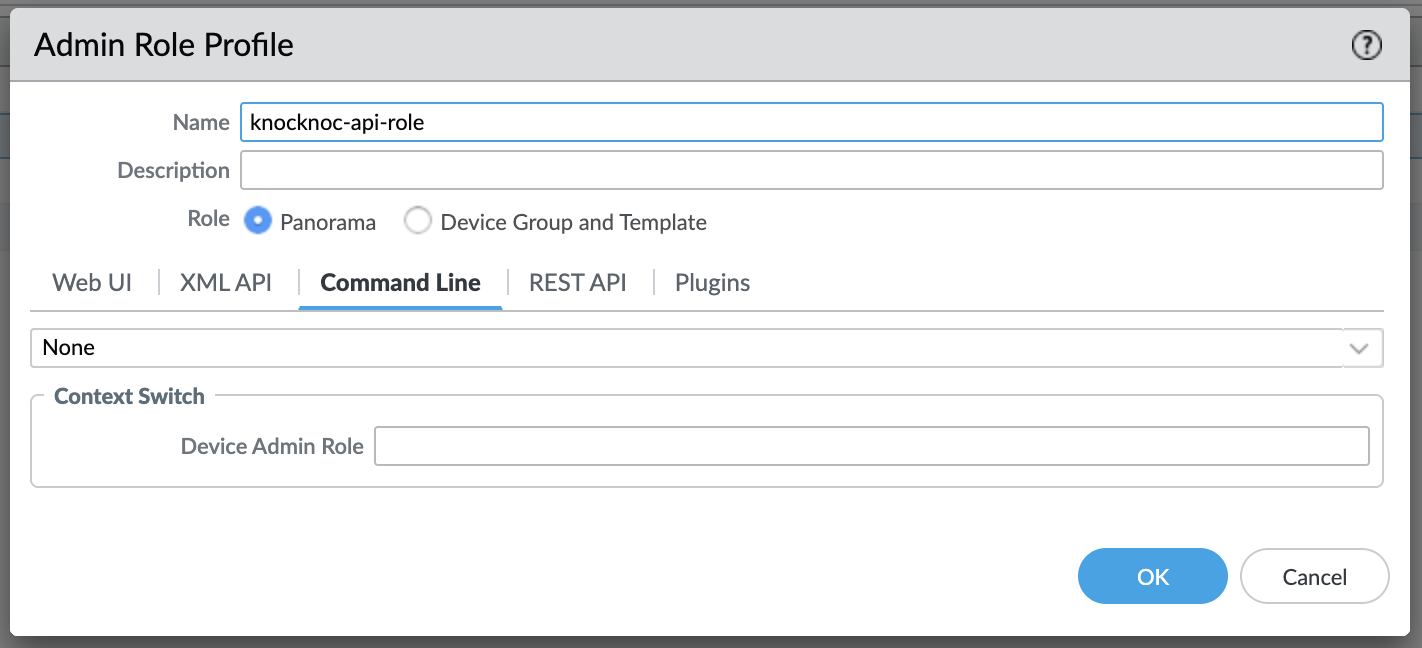
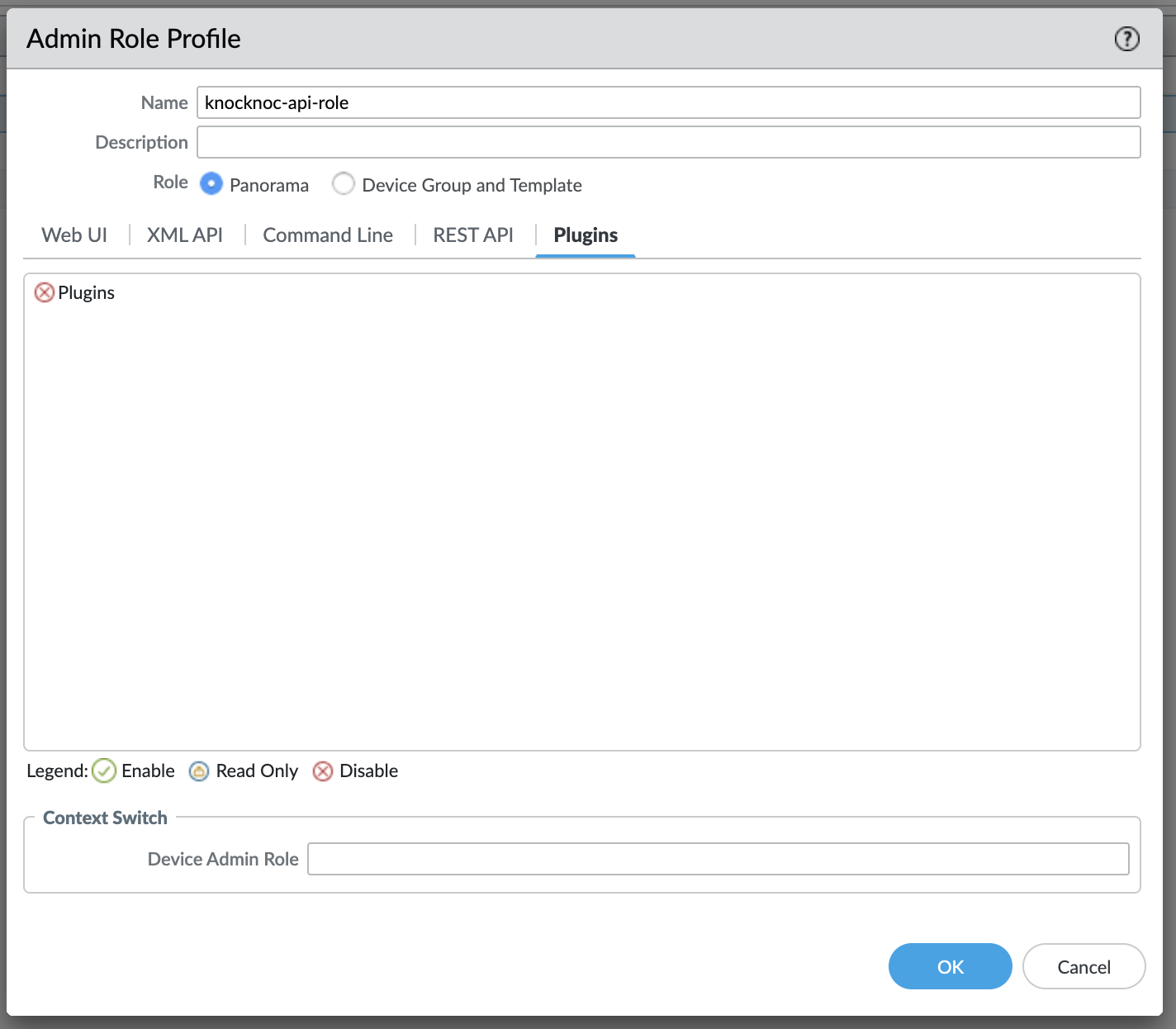
Create an administrator for the API key:key, linked to this new Role.
Panorama:
Palo Alto:
EDL Secret Configuration
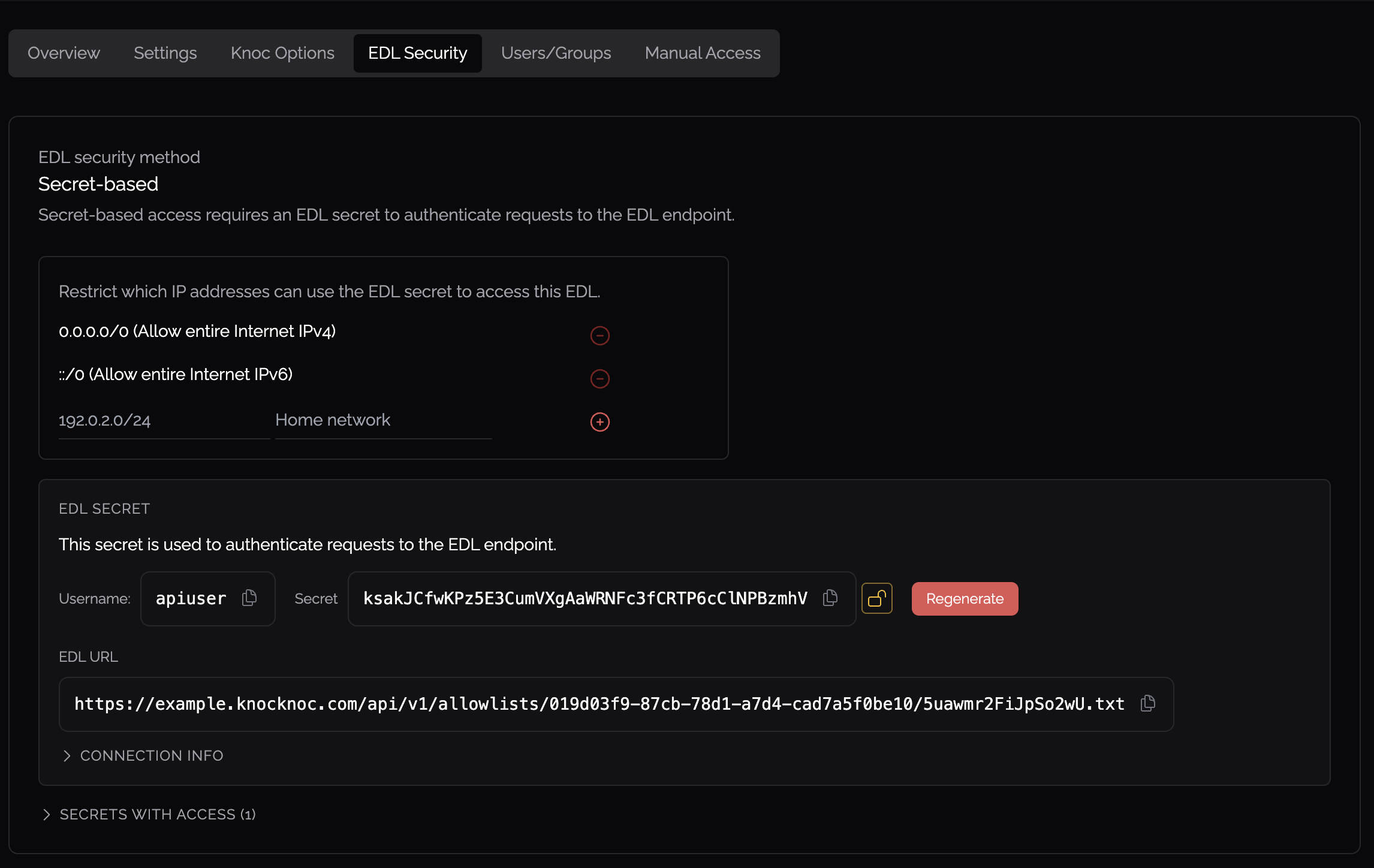
- Create authentication credentials for firewall EDL retrieval in the Knocknoc admin portal
- Configure IP allowlisting to restrict which source addresses can retrieve the EDL
- Do not permit access from the entire Internet - restrict to your firewall management IPs
Firewall Configuration - External Dynamic List
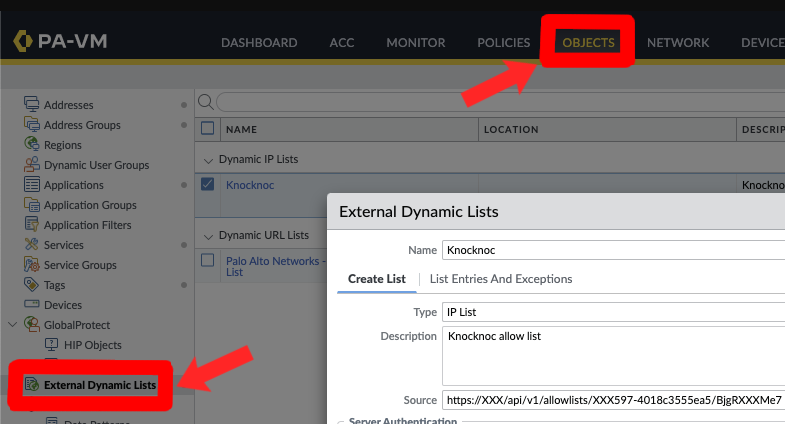
- Click Add to create a new list
- Configure:
- Name - A descriptive name (e.g.,
FirewallManagers,SSH) - Type - IP List
- Source - The Knocknoc EDL URL (use Basic Auth format)
- Name - A descriptive name (e.g.,
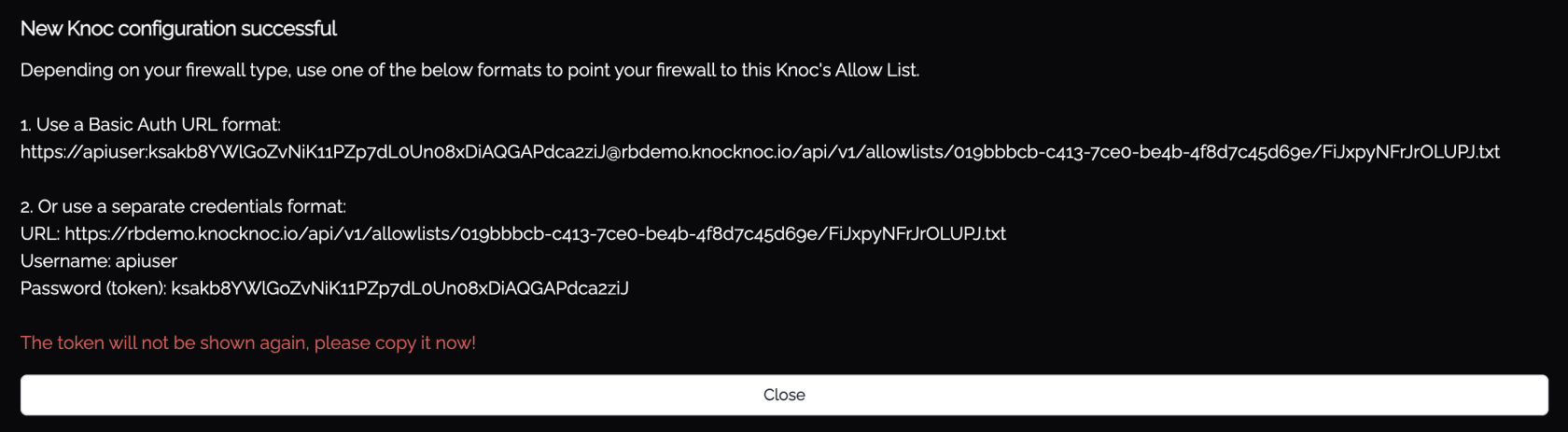
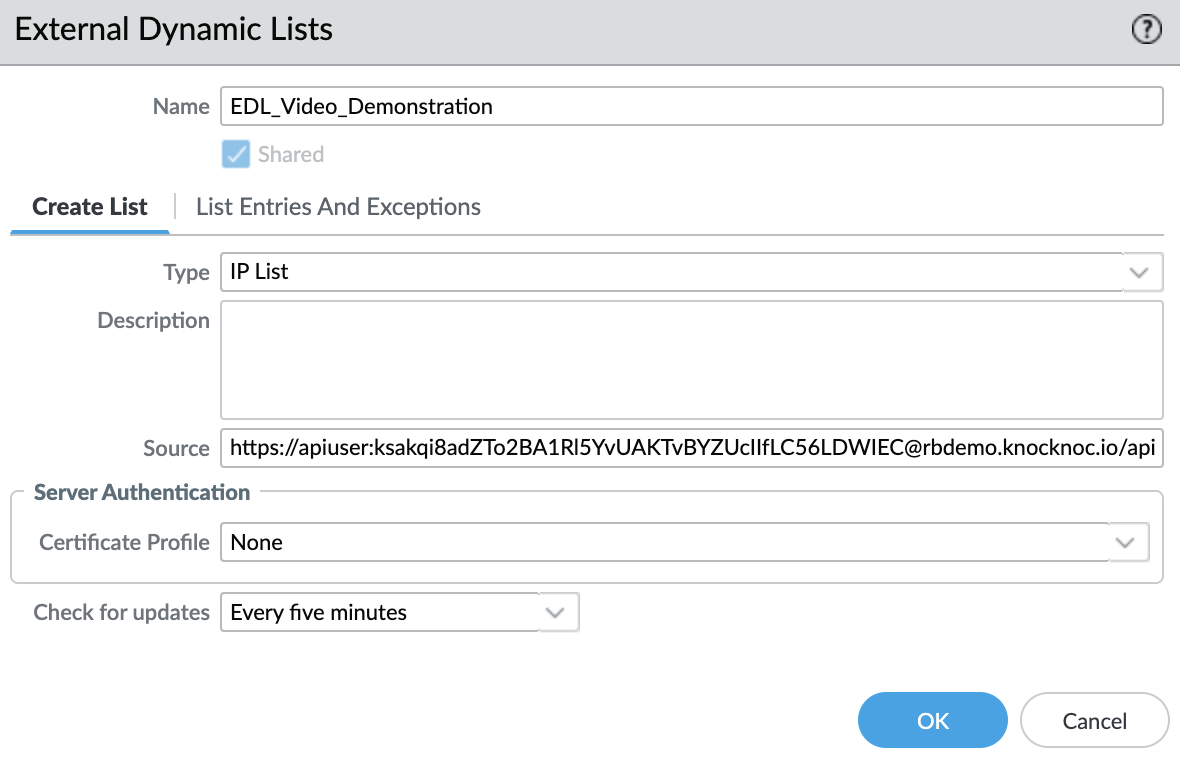
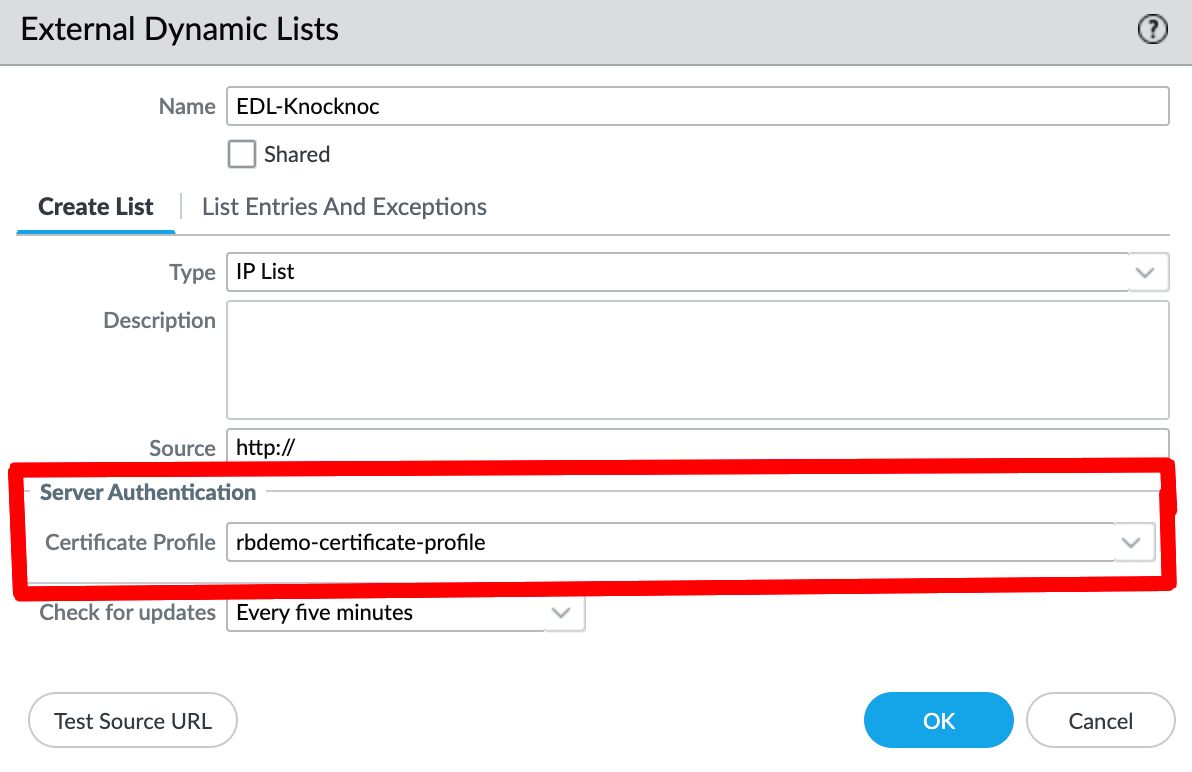
- If strict TLS validation is required, apply a Certificate Profile
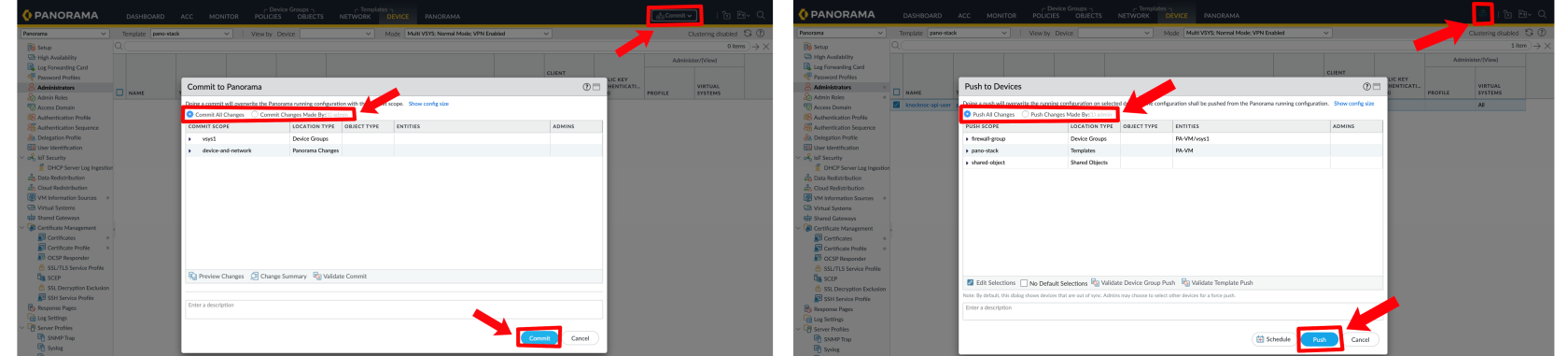
- Click OK, then Commit (and push if using Panorama)
Security Policy
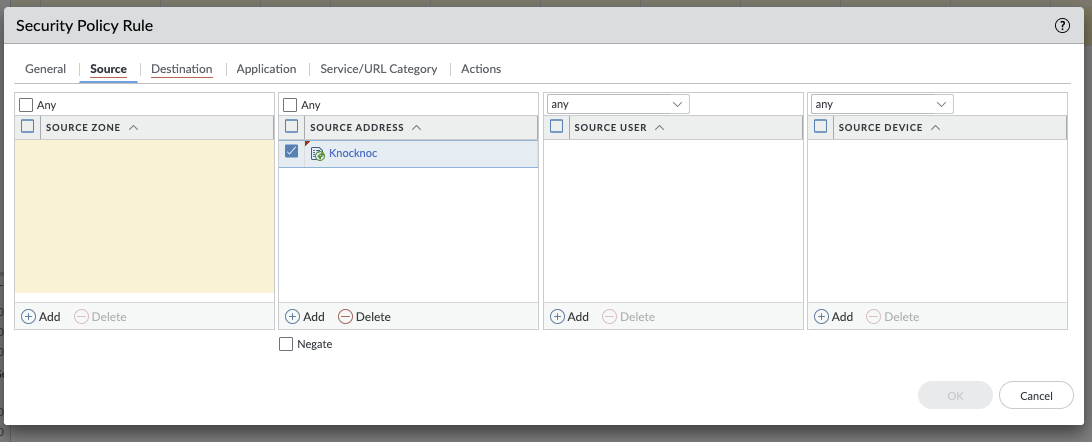
Reference the External Dynamic List in your security policy rules as a source address, enabling access control based on authenticated user sessions.
Testing
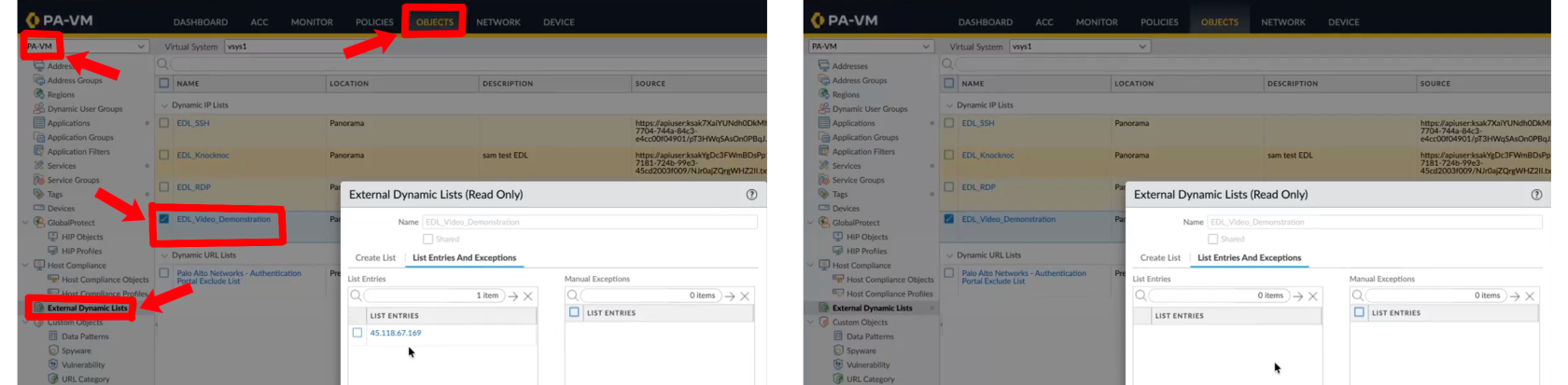
AssignLink usersa oruser groupswithin toKnocknoc theand Knoclog Application:in.
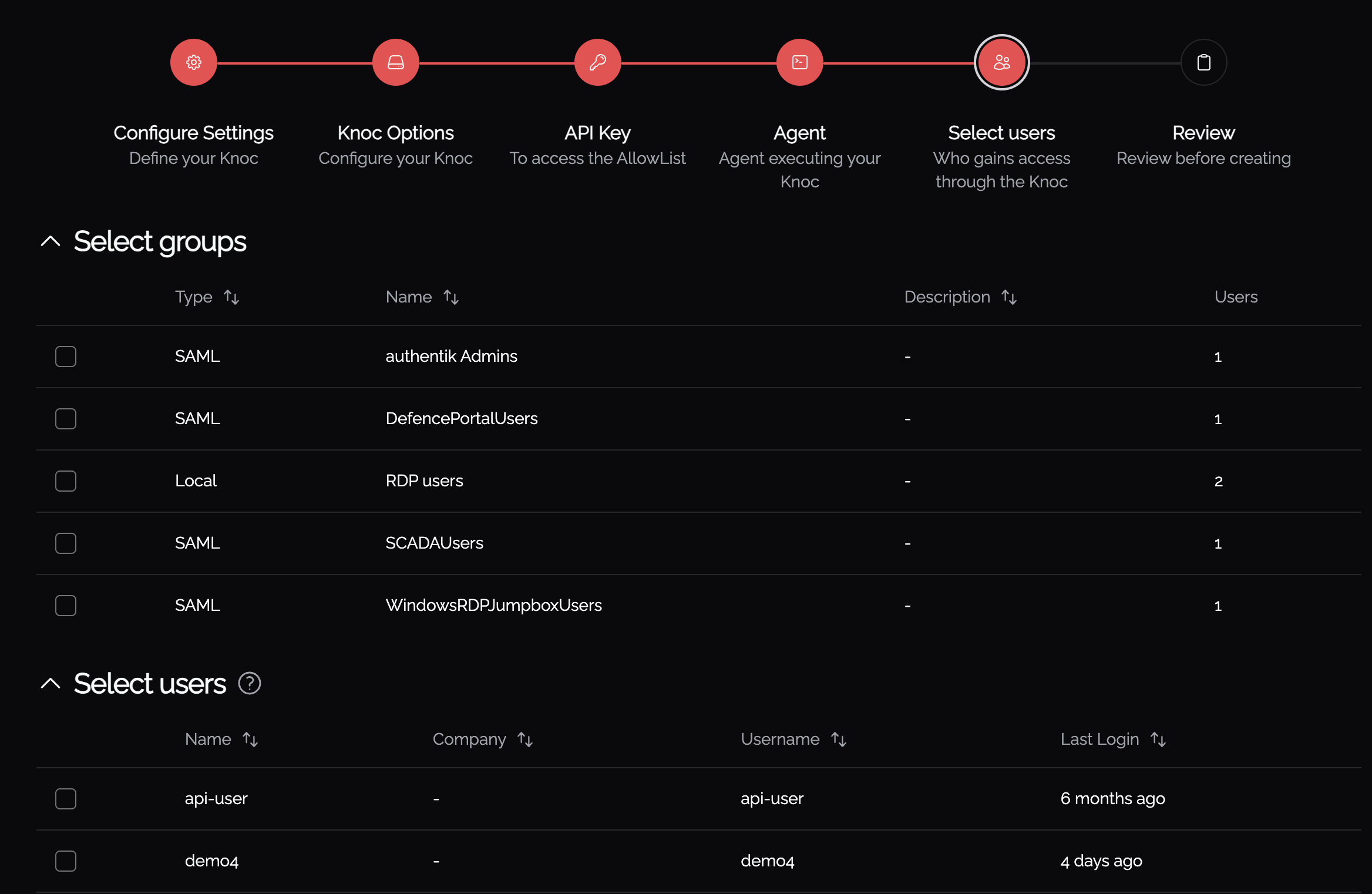
Status Indicators
- Published - IP address has been sent to the EDL, awaiting firewall consumption
- Read - Firewall has retrieved and accepted the entry
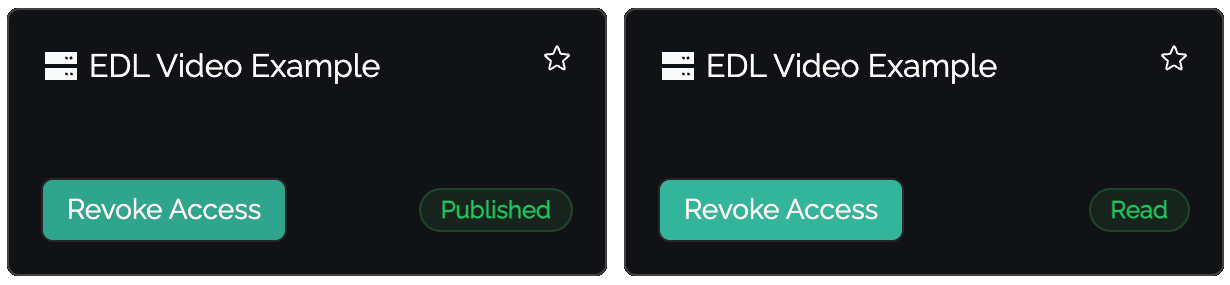
Verify on the Palo Alto device that IP changes are visible:
Passive+ Tuning
If you experience timing issues with EDL refreshes, the agent supports retry configuration:
PanosRetry = 16
PanosWait = 2PanosRetry- Number of retry attempts for EDL refreshPanosWait- Delay in seconds between retries
Passive+ Checklist
- Knoc Application configured with correct EDL name
- API key generated and has Operational Requests permission
- EDL created on firewall with correct source URL and credentials
- Security policy references the EDL
- EDL secret configured with IP allowlisting
- Commit and push completed (if using Panorama)
Passive Mode
Passive mode is the simplest integration - firewalls poll an EDL hosted by Knocknoc at their standard refresh interval (~5 minutes). No orchestration agent, API key, or active refresh signal is required.
Configuration
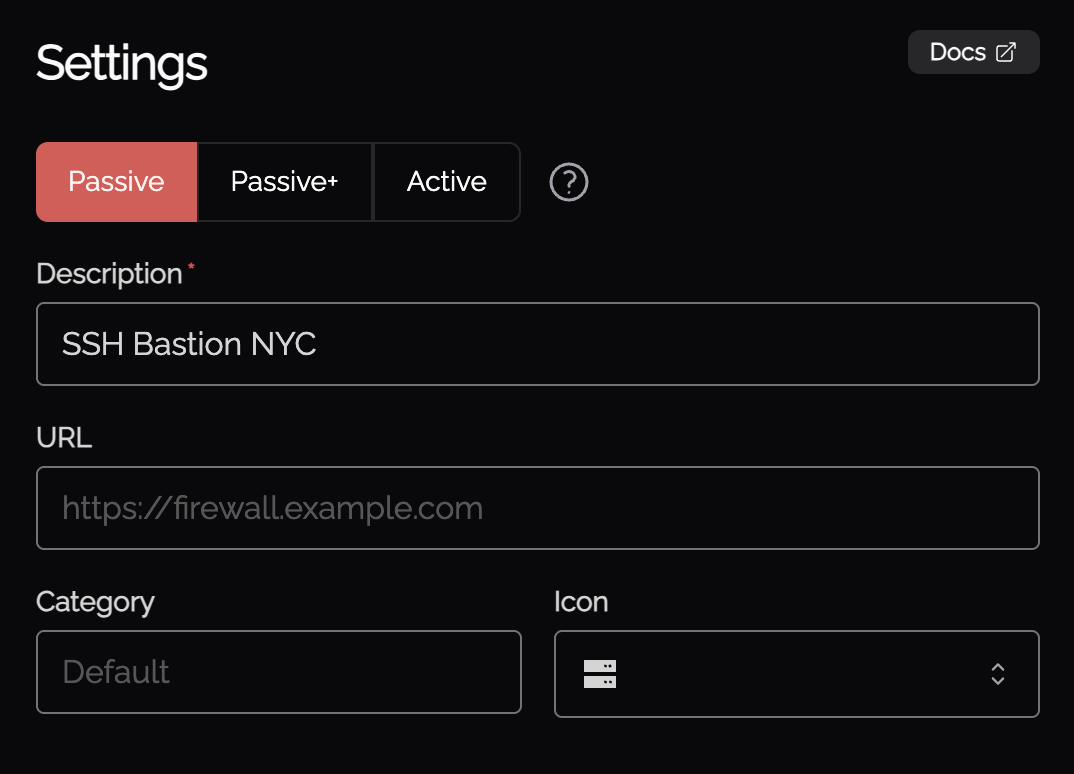
- When creating a new Knoc Application, select Passive as the Application Type
- Select Palo Alto as the vendor
- Configure the EDL name and credentials
Firewall Configuration
Follow the same External Dynamic List setup as Passive+ mode above, but without the orchestration agent or API key configuration.
Passive Checklist
- Knoc Application configured with correct EDL settings
- EDL created on firewall with correct source URL and credentials
- Security policy references the EDL
- Commit and push completed (if using Panorama)
Troubleshooting
Error 200150 - Failed to Register Tag
The agent was unable to register a tag on the firewall. Common causes:
- API key does not have User-ID Agent permissions
- Firewall is unreachable from the agent
- Invalid VSys or serial number configuration
Error 200151 - Failed to Unregister Tag
The agent was unable to unregister a tag from the firewall. Same causes as 200150 - check API key permissions, connectivity, and configuration.
Error 200200 - HA Check Failed
The agent was unable to determine the HA state of the primary firewall. Common causes:
- Primary firewall is unreachable
- API key does not have Operational Requests permission
- Unexpected HA state response
Common Issues
- Tag not appearing in address group - Ensure the tag name in Knocknoc matches the address group match criteria exactly (case-sensitive). The match criteria uses single quotes:
'tag-name'. - User-ID not enabled - The zone must have User Identification enabled for address group matching to work.
- API permission denied - Check that the admin role has the correct permissions for your chosen integration method.
- Panorama push required - After creating the address group, EDL, or security policy on Panorama, commit and push to devices.
- EDL not refreshing (Passive+) - Check agent logs for refresh errors. Verify the EDL name matches exactly.
- Published but not Read (Passive+/Passive) - The firewall hasn't polled the EDL yet. For Passive+, check the agent is triggering refreshes. For Passive, wait for the next poll interval.
Agent Diagnostics
- Review orchestration agent logs for error details
- Verify API key validity and role permissions
- Confirm firewall/Panorama connectivity from the agent host
- Check EDL configuration and device commits
Certificate Management
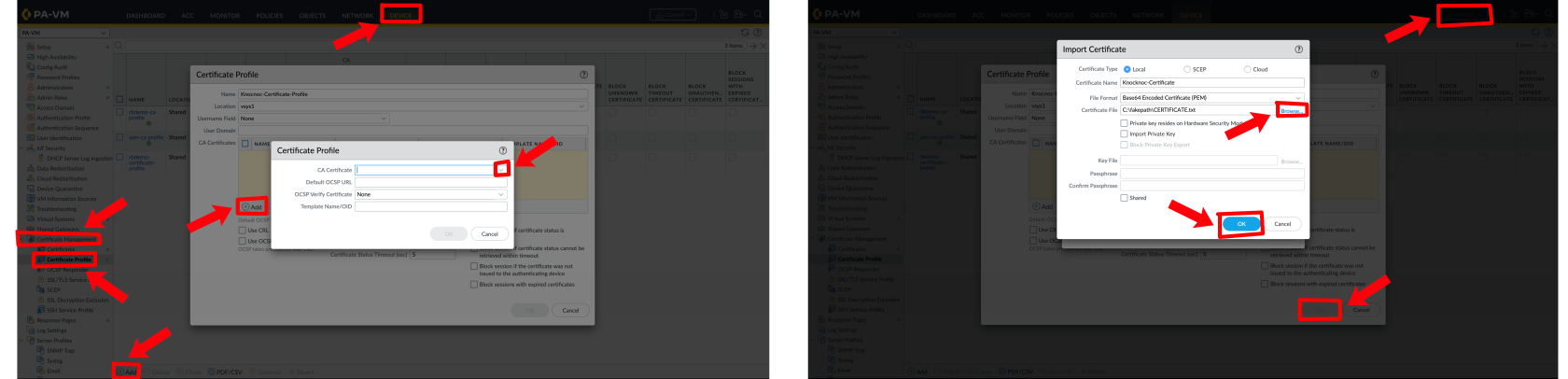
For strict HTTPS validation when firewalls retrieve EDLs, configure a CA certificate profile:
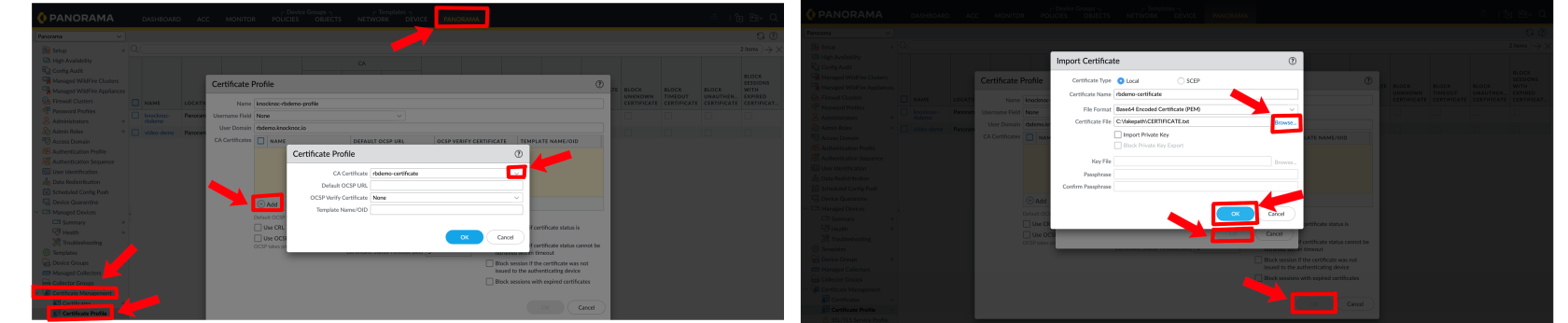
- Standalone Firewall: Navigate to Device > Certificate Management > Certificate Profiles
Reference the certificate profile in the EDL source configuration for enhanced security.
Still Having Issues?
We can help you out - contact us at support@knocknoc.io.