
200103 - Failed to Add Address to Group
Agent error code #200103 indicates that the Knocknoc agent was unable to update an address group on the Palo Alto Networks firewall to include a new address object. This error occurs when using Active mode: TODO, where Knocknoc directly manages address objects and address groups on the firewall.
This error typically occurs when:
- The API key lacks permission to modify address groups in the configured device group or virtual system (vsys)
- The address group configured in Knocknoc does not exist on the firewall or Panorama
- The specified device group or virtual system does not exist or is inaccessible
- The address group has reached the maximum number of members allowed by the platform
- A configuration lock held by another administrator is preventing changes
- Network connectivity issues prevented the API request from completing successfully
Steps to Resolve
Verify API Key Permissions
The API key must have permission to modify address groups in the configured location (device group or vsys):
- Log into Panorama or the firewall's web interface
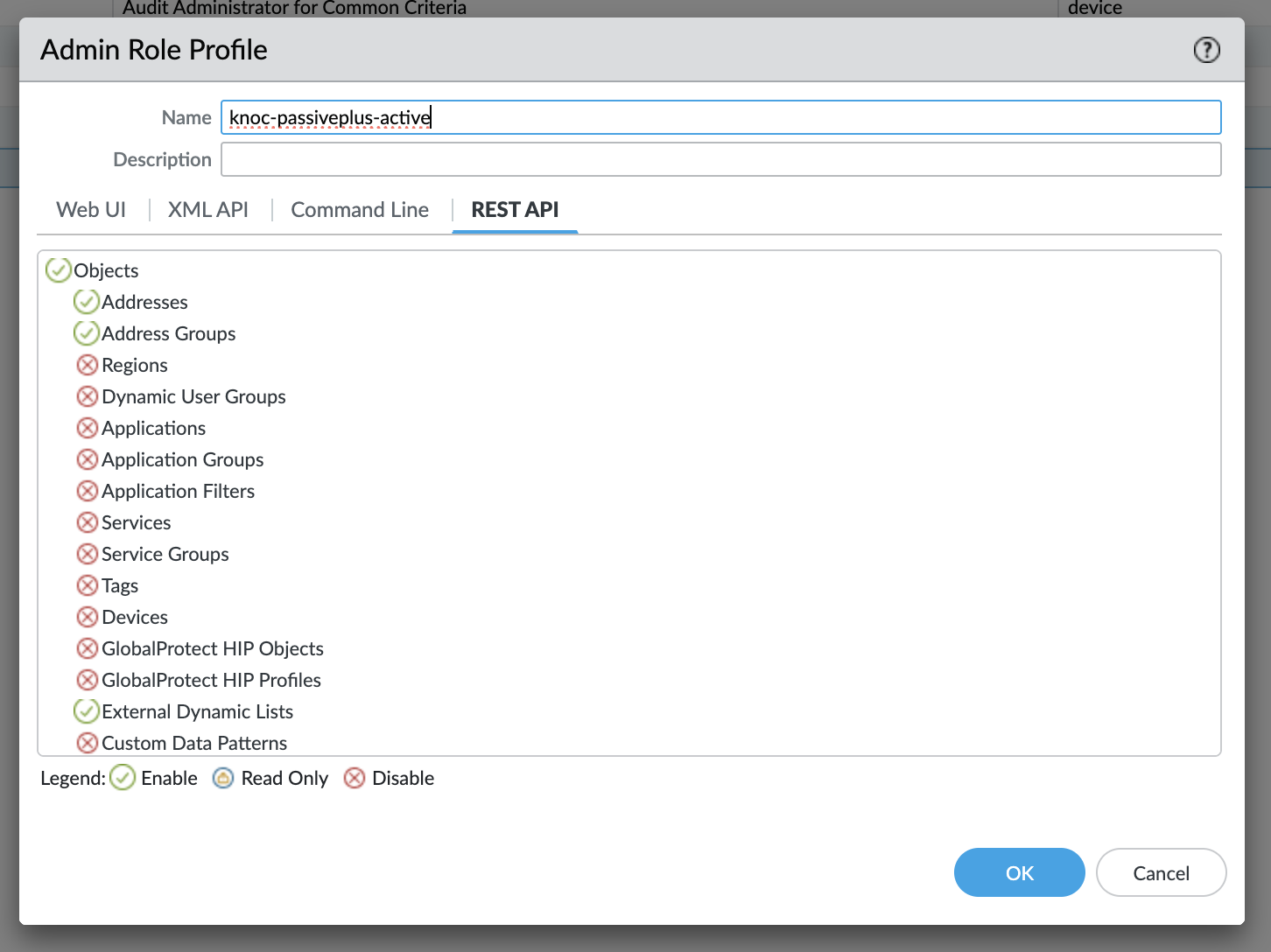
- Navigate to Device > Admin Roles and locate the role assigned to the admin account used to generate the API key
- Verify the admin role has write access to address groups (REST API Objects > Address Groups)
For more details on API key configuration, see the Palo Alto setup guide: TODO.
Verify the Address Group Exists
The address group name configured in Knocknoc must match an existing static address group on the firewall:
- When using Panorama, navigate to Objects > Address Groups within the appropriate device group
- On a standalone firewall, navigate to Objects > Address Groups within the appropriate vsys
- Verify the address group name in Knocknoc matches an existing address group exactly (case-sensitive)
- Confirm the address group type is Static (not Dynamic)
If the address group does not exist, create it on the firewall or in Panorama before the agent can manage it. For more details on configuring address groups, see the Palo Alto setup guide: TODO.
Verify Device Group or Virtual System Configuration
When using Panorama, ensure the device group is correctly configured:
- In Knocknoc, check the device group setting in the backend configuration
- In Panorama, navigate to Panorama > Device Groups and verify the device group exists
- Ensure the device group name in Knocknoc matches exactly (case-sensitive)
When connecting directly to a firewall, if virtual systems are in use, ensure the virtual system is correctly configured:
- In Knocknoc, check the vsys setting in the backend configuration
- On the firewall, navigate to Device > Virtual Systems and verify the vsys exists
- Ensure the vsys name in Knocknoc matches exactly (e.g., "vsys1")
Check Address Group Member Limits
Palo Alto Networks firewalls enforce limits on the number of members in an address group. The specific limit varies by platform and PAN-OS version, so check the capacity limits for the specific firewall model in use.
- Log into the firewall or Panorama web interface
- Navigate to Objects > Address Groups within the appropriate device group or vsys
- Select the address group configured in Knocknoc and review the current number of members
- If the address group is approaching its limit, consider removing unused address objects or consolidating entries
Check for Configuration Locks
Another administrator or management session holding a configuration lock will prevent the agent from modifying the address group:
- Log into the firewall or Panorama web interface
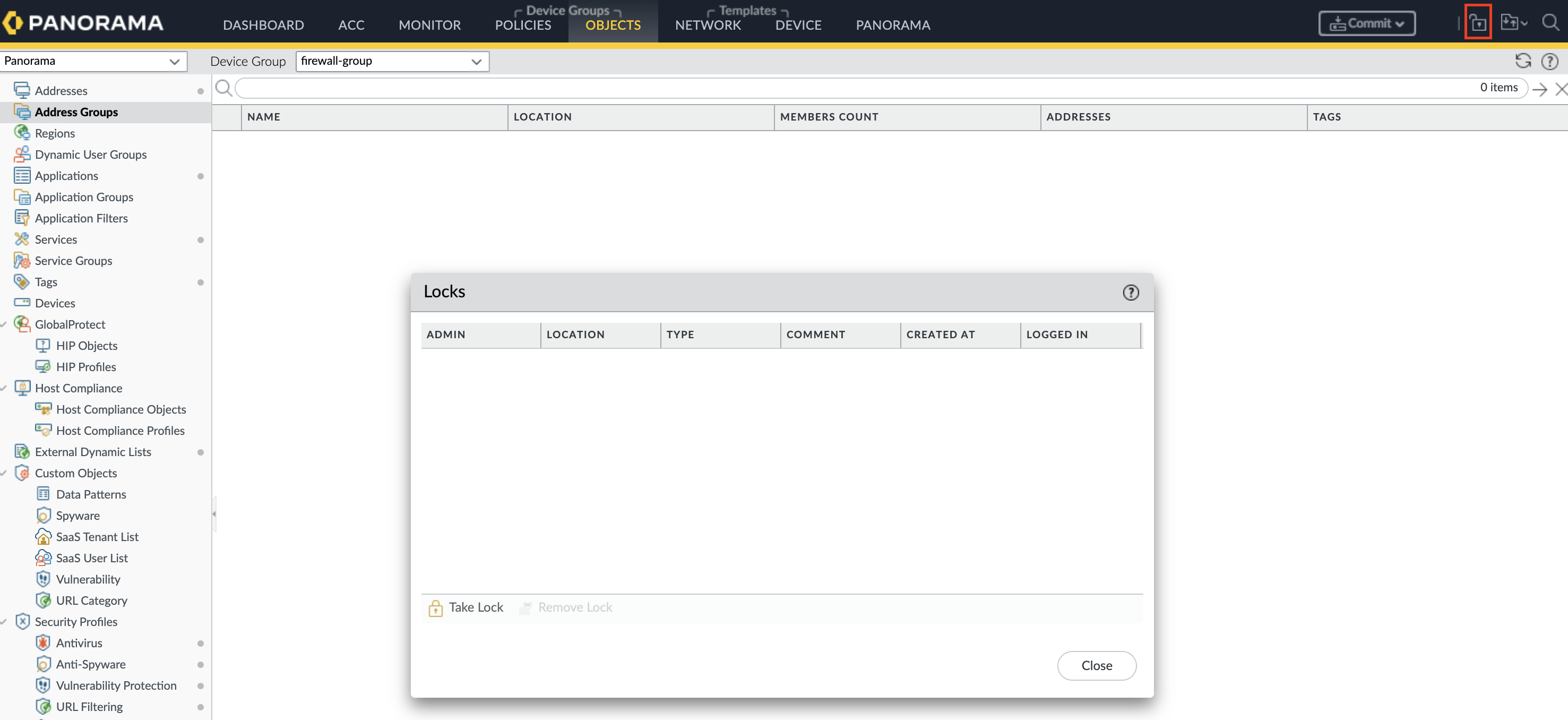
- Check for any pending configuration locks by navigating to the lock icon in the top bar
- Release any locks that are no longer needed
Check Network Connectivity
Verify that the agent can reach the firewall or Panorama management interface:
- Confirm the hostname or IP address in the backend configuration is correct
- Verify that the management port (typically 443) is accessible from the agent
- Check for any firewall rules or network policies that may be blocking the connection
Ensure Changes are Committed and Pushed
For Panorama-managed firewalls, configuration changes must be committed and pushed to devices before they take effect:
- In Panorama, commit any pending changes
- Use Commit > Push to Devices to push the configuration to the managed firewalls

Still Having Issues?
We can help you out, contact us at support@knocknoc.io.