
Windows Firewall
Microsoft Windows comes equipped with a built-in native firewall which Knocknoc orchestrates to provide just-in-time network access control, effectively removing always-on attack surface for your Windows Servers. Ports and services like RDP become invisible, prior to your users logging in centrally to the Knocknoc server. The Windows Server connects back to Knocknoc using the Knocknoc Agent, so there is no inbound exposure.
The example below focuses on protecting RDP, but the same pattern applies to any Windows Firewall rule. Pre-existing rules, custom rules or a combination.
Requirements
- Supported Windows version (for example Windows Server 2019 or Windows 10/11 Pro/Enterprise)
- Knocknoc Agent version 25.12+
Before continuing, make sure you have installed and registered the Windows Agent on the target server by following the Windows Agent Installation guide.
Example: Remote Desktop (just in time)
In this scenario we will:
- Install the Knocknoc Orchestration Agent on Windows
- Link the pre-existing RDP firewall rule to Knocknoc, such that it becomes dynamic
- Block RDP access from all other un-authenticated sources
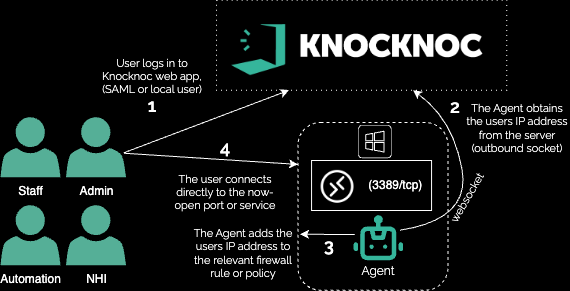
Be aware of the source IP that the Windows server actually sees (for example, a VPN egress IP vs the user’s home IP). If you lock yourself out, use the manual access to recover.
Configure the Knoc
1. Create a Knoc of type "Windows host Firewall"
In the admin portal, create a new Knoc and choose backend type Windows host Firewall.
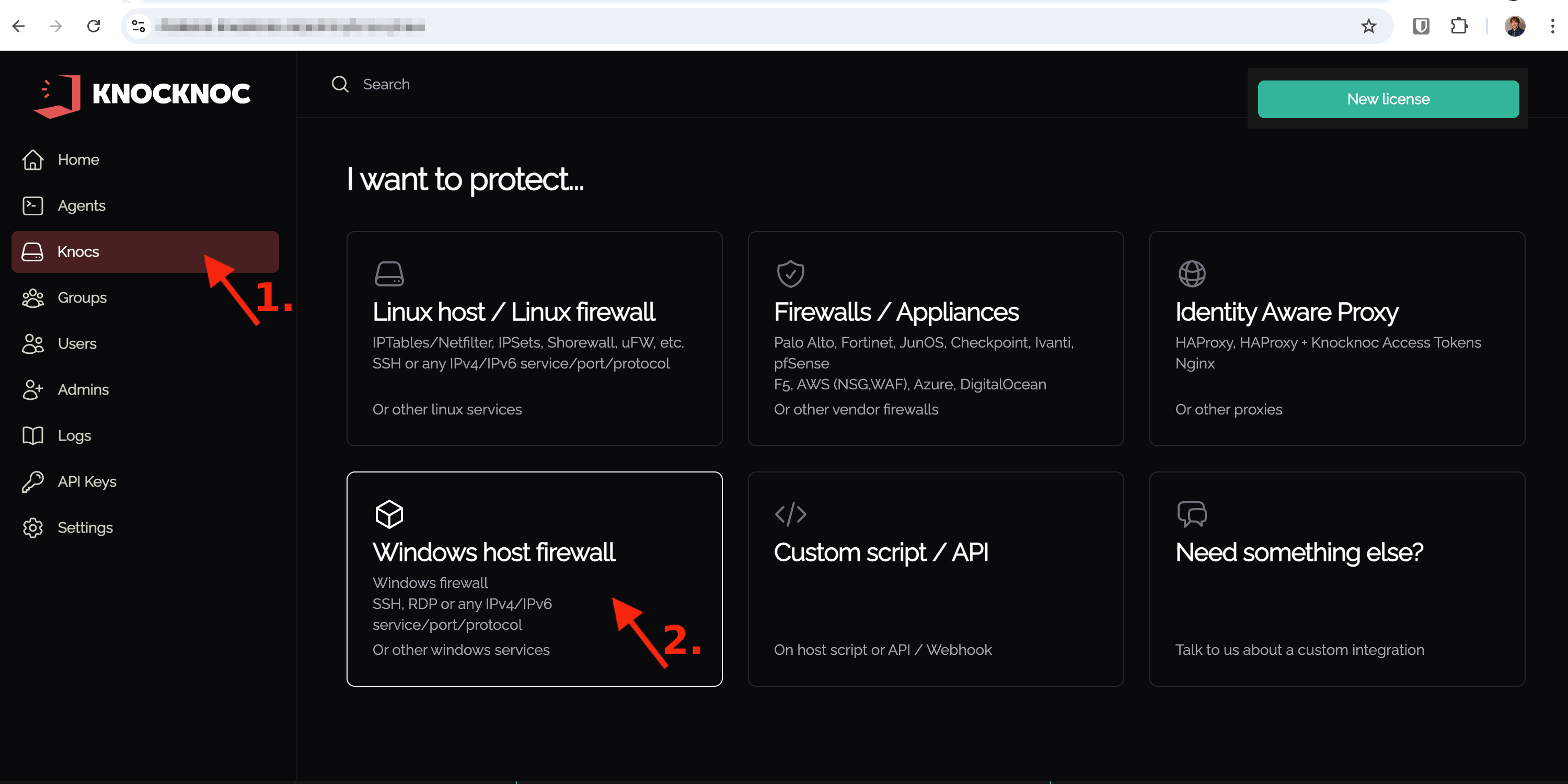
2. Select the agent running on the Windows server you want to protect.
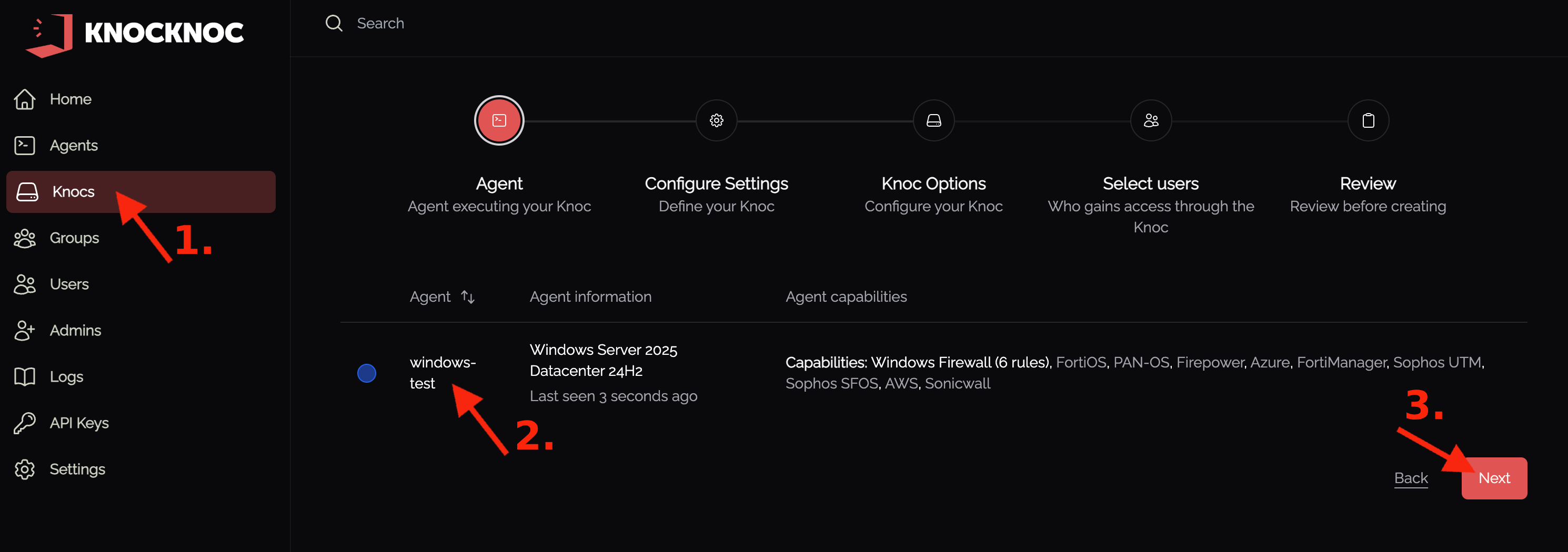
3. Choose the firewall rule you want Knocknoc to control, for example Remote Desktop – User Mode (TCP‑In) 3389/TCP.
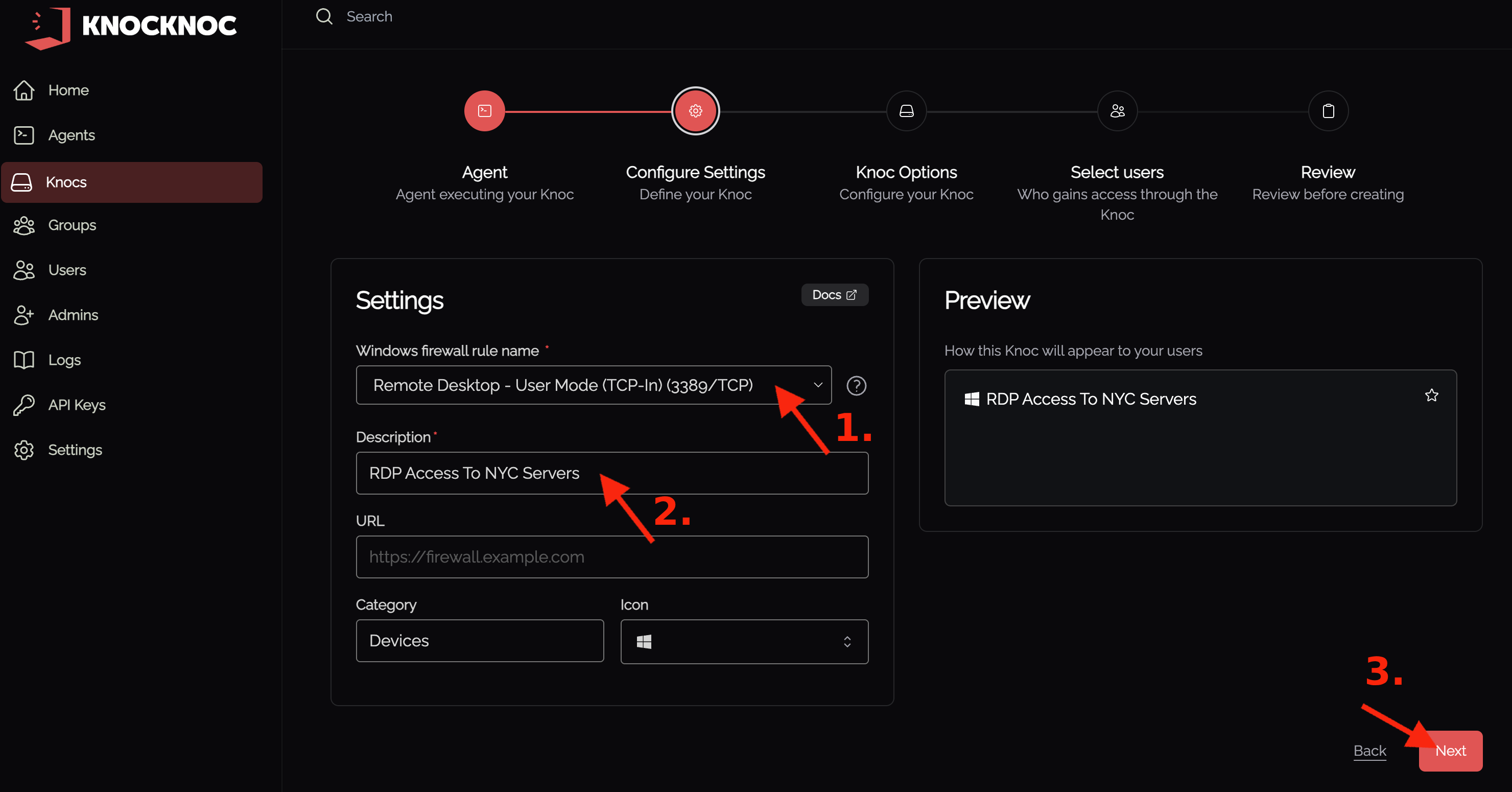
4. You are now ready to log in to Knocknoc. Once successfully logged in, the users IP address will be added to the firewall rule allow list.
All other IP addresses attempting to access RDP will be blocked, with a default-deny stance applied. If you lock yourself out, use the manual access method to obtain 20 minutes of access to change your rules.
If you need access from other fixed internal addresses, we recommend creating a separate firewall rule with the prefix kk_, these will appear in the drop-down list for use.