Palo Alto

Active, Passive+, Passive or Active?Passive?

Knocknoc orchestratesintegrates with Palo Alto firewalls and the Panorama devicesmanagement in a number of ways; actively, passively or a combination known as Passive+. This allows Administratorssystem to configuredynamically thegrant appropriateand level of trust,revoke network access and orchestration design permissions dependingbased on theauthenticated environment.user Asessions. high-volumeKnocknoc Internetupdates facingexisting environmentin-policy maylists suitrather Passive+than modechanging best,policies withoverall, anmaking air-gapdynamic networkaccess benefittingchange-safe, fromleast-privilege theand one-waysecurely natureimplemented.

of Passive mode, with another more suited to Active orchestration. These

There are allthree optionsintegration thatmodes:

can
beActive deployed- toNear-instant suitaccess yourcontrol needs,for includingPalo Alto/Panorama, no commit required (recommended) Passive+ - Firewalls poll a combinationsecurely-hosted beingExternal usedDynamic on the same device(s) at once.

Passive+List (Passive EDL retrieval,EDL), with an active refresh)refresh signal sent to Panorama/Palo Alto to reduce access latency from ~5 minutes to ~2 seconds

Passive - KnocknocFirewalls offers a Passive integration for firewalls that supportpoll an External Dynamic Lists (EDL) or external IP/host address list.  This feature allows your firewalls to pull the list of  authenticated users' IP addresses which can then be used as the source (or destination) of a pre-existing firewall policy. However, as firewalls typically pollEDL every 5 minutes,minutes. thisNo canagent leaverequired, users waitinggood for access.data-diode Withenvironments.

Active

(Recommended)

Passive+

mode,

(Simpler theenvironments)

Passive

(Data-diode)

Speed Near-instant

~2s (large EDL issets usedslow)

in conjunction~5 minutes Mechanism Active API EDL refresh signal EDL polling (no agent) Commit required No No No Auto timeout

In-firewall

Agent orchestrated Polling period Agent required Yes Yes No Panorama support Yes Yes Yes

Active Mode

Active mode provides real-time access control by communicating directly with an "active" trigger, which refreshes the EDL so it is typically within a second to log in, even when a Panorama is involved. In addition, the Palo Alto "User-ID"firewall foror eachPanorama, usersvia sessionthe canServer beOrchestration optionallyAgent. No user/client installation is required. When a user authenticates and is granted access, their IP is added toimmediately; when the Palo/Panogrant environmentexpires byor selectingis thisrevoked, the IP is removed. No commit is required.

Prerequisites on the Firewall

Before configuring Knocknoc, you need to set up the following on your Palo Alto firewall or Panorama.

1. Enable User-ID on Zones
    Navigate to Network > Zones Edit the zone where you want to enforce access control Check Enable User Identification Commit the change
    2. Create an Address Group
      Navigate to Objects > Address Groups Click Add to create a new address group Set Type to Dynamic In the Match field, enter your tag name enclosed in single quotes (e.g., 'knocknoc-ssh') Click OK and commit

      When using Panorama, create the address group in the Knocknocappropriate configuration.Device Group and push to managed firewalls.

      3. Create a Security Policy Rule
        Navigate to Policies > Security Create or edit a rule that should grant access to tagged IPs In the Source section, add the address group you created Configure the destination, application, and action as needed Commit and push (if using Panorama)
        4. Create an API profile and API user
        Required Permissions

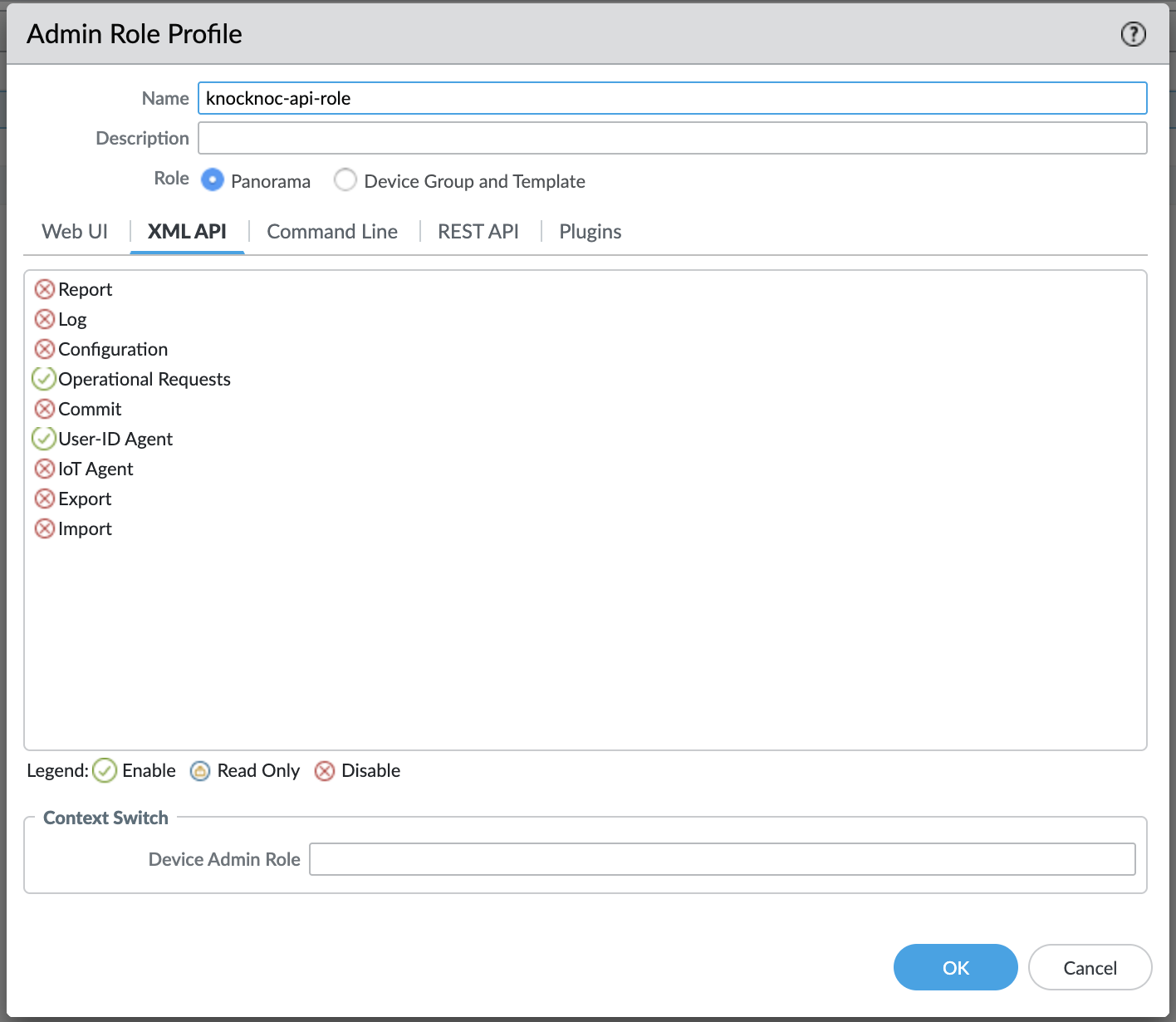
        The API User role for the API key must have:
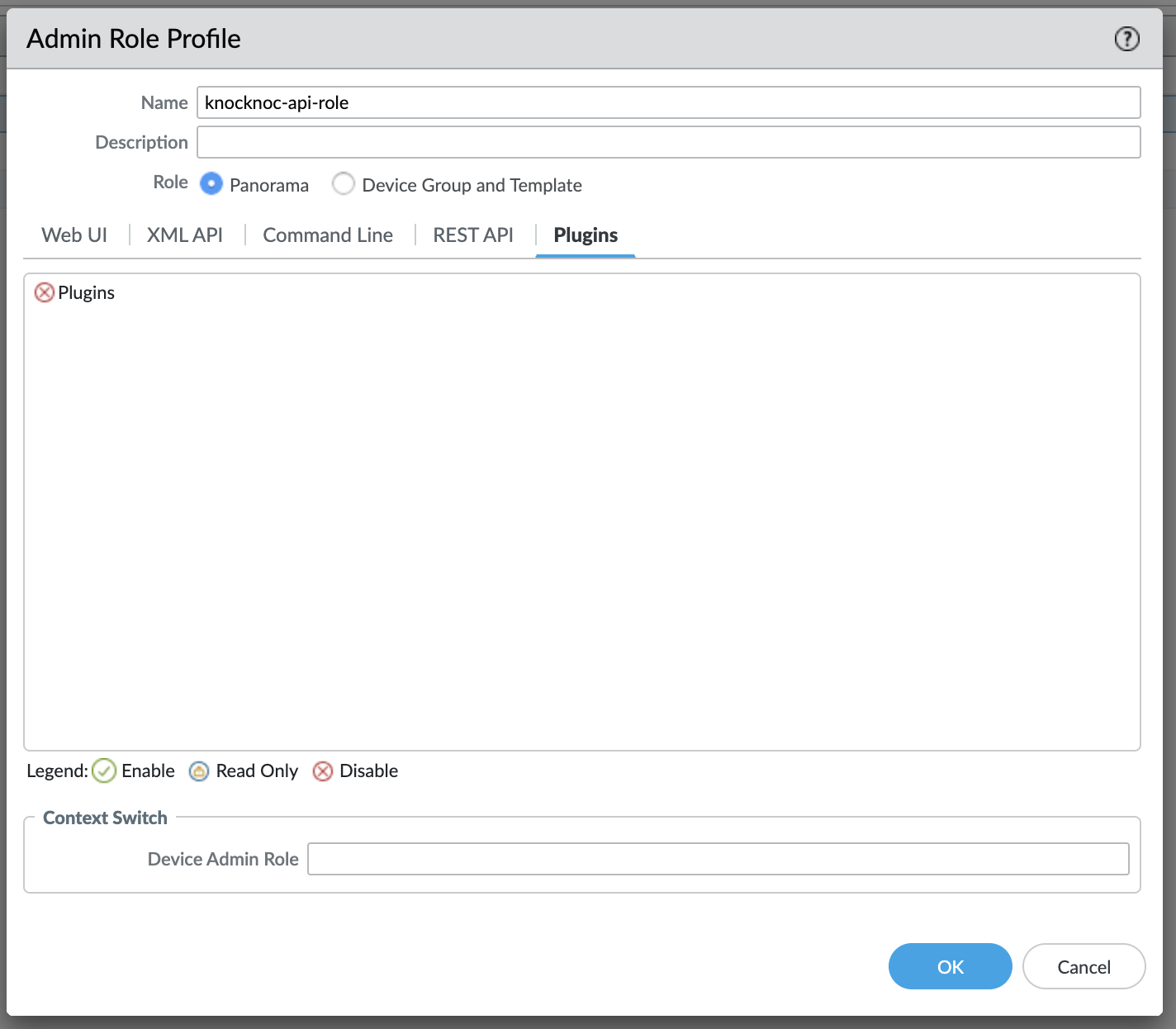
          User-ID Agent

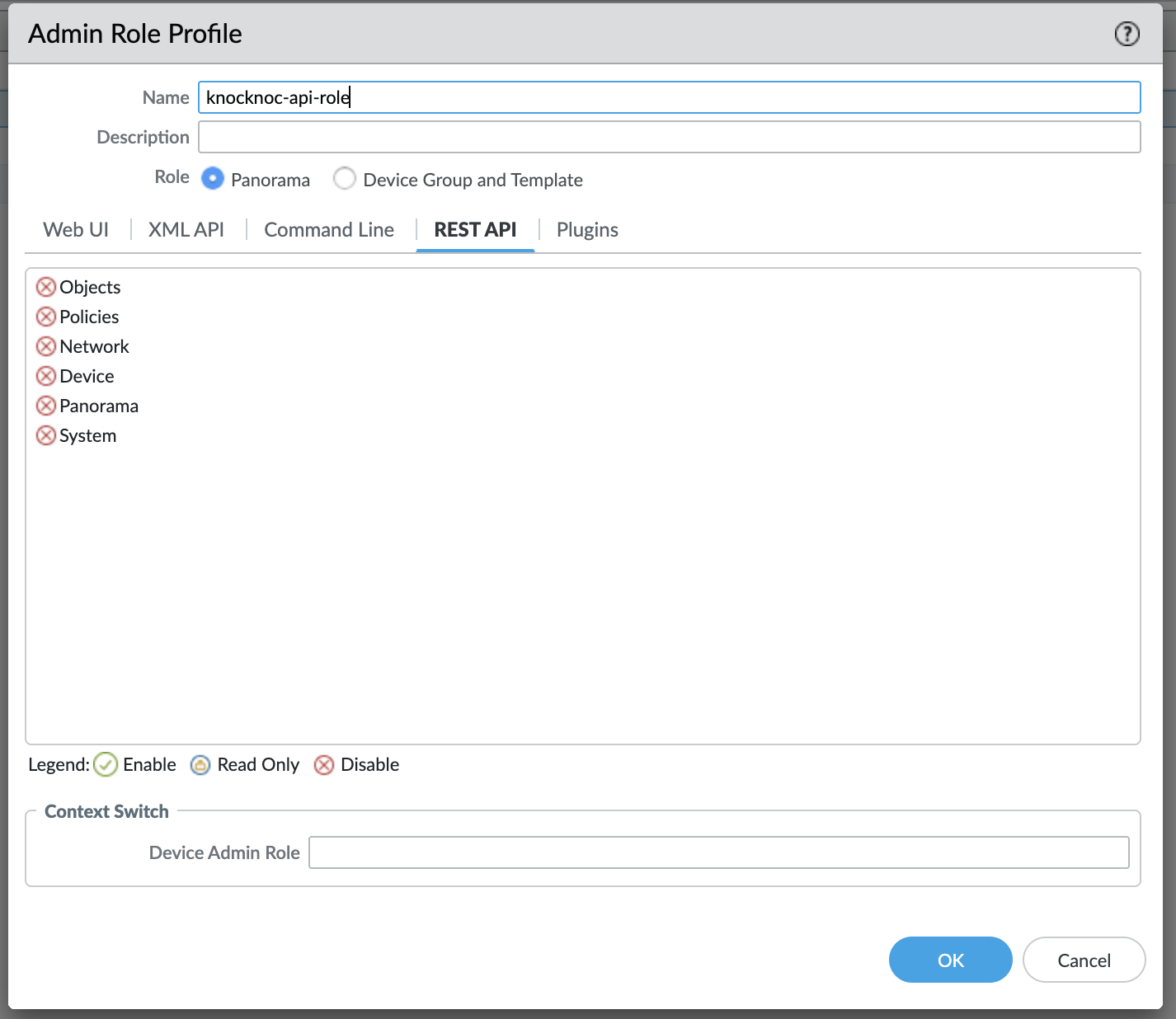
          palo-admin-roles.png

          Screenshot 2026-03-05 at 07.20.09.png

          Screenshot 2026-03-05 at 07.20.17.png

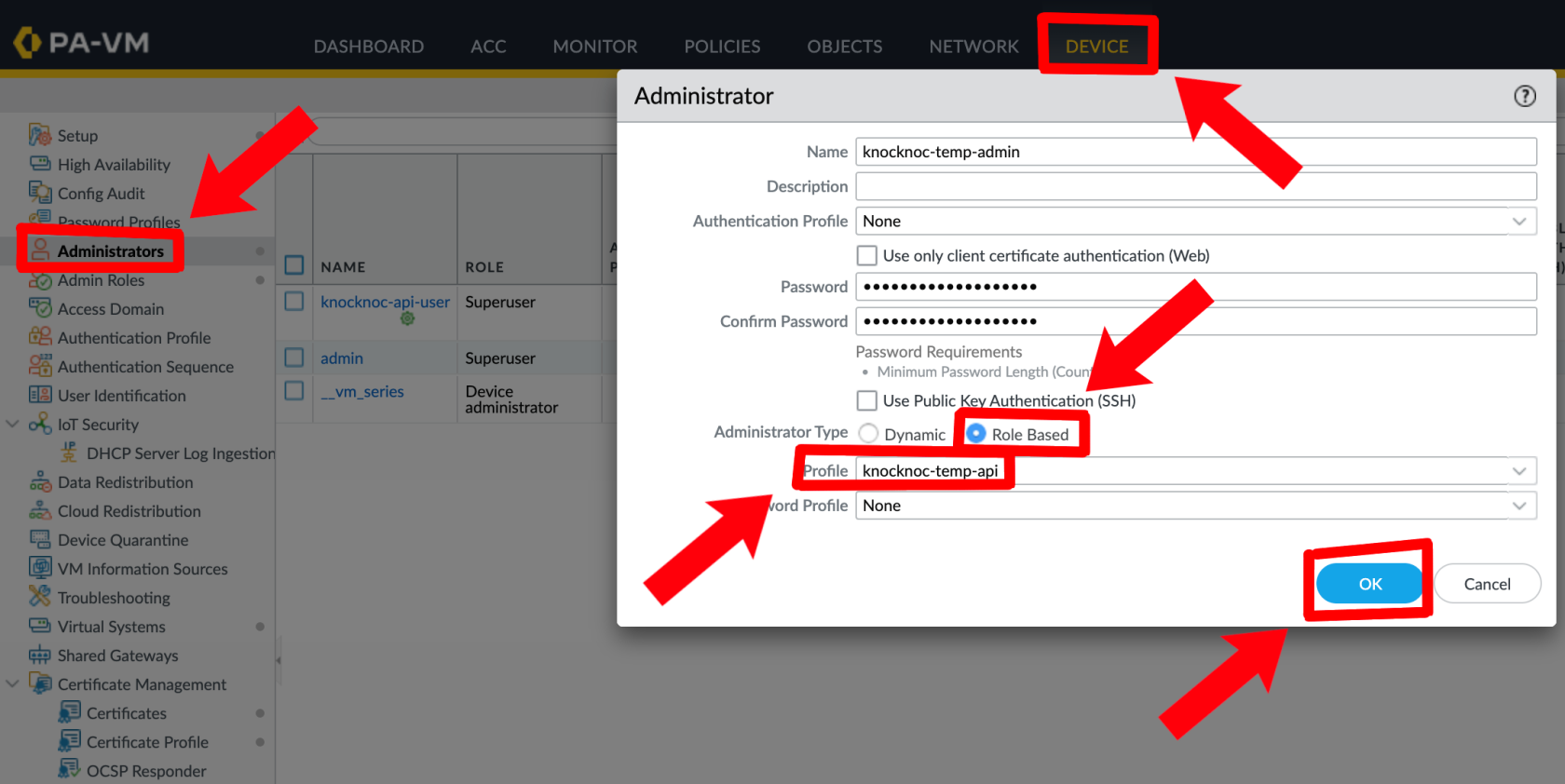
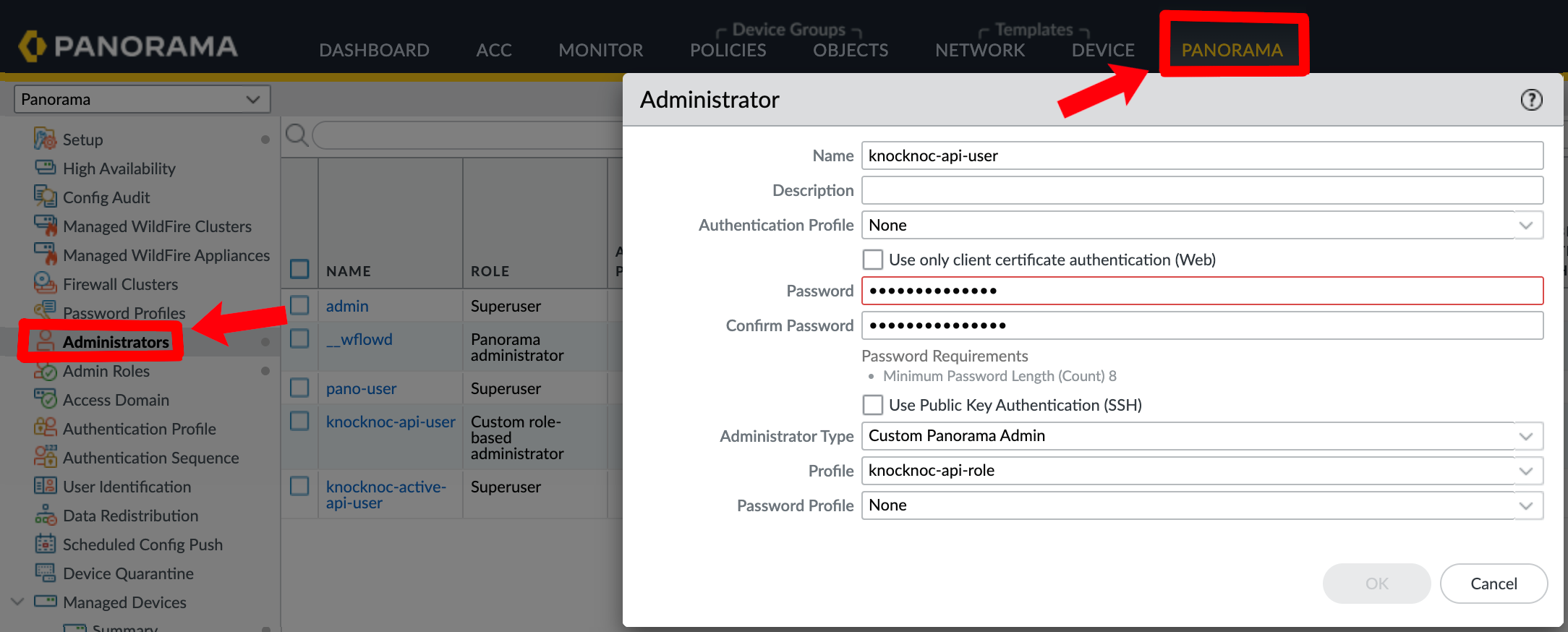
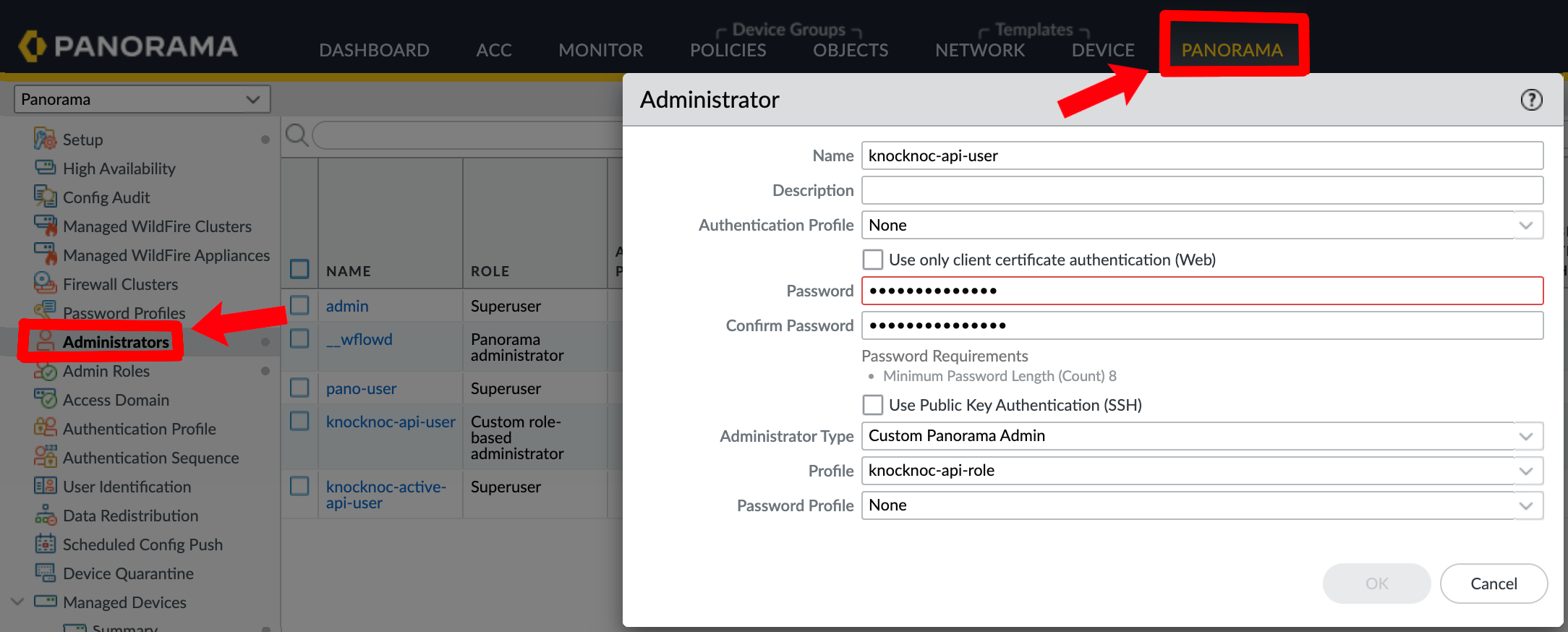
          Create a user for the API key:

          PassivePanorama:
          knocnoc-api-user.png

          Palo Alto:

          pano-profile.png

          5. Generate an API Key (via Orchestration Agent)

          Run the following command on an Orchestration Agent to generate an API key:

          /opt/knocknoc-agent/knocker/knocker enable panos

          This returns a base64-encoded API key.

          Knocknoc Configuration

            When creating a new Knoc Application, select Active as the Application Type Select Palo Alto as the vendor Configure the backend settings:
              I am using Panorama - Check if connecting through Panorama Firewall Hostname (or Panorama Hostname) - The management URL (e.g., https://192.168.1.1) Skip TLS verification - Check if using a self-signed certificate API Key - The firewalls poll the Knocknoc server and consume the trusted IP address list, mapping these to an EDL. The drawback of this feature is that the list can only be fetched every 5 minutes within the Panorama/Palo Alto environment. The benefits are no agent or API accesskey isgenerated required.above TheTag User-ID information requires the API and it's not possible to use this via a Passive EDL.

              ActiveName - Knocknoc'sThe Palotag Altoto orchestrationregister capabilityIPs useswith (must match your address group exactly, e.g., knocknoc-ssh)

              VSys - The virtual system (e.g., vsys1) Device Group - The Panorama device group (if using Panorama) Serial Numbers - Firewall serial numbers for Panorama deployments (see below) Map User - Optionally map the Palo API to actively manage the device, inserting and removing IP addresses as part of the Knocknoc Grant process. This is an active, near-real-time approach that provides a goodauthenticated user experience. Older versions of Palo Alto devices can take time to "commit" the changesidentity to the deviceIP whichvia isUser-ID a Palo constraint. If

              Panorama commitwith speedsSerial Numbers

              When managing firewalls through Panorama, tag registration commands are asent problem,through Panorama to each specified firewall:

                Check I am using Panorama Set the Passive+ approach can offer better speeds for older devices or for large groups of users logging in at similar times.

                Palo firewall and/or Panorama

                If you're using Panorama, Passive+ is a good option as API access is neededHostname to the Panorama butmanagement notURL

                Configure the underlyingVSys firewalls,for makingthe deploymenttarget easier.firewall AAdd combinationone or more Serial Numbers for the managed firewalls you want to target The agent will send tag registration commands through Panorama to each specified firewall

                Timeout

                Active mode supports native timeouts on the PAN-OS firewall, which ensures IPs are removed even if Knocknoc Agent loses connectivity for an extended period of Passive+time.

                and
                  When a grant is created, the IP is tagged with a timeout (in seconds) matching the grant's expiry When a grant is extended, the tag timeout is updated automatically When the timeout expires, the IP is removed from the address group If the grant is explicitly revoked (eg: user logout, Knocknoc session timeout), access is removed immediately

                  Multiple users from the same IP: When multiple users connect from the same source IP, the tag timeout is set to the longest expiry across all active grants. The tag is only removed when the last grant for that IP expires or is revoked.

                  Verifying & Testing

                    Create a Knoc Application with Active canmode alsoAssign be used for finite access, which is suitable in a geographically distributed environment. This can also be splitit to sendan instructionsagent connected to your Palo Alto firewall Grant access to a "local"test firewall(s)user but(login, updateor create a manual-grant/break-glass entry as an Admin) Verify the IP appears in the GUI (or CLI show object registered-ip all) with your tag name Verify the IP appears in the address group membership Log the user out revoking the grant, and verify the IP is removed

                    Active Checklist

                      User-ID enabled on the relevant zone(s) Address group created with correct tag match criteria (single quotes around the tag name) Security policy references the address group API key has User-ID Agent permissions Tag name in Knocknoc matches the address group match criteria exactly (case-sensitive) Serial numbers configured (if using Panorama) Commit and push completed (if using Panorama)

                      High-availability Failover

                      For direct-to-firewall deployments with a high-availability (HA) pair, you can configure automatic failover.

                      Configuration

                      In the Knoc Application settings, expand the HA Failover section:

                        Secondary Firewall URL - The management URL of the secondary firewall Secondary API Key - API key for the secondary firewall Skip TLS verification - Check if the secondary uses a self-signed certificate

                        How It Works

                        Before each operation (grant, revoke, or extend), the agent:

                          Checks the primary firewall's HA state via the operational API If the primary is active - sends the command to the primary If the primary is passive or unreachable - automatically falls back to the secondary If both firewalls are unreachable or both are passive - reports an error

                          Note: HA failover is for direct-to-firewall deployments only. When using Panorama with User-IDserial informationnumbers, forPanorama centralmanages oversightdevice orfailover itself - do not configure HA failover in this case.

                          Passive+ Mode

                          Passive+ mode combines EDL polling with an active refresh signal. Firewalls retrieve IP address lists from a Knocknoc-hosted EDL, and the caseorchestration ofagent long-distancetriggers latency/network-reliabilityEDL concerns.refreshes dynamically - reducing the effective latency from ~5 minutes to 0–2 seconds.

                          Prefer video?

                          End to end walk through of Panorama and Palo Alto integration.integration for Passive+

                          Option

                          Knocknoc 1Configuration
                          new_palo.png

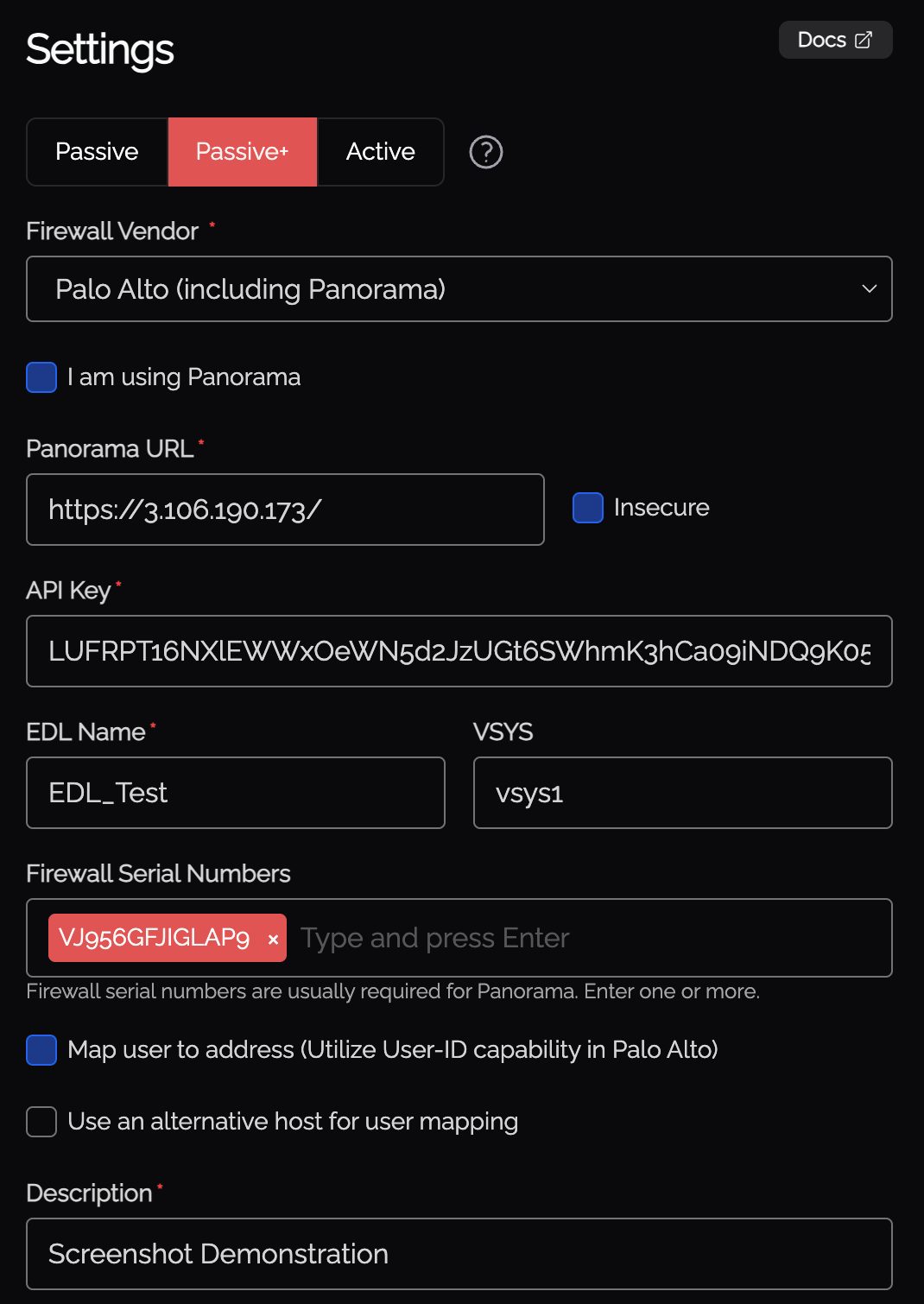
                            When creating a new Knoc Application, select Passive+ as the Application Type Select Palo Alto as the vendor Configure the backend settings:
                              I am using Panorama - Passive+Check modeif connecting through Panorama Firewall Hostname (or Panorama Hostname) - The management URL API Key - API key for the orchestration agent EDL Name - The name of the External Dynamic List on the firewall VSys - The virtual system (e.g., vsys1) Map User - Optionally map the authenticated user identity via User-ID Serial Numbers - Firewall serial numbers (if using Panorama)

                              API Key Generation

                              InRun Passive+the mode,following command on the orchestration agent to generate the API key:

                              /opt/knocknoc-agent/knocker/knocker enable panos
                              

                              This returns a base64-encoded API key.
                              progress-1.png

                              Required Permissions

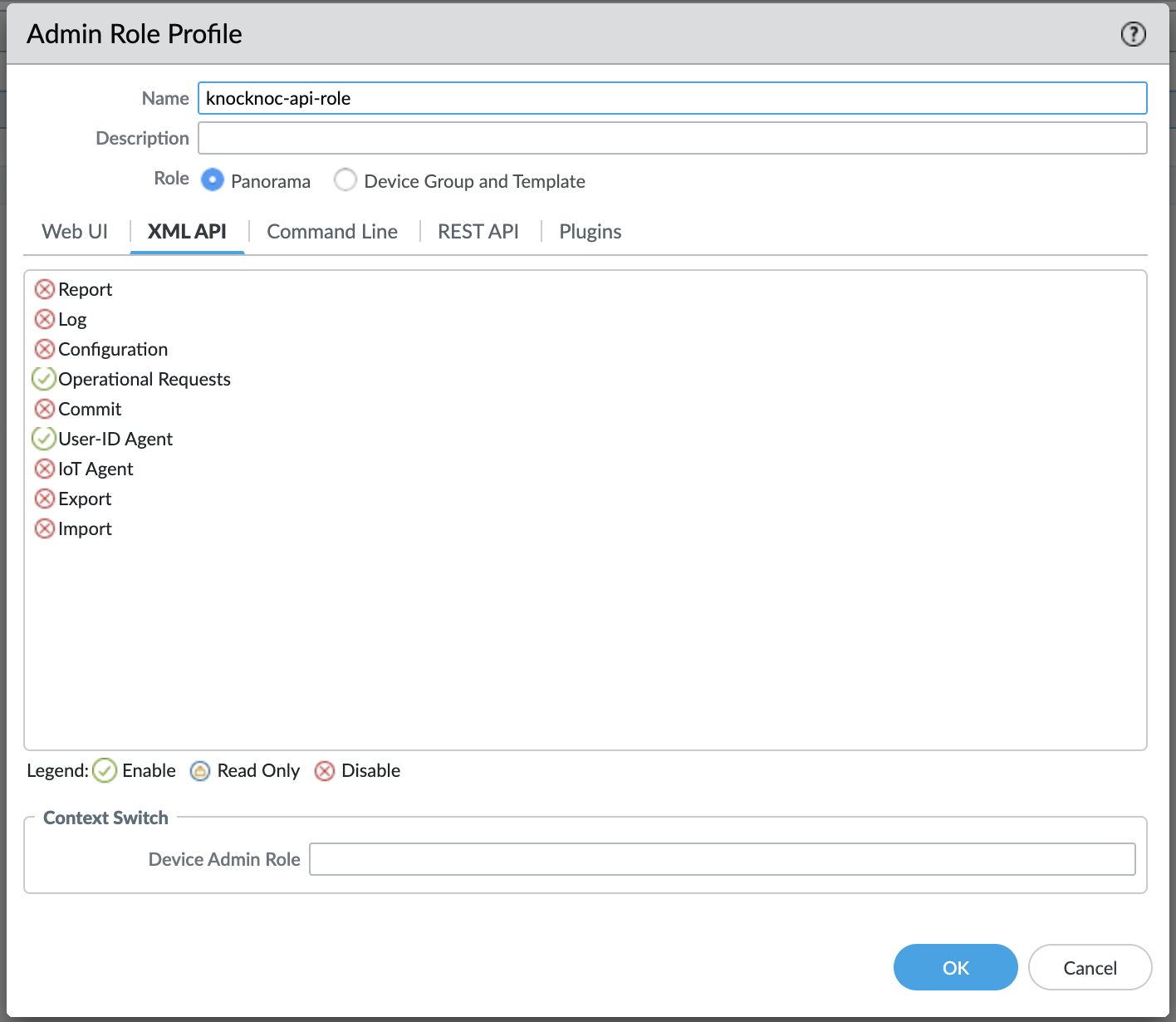
                              The admin role for the API key must have:
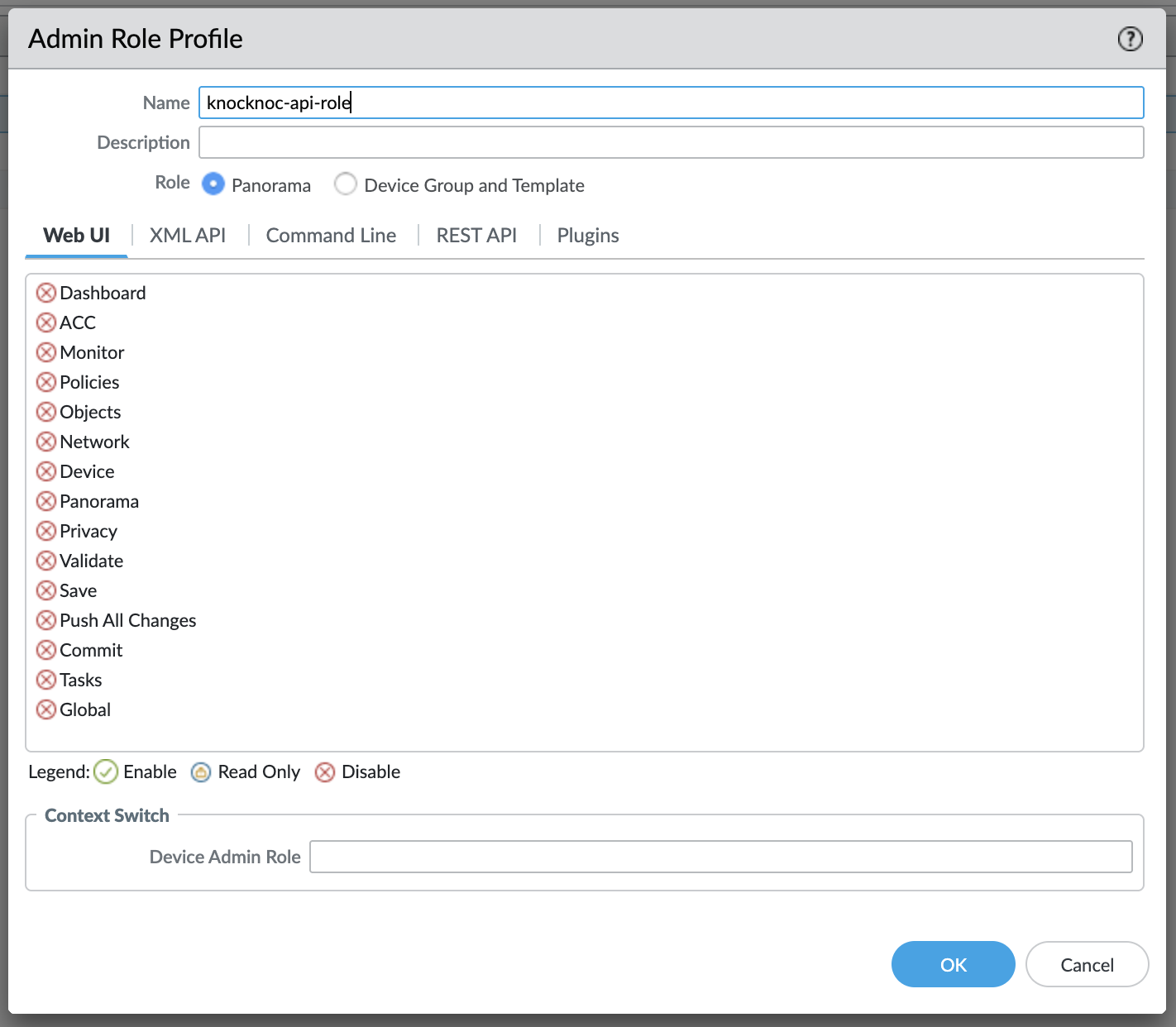
                                Operational Requests (for EDL refresh)

                                Screenshot 2026-03-05 at 07.20.04.png

                                  User-ID Agent (optional, only if User-ID mapping is enabled)

                                  Screenshot 2026-03-05 at 07.20.09.png

                                  Screenshot 2026-03-05 at 07.20.13.png

                                  Screenshot 2026-03-05 at 07.20.17.png

                                  Screenshot 2026-03-05 at 07.20.22.png

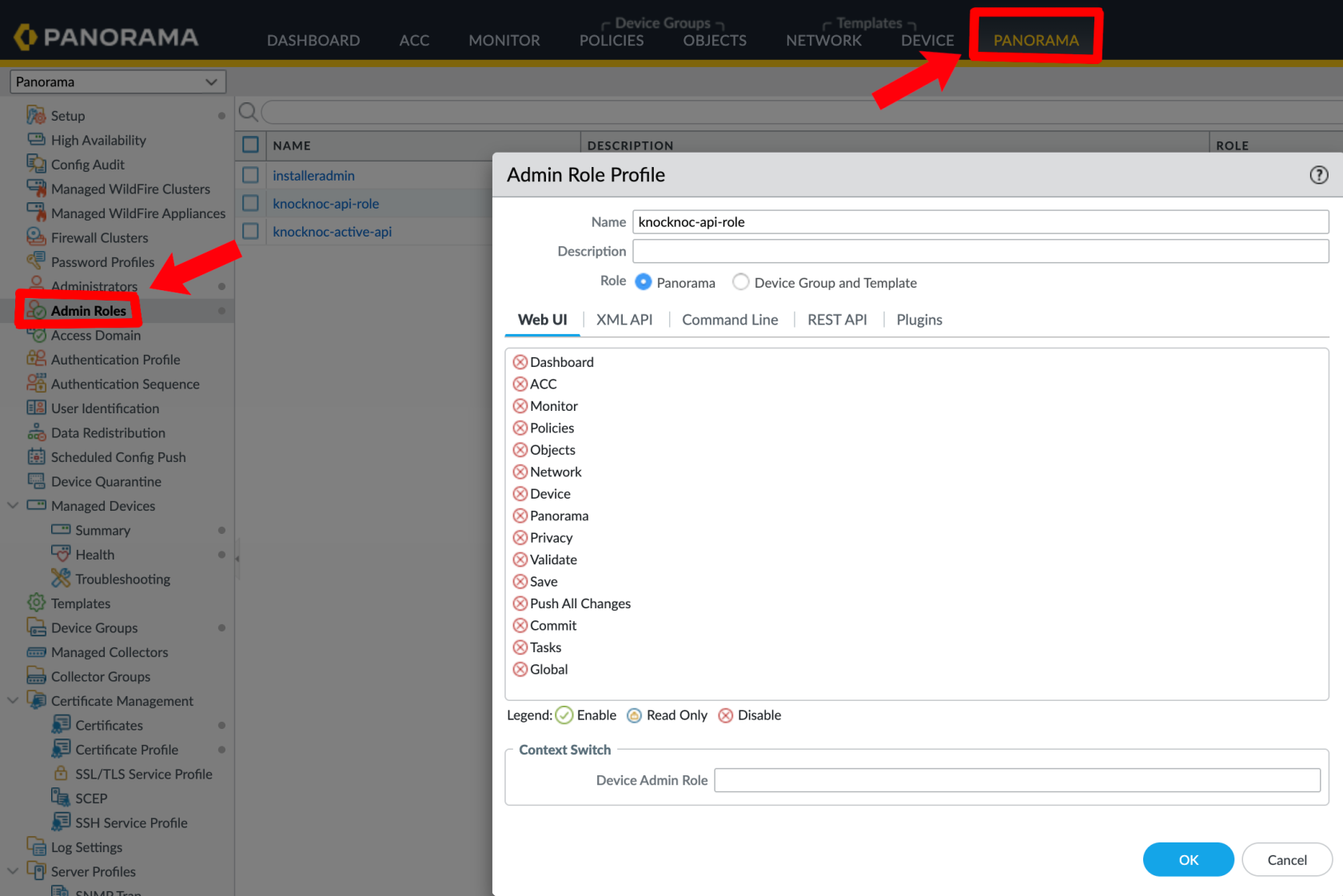
                                  Create an administrator for the API key:

                                  Panorama:
                                  knocknoc-admin-role.png

                                  knocnoc-api-user.png

                                  Palo AltoAlto:

                                  firewalls

                                  pano-profile.png

                                  poll

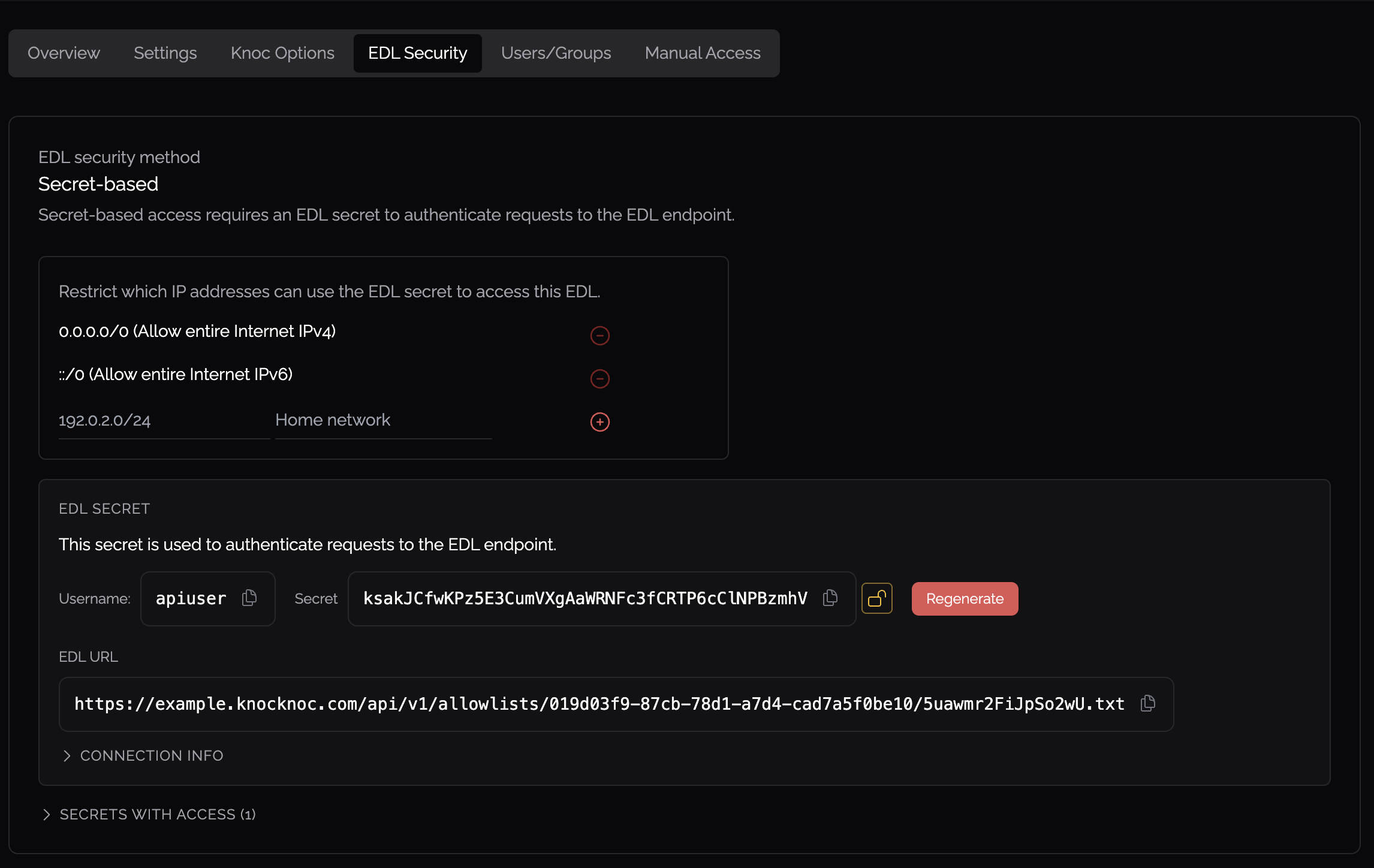
                                  EDL Secret Configuration

                                    Create authentication credentials for firewall EDL retrieval in the Knocknoc viaadmin portal Configure IP allowlisting to restrict which source addresses can retrieve the EDL Do not permit access from the entire Internet - restrict to your firewall management IPs

                                    image.png

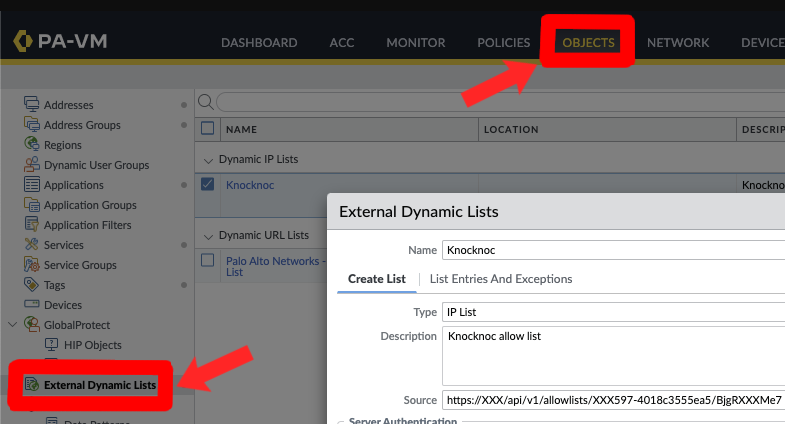
                                    Firewall Configuration - External Dynamic List

                                      Navigate to Objects > External Dynamic Lists
                                      EDL-point.png

                                        Click Add to create a securenew pathlist andConfigure: download
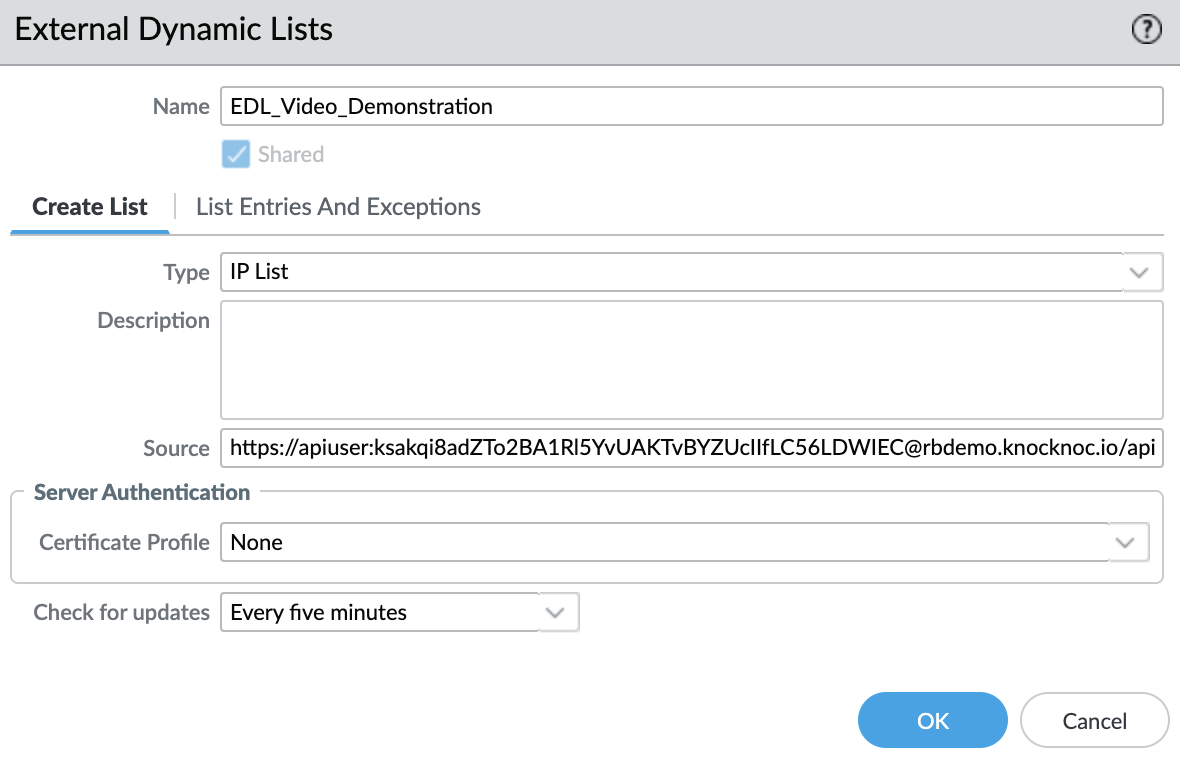
                                          Name - A descriptive name (e.g., FirewallManagers, SSH) Type - IP List Source - The Knocknoc EDL URL (use Basic Auth format)
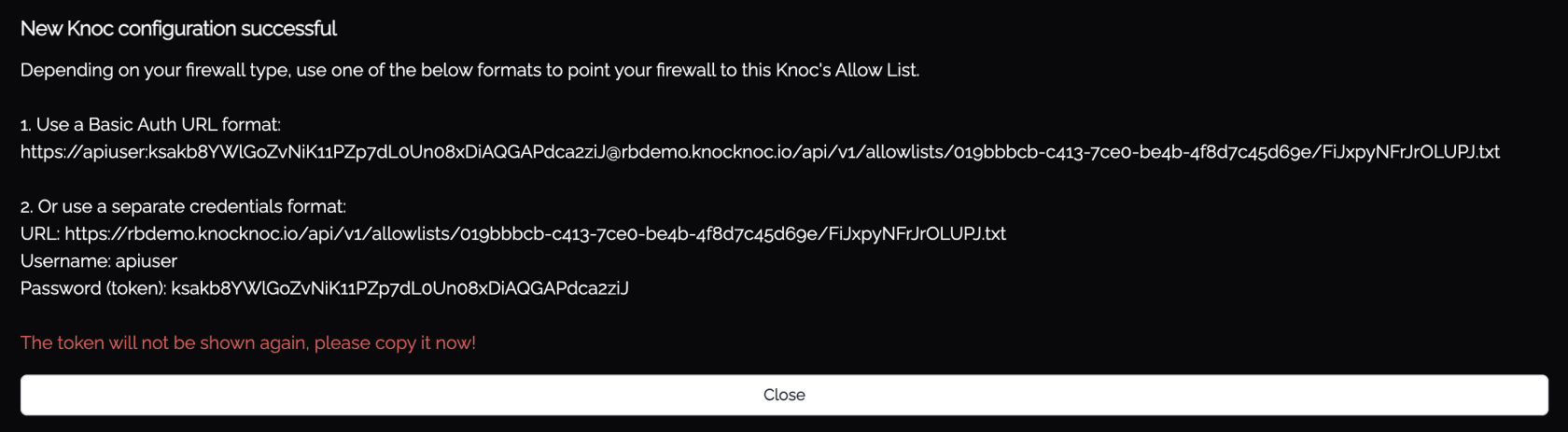
                                          image.png

                                          image.png

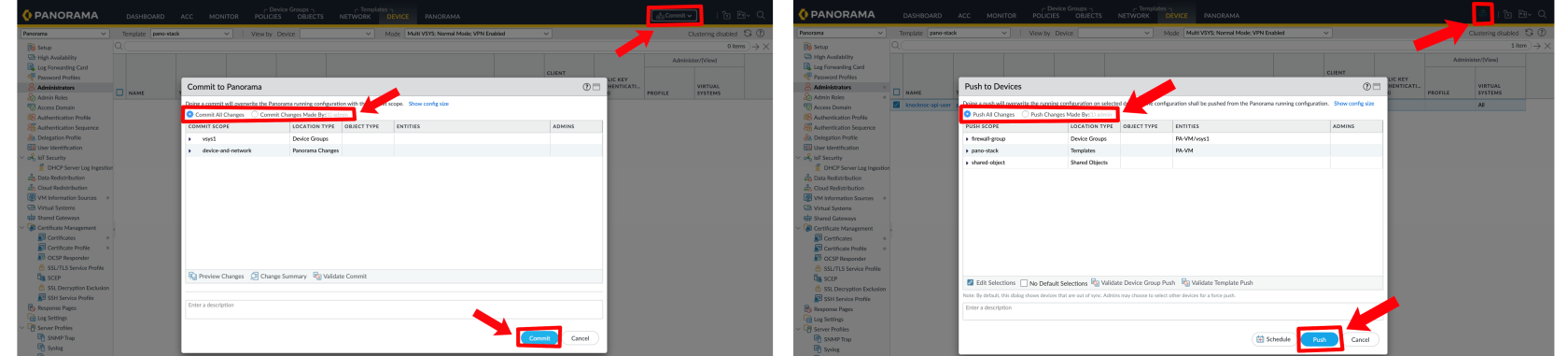
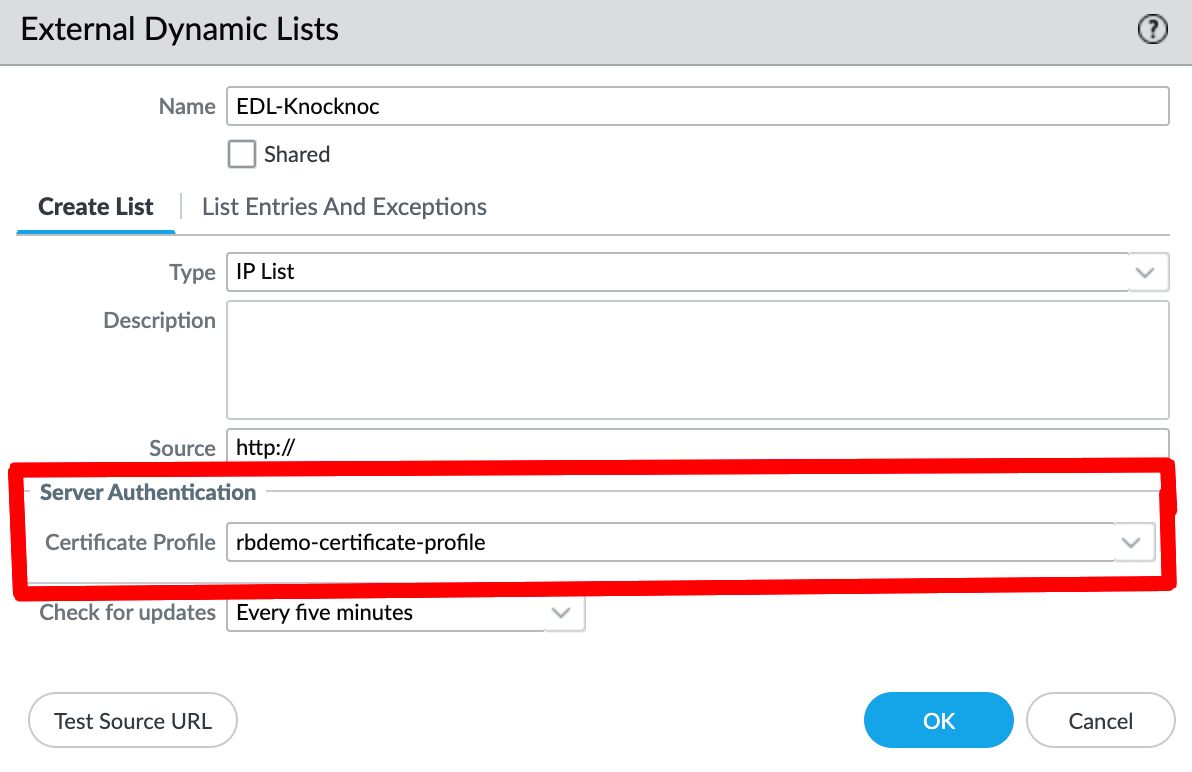
                                            If strict TLS validation is required, apply a listCertificate ofProfile IPClick addresses added after users authentication. This list populates an "external dynamic list" (EDL)OK, which is then usedCommit within(and push if using Panorama)

                                            pano-commit-push.png

                                            Security Policy

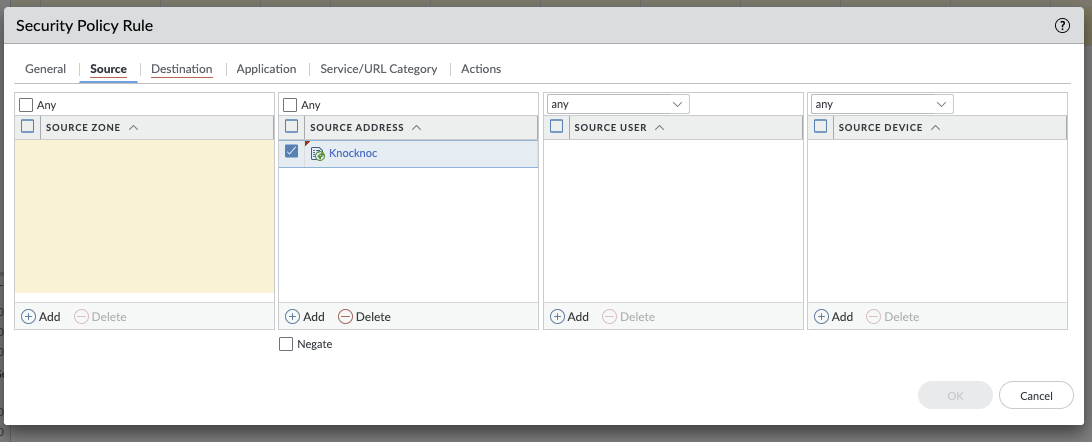
                                            Reference the External Dynamic List in your security policy rules as a pre-configuredsource firewalladdress, policy.enabling Additionally,access because this polling occurs every 5 minutes, Knocknoc (via an orchestration agent) triggers this refresh dynamicallycontrol based on aauthenticated user login,sessions.
                                            so

                                            Screenshot 2025-02-05 at 23.54.09.png

                                            the

                                            Testing

                                            5

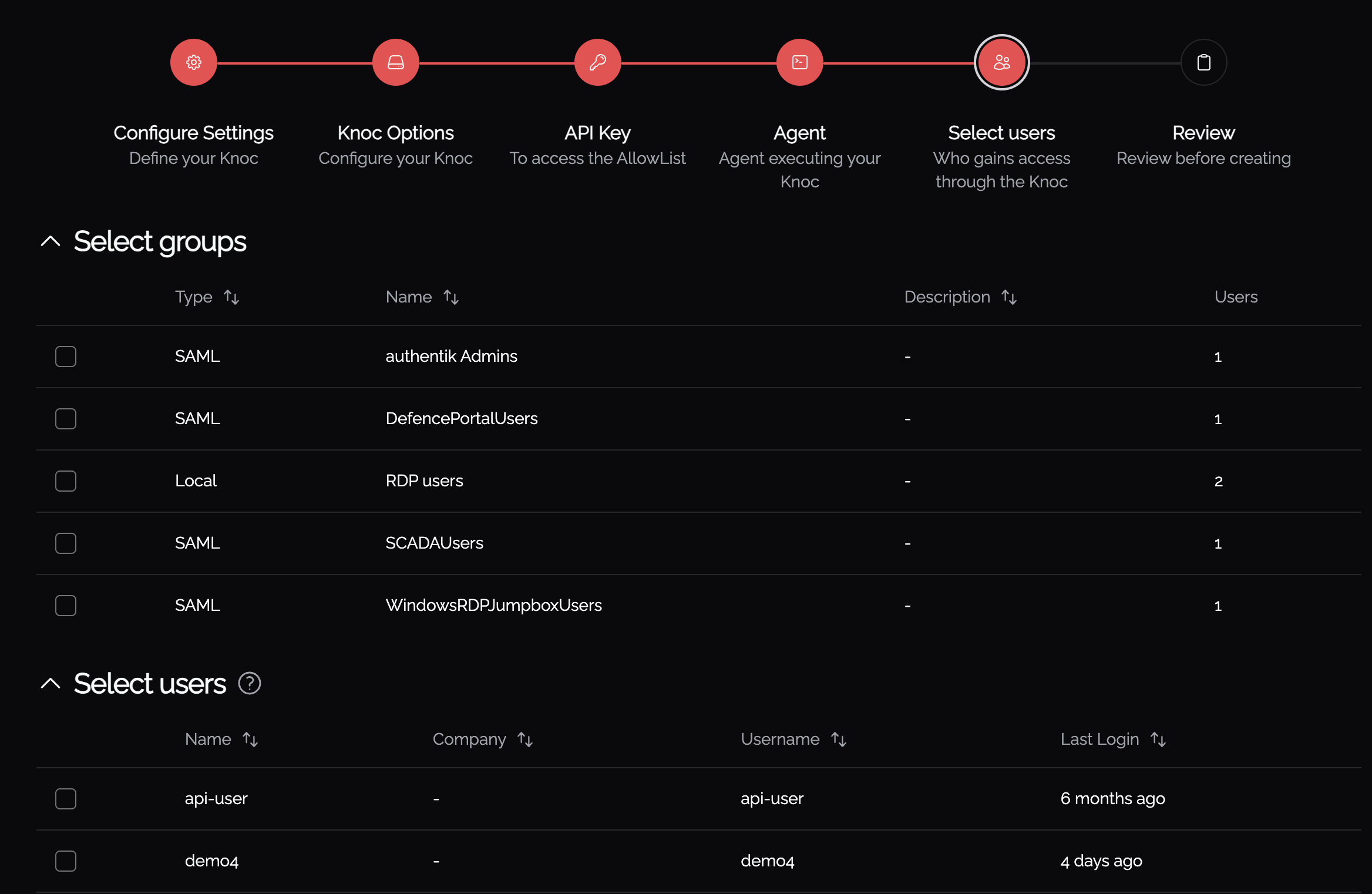
                                            Assign minuteusers pollingor window is reduced to 0-2 seconds, from a user logging ingroups to the firewallKnoc havingApplication:
                                            the

                                            knoc-users.png

                                            Status Indicators

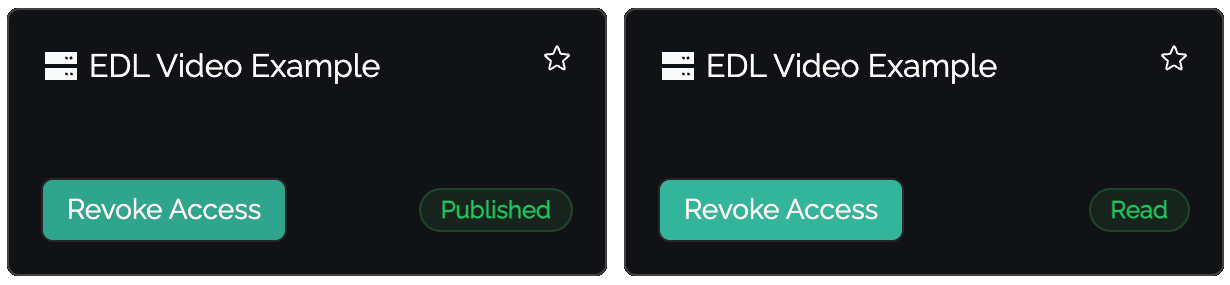
                                              Published - IP address information,has includingbeen whensent managedto viathe aEDL, Panorama.awaiting firewall consumption Read - Firewall has retrieved and accepted the entry

                                              knoc_published_read.png

                                              ToVerify achieve this, the Passive+ configuration within Knocknoc creates an "EDL" and configures a "refresh the EDL" active call for a Knocknoc Agent. 

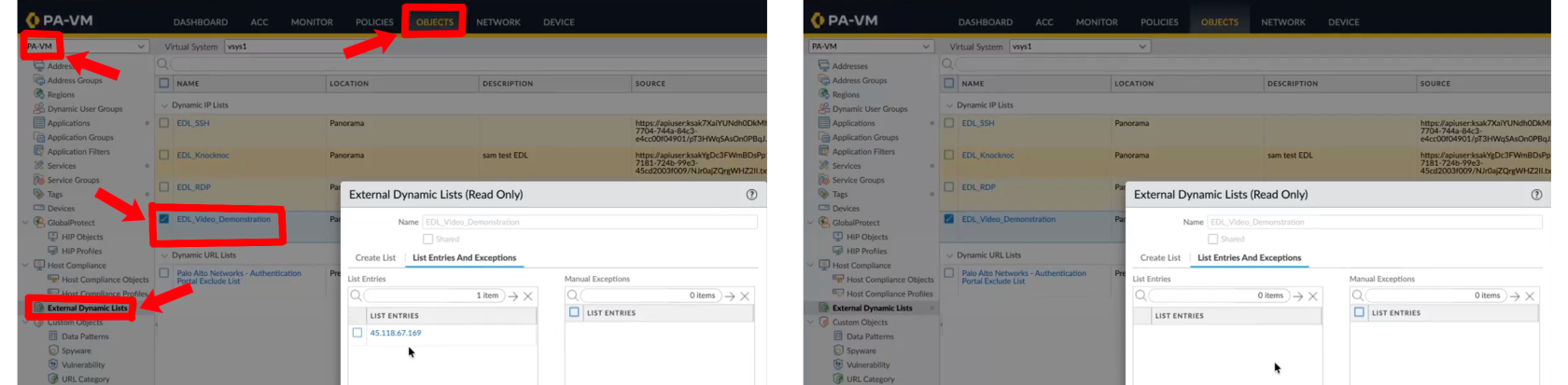
                                              The Palo Alto firewall "reads" the EDL from the Knocknoc Server (connection is from each individual firewall, even when using a Panorama) - with an active "refresh the EDL" API call being made from an orchestration Agent - toon the Palo Alto device tothat optimizeIP changes are visible:
                                              IP-changes.png

                                              Passive+ Tuning

                                              If you experience timing issues with EDL refreshes, the ruleagent supports retry configuration:

                                              PanosRetry = 16
                                              PanosWait = 2
                                              
                                                PanosRetry - Number of retry attempts for EDL refresh PanosWait - Delay in seconds between retries

                                                Passive+ Checklist

                                                  Knoc Application configured with correct EDL name API key generated and has Operational Requests permission EDL created on firewall with correct source URL and credentials Security policy references the EDL EDL secret configured with IP allowlisting Commit and push completed (if using Panorama)

                                                  Passive Mode

                                                  Passive mode is the simplest integration - firewalls poll an EDL hosted by Knocknoc at their standard refresh period.interval This(~5 ensuresminutes). aNo fastorchestration responseagent, timeAPI forkey, usersor loggingactive in,refresh butsignal stillis supportsrequired.

                                                  hundreds/thousands

                                                  Configuration

                                                  of simultaneous user logins without pressure on any Palo/Pano device in the access provisioning chain.

                                                  image.png

                                                  1. When creating a new Knoc Application, select ConfigurePassive as the KnocknocApplication Server:Type
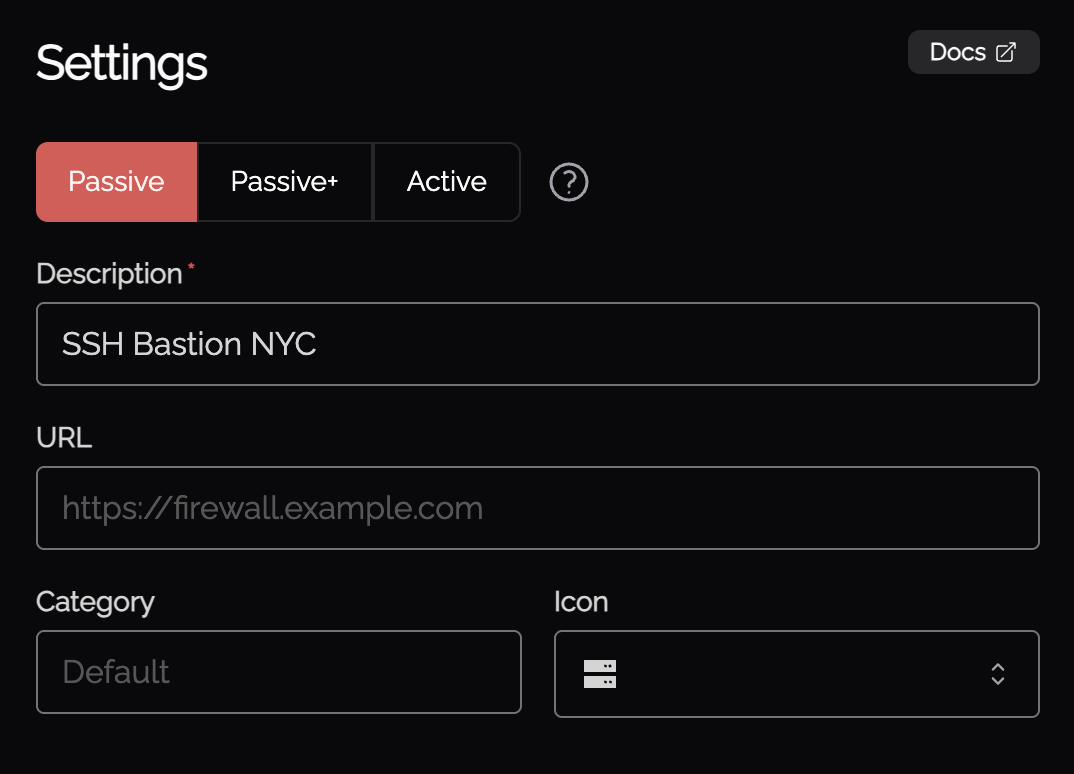
                                                  2. Select Palo AltoSet up a Passive+ Knoc, noting some configuration data is required fromas the Palo  Alto environment.vendor
                                                  3. EDL Configuration: Configure the Palo/Pano; 1. Configure the EDL 2. Allow limited API access to refresh the EDL via a least-privilege api-user-rolename and api-user. 
                                                  Security Policy Rule: Create a firewall policy in the Palo/Pano referencing the dynamic address/group being managed by Knocknoc. Log in/outConfirm EDL consumption!credentials

                                                  Knoc

                                                  Firewall configuration

                                                  Configuration

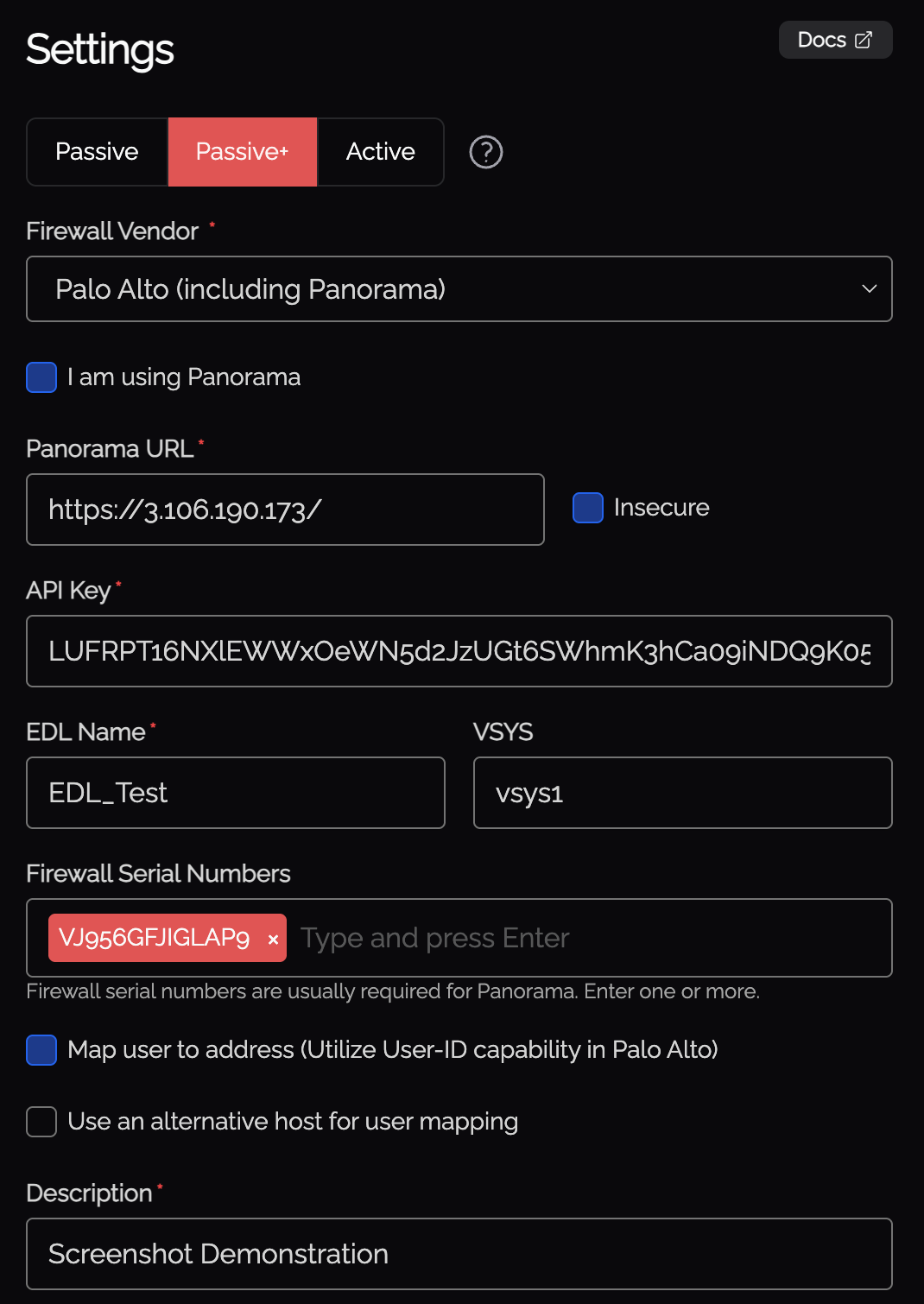
                                                  SelectFollow the "Firewallssame /External Appliances"Dynamic KnocList configuration,setup selectingas "Passive+"
                                                  new_palo.png

                                                  mode

                                                  Throughoutabove, thisbut document you'll be given everything you need to enterwithout the relevantorchestration information,agent there will be hyperlinks below for where you can find it. Some options include:

                                                    If you are using a Panorama - select this option. Provide the URL to the Palo Alto/Panorama device Select "Insecure" if the TLS/SSL certificate is not signed by a trusted CA Provide theor API key -configuration. this

                                                    Passive isChecklist

                                                    obtained
                                                    afterKnoc creatingApplication theconfigured userwith rolecorrect EDL settings EDL created on firewall with correct source URL and user in the Palo device. See below.credentials ProvideSecurity thepolicy "EDL" name configured in the Palo device. If you're using a Virtual System (VSYS), you will need to provide this. To utilise the User ID mapping functionality within Palo Alto, select the "Map user to address" option. If you want to send the User-ID information to a different device (if orchestrating a local firewall, but sending User-ID to a separate Panorama, for example), select "Use an alternative". The API Key is required to refreshreferences the EDL (and optionally update the User ID mapping), see below for obtaining this.
                                                      We also recommend setting up an API roleCommit and dedicatedpush account, to reduce permissions and operate in least-privilege, and to avoid a password/user change breaking your integration. This can be followed below.

                                                      Palo Alto API key creation

                                                      The Palo Alto API key is required to trigger a poll-refresh (in Passive+ EDL mode), or to manage addresses and address groups if you're using Active mode. If you do not want your orchestration agent to talk to your firewall or Panorama, you can use Passive mode.

                                                      Firstly a least-privilege "role" is created, along with a "user" which is then linked to the new role. This is recommended over using an Admin user or role, reducing harm should the key be compromised. An Admin account is not required.

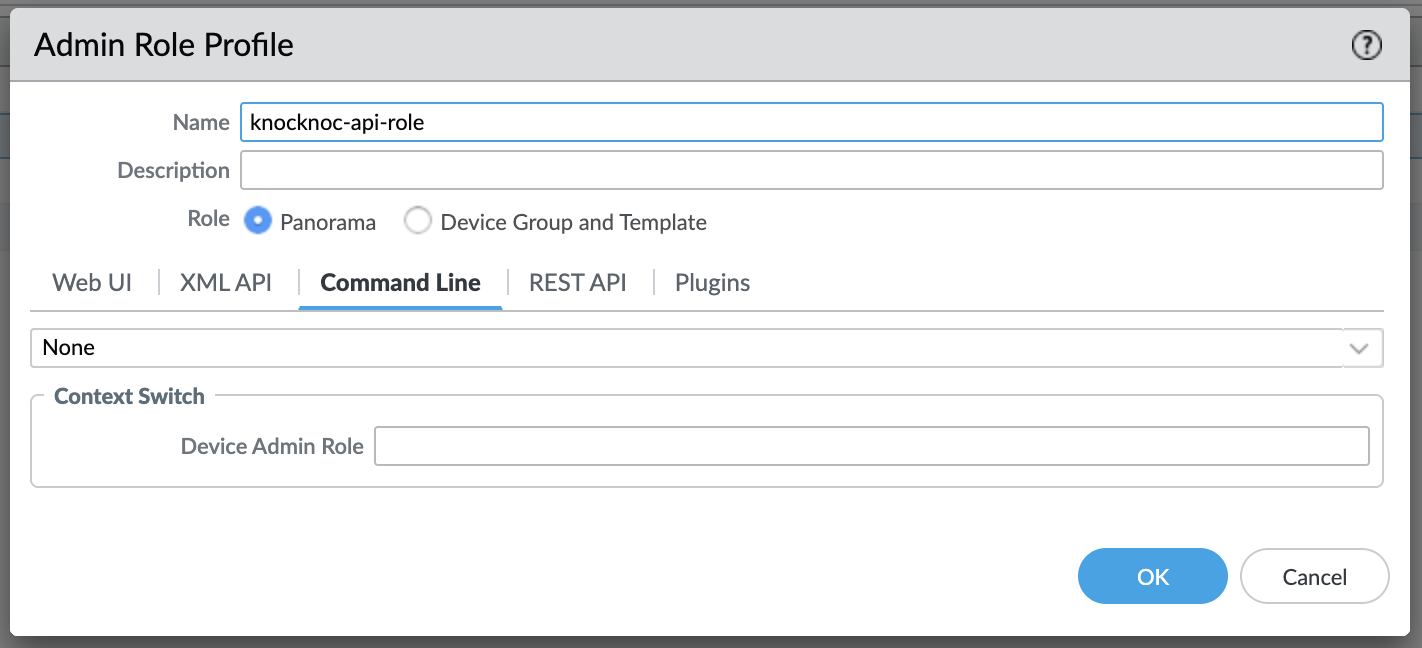
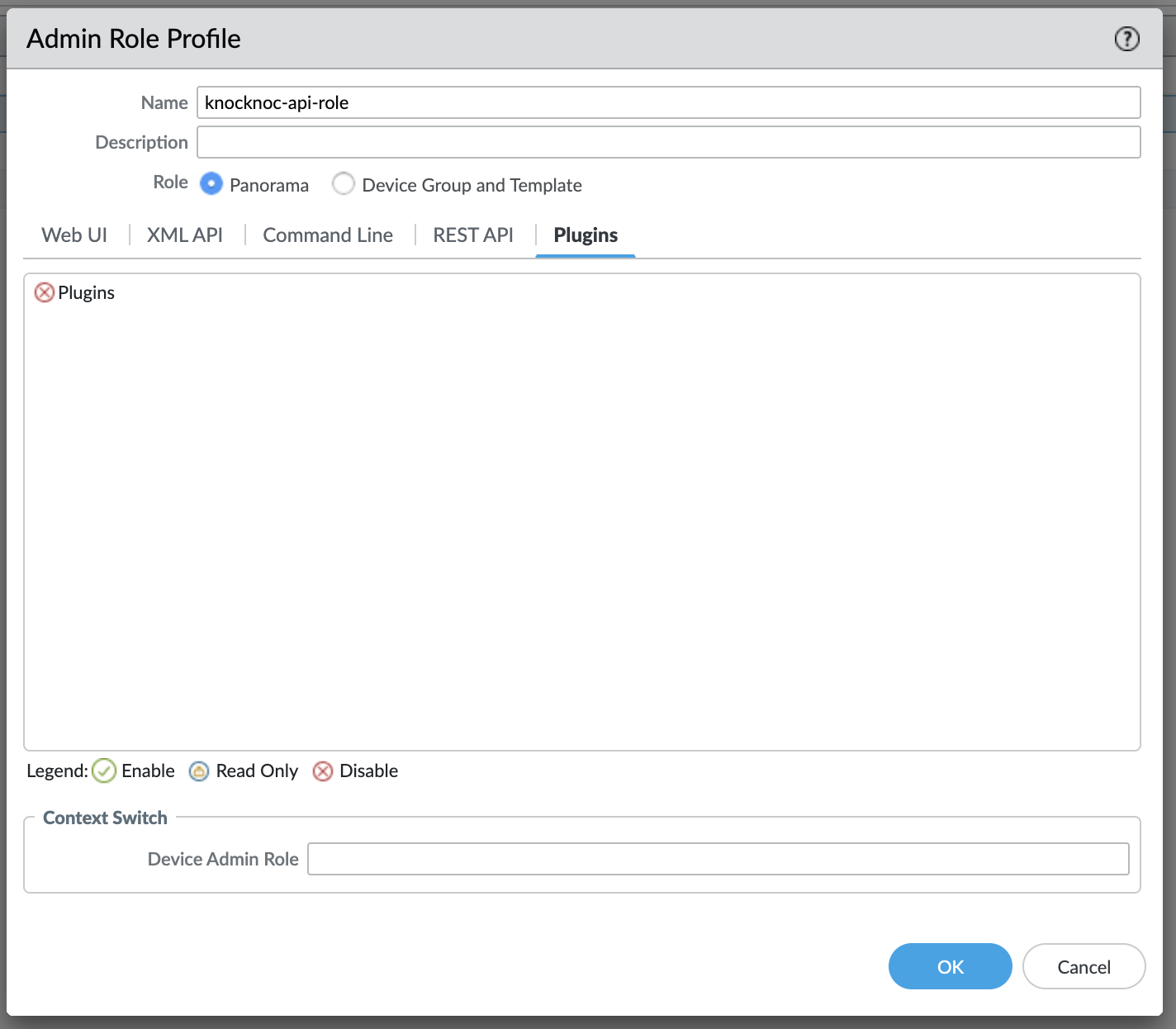
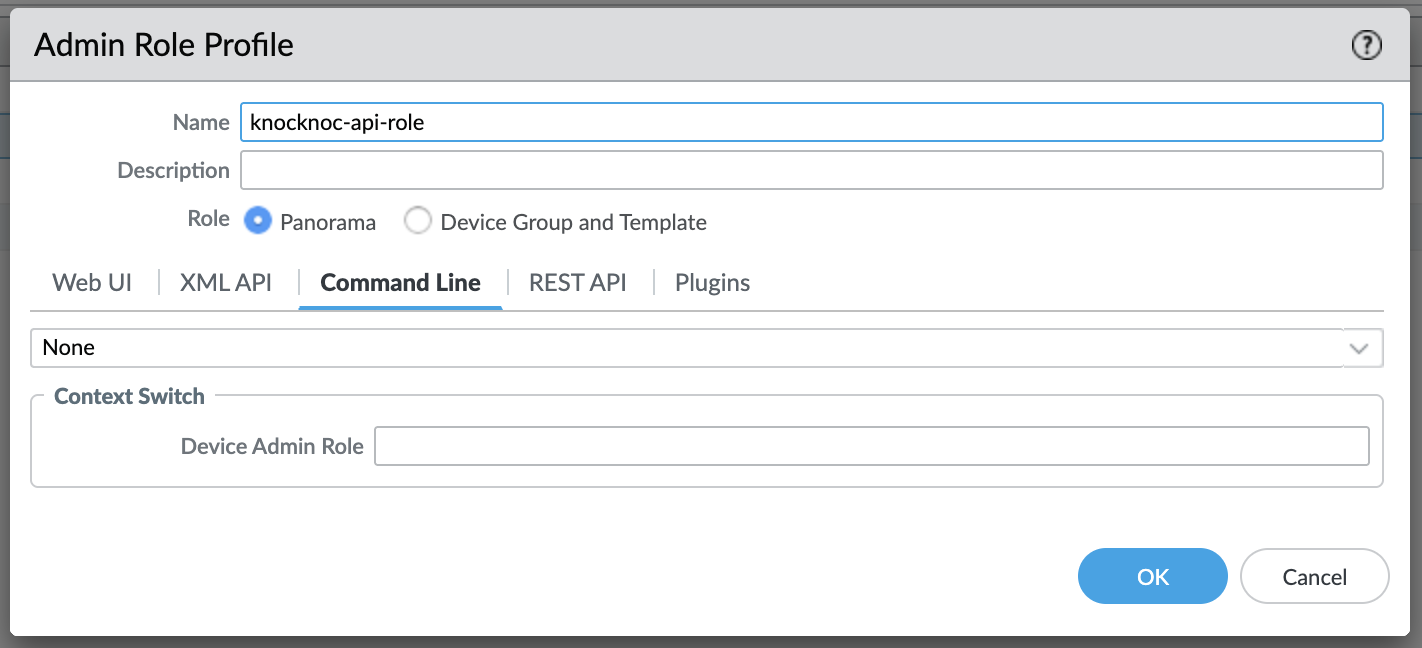
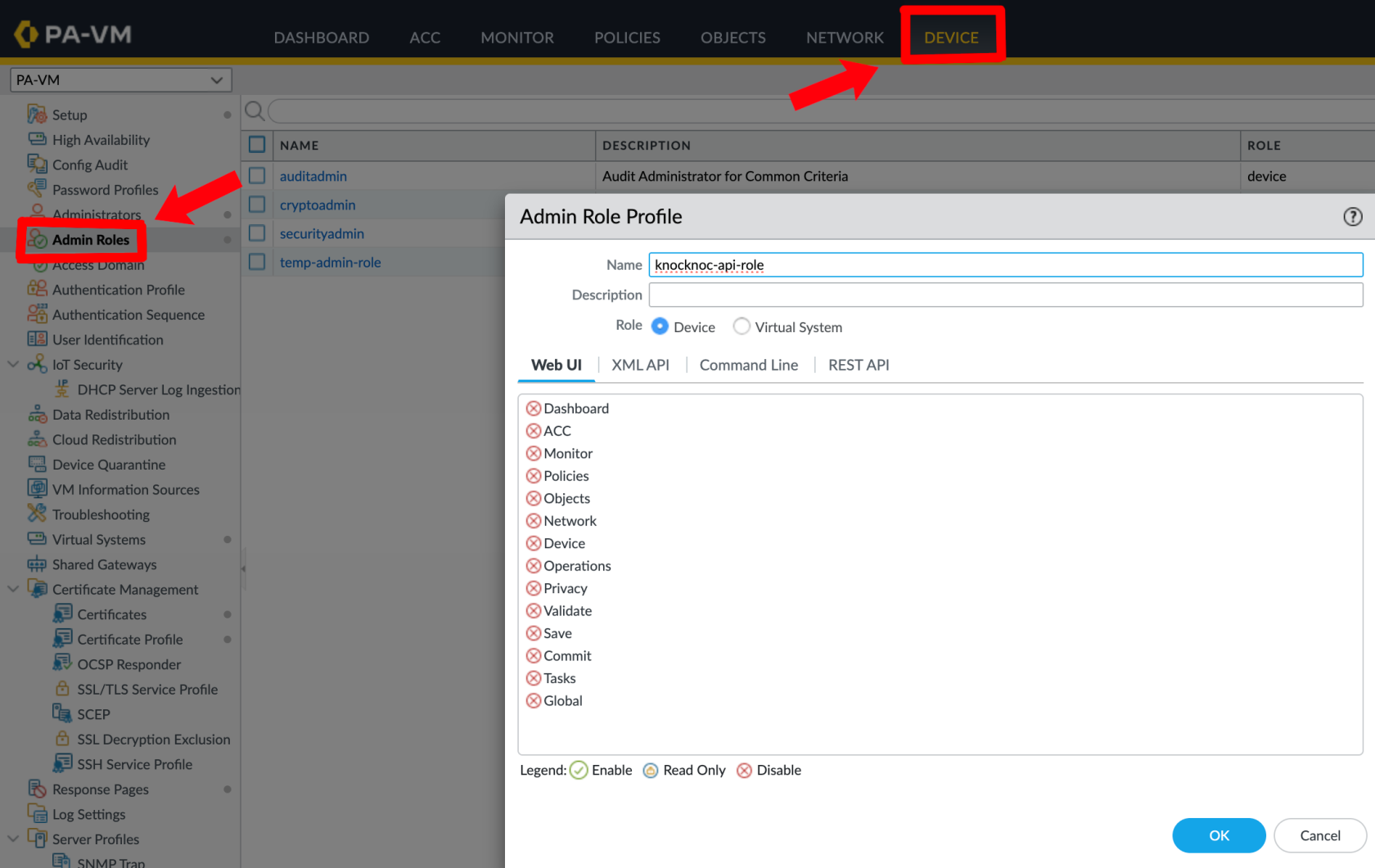
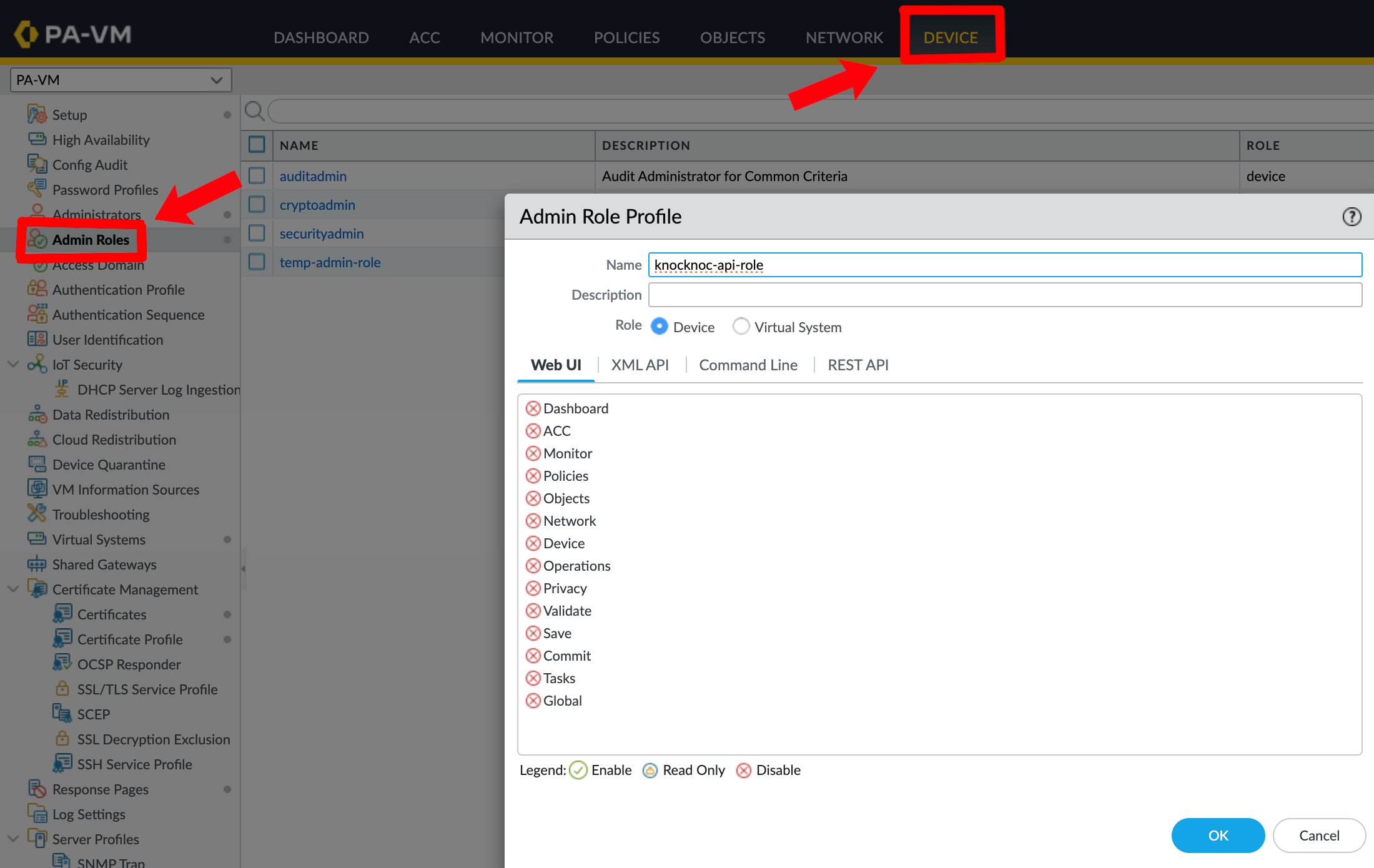
                                                      On the Palo Alto or Panorama device, use the Admin Role -> Profile, create a new profile and grant these permissions only.
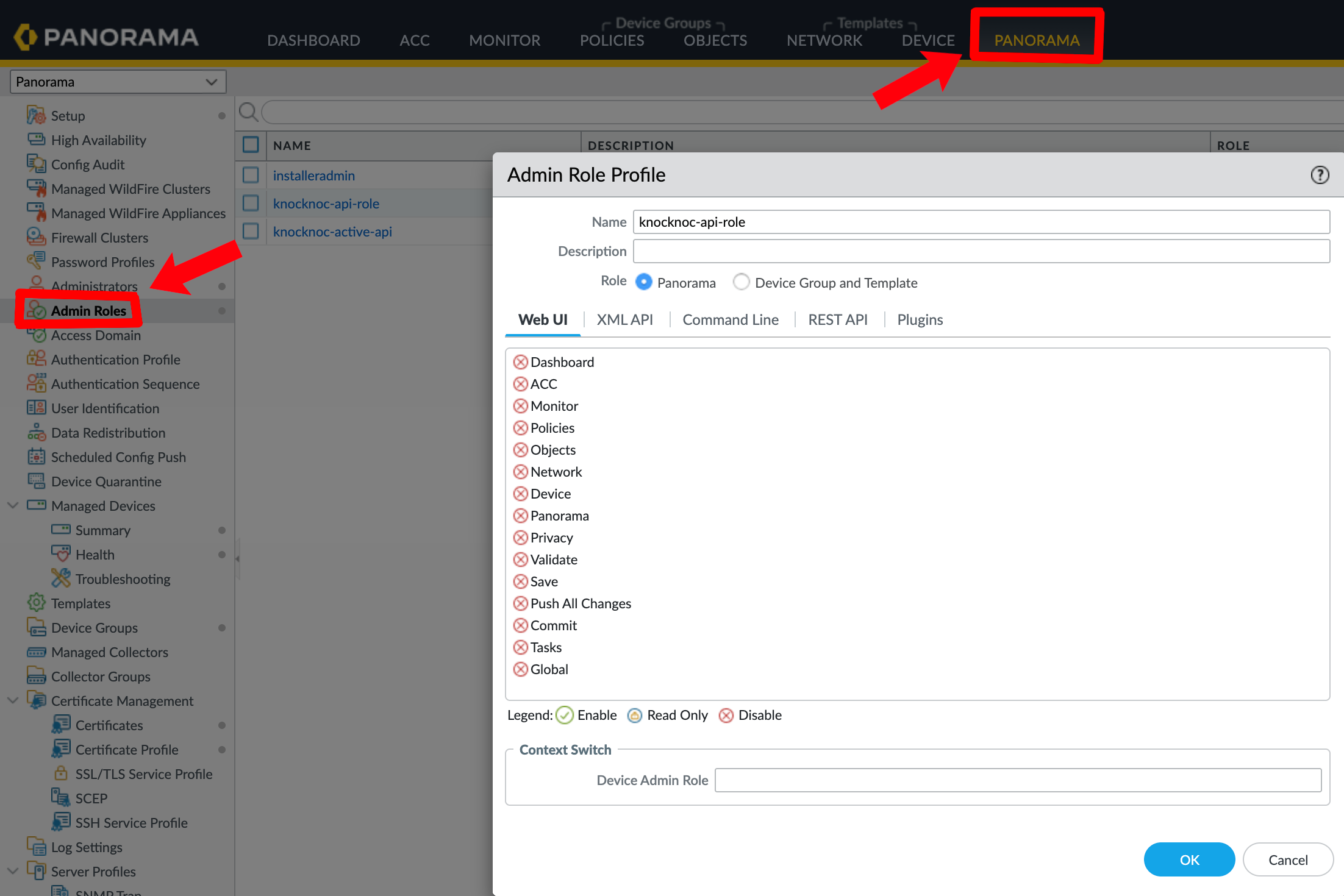
                                                      Panorama - navigate to Panorama --> Admin Roles

                                                      knocknoc-admin-role.png

                                                      Palo Alto - navigate to Device --> Admin Roles

                                                      palo-admin-roles.png

                                                      These are the permissions required (only):
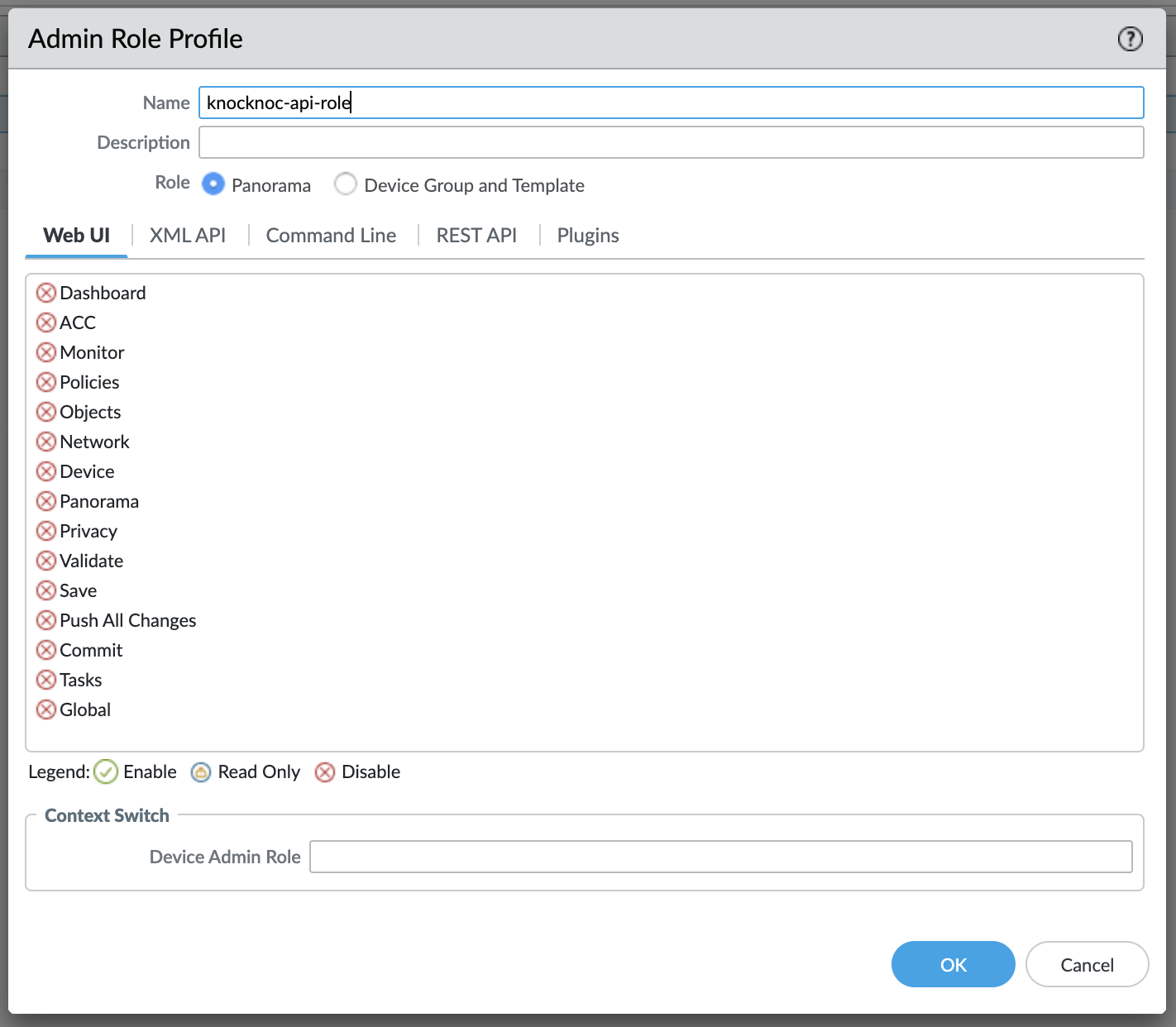
                                                        XML API: Operational Requests (to refresh the EDL) User-ID Agentcompleted (if using the User-ID option/checkbox in Knocknoc)Panorama)

                                                        Screenshot 2026-03-05 at 07.20.04.pngScreenshot 2026-03-05 at 07.20.09.png

                                                        Troubleshooting

                                                        Error 200150 - Failed to Register Tag

                                                        The agent was unable to register a tag on the firewall. Common causes:

                                                          API key does not have User-ID Agent permissions Firewall is unreachable from the agent Invalid VSys or serial number configuration

                                                          Error 200151 - Failed to Unregister Tag

                                                          The agent was unable to unregister a tag from the firewall. Same causes as 200150 - check API key permissions, connectivity, and configuration.

                                                          Error 200200 - HA Check Failed

                                                          The agent was unable to determine the HA state of the primary firewall. Common causes:

                                                            Primary firewall is unreachable API key does not have Operational Requests permission Unexpected HA state response

                                                            Common Issues

                                                              Tag not appearing in address group - Ensure the tag name in Knocknoc matches the address group match criteria exactly (case-sensitive). The match criteria uses single quotes: 'tag-name'. User-ID not enabled - The zone must have User Identification enabled for address group matching to work. API permission denied - Check that the admin role has the correct permissions for your chosen integration method. Panorama push required - After creating the address group, EDL, or security policy on Panorama, commit and push to devices. EDL not refreshing (Passive+) - Check agent logs for refresh errors. Verify the EDL name matches exactly. Published but not Read (Passive+/Passive) - The firewall hasn't polled the EDL yet. For Passive+, check the agent is triggering refreshes. For Passive, wait for the next poll interval.

                                                              Agent Diagnostics

                                                                Review orchestration agent logs for error details Verify API key validity and role permissions Confirm firewall/Panorama connectivity from the agent host Check EDL configuration and device commits

                                                                Certificate Management

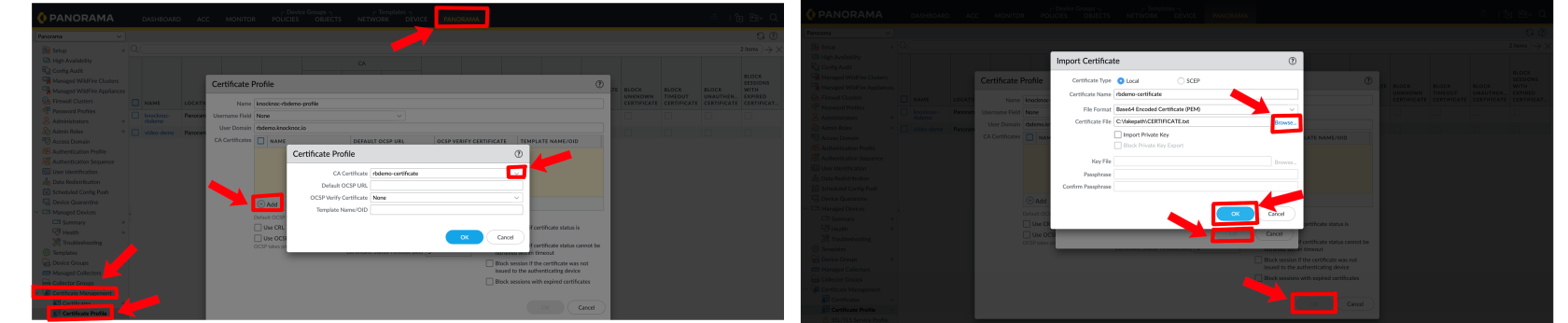
                                                                For strict HTTPS validation when firewalls retrieve EDLs, configure a CA certificate profile:

                                                                  Panorama: Navigate to Certificate Manager > Certificate Profiles
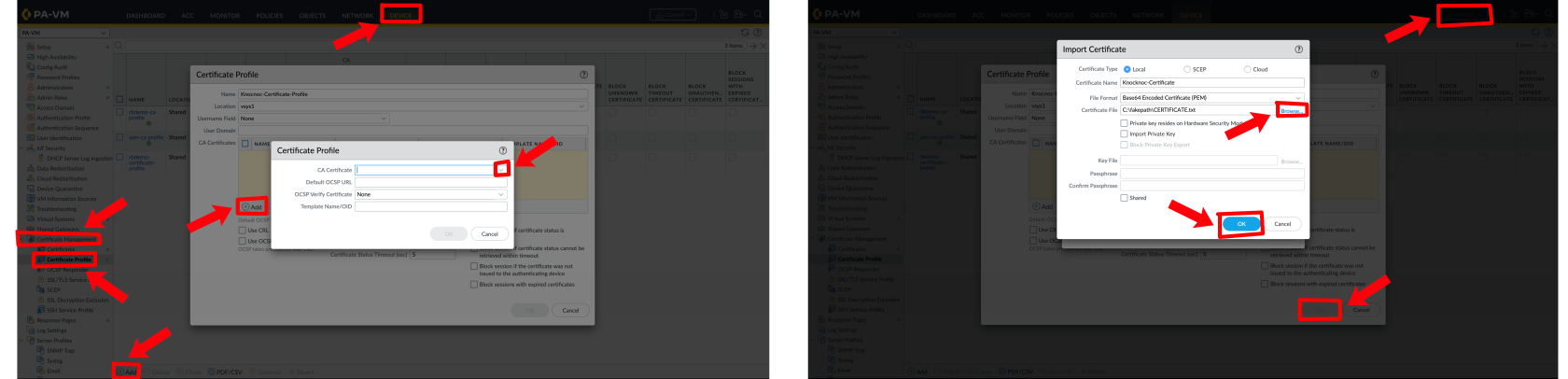
                                                                  certificate-profile.png

                                                                    Standalone Firewall: Navigate to Device > Certificate Management > Certificate Profiles

                                                                    Palo-Certificate-Profile.png

                                                                    Screenshot 2026-03-05 at 07.20.13.pngScreenshot 2026-03-05 at 07.20.17.pngReference the certificate profile in the EDL source configuration for enhanced security.

                                                                    Screenshot 2026-03-05 at 07.20.22.pngEDL-Server.png

                                                                    Still Having Issues?

                                                                    NowWe can help you have your role, create your user by going to Palo / Pano Administrators,
                                                                    Panoramaout - Panoramacontact -->us Administratorsat --> Add
                                                                    support@knocknoc.io.

                                                                    knocnoc-api-user.png 

                                                                    OR 

                                                                    Palo Alto - Device --> Administrators --> Add
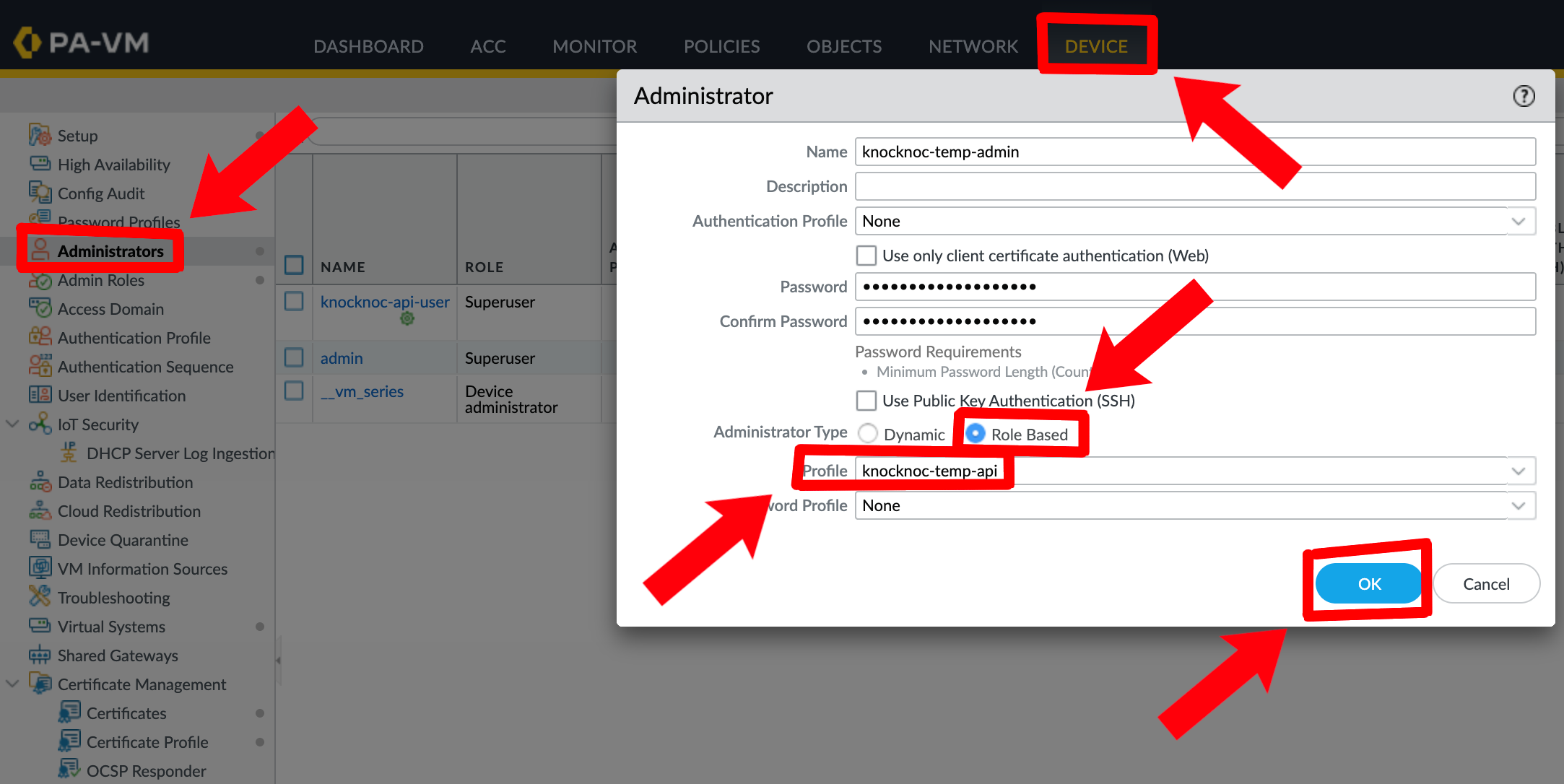
                                                                    pano-profile.png

                                                                    Now you have created the role, linked the user, and set a password, you need to interact with the Palo API to generate the API key. The orchestration agent has a utility for performing this action.

                                                                    Log in to your orchestration agent host, execute knocker enable panos:

                                                                     /opt/knocknoc-agent/knocker/knocker enable panos

                                                                    Follow the prompts, as below:

                                                                    $ /opt/knocknoc-agent/knocker/knocker enable panos
                                                                    Enabling backend panos on this machine.
                                                                    Note: Some operations may require sudo rights.
                                                                    PAN-OS Integration Setup
                                                                    Please provide the following information:
                                                                    PAN-OS Hostname or IP: 13.236.94.186
                                                                    Enter Username: knocknoc-api
                                                                    Enter Password:
                                                                    Generating API key for user 'knocknoc-api' on host '13.236.94.186'...
                                                                    Successfully retrieved API key.
                                                                    API Key: LUFRPT0vR...BlVHc9PQ==
                                                                    Please save this key securely. It will not be saved in the config.
                                                                    You can use this key to authenticate API requests.

                                                                    Once you have this base64 blob/API key, save it somewhere safe.

                                                                    Be sure to copy any terminating equals (==) signs.

                                                                    Alternatively the official Palo documentation suggests using Curl: curl -H "Content-Type: application/x-www-form-urlencoded" -X POST "https://firewall/api/?type=keygen" -d 'user=<user>&password=<password>'

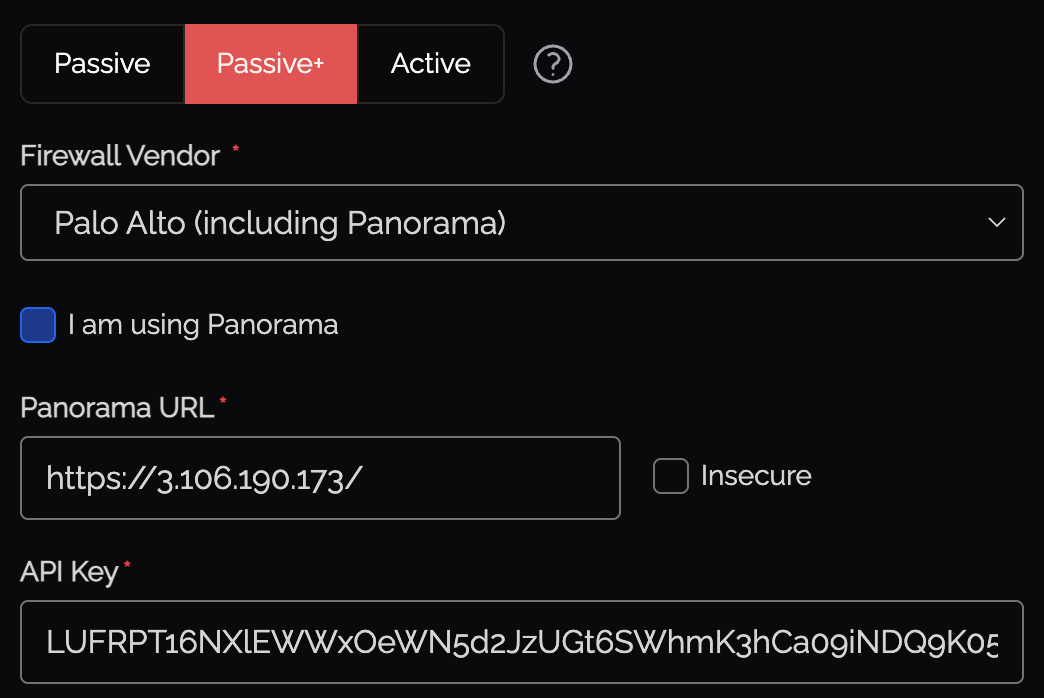
                                                                    Place the API key in Knoc, you should have something similar to the screenshot below
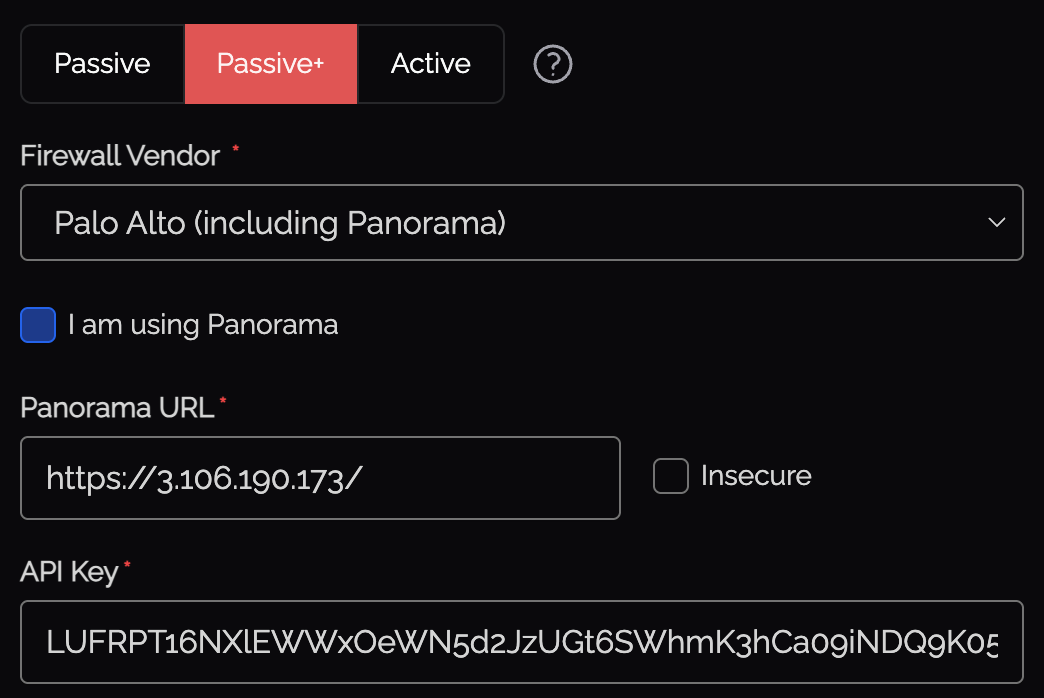
                                                                    progress-1.png

                                                                    Complete the remaining data as required, and click Next.

                                                                    new_palo.png

                                                                    EDL Secret

                                                                    Your Knocknoc Server publishes the EDL for collection, which requires an incoming EDL secret or username/password to be provided by the Palo Alto firewall device (even when using a Panorama), to ensure the confidentiality of the IP address lists.

                                                                    This is the EDL secret within the Knoc creation flow as outlined below.

                                                                    Noting this secret becomes the users password, in the case of Palo Alto. You can opt for no password, or to re-use an existing key, along with restricting by IP address source, who can present and use the key for access.

                                                                    Set any IP allowlisting restrictions - this is the IP of the firewall. Note the firewall will be polling/retrieving the EDL, even with a Panorama in place. Naturally we recommend removing the "entire Internet" rules and being more specific. These IP restrictions can be edited later through the Knoc's EDL Security section.
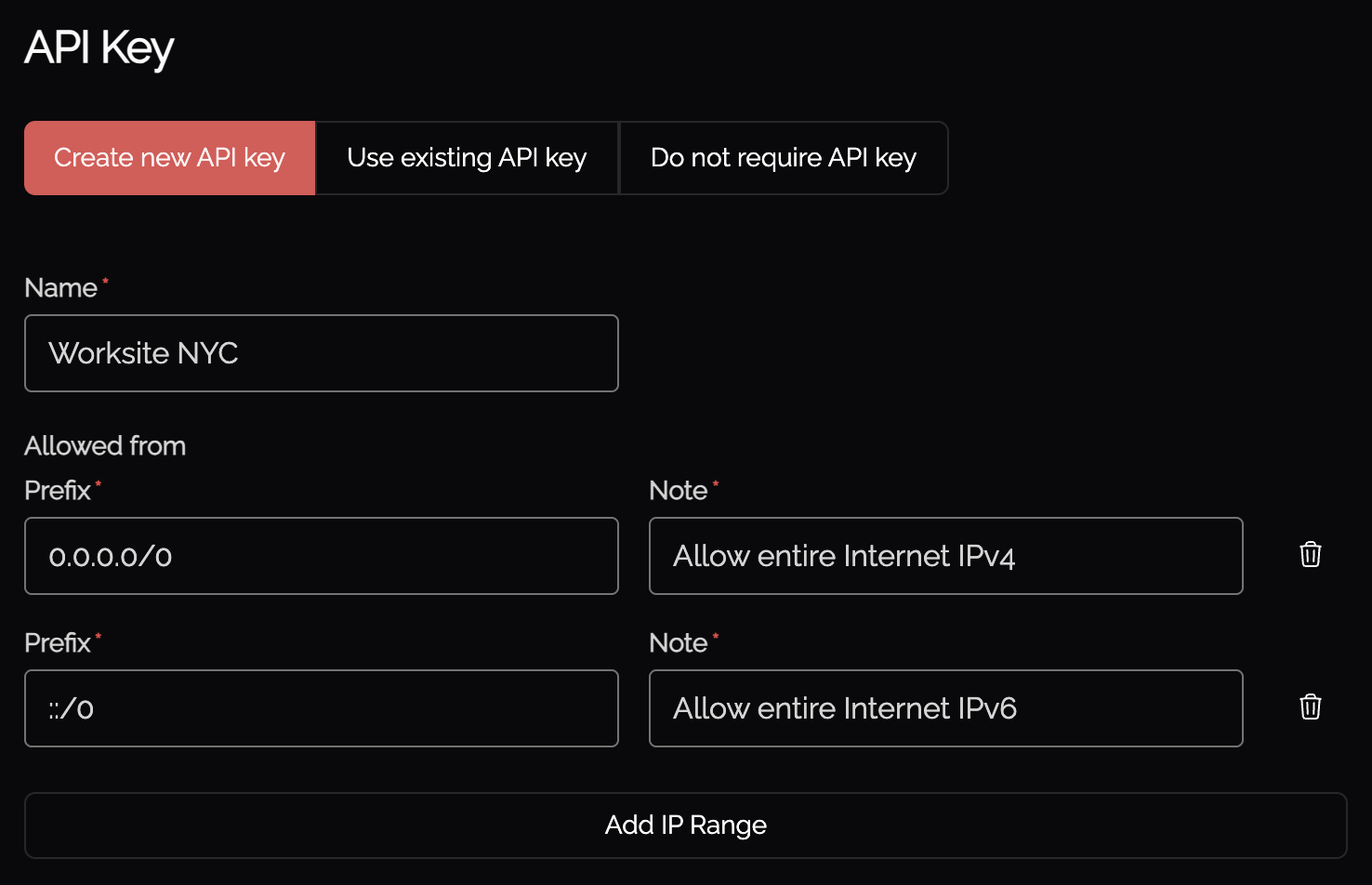
                                                                    image.png

                                                                    Be mindful of the IP address restrictions, by default it will allow the entire IPv4/IPv6 Internet.

                                                                    The next steps occur in your Palo Alto devices.

                                                                    Configuring the External Dynamic List (EDL)

                                                                    1. Log in to the Palo Alto or Panorama
                                                                    2. Under Objects, External Dynamic Lists, click Add+ for a new list.
                                                                    3. Create a name for the list, noting this is per Knoc - allowing a per-policy list, for example "FirewallManagers" and "SSH" may be two Knoc's that map to different firewall policies.
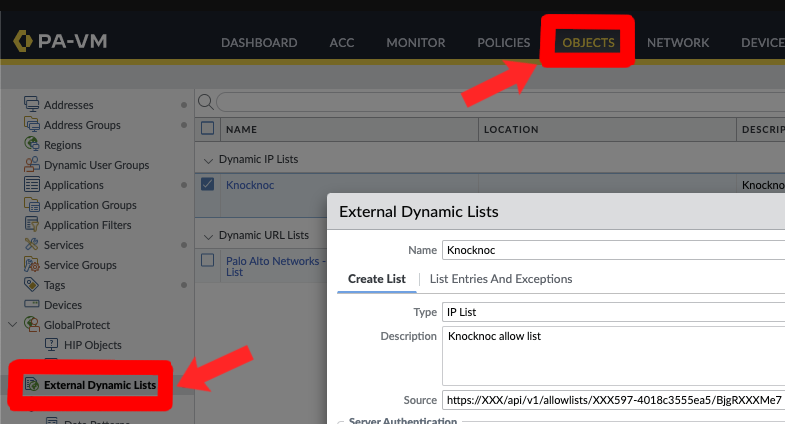
                                                                    EDL-point.png

                                                                    We will fill in the source later - leave this tab open as we finish the API integration first which will give us the 'Source'.

                                                                    EDL Access URL

                                                                    Back in Knocknoc, assign the relevant users/groups to the Knoc, and submit the final configuration.

                                                                    You will now be presented with data similar to the below:
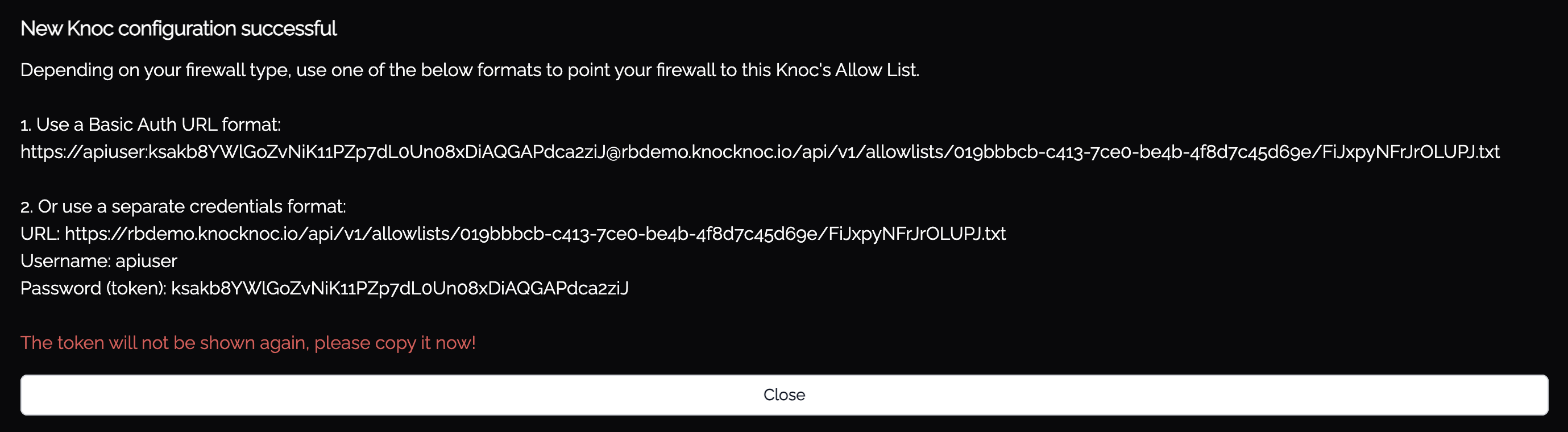
                                                                    image.png

                                                                    You have two options with Palo Alto, either using the "1. Use a Basic Auth URL format" option or "2 Use separate credentials".

                                                                    The option-1 basic auth url is simpler and does not require a ca-profile to be configured, this is the most convenient.

                                                                    The Basic Auth URL can be copied from the above and pasted into the 'Source' for the EDL, within Palo Alto.
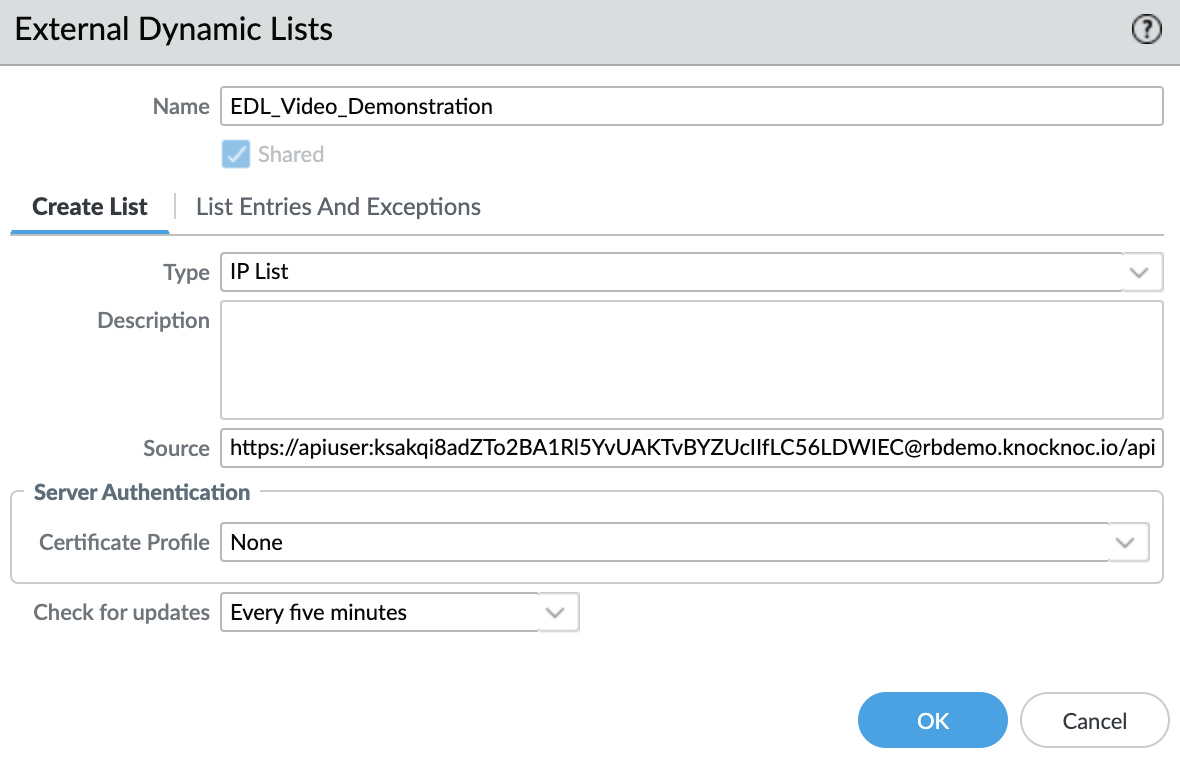
                                                                    image.png

                                                                    Save and Commit this to your Palo Alto environment.

                                                                    Using the Dynamic Address in Firewall Rules

                                                                    The EDL can be selected within the Source Address section. This is effectively a dynamically updated list of authenticated and authorised users IP addresses. You can inspect the EDL contents in a number of ways. Remember to set your Source Zone and Destination Zones.
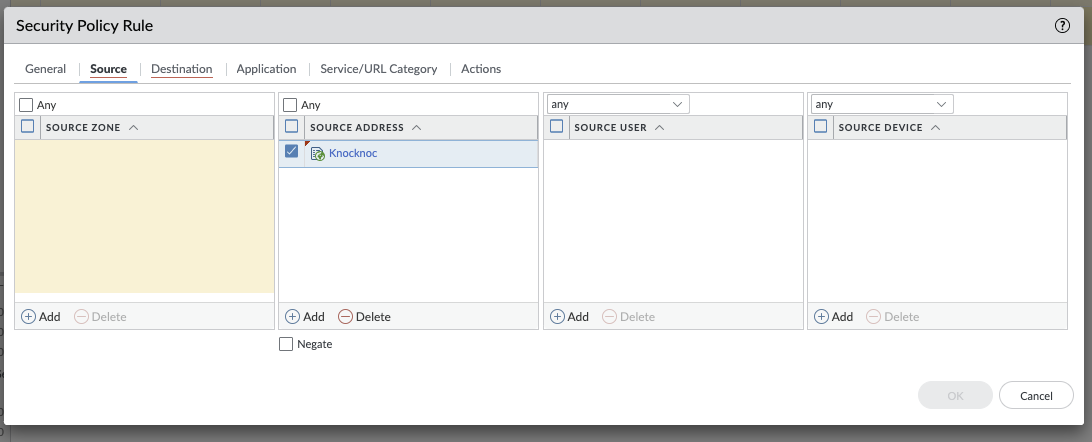
                                                                    Screenshot 2025-02-05 at 23.54.09.png

                                                                    You're now good to go! To test as a user, ensure you assign them and or their group to the knoc as seen below.
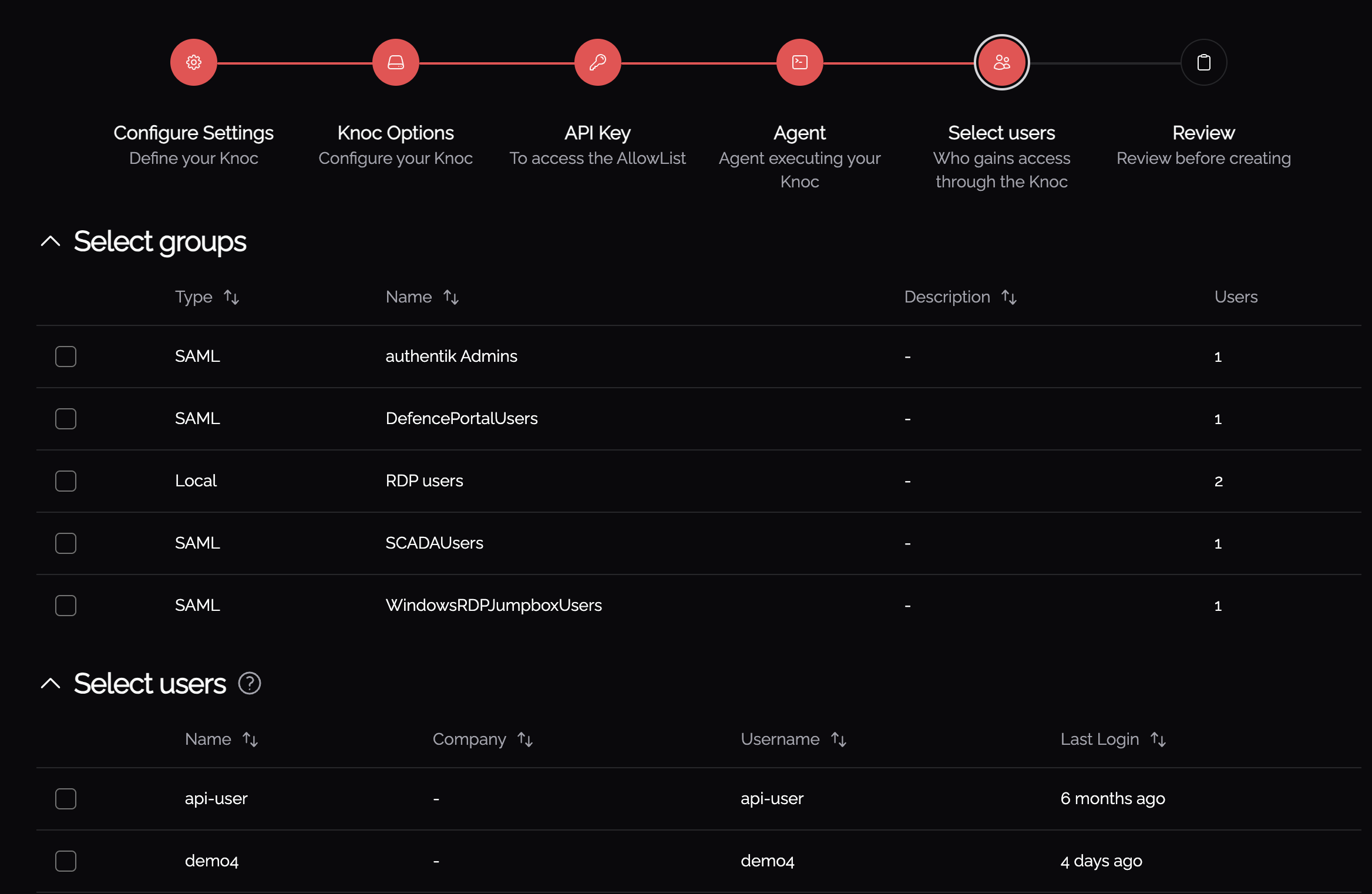
                                                                    knoc-users.png

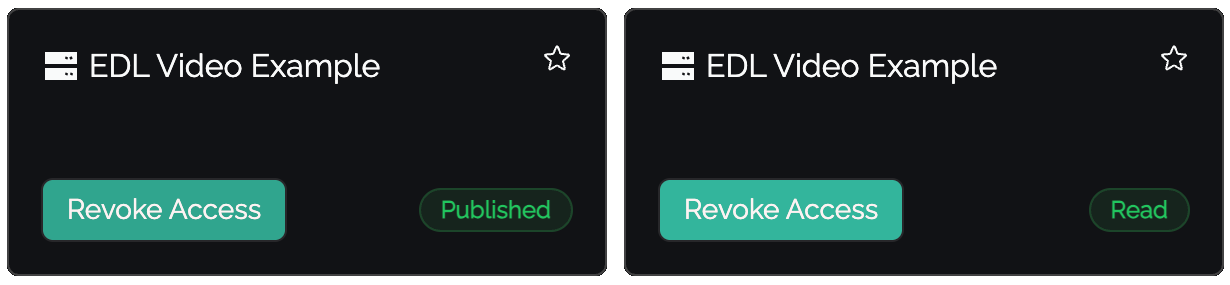
                                                                    To test as a user, make sure to visit their access page. When a user is requesting access they'll see 'Published', meaning the request has been sent, and 'Read' when it has been processed and accepted and can now access the application. 
                                                                    knoc_published_read.png

                                                                    Importantly to see IP's being added and removed, you have to be in your Palo specifically and not your Pano.
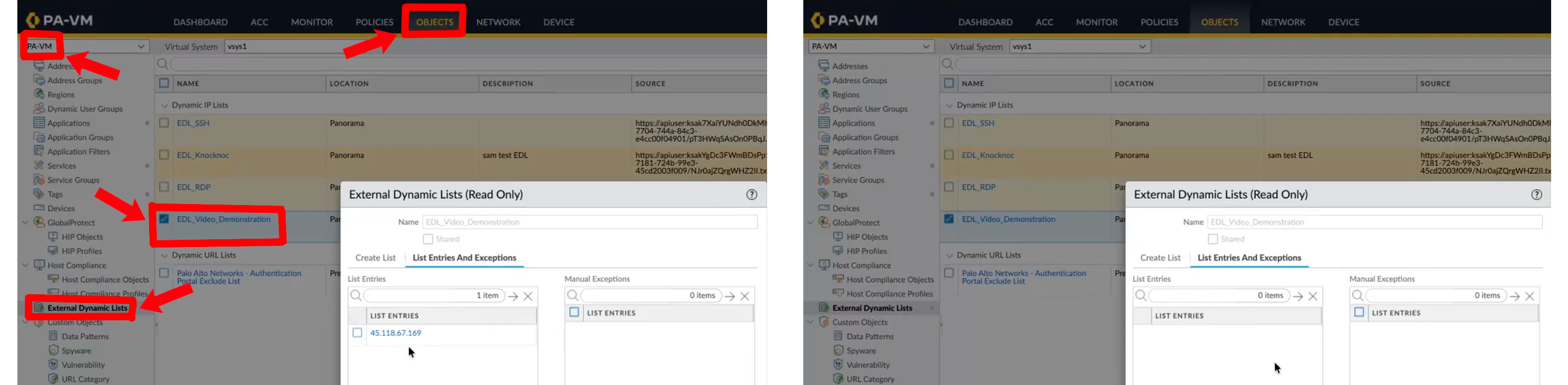
                                                                    IP-changes.png

                                                                    If you are having issues remember to commit with Panorama / Palo Alto, and push to the devices.
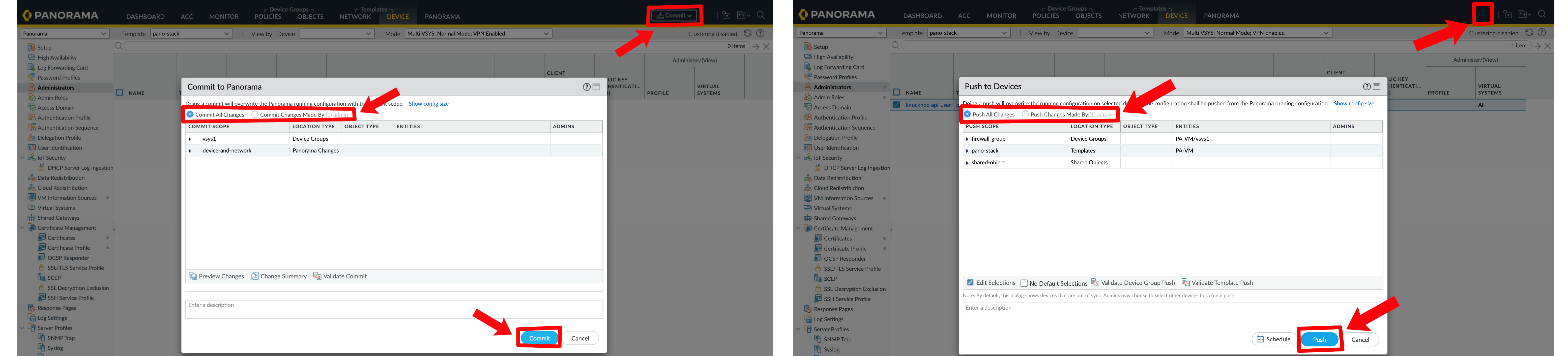
                                                                    pano-commit-push.png

                                                                    Passive+ Checklist 

                                                                    ✅ Your Knoc has the correct settings;

                                                                    • ✅ If you're using Panorama you've ticked that box
                                                                    • ✅ Your URL matches correctly to what you've entered into the Knoc's settings
                                                                    • ✅ If you're using an insecure URL, you've ticked 'insecure'

                                                                    ✅ You've added in the correct API Key

                                                                    • ✅ You've created the custom role with the appropriate permissions
                                                                      • Minimum perms for the role include:
                                                                        • XML API: Operational Requests
                                                                        • REST API: External Dynamic Lists
                                                                    • ✅ Matching API admin to the API role
                                                                    • ✅ You've made the API key with the correct IP, username, and password with the appropriate role added

                                                                    ✅ The EDL Name is correct and has been made WITH the API source added from the end at the creation of the Knoc

                                                                    ✅ The dynamic address in firewall rule has been configured to reference the source EDL

                                                                    Option 2 - Passive mode

                                                                    If you prefer to use Passive mode, follow the below.

                                                                    1. Configure the Knocknoc Server: Set up a Passive Knoc.
                                                                    2. EDL Configuration: Configure the Palo to point the EDL to the Knocknoc server. You also need to extract the server CA/chain for the Palo to verify the server.
                                                                    3. Security Policy Rule: Create a firewall policy in the Palo referencing the dynamic address/group being managed by Knocknoc.

                                                                    Knoc configuration

                                                                    Create a Knoc under Firewalls/Appliances. Select Passive. Note that no Agent is required for this configuration as the Server is publishing/hosting the Allowlist.
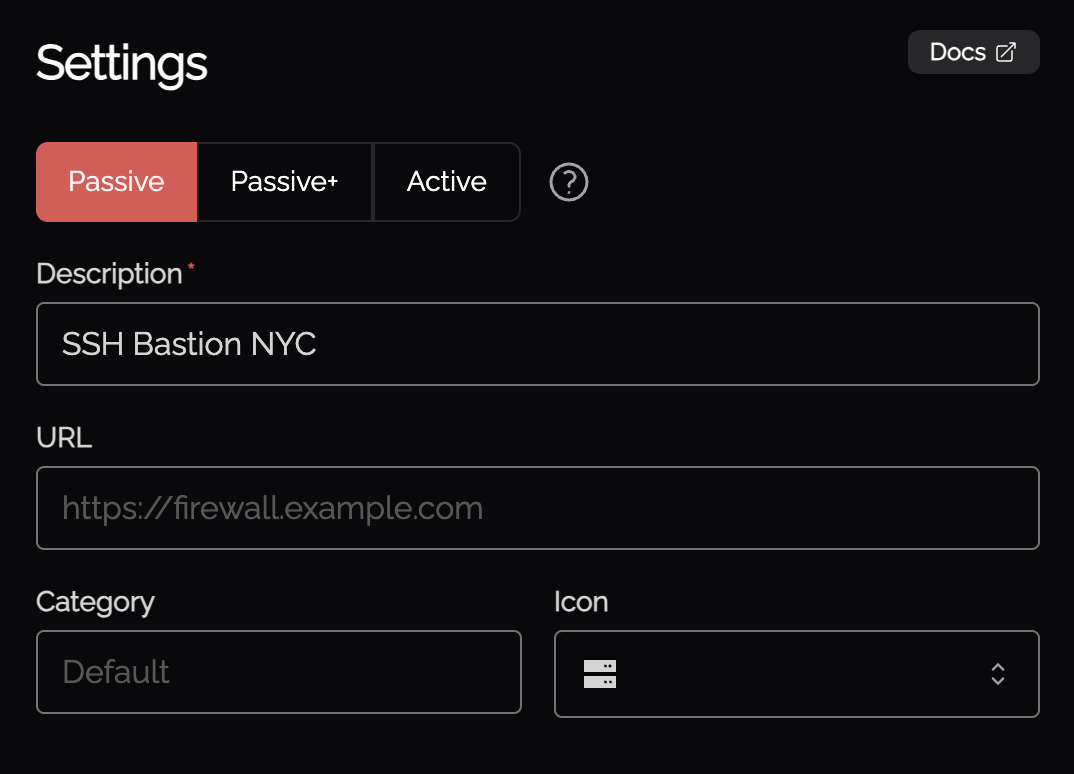
                                                                    image.png

                                                                    Passive Checklist 

                                                                    ✅ Your Knoc has the correct settings, having chosen the correct URL of choice

                                                                    Option 3 - Active (API) mode

                                                                    Active will update the address group for each users requested access grant, this will update the access list immediately. 

                                                                    1. Configure the Knocknoc Server: Set up an Active Knoc, noting some configuration data is required from the Palo  Alto environment.
                                                                    2. Security Policy Rule: Create a firewall policy in the Palo referencing the dynamic address/group being managed by Knocknoc.

                                                                    Knoc configuration

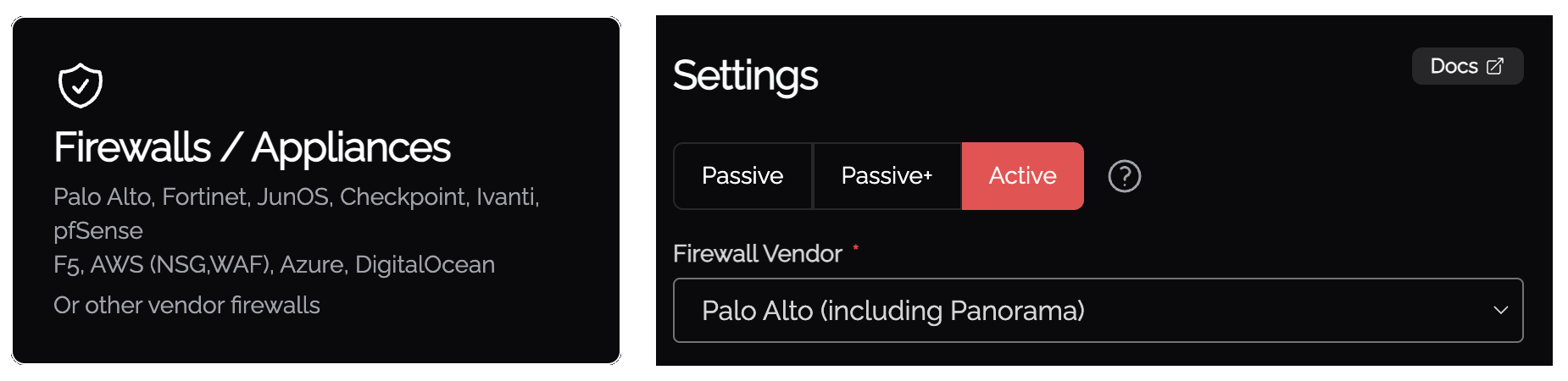
                                                                    Select the "Firewalls / Appliances" Knoc configuration, selecting "Passive+" or "Active"
                                                                    firewall-active.png

                                                                    Follow the prompts, as below, entering the API key as created above:
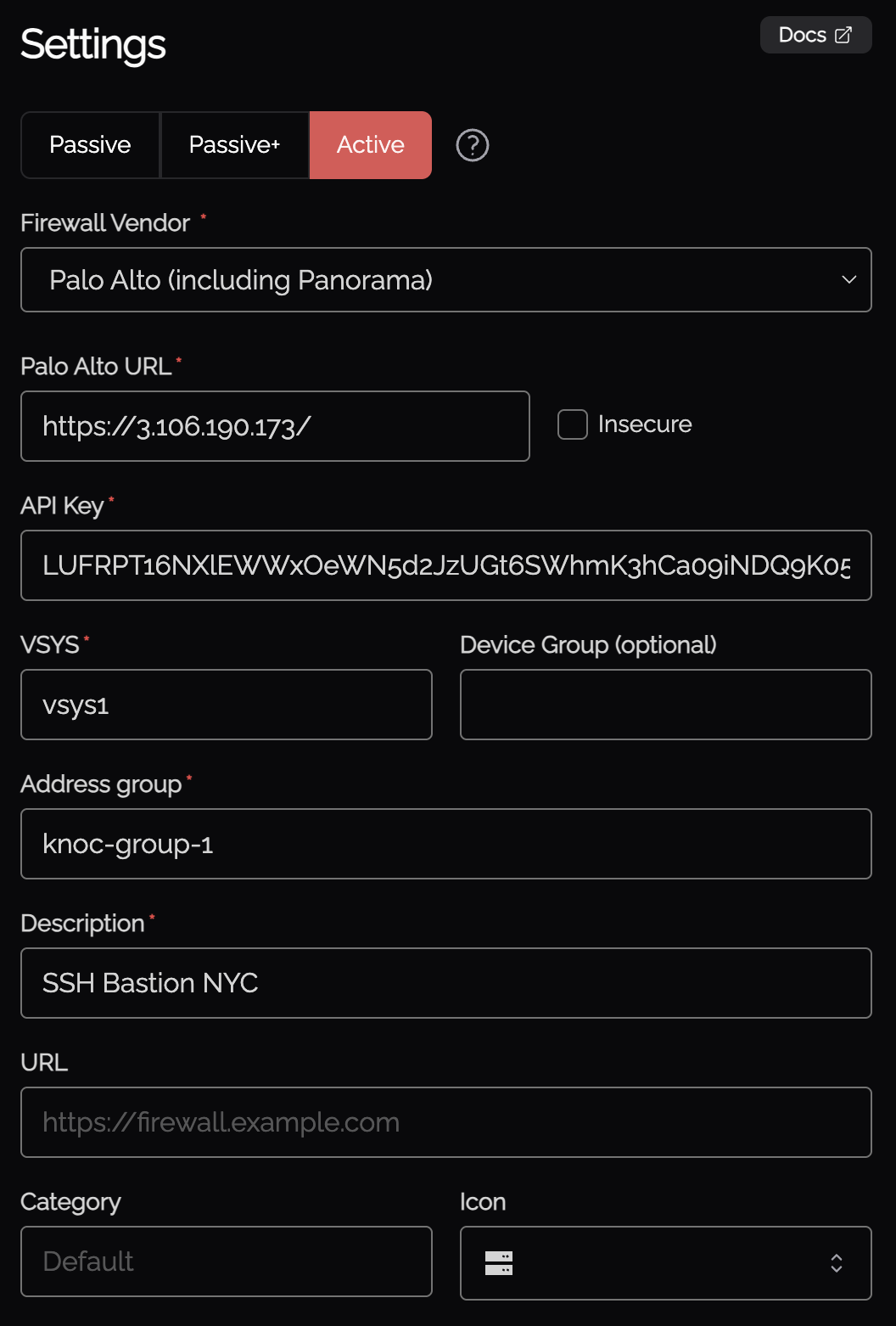
                                                                    image.png

                                                                      Select the Agent you want to execute the Knoc from. We recommend deploying an Agent adjacent to the Palo devices and remove external attack surface on the Palo.

                                                                      Once an authorized user logs in to Knocknoc that is linked to the Active Palo Knoc, they will appear within the Palo address group. On logout, the IP address is removed from the address group.

                                                                      Active API permissions

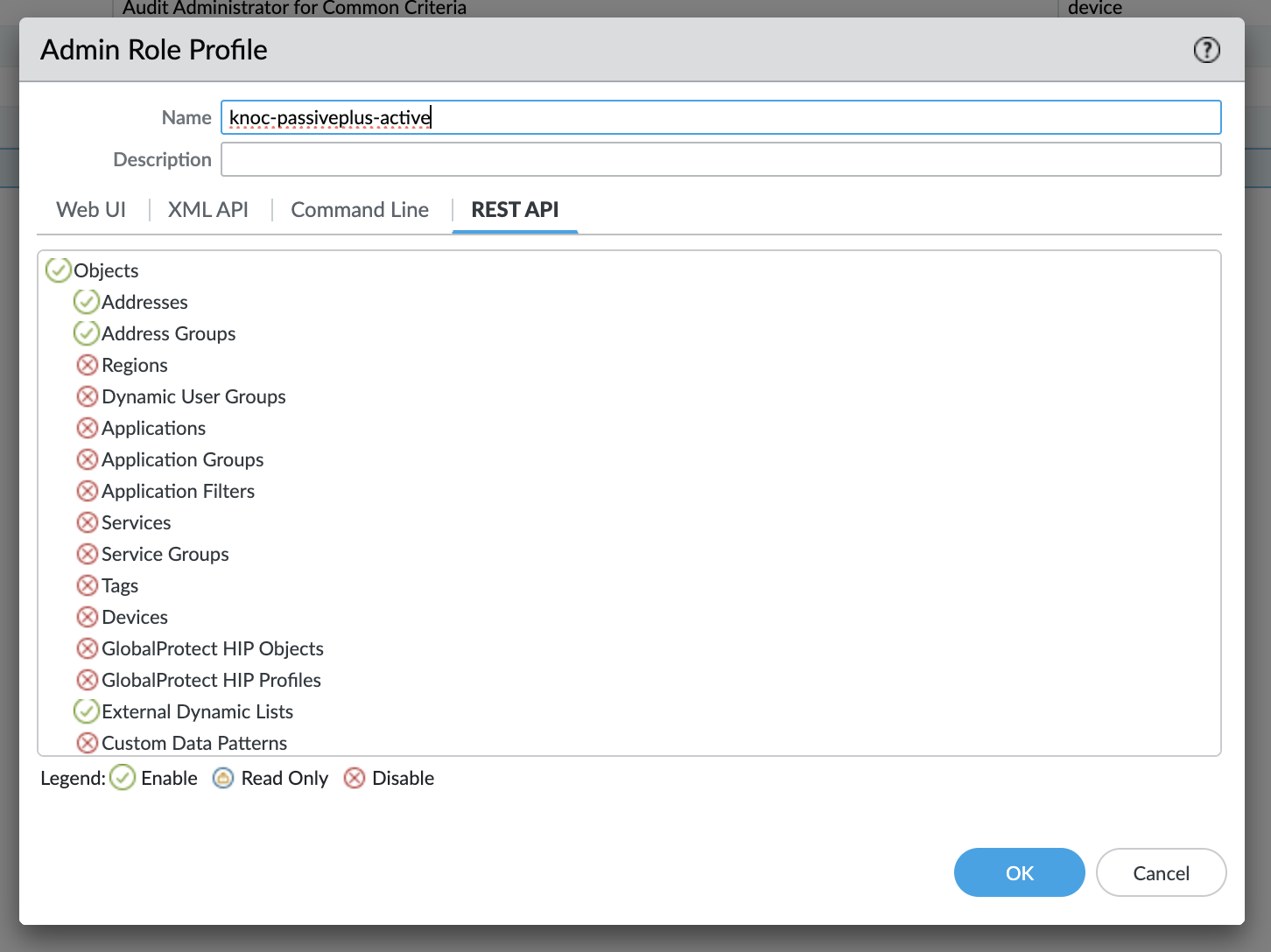
                                                                      For Active, the API configuration is the exact same as Passive+, except with these permissions below:

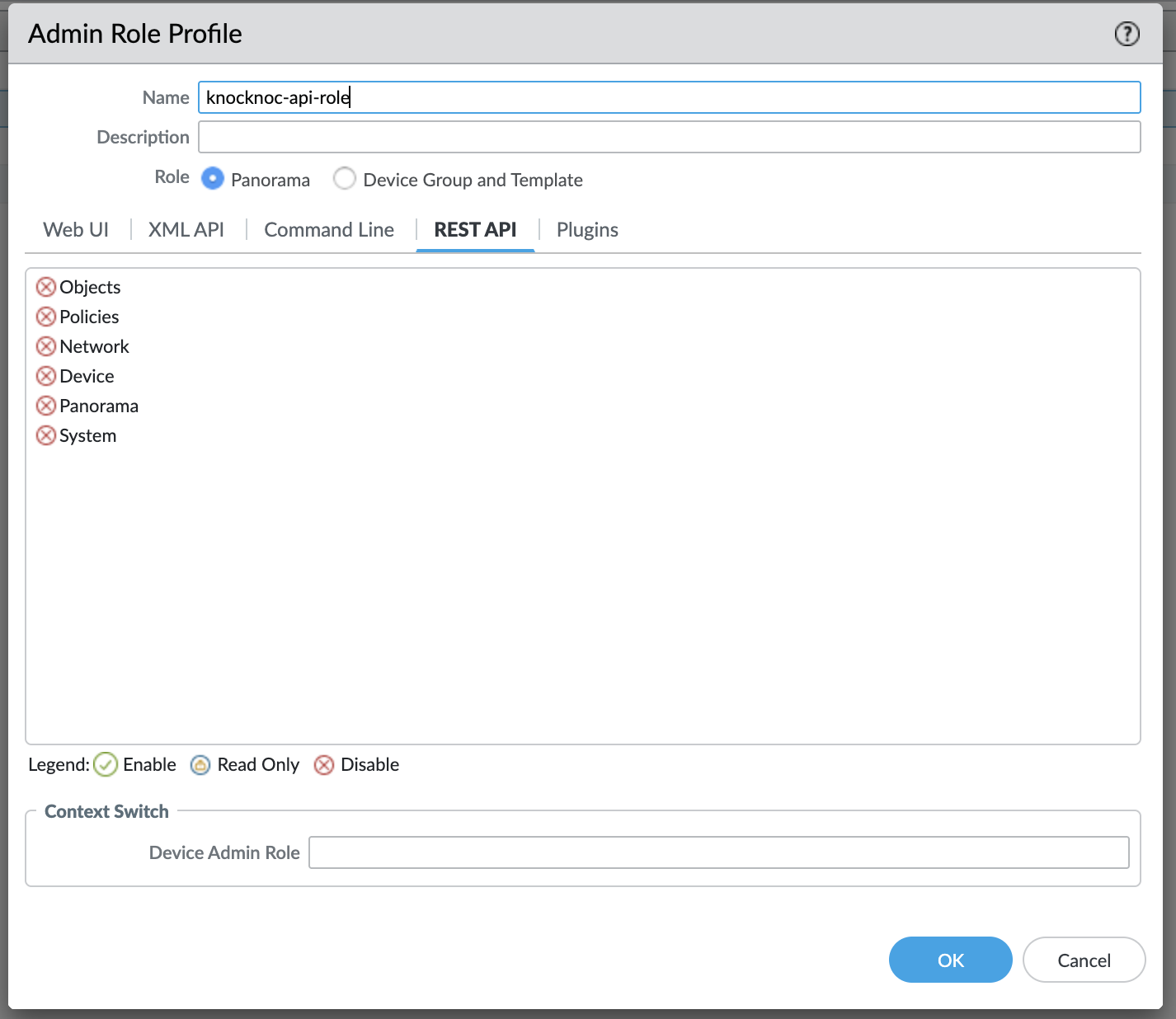
                                                                      REST API: Addresses, Address Groups
                                                                      knoc-active.png

                                                                      Address Group

                                                                      You'll also need an address group for all the addresses to go into
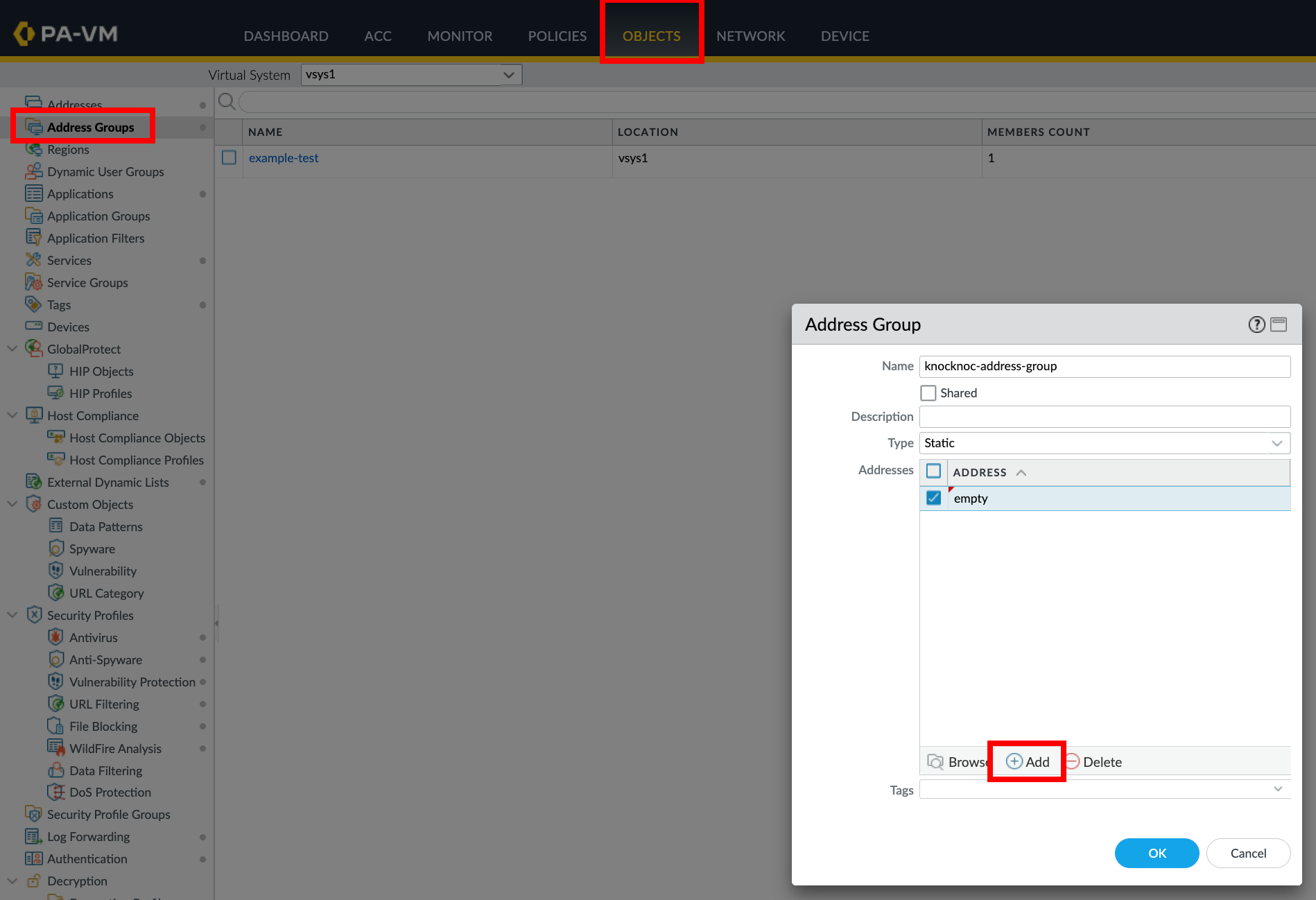
                                                                      palo address group.png

                                                                      Active Checklist 

                                                                      ✅ Your Knoc has the correct settings;

                                                                      • ✅ If you're using Panorama you've ticked that box
                                                                      • ✅ Your URL matches correctly to what you've entered into the Knoc's settings
                                                                      • ✅ If you're using an insecure URL, you've ticked 'insecure'

                                                                      ✅ You've added in the correct API Key

                                                                      • ✅ You've created the custom role with the appropriate permissions
                                                                        • Minimum perms for the role include:
                                                                          • REST API: Addresses, Address Groups
                                                                      • ✅ Matching API admin to the API role
                                                                      • ✅ You've made the API key with the correct IP, username, and password with the appropriate role added

                                                                      ✅ The Address Group has been added and firewall policy made

                                                                      ✅ You've committed your work

                                                                      User experience and EDLs

                                                                      When your user logs in they will see "Published" alongside the relevant access item. This means their IP address or access information has been "published" and is awaiting consumption by the relevant firewall/system.

                                                                      Once the firewall/system polls or "reads" the EDL, the state will change from Published to Read, signalling to the user their access has been established on the relevant back-end environment.

                                                                      knoc_published_read.png

                                                                      API role/permissions

                                                                      Knocknoc/Palo orchestration mode API access and permissions required
                                                                      Passive No API access is required
                                                                      Passive+ XML: Operational Requests

                                                                      Passive+ with "map user ID" enabled

                                                                      XML: Operational Requests, UserID Agent
                                                                      Active REST API: Addresses, Address Groups

                                                                      Active with "map user ID" enabled

                                                                      XML: User-ID Agent

                                                                      REST API: Addresses, Address Groups

                                                                      Troubleshooting

                                                                      If you're experiencing errors the first step is checking the Agent logs, permissions or user-access tokens may be invalid or incorrect.

                                                                      Is the EDL configured? Has the change been committed to the Panorama or Palo Alto device?

                                                                      Do you get errors on the Agent?

                                                                      If you're finding that Passive+ is taking too long, you can tune the retries using these settings in the Agent config file:

                                                                      PanosRetry = 16
                                                                      PanosWait = 2

                                                                      Where Retry is the number of re-tries, and Wait is the number of seconds to wait between retries.

                                                                      A note on EDL and HTTPS CAs

                                                                      Whilst the EDL method uses HTTPS, using the https://username:token/ method may not adequately validate TLS/SSL certificate authorities. To use strict mode, use a CA profile as below:

                                                                      Panorama - Certificate Manager --> Certificate Profile --> Add --> Add --> CA Certificate Dropdown Menu --> Certificate File Browse --> Commit
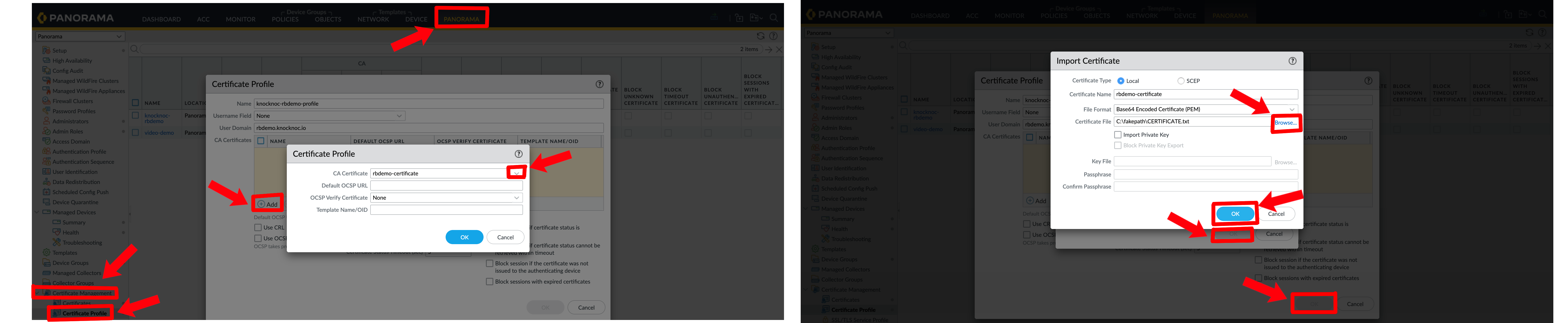
                                                                      certificate-profile.png

                                                                      Palo Alto - Device --> Certificate Management --> Certificate Profile --> Add --> Add --> CA Certificate Dropdown Menu --> Certificate File Browse --> Commit
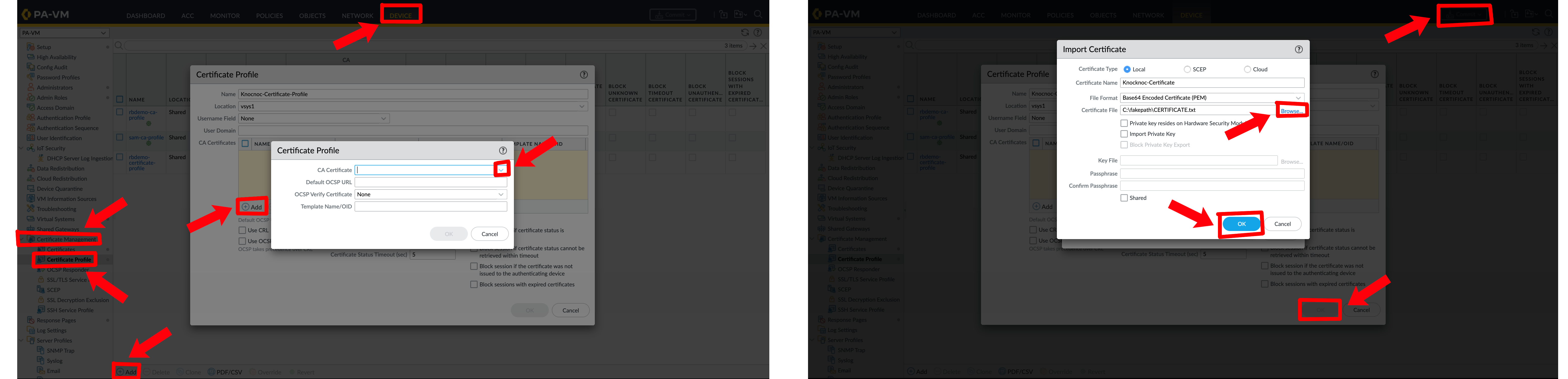
                                                                      Palo-Certificate-Profile.png

                                                                      Select the certificate profile in the EDL (same spot as EDL from prior findings)
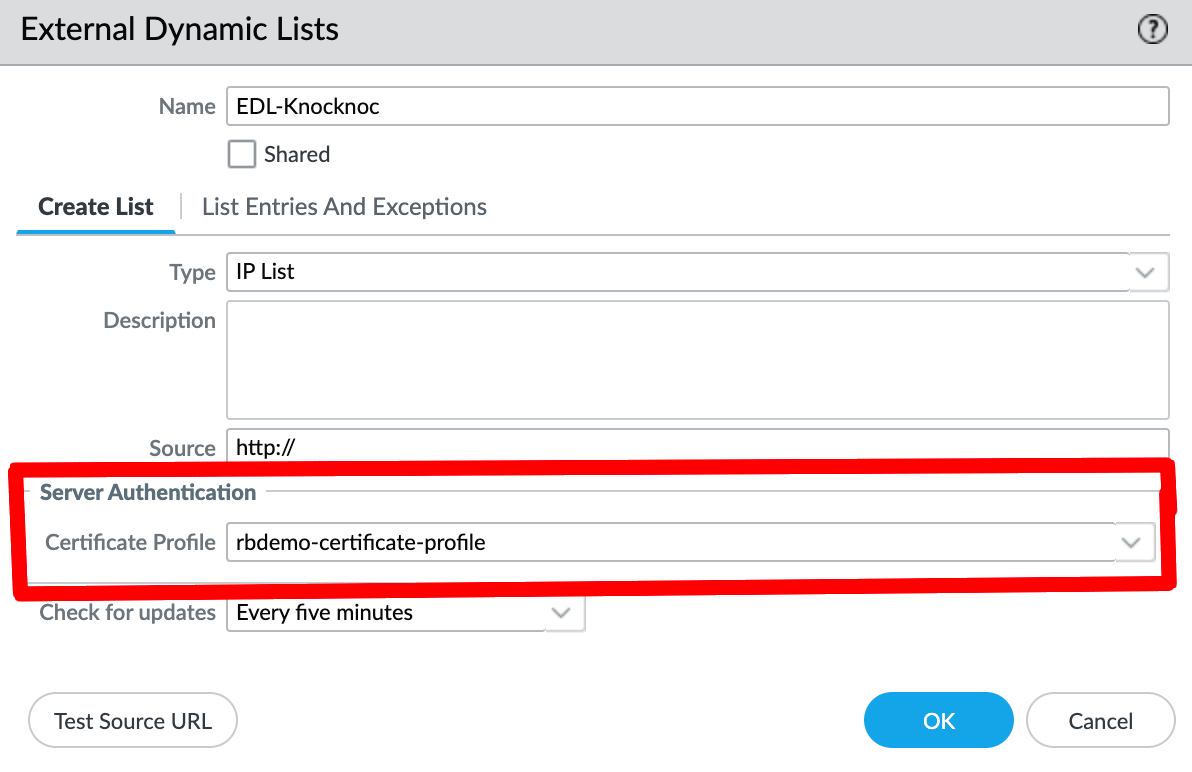
                                                                      EDL-Server.png